Basics of Mixing – 7.3 Using Delay

Hello! I’m Jooyoung Kim, a mixing engineer and music producer.

Today, I’m going to talk about how to effectively use delay in your mixes.

Let’s get started!


Delay is often used during the composition stage.

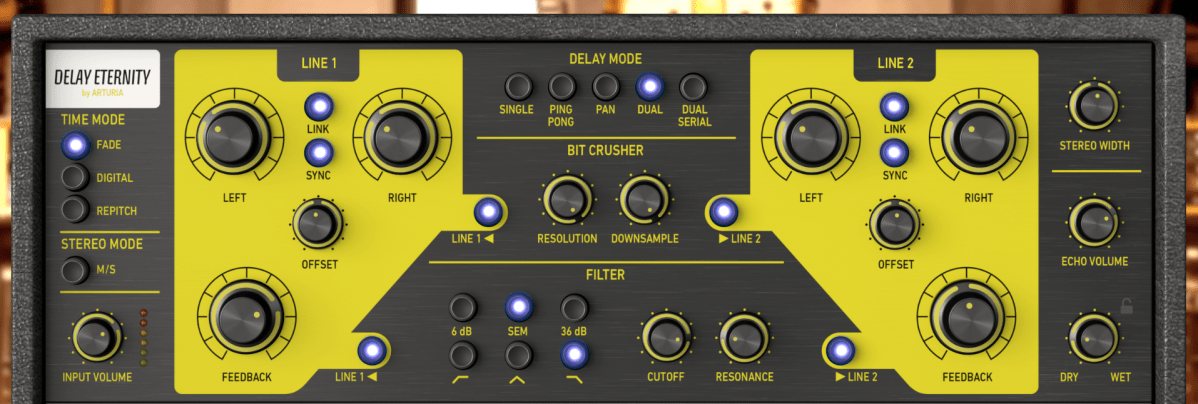
For instance, on instruments like guitars and electric pianos (EP), you can use the Feedback control to create a long-lasting echo, or apply a Ping Pong delay to bounce the effect between the left and right channels. In such cases, delay is usually synced to the BPM of the track.

From an audio perspective, when working with EPs that frequently use Auto Pan, you can send the signal to a delay, then apply the same Auto Pan effect to the delay, making the delay move left and right along with the instrument.

You can also add saturation to the delay to achieve a unique echo effect.

When using delay in sound design, it generally serves two purposes, as discussed in “7.1 What is Delay?”:

  1. To create natural reverberation, often in combination with reverb.
  2. To add an artificial groove to the source.

When using delay, it’s common to filter out the high frequencies to make the effect more natural. Low frequencies are often filtered out as well to prevent interference with the original sound. Keep these concepts in mind as we explore further.

Let’s start with the first use case.
Kaplanis, Neofytos & Bech, Søren & Jensen, Søren & Waterschoot, T.. (2014). Perception of reverberation in small rooms: A literature study. Proceedings of the AES International Conference. 2014.

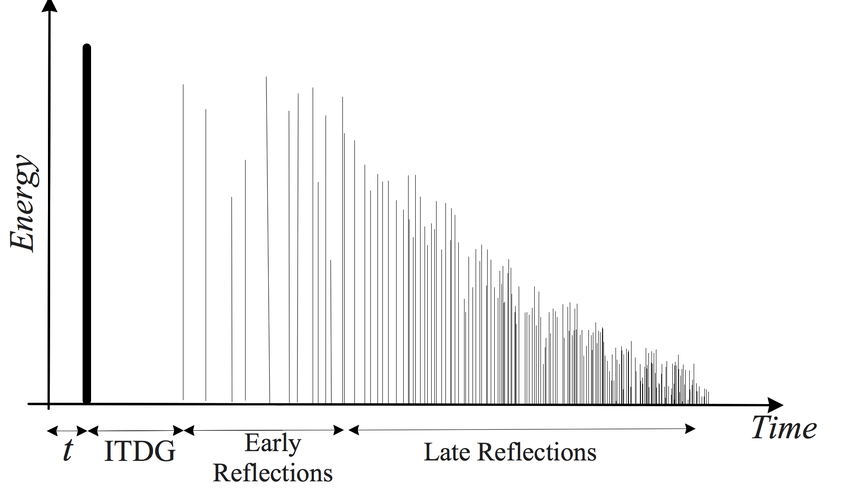
I’ll discuss this more when we cover reverb, but the graph above is a simple representation of how sound behaves in a space, showing how volume changes over time.

The bold line at the beginning represents the direct sound, followed by Early Reflections, which are the first reflections that bounce off the walls, and finally, the Late Reflections, which are the numerous echoes that occur after multiple reflections.

The point at which the sound level drops by 60dB from its initial value is known as RT60 or T60 (Reverberation Time 60). This is the reverberation time you see in reverb plugins.

The purpose of using delay in this context is to enhance the Early Reflections, making them sound more natural. While reverb alone can simulate Early Reflections, combining it with delay can produce an even more natural sound. If you set the Feedback value so that the delay fades out around the same time as the reverb, you can create a more seamless and natural reverberation.

I haven’t included an example because it’s time-consuming to create, but I believe you’ll notice a significant difference when you try it yourself.

Now, let’s move on to the second use case.
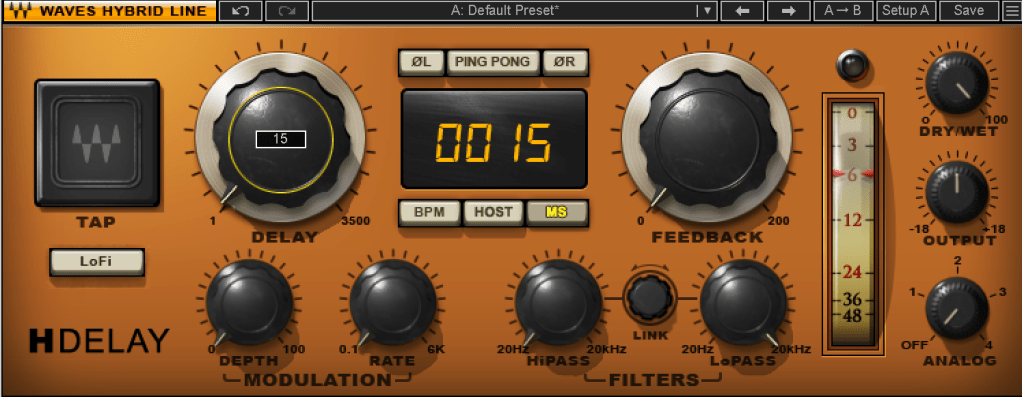
When using delay for groove, the Feedback value is typically set to zero, and the delay time is kept very short, usually between 10 to 50 milliseconds.

Where can you use this type of delay? Essentially, on any source in a track that needs a groove, whether it’s a kick, snare, clap, bass, or even vocals.

Of course, depending on the track, not using delay might sound better. It’s important to listen and decide whether it suits the song.

Initially, these techniques might seem subtle, but such details can significantly impact the quality of your track. That’s why it’s important to experiment and listen closely.

On a side note, I’ve finally finished writing the manuscript for the mixing book I’ve been working on. I was fortunate enough to receive a recommendation from a well-known figure, but the publication is delayed due to copyright issues with the photos.

For example, Antelope responded the day after I reached out, saying, “Feel free to use everything! Have a great day!” in a very casual tone. On the other hand, Universal Audio said their legal team would review my request and get back to me. I first contacted UA on July 31st, and I’m still waiting for their response… Hopefully, they’ll reply soon… 😢

I’ll see you in the next post! 🙂
Cableguys FilterShaper XL Sale (Until 8/31)

Hello! I’m Jooyoung Kim, a mixing engineer and music producer.

Today, I wanted to share an exciting deal from one of my favorite companies, Cableguys, who are currently offering a discount on their FilterShaper XL plugin.

As with my recent plugin reviews, I received an NFR (Not for Resale) code from Plugin Boutique for this product.

Let’s dive in!

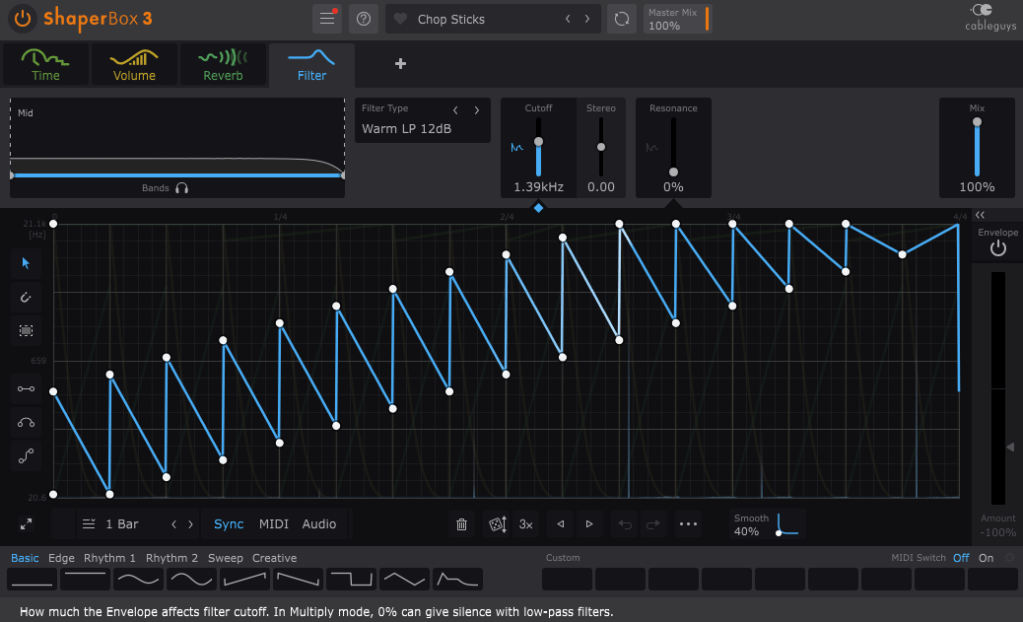
FilterShaper Core in ShaperBox 3

Cableguys is known for their best-selling product, ShaperBox.

ShaperBox can inject an artificial groove into your instruments, and I found it so compelling that I purchased it myself before I even partnered with Plugin Boutique.

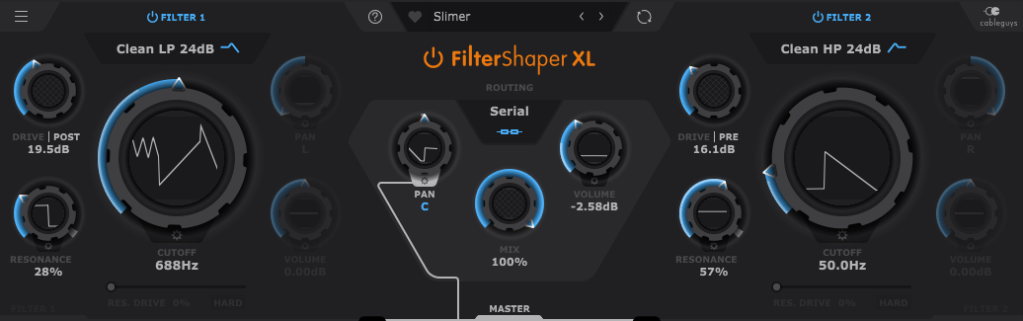
Within ShaperBox, there’s a tool called FilterShaper Core. FilterShaper XL is essentially an enhanced version of FilterShaper Core, with additional parameters and features.

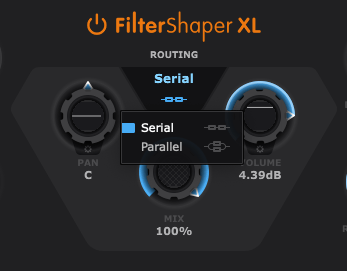
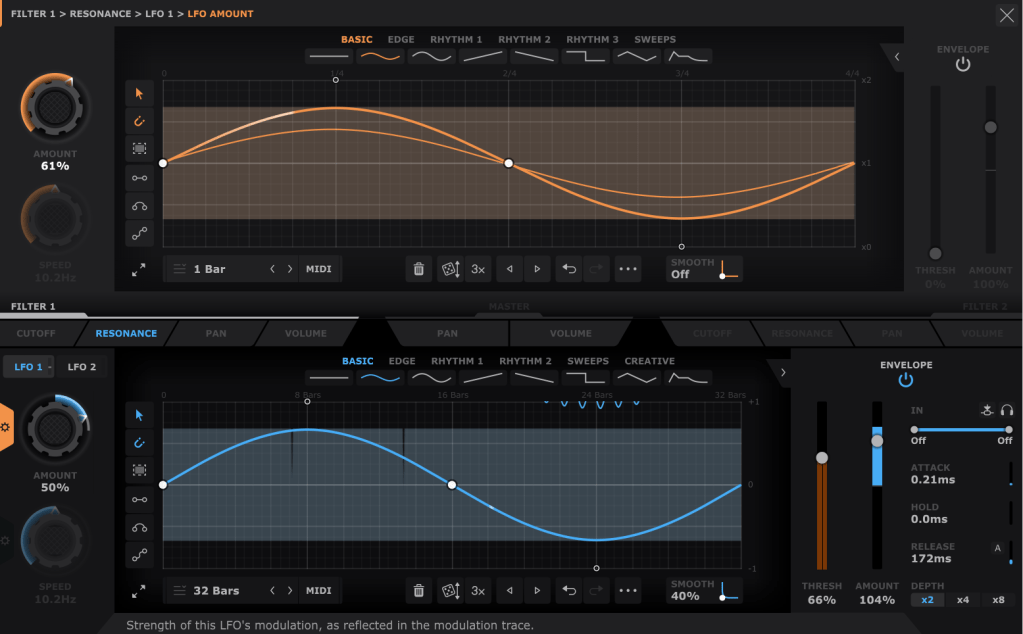
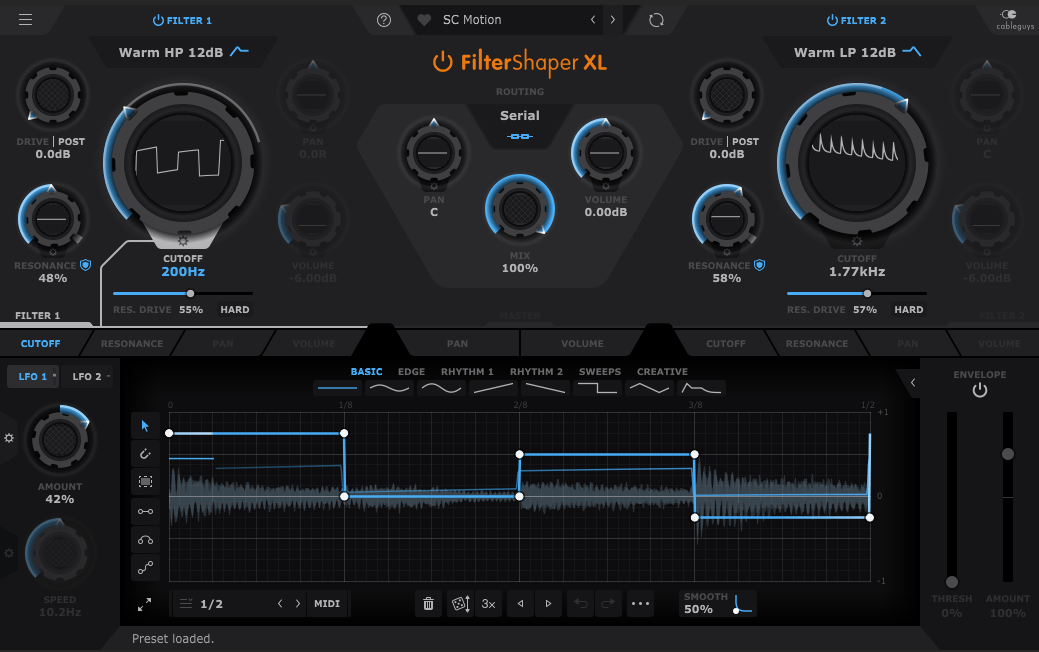
Looking at the UI, you’ll notice it’s split into left and right sections. Both sides represent filters, and the central Routing button allows you to choose between serial or parallel connections.

Pan, Mix, and Volume controls are likely familiar to most of you, so I’ll skip explaining those..:)

Now, let’s explore the filters!

If you’ve used filters before, this should feel intuitive. Even if you’re less experienced, you’ll probably grasp the basics of Cutoff (which determines the frequency at which the sound is attenuated), Pan, and Volume.

The Drive control allows you to choose between Pre and Post settings. Adding Drive enhances harmonics and can act somewhat like a compressor as the sound level increases and then decreases at a certain point.

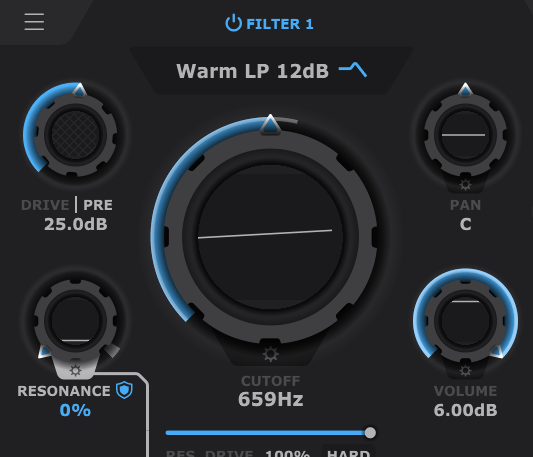
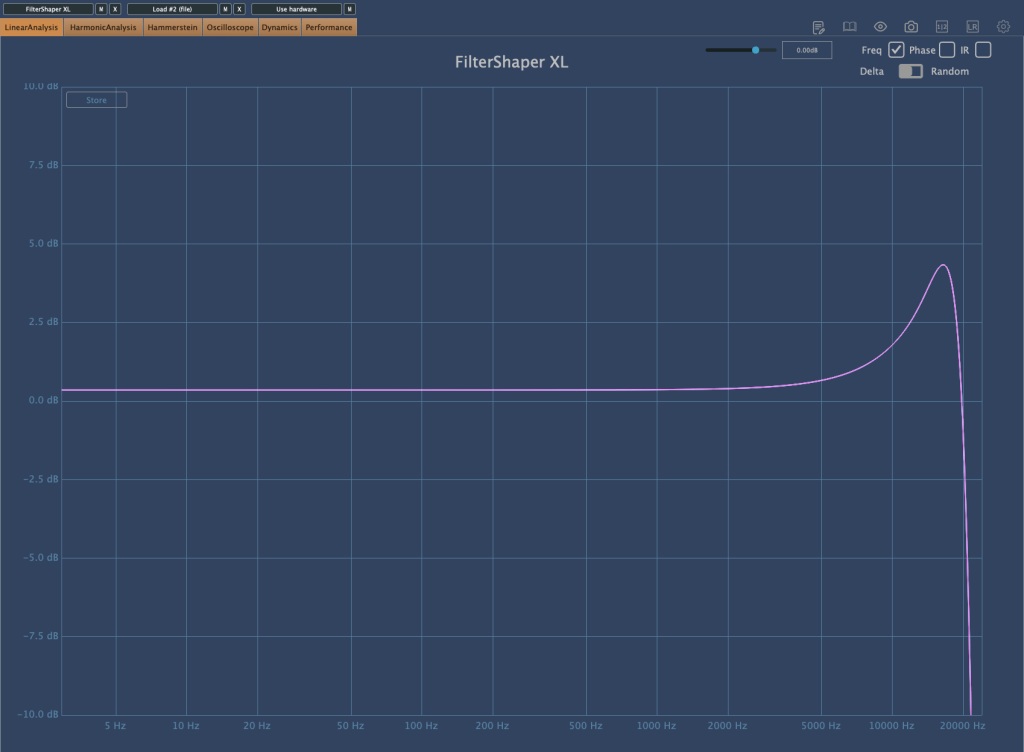
Resonance, as shown in the image above, determines the amount of emphasis around the cutoff frequency.

Filter 2 off, Filter 1 with Drive 0, Resonance 0, Res. Drive 0, Volume 0, Cutoff Frequency at maximum (21.1kHz)
Res. Drive at 50%
HARD button enabled with Res. Drive at 0

The Res. Drive below Resonance applies Drive specifically to the resonance band, creating harmonics and adding compression. The HARD button intensifies these effects.

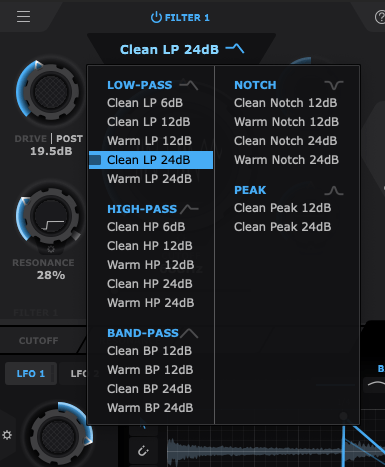
Also, by clicking the text right below the Filter Power button, you can select the type of filter you want to use. That’s pretty much everything about the filter window!

Now, let’s move on to the lower section.

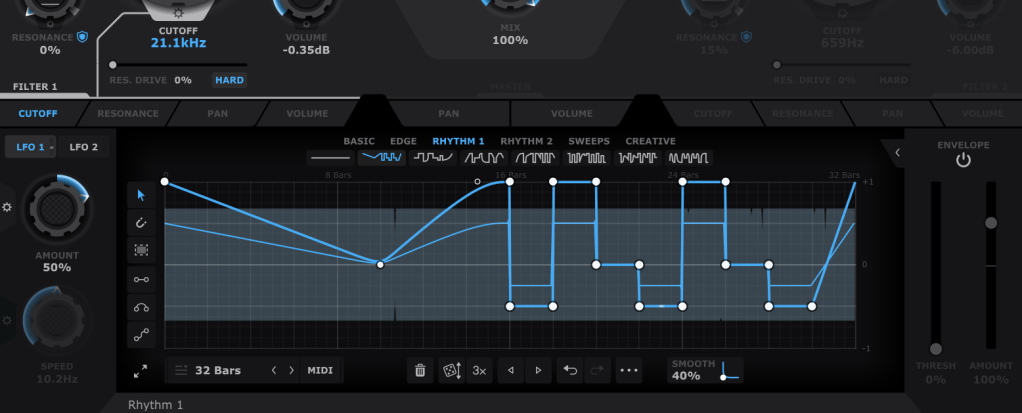
In the bottom section, you can draw automations for each filter’s parameters, allowing them to repeat automatically. You can create points by double-clicking with the mouse and drag them to shape the automation. Various cursor tools on the left can make this easier, and you can also start with presets available at the top.

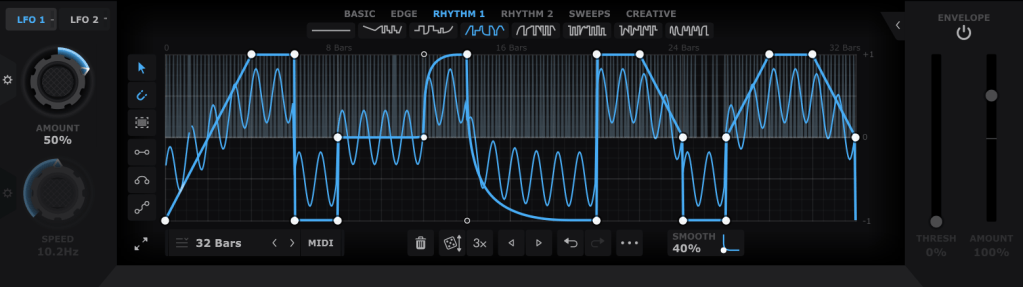
Using both LFO 1 and LFO 2 (located at the top left), you can modulate LFO values like this. The thin blue line in the background represents the LFO that will modulate the parameter.

The Pan and Volume controls in the center manage the panning and volume of the master output. You can also adjust the amount of LFO modulation by clicking the settings button on the Amount knob in the bottom left corner.

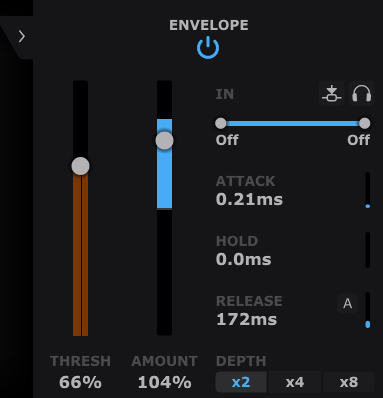
Lastly, the Envelope Follower in the bottom right lets you change the intensity of the LFO based on the input signal. You can also set the LFO’s LFO in the same section, giving you more control.

It may seem complex at first, but it’s very intuitive once you start using it.

If you’d like to hear how it works, check out the demo video by Cableguys.

This sale is valid until the end of the month.

This plugin is versatile and can be creatively used in any genre, whether you’re into acoustic music, rock, dubstep, D&B, K-Pop, or anything in between. I highly recommend it to all music producers.

I primarily use acoustic instruments, and with a bit of tweaking—using a minimal Mix value—you can add a tight groove to your instruments that would be impossible to achieve with just human performance.

Having at least one or two plugins like this is essential, in my opinion. If I had to recommend just two, I’d go with this one and Volume Shaper. If your budget allows, picking up ShaperBox 3 during a sale would also be a satisfying purchase.

Also, if you buy any plugins from Plugin Boutique this month, you’ll receive either Softube’s VCA Comp or Imagine Audio’s K7D delay for free.

If you don’t have a dbx160-style compressor, I’d recommend the VCA Comp. If you need a versatile delay for guitars, electric pianos, or analog delay, go for the K7D.

See you in the next post!

Basics of Mixing – 7.2 The History of Delay

Hello, I’m mixing engineer and music producer Jooyoung Kim. Last week, I had so much to write about for the blog that I had to skip a week..;;

Today, I’d like to talk about the history of delay. Shall we get started?

Analog Delay

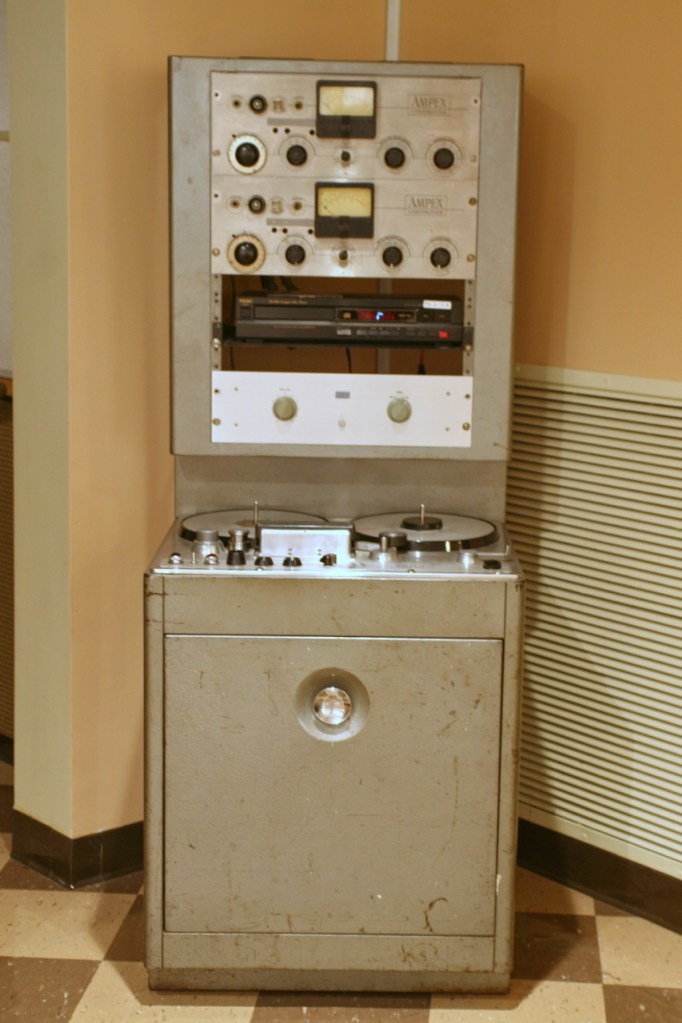
Like most effects, delay began in the analog realm, using tape to repeatedly play back the original sound.

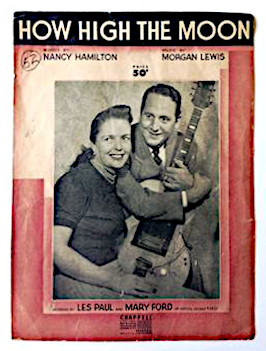
The first person to use delay in music was Les Paul. If you listen to “How High the Moon,” you can hear the early sounds of tape delay.

Ampex 300 Model

Another notable figure who used delay was Sam Phillips, the founder of Sun Records. He produced Elvis Presley’s tracks using two Ampex 350 tape recorders to create the delay effect.

(Though it doesn’t actually include tape, Warm Audio recently released a replica of this with the WA-MPX!)

The first commercial product featuring delay was the EchoSonic, a guitar amp with built-in tape delay.

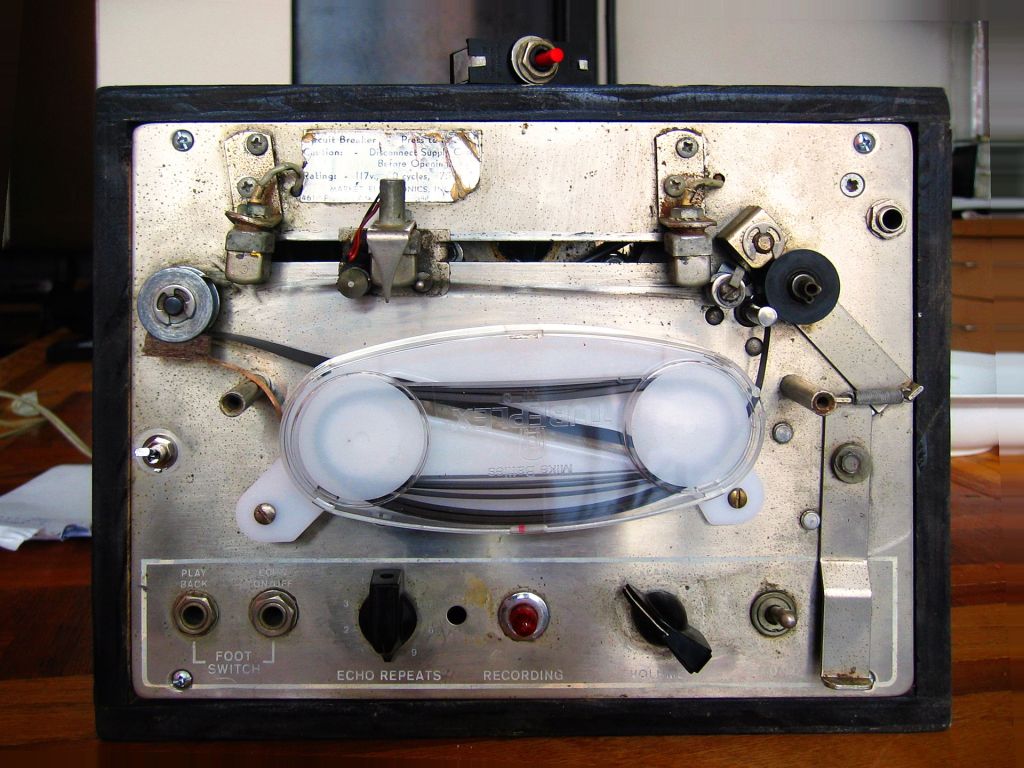
Among commercially famous delays that focused solely on the effect was the Echoplex.

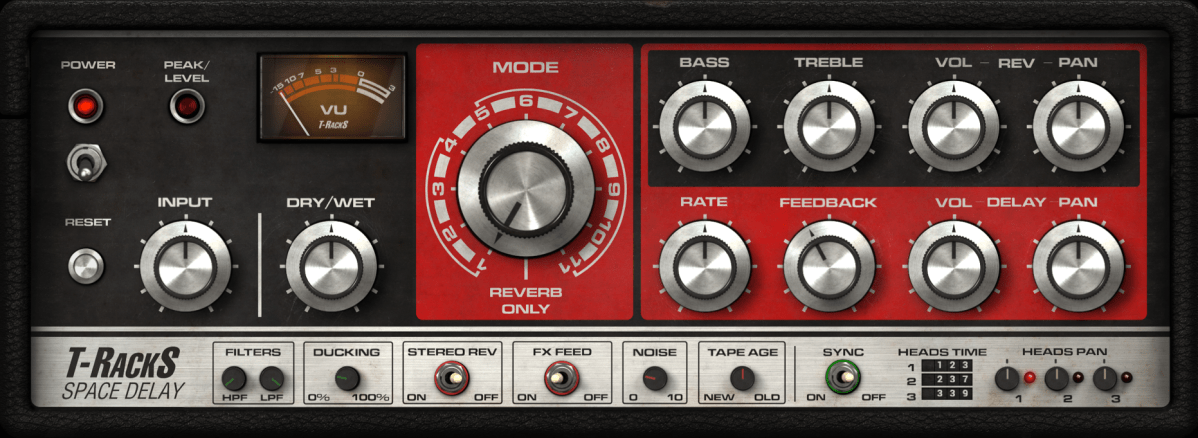
For guitarists, the Roland Space Echo RE-201 is likely the most well-known tape delay. It used multiple playback heads to create a more sophisticated delay effect.

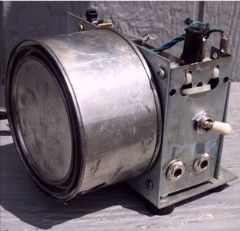
Next came the Oil Can Delay.

Oil Can Delay worked by storing and replaying signals as magnetic patterns on the side of a can through electromagnetic induction. The can was filled with a high-dielectric oil to keep the signal intact for longer periods, hence the name Oil Can Delay.

Following that, the Echorec was introduced, which utilized a Magnetic Drum for delay.

Urei, the precursor to Universal Audio, created the Cooper Time Delay, which used a long tube to produce the delay.

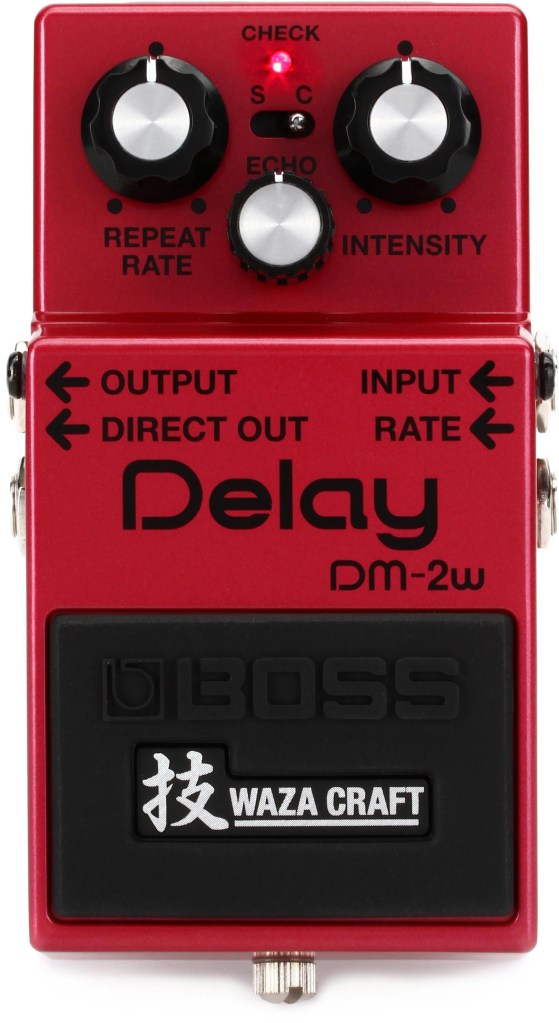
With the advent of Solid State technology, Philips developed the Bucket Brigade Device (BBD), a discrete analog delay device that led to the creation of various delay units.

Examples of BBD delays include the Electro-Harmonix Memory Man and the Boss DM-2 Delay.

Digital Delay

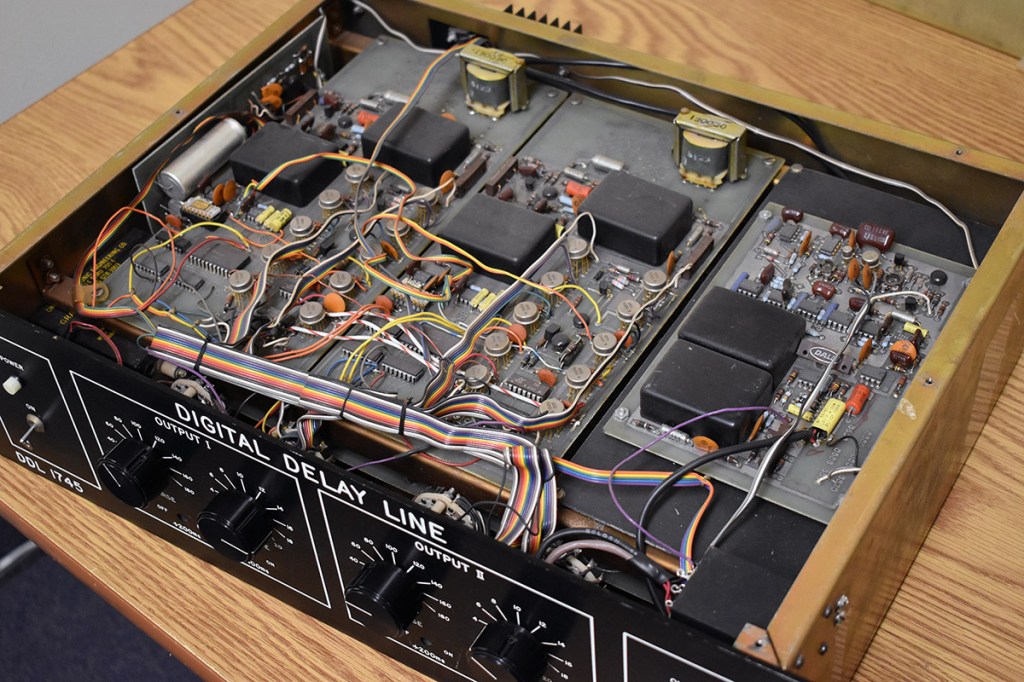
The earliest digital delays were introduced for studio and film effects. The first digital delay was the Eventide DDL 1745, which was released in 1972 for an astounding $3800.. quite pricey!

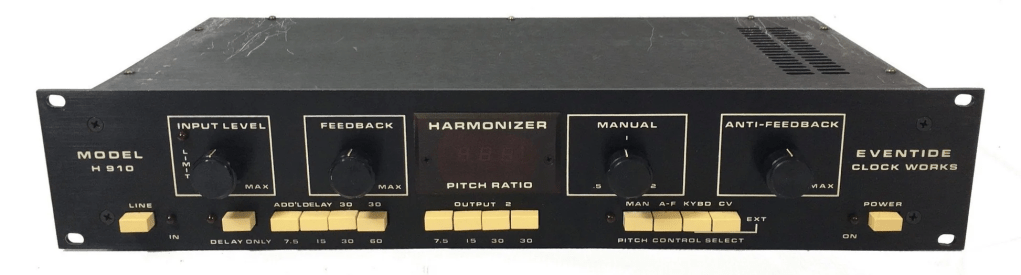
Subsequent models included the Lexicon PCM 41 and Eventide’s Model H910, which came packed with multiple effects.

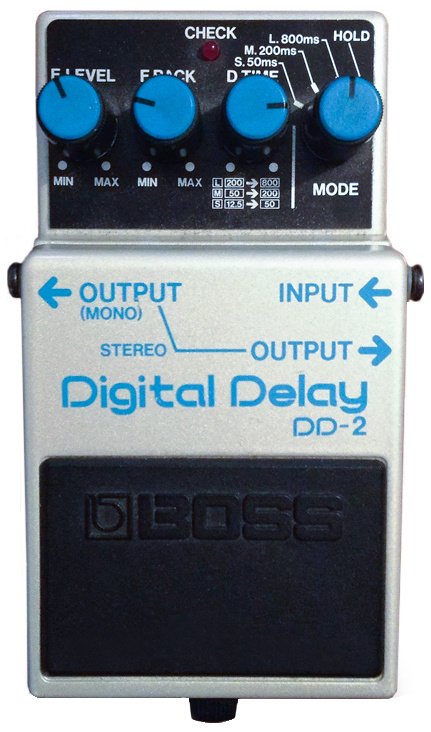
The first digital delay pedal was the Boss DD-2, marking the transition to computer-based delays.

Well, that wasn’t much, was it? History is simple when you look at it this way. The key takeaways are:

  1. Vintage analog delays were saturated based on the medium they used. (Tape, Oil Can, BBD, etc.)
  2. Early digital delays had low sample rates due to computational limitations, resulting in rolled-off high frequencies.

Remembering these two points should suffice. Ultimately, this explains why modern basic plugins don’t capture the vintage delay feel.

I’ll see you in the next post~:)

Output Movement Rhythm Engine 50% Off (Until 8/16)

Hello, I’m mixing engineer and music producer Jooyoung Kim.

Today, I’m excited to introduce you to Output’s Movement plugin, a tool designed for creating dynamic rhythms.

As with my previous posts on Output products, this plugin was provided by Plugin Boutique under Not for Resale conditions, enabling me to write this review.

Let’s dive right in!

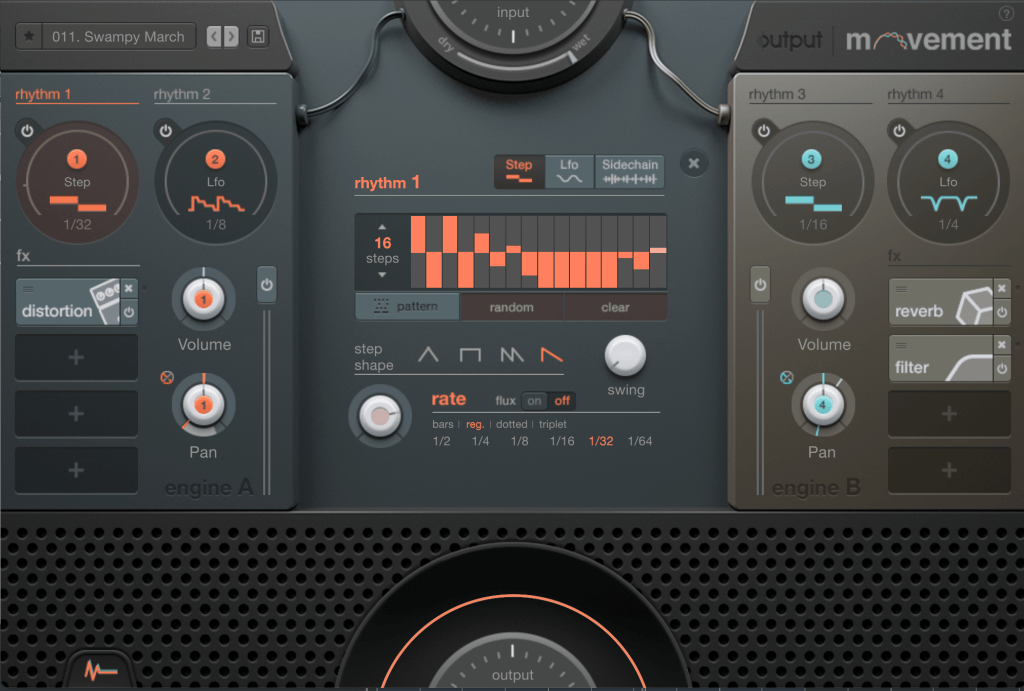
If you’re seeing this plugin for the first time, it might seem a bit overwhelming. To summarize the concept of Movement:

  1. It separates sounds in parallel,
  2. Modulates various parameters through signals like Step Sequencers, LFOs, and Sidechain,
  3. And then combines the sounds back together.

This plugin is particularly specialized in rhythmic modulation, which is why it’s marketed as a Powerful Rhythm Engine.

Now, let’s break down its features one by one.

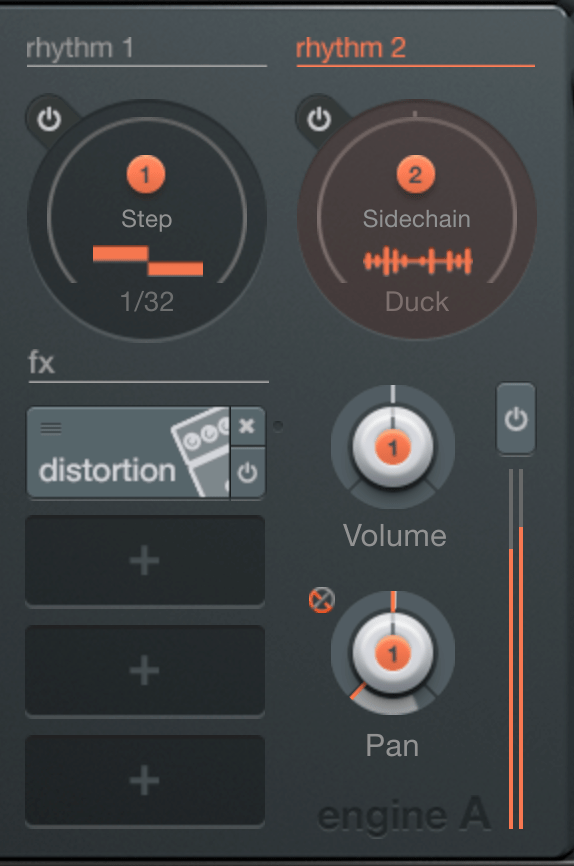
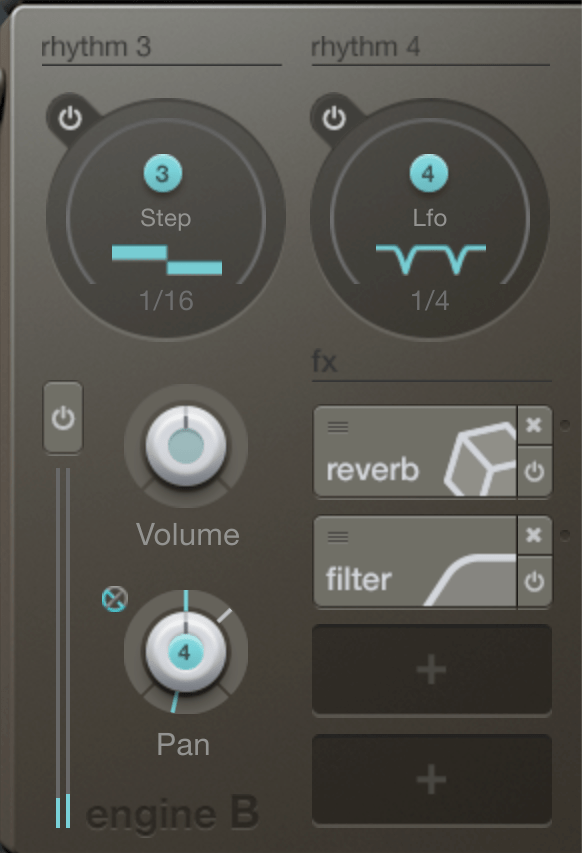
First, you’ll notice Engine A and B on either side, where you can adjust each engine’s volume and pan values. Above the engines is the rhythm section responsible for modulation. Let’s start from there.

The rhythm section allows you to choose between Step, LFO, and Sidechain.

When Step is selected, you can create up to 32 steps.

You can manually create steps, generate them randomly, or choose from presets. You can adjust the shape and swing of the steps, and determine how often the steps change through the Rate setting.

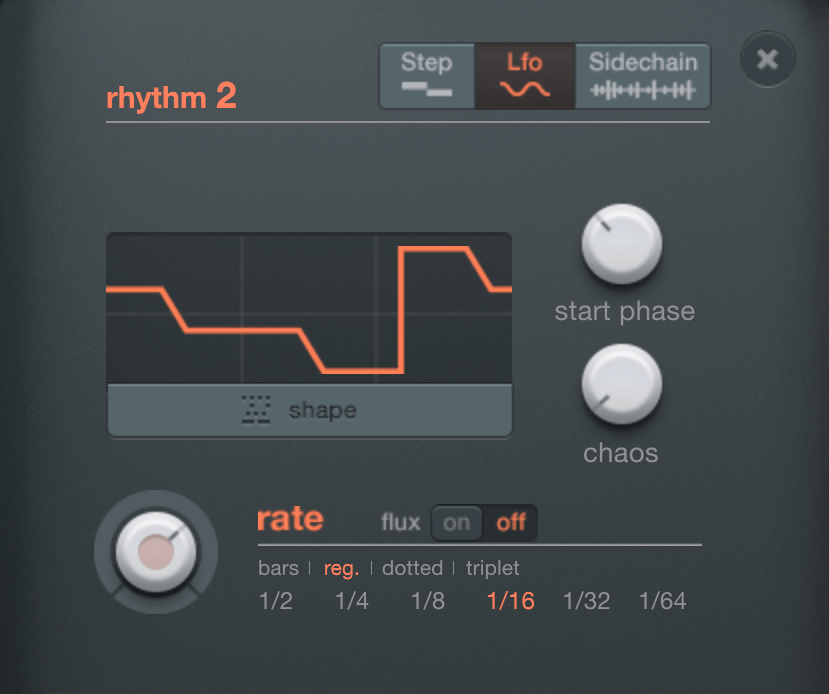
LFOs work similarly. You choose a shape from the shape presets, select the starting phase, and use the Chaos function to set the amplitude randomly, which creates a unique sound that is both unpredictable yet rhythmic.

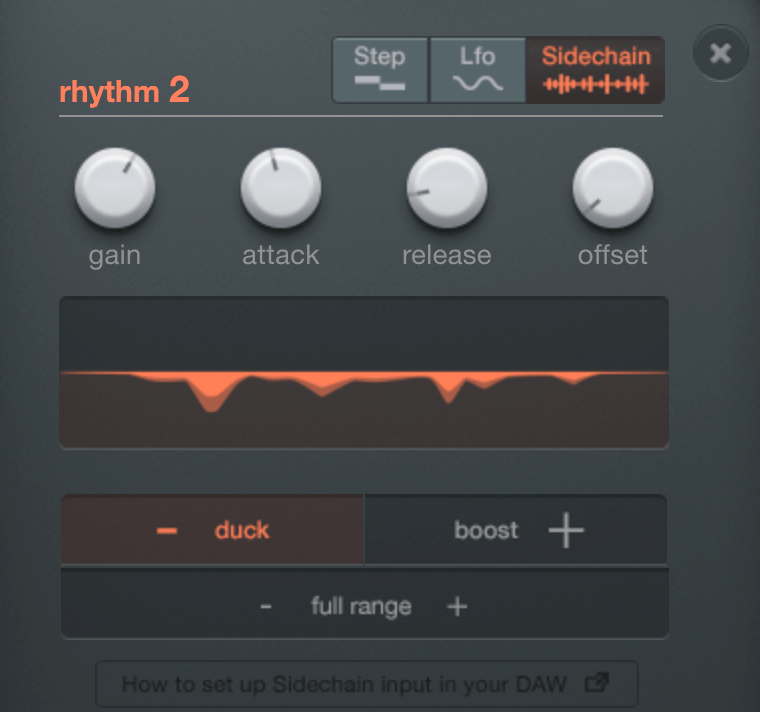
Sidechain is exactly what it sounds like! You can use external audio signals as triggers for modulation.

By placing the rhythm section’s number buttons on a knob, you can modulate that knob according to the selected rhythm value. Right-clicking on the knob allows you to access a modulation window where you can adjust how much it modulates based on the x-y axis movement.

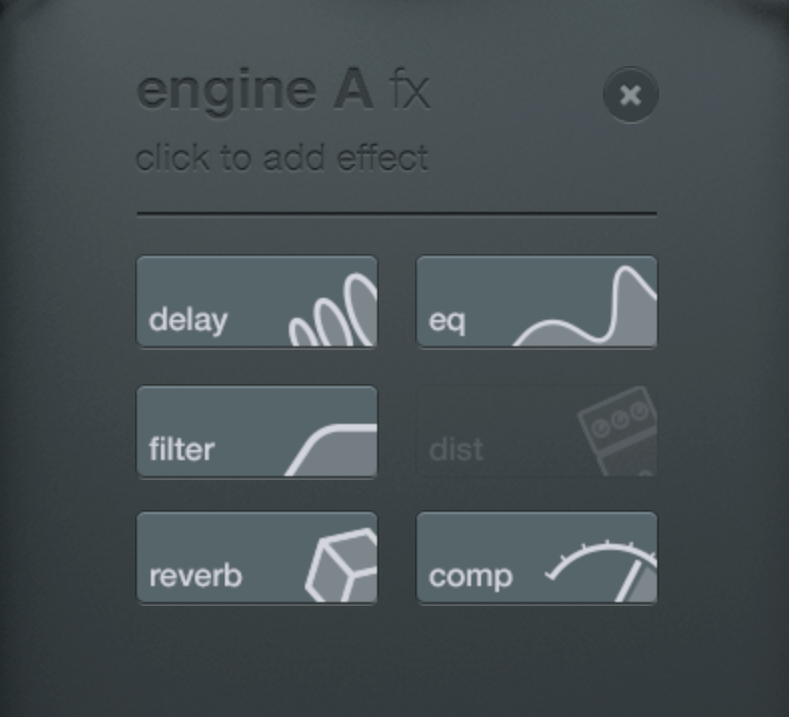
You can choose up to six FX to apply. I analyzed Comp, EQ, and Distortion in particular.

Comp

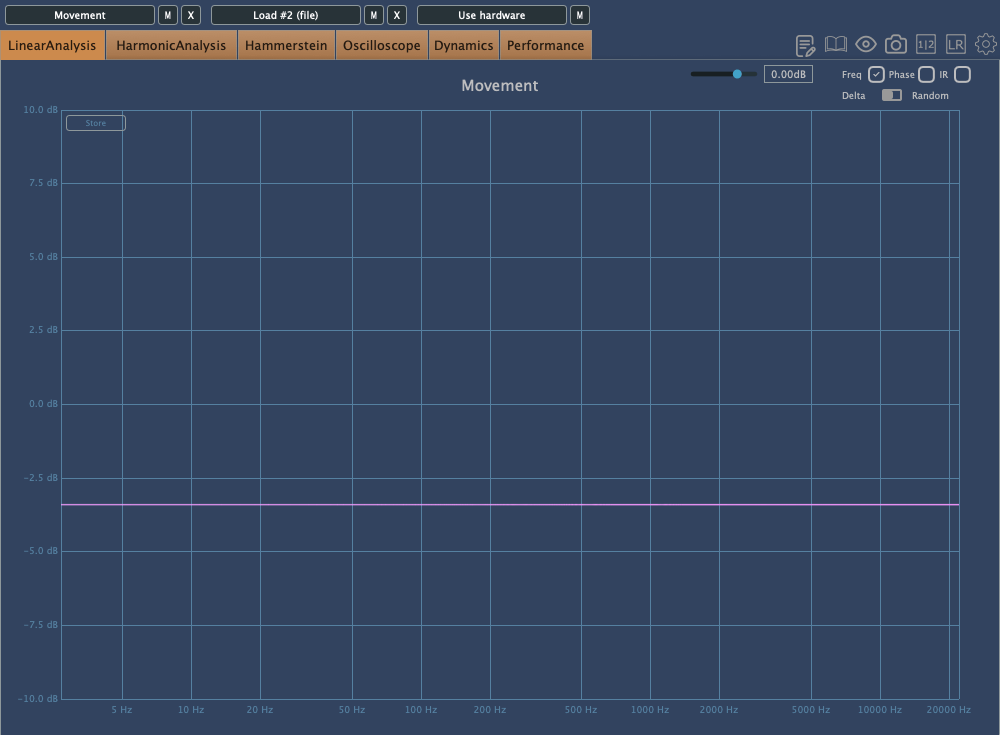
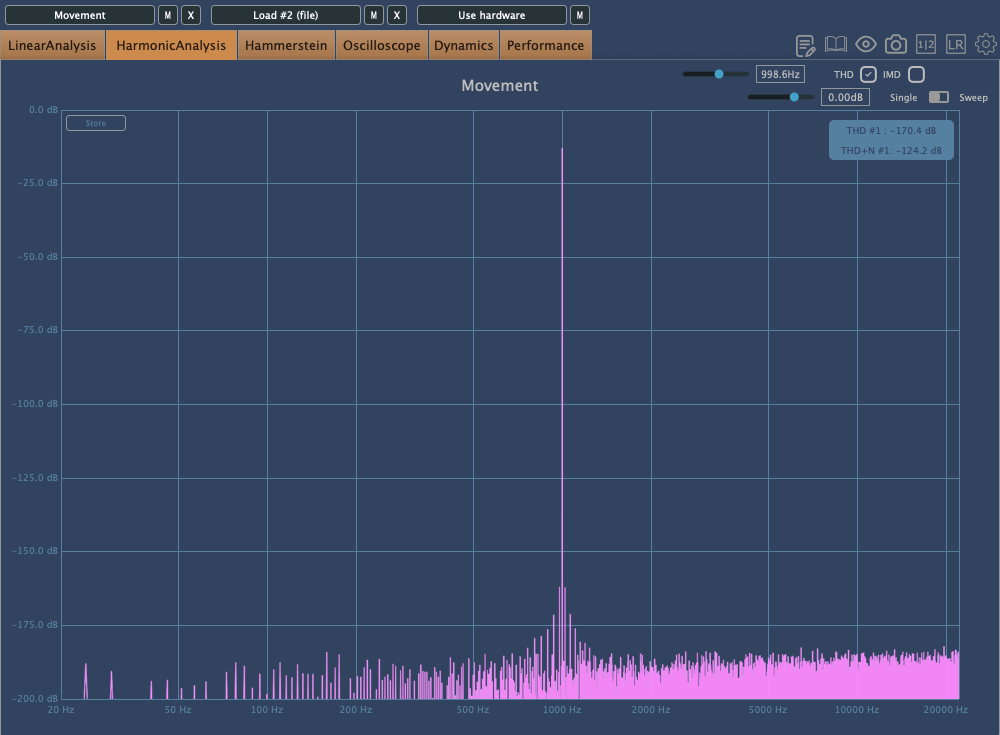
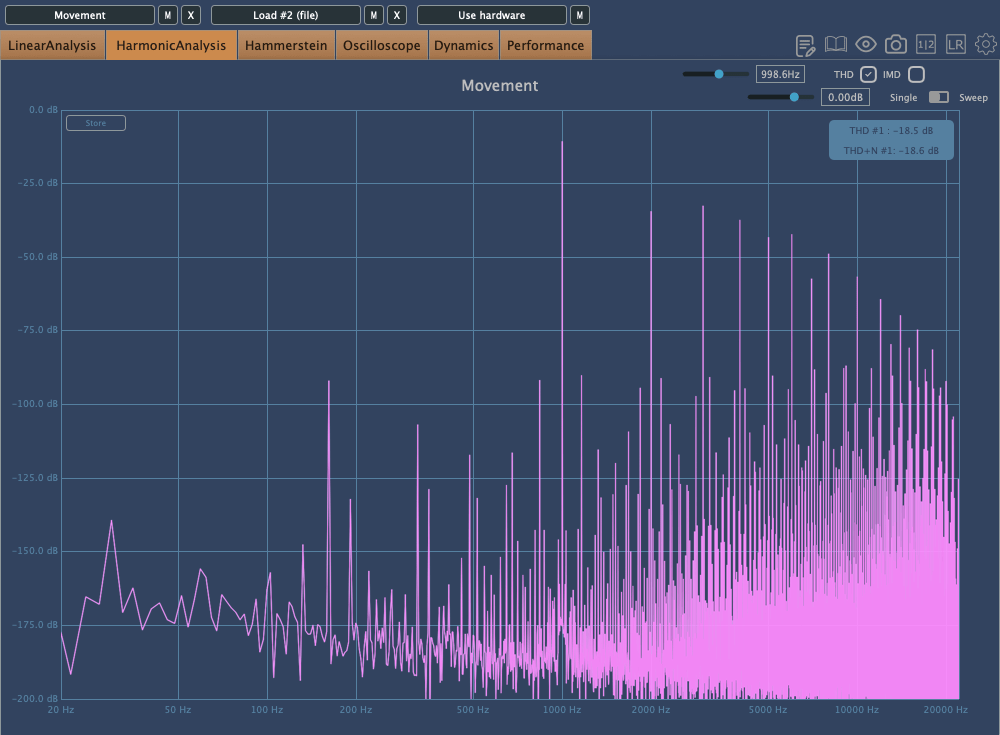
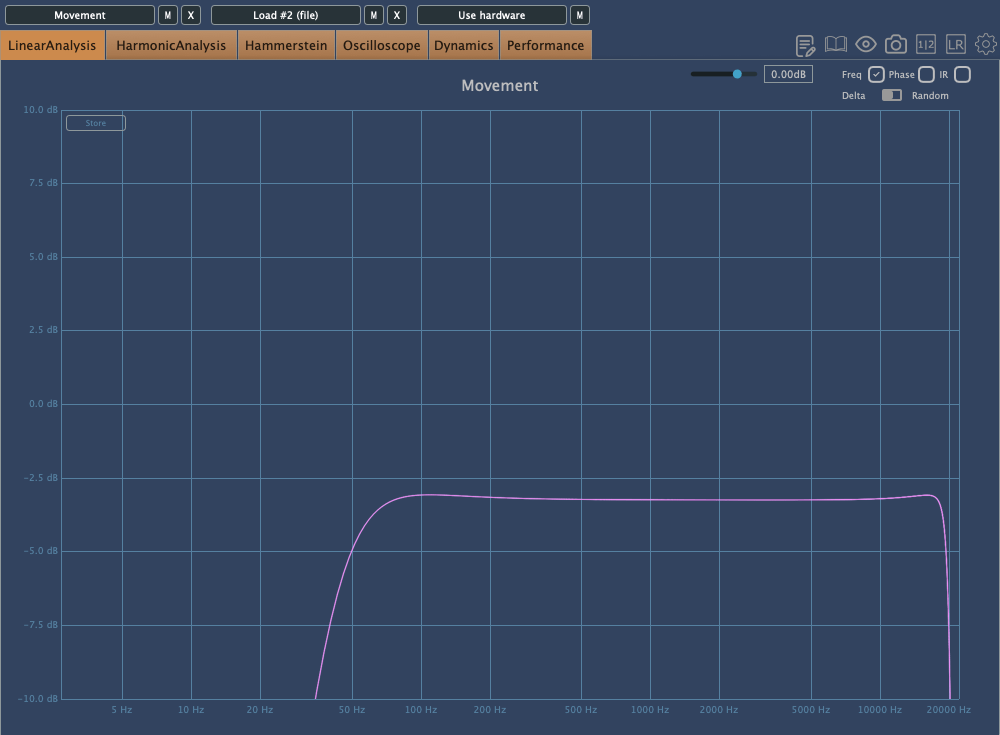
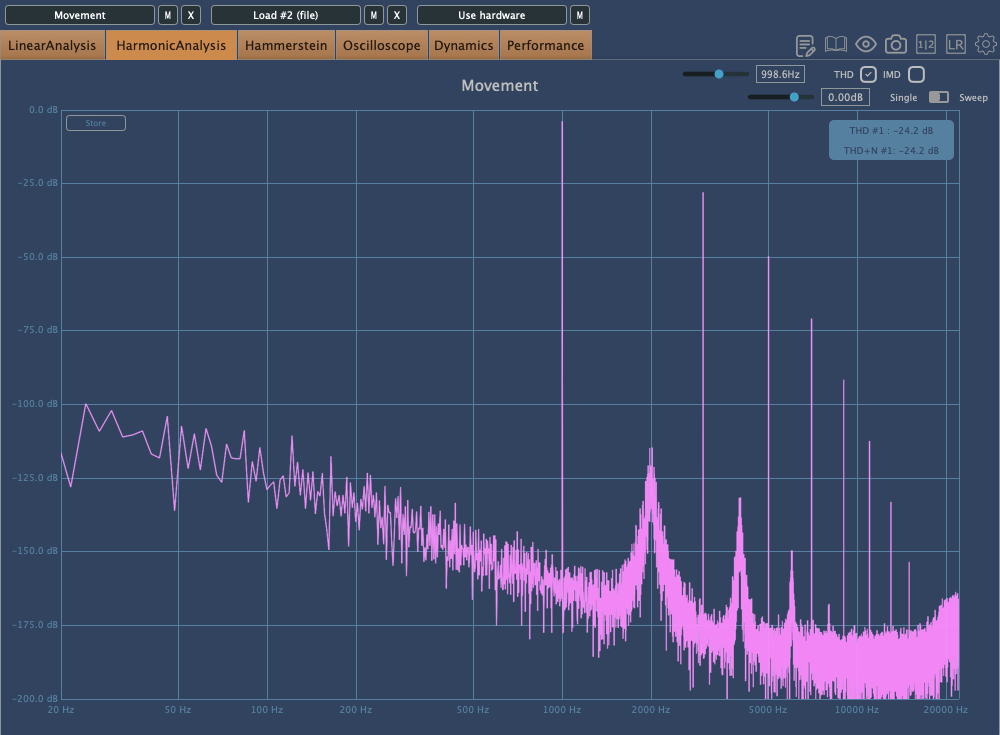
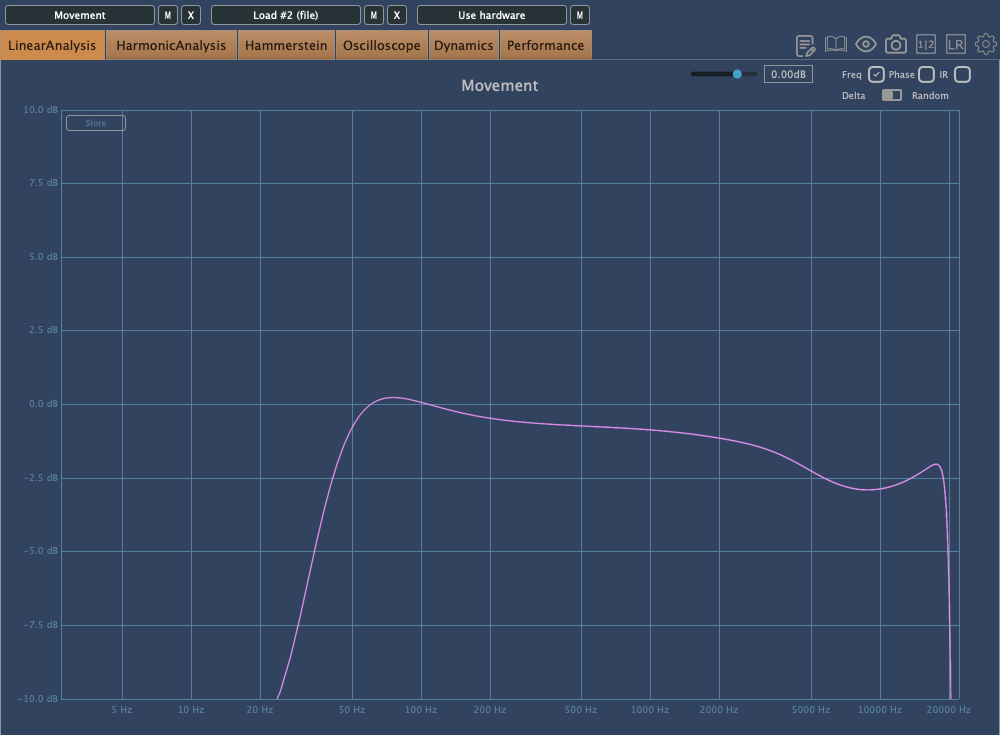
The above images show the frequency response and harmonic distortion with Warmth set to 0, while the ones below show the same with Warmth increased.

With Warmth at 0, it functions as a clean digital compressor. With Warmth added, the high frequencies are slightly rolled off, and the sound becomes more saturated.

Distortion

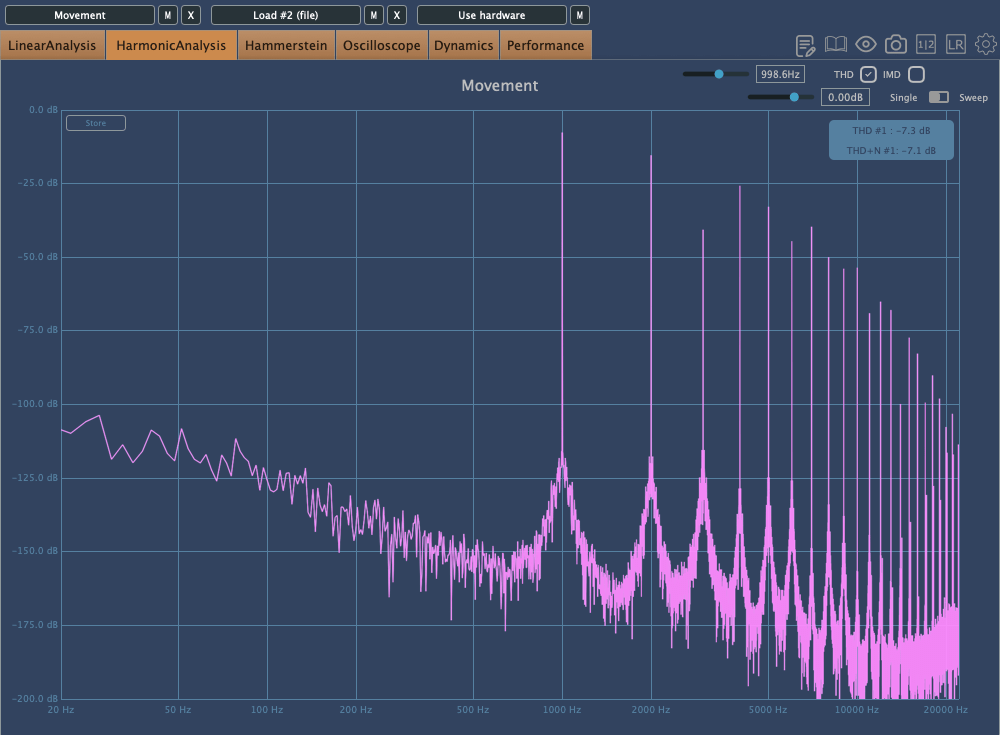
The Distortion effect includes High Pass and Low Pass Filters as basic parameters, so the extreme lows and highs are filtered out. The upper images show Crunch at 0, while the lower images show it at a medium setting. This effect can add strong saturation!

EQ

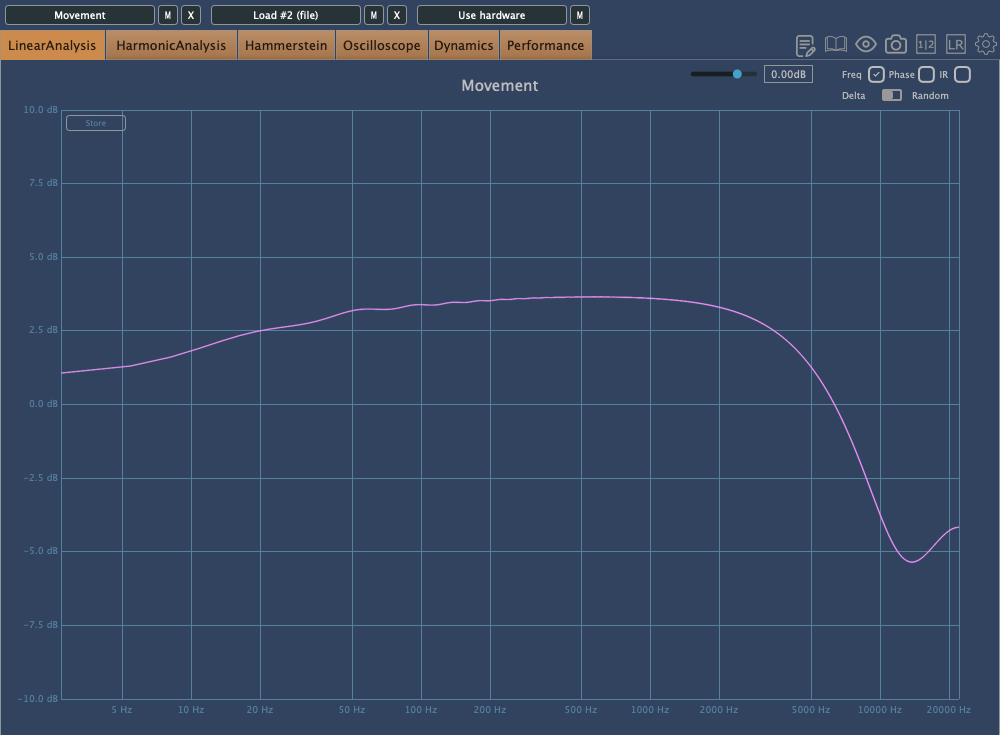
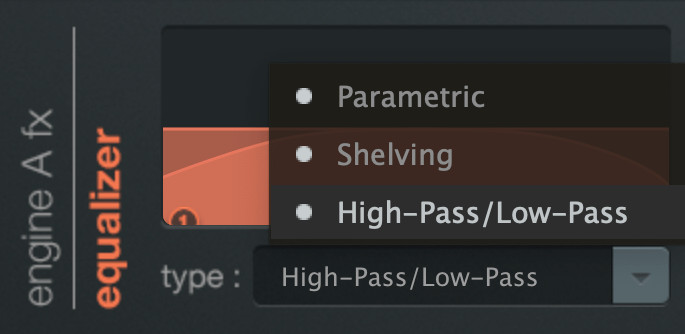
The EQ offers three types: Parametric, Shelving, and High/Low Pass.

Interestingly, this EQ still affects the sound even if Gain1 and Gain2 are set to the center. This applies to both Parametric and Shelving EQs, so keep this in mind when adjusting.

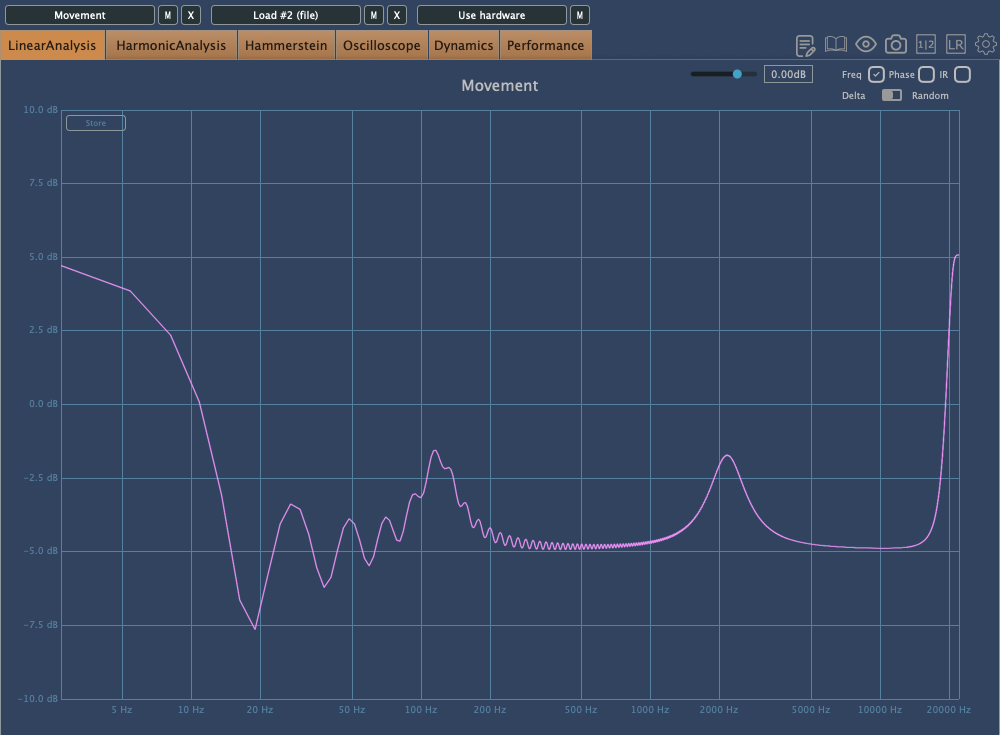
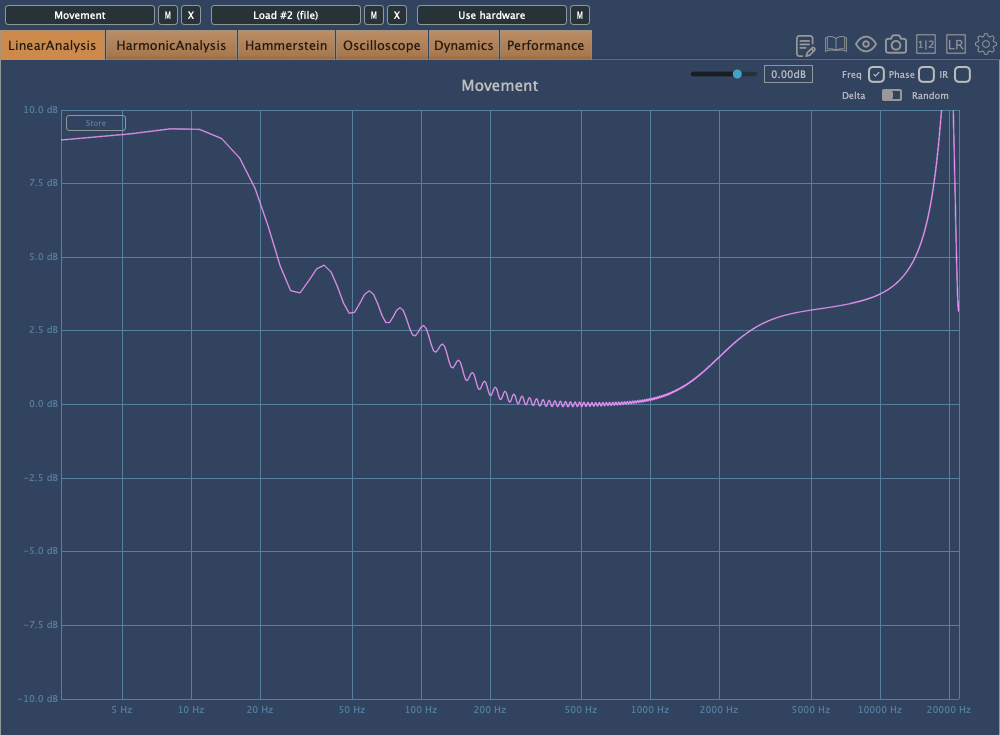
The EQ also tends to boost the extreme high frequencies.

When flattening the frequency response and examining the phase, you’ll notice some unique characteristics.

I’ll skip the details of the remaining FX as they are more straightforward.

Finally, the button at the bottom left of the plugin reduces the processing load, easing the burden on your CPU. It doesn’t affect the sound but reduces the amount of movement in the plugin’s UI, making it less taxing on your system.

Check out Output’s official trailer to see how it works and hear what it sounds like.

You might think this plugin is only useful for electronic music, K-Pop, or hip-hop, but it can actually be applied across various genres. The Sidechain function, in particular, offers some exciting possibilities.

Output’s products are on sale at Plugin Boutique until August 16th, so if you’re curious about other plugins, it’s worth checking them out.

When you purchase a plugin from Plugin Boutique, you’ll also receive a free plugin. This month’s free plugins are Softube’s VCA Compressor or Imagine Audio’s K7D Delay.

If you don’t have a dbx160-style compressor, I’d recommend the VCA Compressor. If you want to apply delay to a variety of sources, K7D is a great choice.

See you in the next post~:)