Hey everyone! I’m Jooyoung Kim, a mixing engineer and music producer.
So, two days ago, a paper I submitted to AES got rejected… 😢 I’d already been turned down by ASA, poured my heart into revising it, and still came up short. Haha… oh well.
One reviewer seemed pretty positive, but another tore it apart. Some of the criticism left me scratching my head—like, “Hmm… really?”—but there were common points both raised, so I’m running extra experiments now. It’s tough, both mentally and physically, but I’ve got to push through… right? Haha.
Next up, I’m eyeing IEEE Transactions or Elsevier journals, but man, the road just keeps getting steeper…
Anyway, enough of that! Today, I’m here to talk about Smooth Operator Pro from Baby Audio, which is currently on sale.
I received this plugin as an NFR (Not for Resale) copy from Plugin Boutique. If you buy through the links in this post, I’ll earn a small commission that seriously helps me keep going—thanks so much for the support!
Let’s get into it!
What’s Smooth Operator Pro?
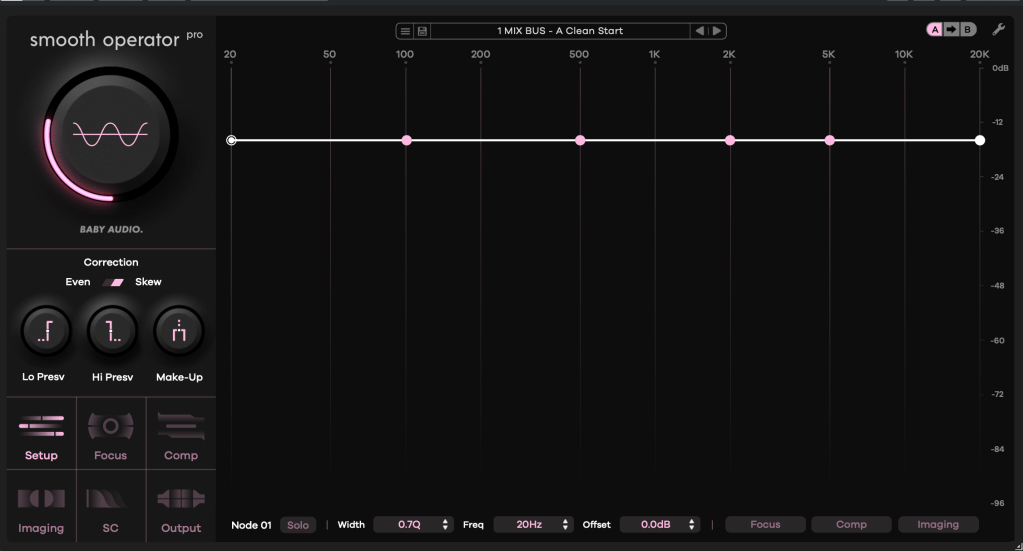
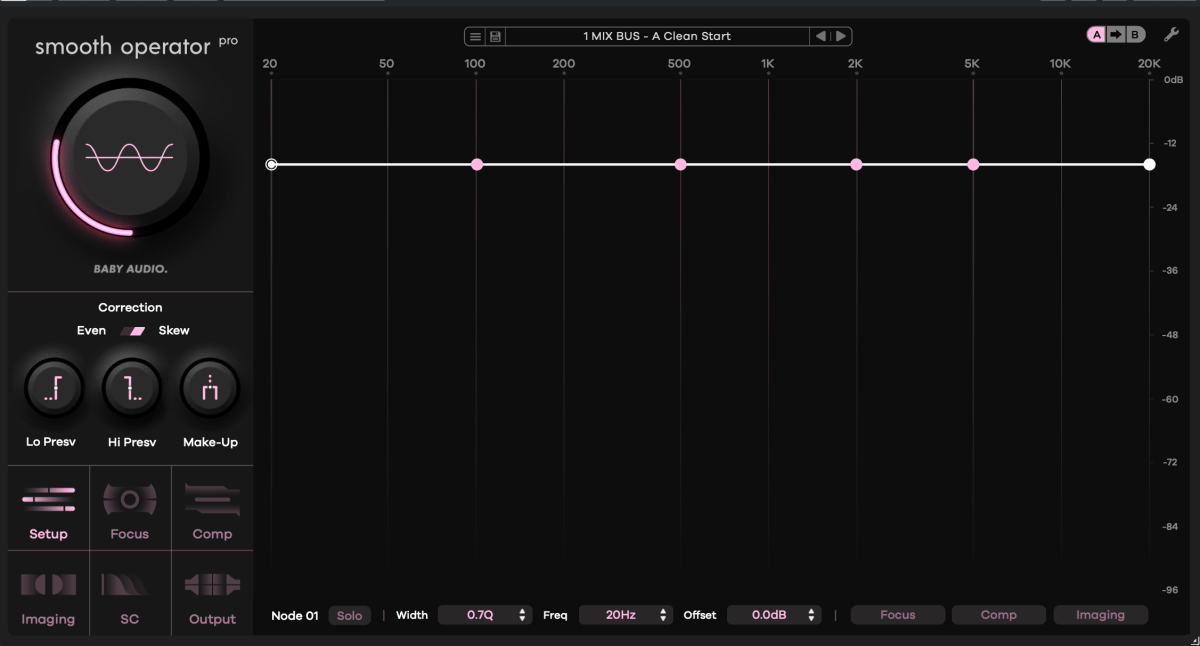
After poking around with it, I can say this plugin is fascinating. At first glance, it looks like an EQ—but it’s not. It kinda resembles a multiband compressor—but it’s not your typical one either.
Think of it as “a multiband compressor where you can tweak reaction and behavior per frequency.” That’s the vibe. It’s got six key features:
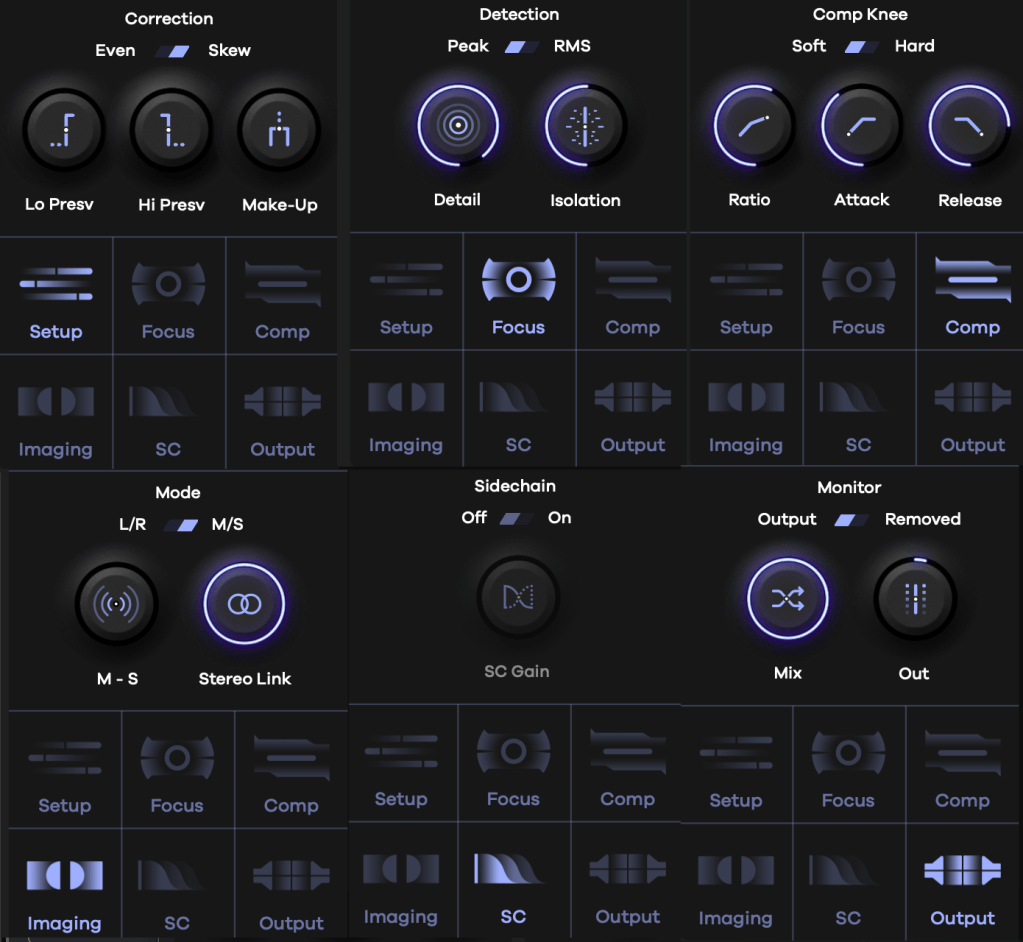
- Correction: Sets how frequencies are detected and the range of compression.
- Lo Presv / High Presv: Exclude low or high frequencies from processing.
- Even: Applies the effect evenly across all frequencies.
- Skew: Adjusts the effect based on human hearing perception.
- Detection: Controls how peaks are spotted.
- Peak/RMS: Choose between peak or RMS loudness detection.
- Detail: Low for broad, smooth detection; high for tight, aggressive targeting.
- Isolation: Sets how wide the effect spreads around detected frequencies.
- Comp Knee: Toggle between Soft or Hard Knee compression.
- All the sub-parameters here are classic compressor controls.
- Mode: Stereo processing options—choose between L/R or Mid/Side.
- Sidechain: Pick a sidechain signal to trigger compression.
- Monitor: Compare pre- and post-processing audio, tweak Mix and Output Gain.

Activate the bottom-right toggle, and you can tweak Focus, Comp, and Imaging settings for each node individually.
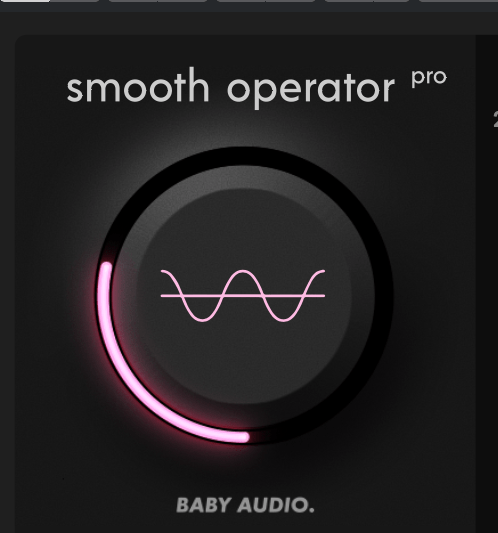
The big central knob adjusts the overall threshold—up or down across all frequencies.
It might look tricky at first, but once you play with it, it’s pretty straightforward. Toss in some sidechaining, and you could whip up some wild sounds for electronic tracks. I’m already picturing the possibilities!
Baby Audio has a knack for blending tons of parameters into creative plugins like this.
Why It’s Worth Checking Out
Smooth Operator Pro is on sale right now, so if you’re curious, it’s a great time to take a look. It’s not just a tool—it’s a playground for shaping sound in ways that feel fresh and intuitive.
That’s all for now—catch you in the next post! 😊




 Jooyoung's Music Blog