Hello, this is Jooyoung Kim, engineer and music producer.
Today, I want to talk about the basics of EQ. There’s so much to cover, I’m not sure where to begin… But let’s dive in!
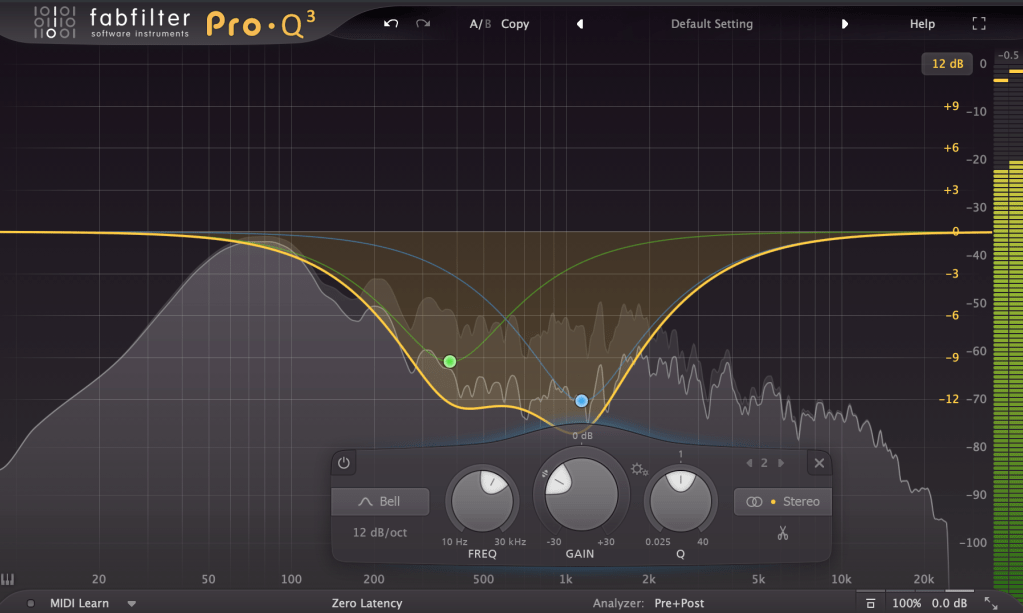
EQ is a tool that allows you to adjust the volume based on frequency. Why would we need something like this?
The main reasons are:
1) To alter the tone of an instrument 2) To change the position of an instrument in the stereo image 3) To prevent sounds from different instruments from overlapping 4) To fix issues with recorded sources
We’ll go into more detail on the types of EQ in a later post, but for now, let’s discuss these reasons in more depth.
To Alter the Tone of an Instrument
A drum kick typically handles low frequencies. But is it only low frequencies? Of course not.
High frequencies contribute to the attack, giving it a punchy feel, while the midrange can be quite prominent and can mask other instruments.
Thus, by using EQ, you can adjust these frequencies to create a balance that fits the song. This applies not just to kicks but to other instruments as well.
To Change the Position of an Instrument in the Stereo Image
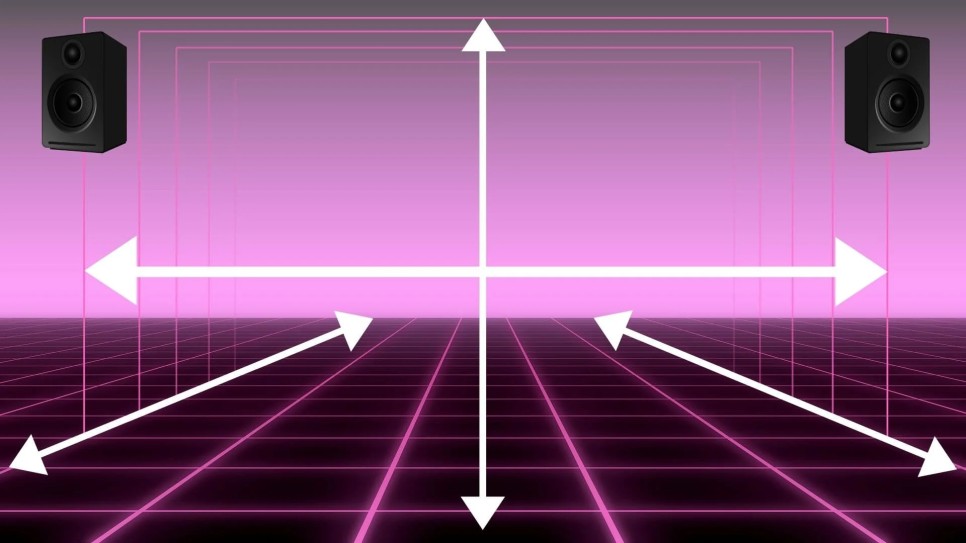
Using EQ to adjust an instrument can change its position in the stereo image. In typical speakers with a tweeter on top and a woofer on the bottom, cutting high frequencies can make a sound seem to move lower, while cutting low frequencies can make it seem to move higher.
You can also adjust just the left or right side with EQ to move the sound diagonally.
To Prevent Sounds from Different Instruments from Overlapping
Instruments like acoustic piano, acoustic guitar, and synth pads produce sounds across a wide range of frequencies, which can cause other instruments, like vocals, to be masked.
This phenomenon, where instruments obscure each other, is known as masking. Kick and bass are classic examples of instruments that can mask each other. EQ is a traditional and fundamental way to address this issue.
To Fix Issues with Recorded Sources
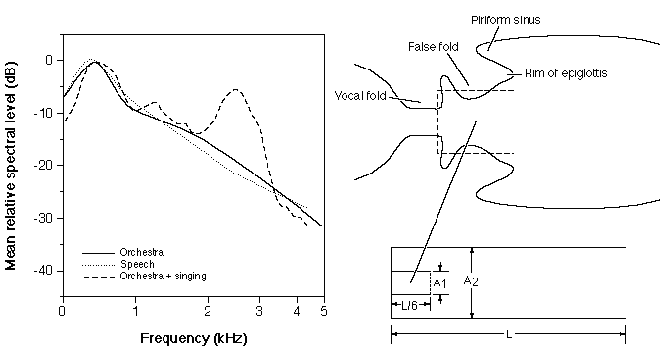
Millhouse, Thomas & Clermont, Frantz. (2006). Perceptual characterization of the singer’s formant region: A preliminary study. 253-258. Singer’s Formant
When recording instruments, resonance in the room can cause certain frequencies to be overly emphasized.
There is also something called the Singer’s Formant, a specific resonance found in trained opera singers. Instruments, too, can have unique resonances or harsh sounds. For example, when recording a violin, the bow can produce a squeaky sound at certain high frequencies.
EQ is used to resolve these resonances.
Today, we covered why EQ is used. In the next post, we’ll discuss the different types of EQ and their uses. See you next time!
Hello, this is Jooyoung Kim, engineer and music producer.
Today, I want to talk about panning, which controls the left and right placement of instruments. To explain panning, let’s first discuss how to create a stereo image.
Creating a Stereo Image
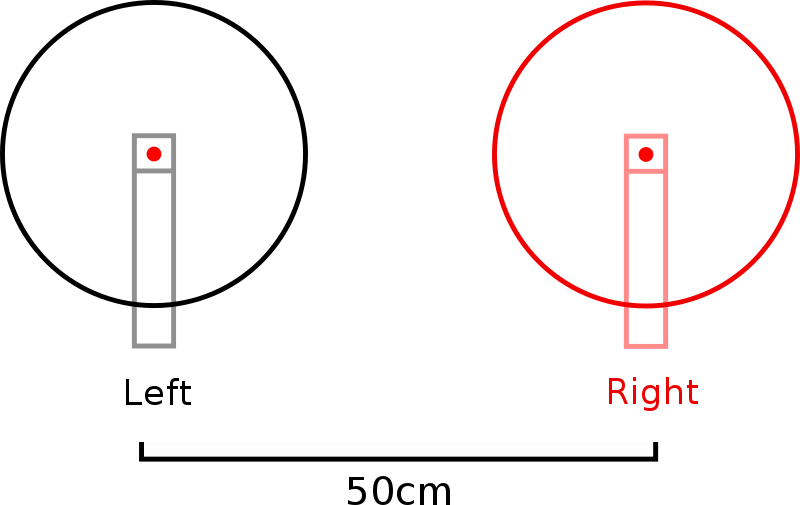
Stereo imaging starts with microphone recording techniques. On the left, we have AB stereo miking, and on the right, we have XY stereo miking.
AB stereo miking forms a stereo image by utilizing the time difference between sounds arriving from the left and right. In contrast, XY stereo miking relies on the volume difference between sounds arriving from the left and right.
Inspired by this, panning moves the audio source left and right by manipulating volume differences, much like the XY stereo miking method.
A question may arise: How do we create these volume differences to achieve panning? This is defined by the Pan Law.
Pan Law
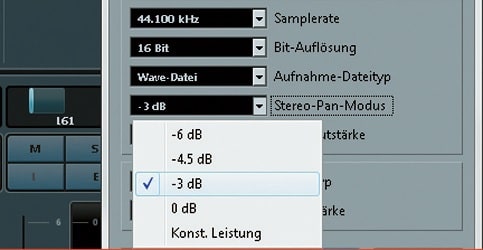
Pan Law settings in DAWs typically include 0dB, -3dB, -4.5dB, and -6dB.
The reason for these settings is that if you move an instrument to the left or right by simply lowering the volume of one side, the overall volume decreases as the instrument moves. This scenario occurs when the Pan Law is set to 0dB.
In the case of -3dB, the center volume is reduced by 3dB, ensuring the volume remains consistent when moving stereo sources left or right.
For -4.5dB and -6dB, the center volume is reduced by the respective amounts, making the sound appear louder as it is panned left or right.
This might sound complicated, but there’s no need to overthink it. Just be aware that there are various panning settings.
In practice, adjusting the volume balance while panning is common, so you don’t need to worry too much about it.
Haas Effect
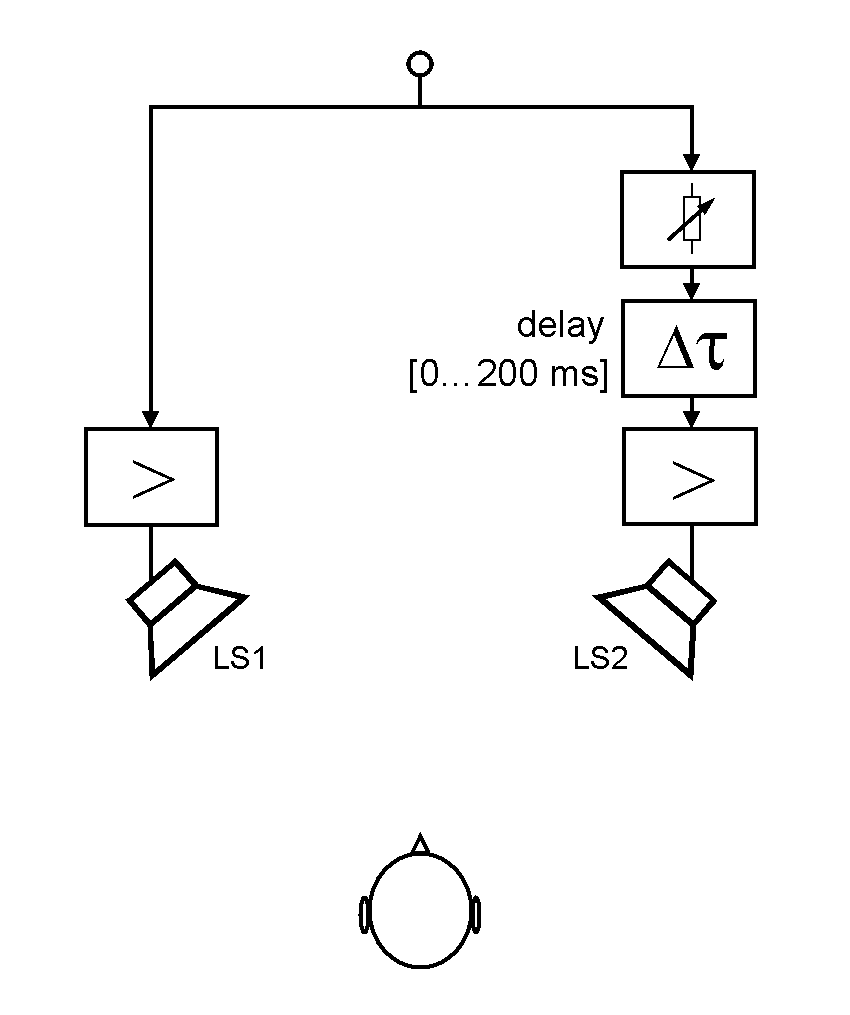
I also want to discuss the Haas Effect. As mentioned earlier, AB stereo miking creates a stereo image by the time difference in sounds arriving at two microphones.
Similarly, what happens if the same sound is played with a time delay between the left and right speakers? The answer is that it will sound biased towards the side that plays first.
This technique can make mono sources sound like stereo. However, from my experience, recording a double take sounds more natural and fuller than creating a stereo image with the Haas Effect.
While it’s useful to know, it’s generally better to use this technique only when necessary.
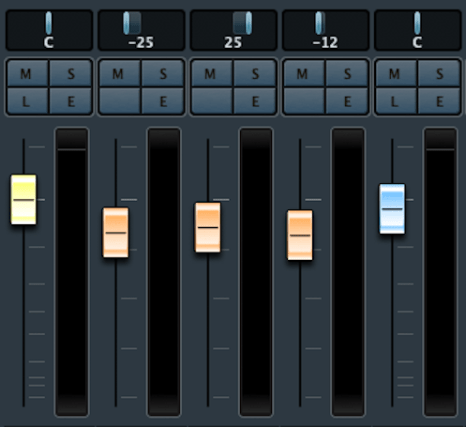
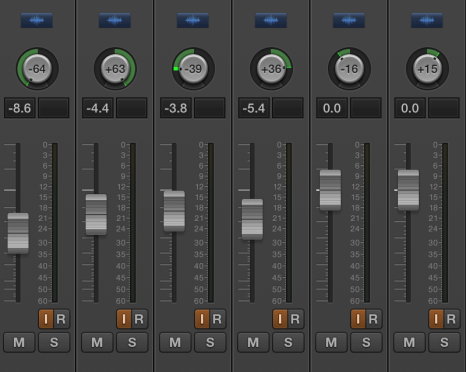
There are various ways to express panning.
For example, Logic uses a scale from -64 to +63, while Cubase and Pro Tools use -100 to +100. Some DAWs use clock-face representations.
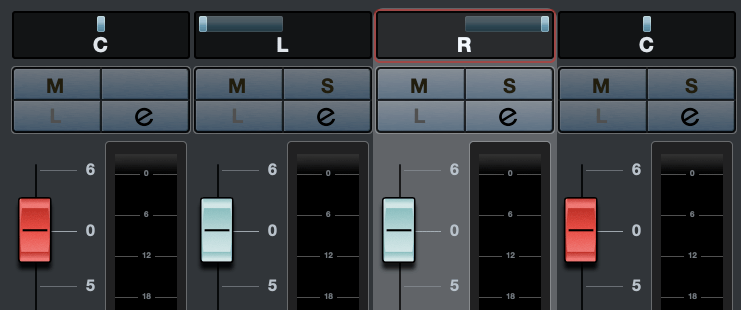
There’s also Balanced Panning, which allows free adjustment of left and right panning.
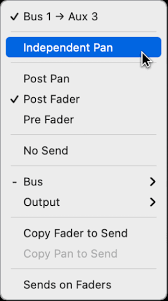
When sending signals externally using Send from a panned source, the panning settings do not apply. Therefore, each DAW provides a Send Panning function to send the signal with the applied panning.
Hello, I’m Jooyoung Kim, a mixing engineer and music producer.
After parting with my Taylor 220CE K-dlx model, I decided it was time to add a new guitar to my collection, one that differed from my Taylor and Guild preferences.
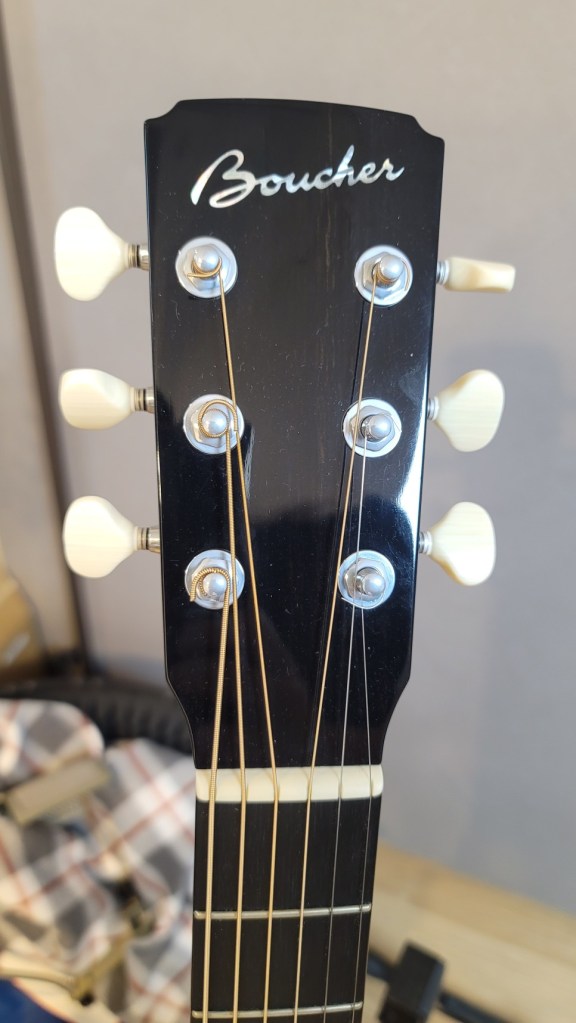
I visited my favorite shop to test out some guitars and found that the higher-end models from Headway, a Japanese brand, and Boucher, a small Canadian workshop, produced impressive sounds.
I was particularly interested in the seasonal commemorative models from Headway, but unfortunately, they weren’t available in Korea. Ordering directly from Japan would have added nearly 600,000 KRW(about 450$) in shipping and customs fees. Given the high cost, I thought it would be wiser to look for a used Boucher guitar.
As luck would have it, I found a well-maintained Boucher guitar at a reasonable price and traveled to Siheung this morning to pick it up.
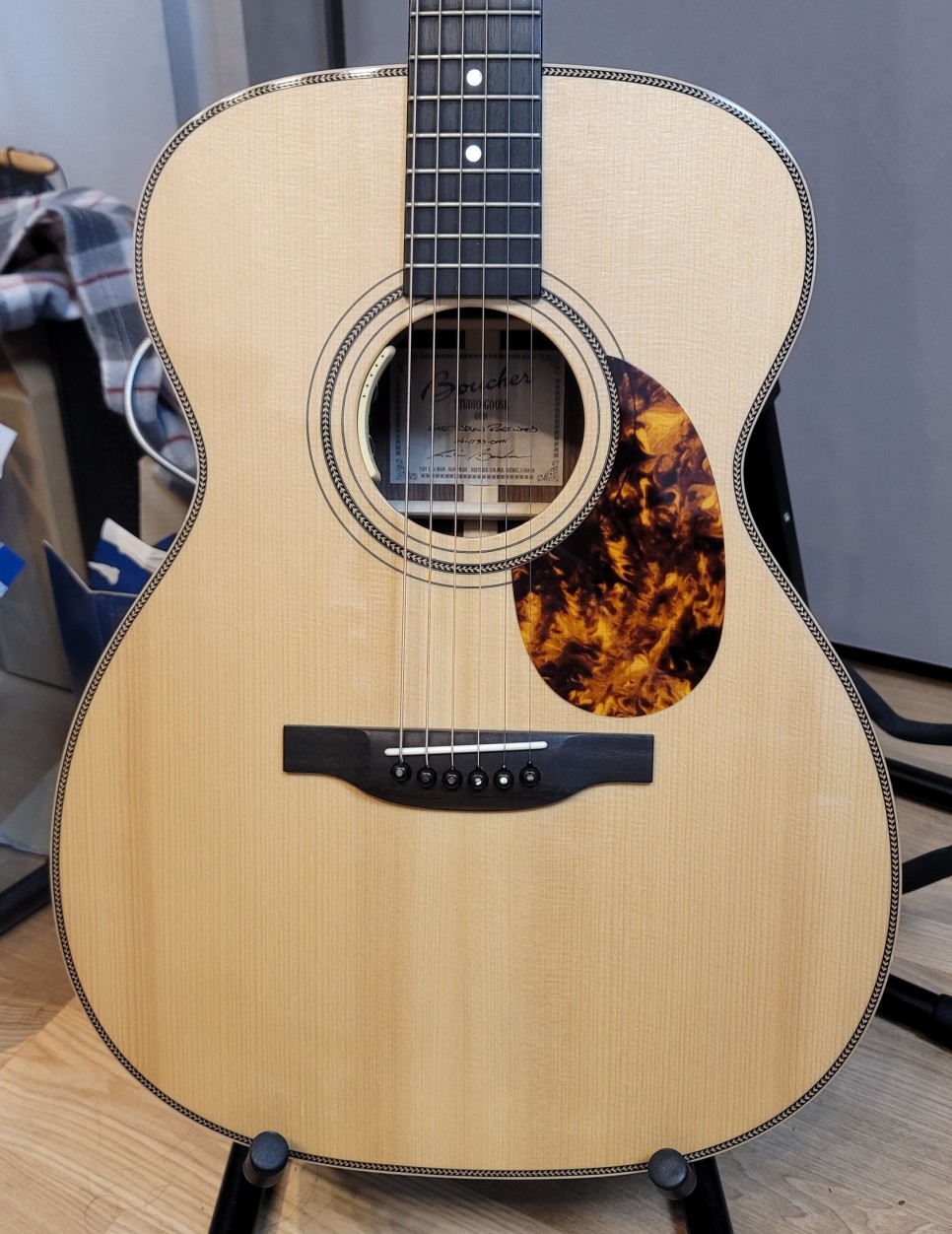
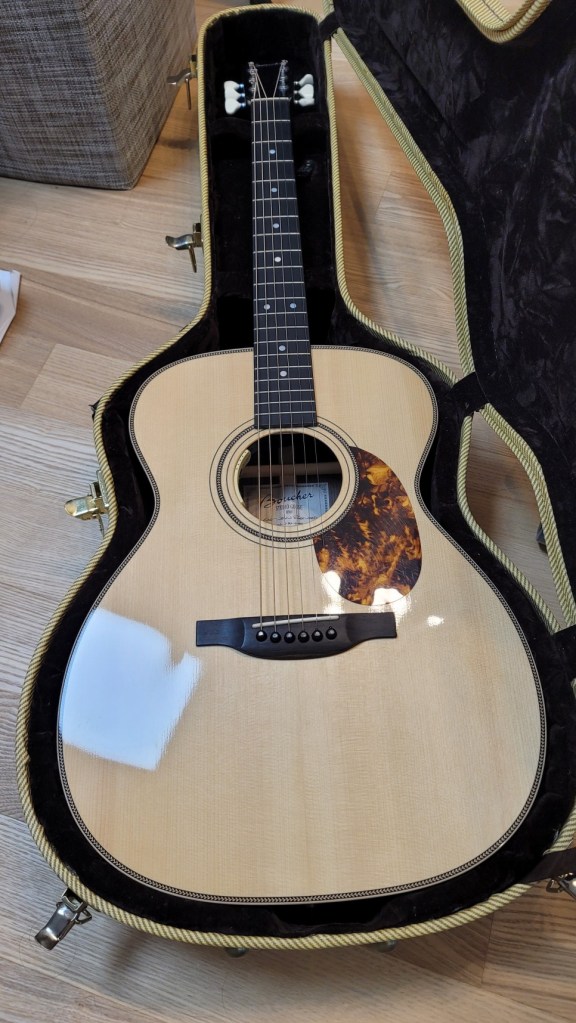
Although it’s an older model, the specifications match the SG51. The label inside simply reads “Studio Goose OMH East Indian Rosewood.”
The binding is made of maple, giving it a distinctly high-end appearance.
While I’m not particularly fond of the D’Addario EXP strings currently on it, the balance of the sound is incredible. Throughout my years of playing guitar, I never gave much thought to the balance of sound. However, playing this guitar made me realize what good balance truly means.
I’m curious to see how the sound will change once I switch out the strings.
It’s been a while since I’ve purchased a piece of equipment that brings me this much joy just by looking at it.
*As I translate this post in 2024, I’m still finding this guitar incredibly useful. I’ve used it extensively for recording, and the high-end harmonic overtones that come from such a premium instrument have greatly enhanced my recordings, adding a touch of sophistication to my music.
I look forward to sharing more with you in my next post. See you then!
Hello! I’m Jooyoung Kim, a mixing engineer and music producer. In this post, I’ll be sharing the process behind my single album released in 2021. Although the timeline might feel a bit off since I wrote this a while ago, I hope you enjoy reading about the journey.
The inspiration for the song began near a construction site close to my home.
From the year before last to last year, there was continuous construction right next to my house, which was extremely noisy. Towards the end of the construction, they seemed to be in a hurry, working even in the early mornings and sometimes on weekends, which was incredibly stressful. At the same time, I was dealing with some personal family issues that made things even more suffocating.
So, I pre-wrote the lyrics to express my desire to escape this situation. I started composing the song more concretely from February this year.
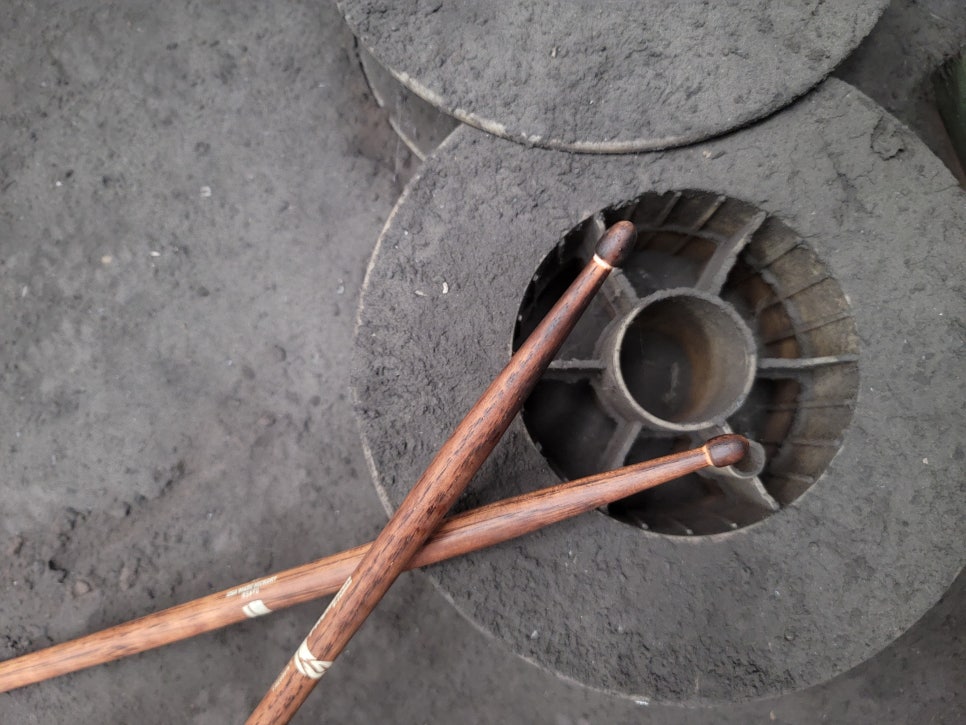
I wanted the lyrics to be fairly simple but impactful, so I aimed to incorporate rock elements. I also thought using unconventional industrial percussion could effectively convey the feeling of noise.
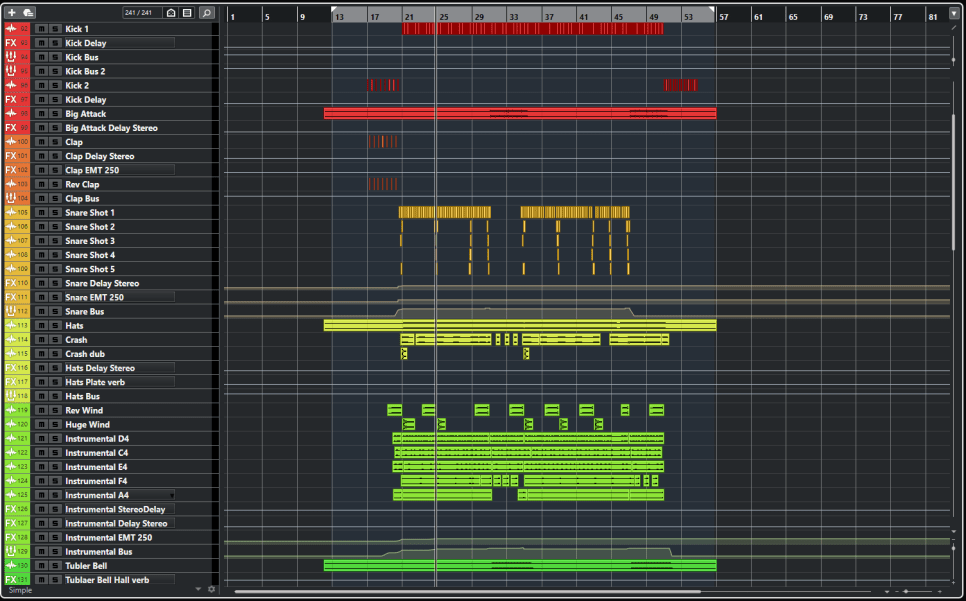
Thus, I used a snare drum with significant reverb and a strong attack, along with various metal percussion sounds and tubular bells used in orchestras.
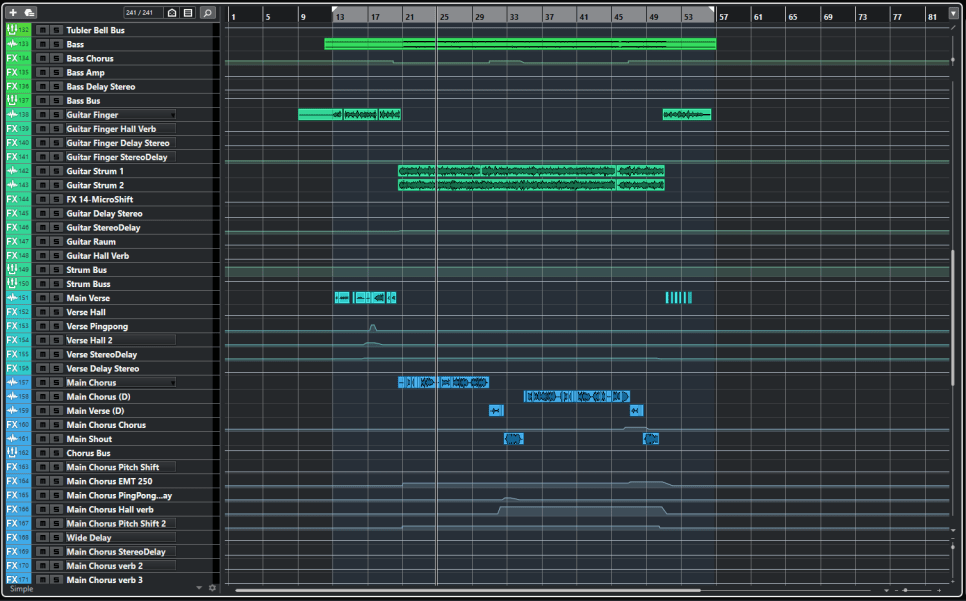
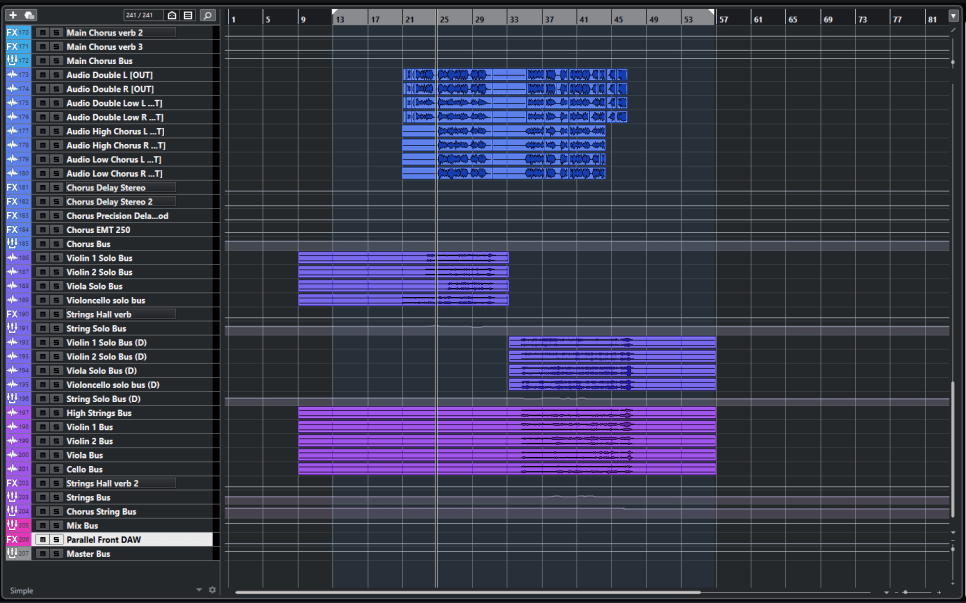
When I reopened the project file, I noticed I had used over 100 tracks for the mix (with 46 tracks for the instruments).
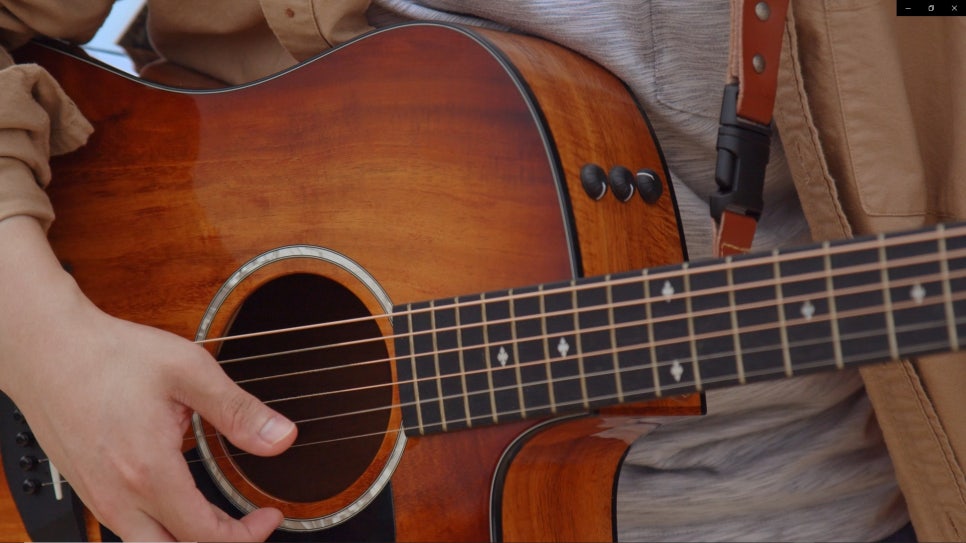
For the vocals, I used a Peluso P87 microphone, and for the guitar, a Peluso CEMC6. Both were recorded through the HA-73EQ.
Additionally, I recorded the guitars using different Nashville tunings for the left and right channels.
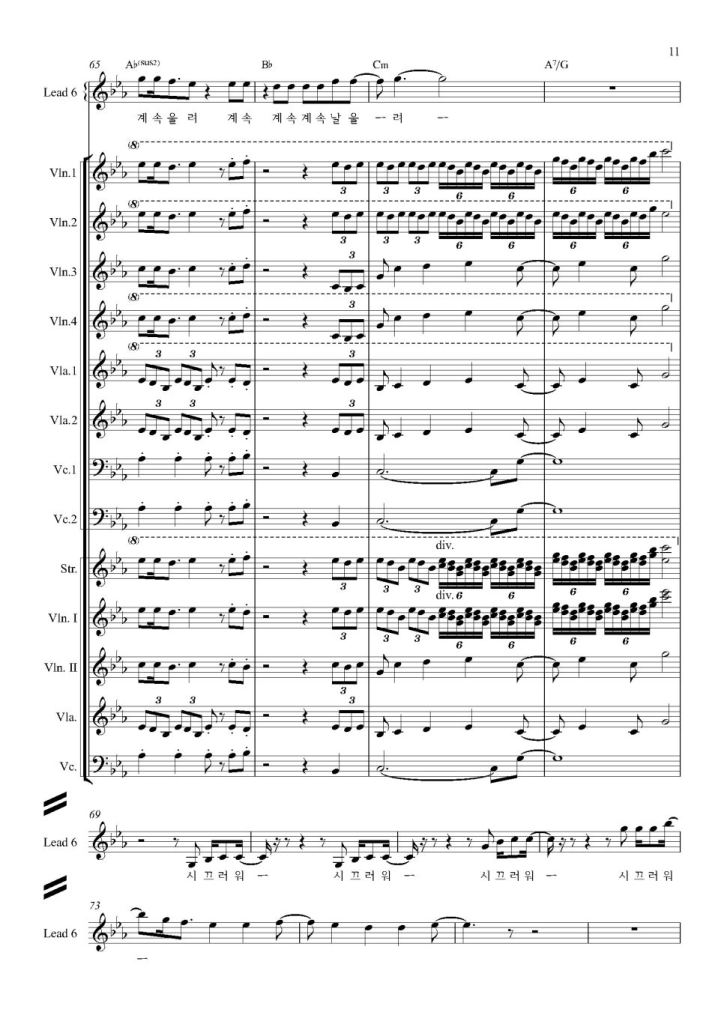
Apart from the percussion, I paid special attention to the strings. I arranged the parts separately using sheet music and included them through BBCSO.
Looking at some of the sheet music, you can see there are quite a few notes.. ^^;;
Orchestrating these instruments took as long as mixing them. Once I get more familiar with it, I’ll be able to work faster, but for now, I put a lot of intent into each part.
Another critical part I focused on was the beginning and end guitar sections. I tried to enhance the groove and rhythm through bass movement, and I hope it came across as intended.
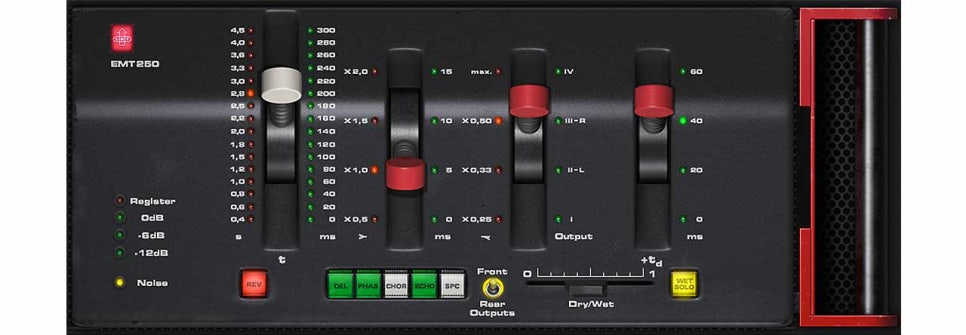
In terms of mixing, the EMT250 I purchased at the time played a significant role. Its broad and expansive reverb matched the song perfectly.
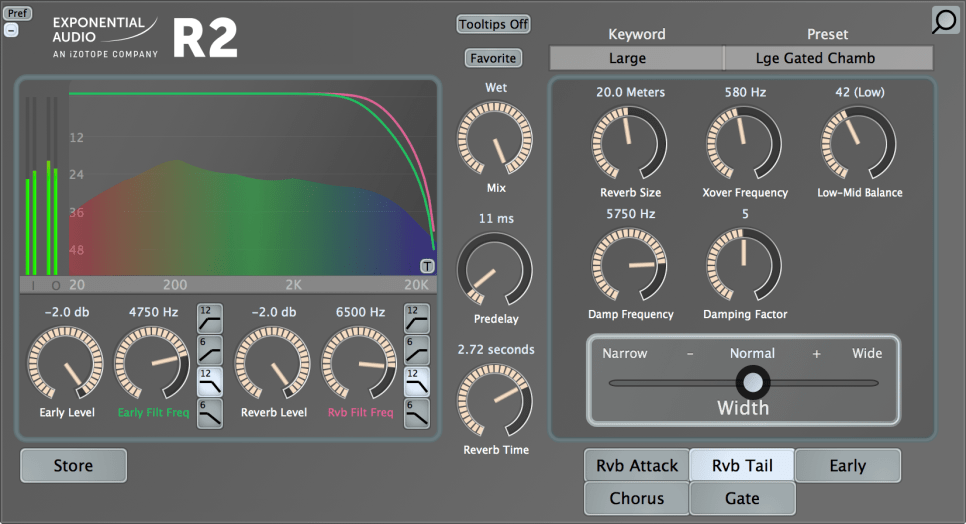
I got the R2 at a very reasonable price, yet its natural reverb exceeded its cost. So, I used it for the overall hall reverb.
Explaining every detail of the mix would take too long.. Another unique aspect of this mix was adding parallel saturation and heavy compression at the final mix stage to make the sound a bit noisier.
Other than that, there wasn’t any notable processing. The pitch and rhythm tuning, along with the volume automation, took the most time. Aligning the string tracks with the timing and articulation was a painstaking process, revisited countless times.
Thus, after completing all the composing, arranging, recording, and mixing, I sent the track to a mastering studio.
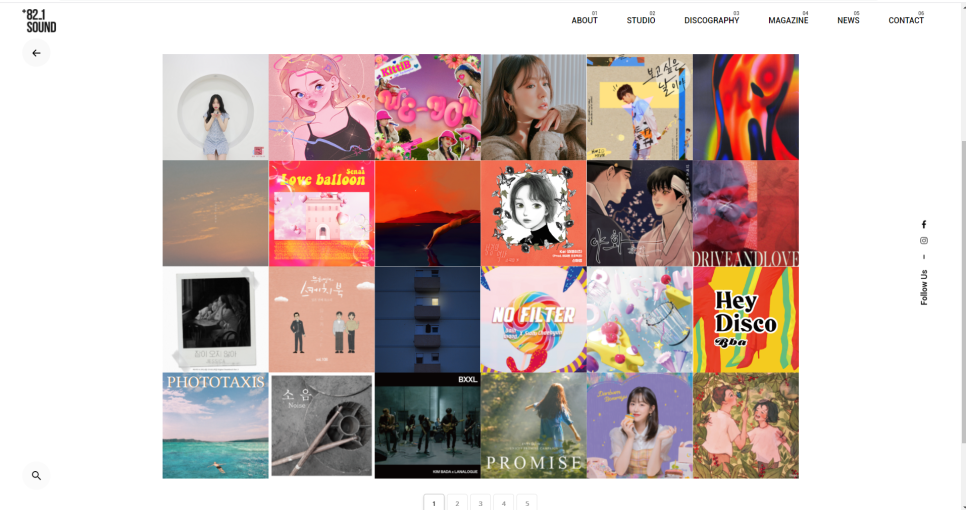
I’m always curious about how different places produce sound, and I wanted to visit the studio to check the sound directly if possible. So, I booked a session at 821 Sound Studio but had to conduct it online due to COVID-19.
On the mastering day, the engineer sent me the files, and I was immediately impressed by how well the sound was captured, so I gave my approval right away.
I had been focusing on the higher frequencies and missed some details in the lower range, but the engineer brought out the groove in the low end perfectly, which was very satisfying.
(The engineer provided two versions: one with more aggressive processing and another balanced version. The aggressive one brought out the groove I intended.)
My track is listed in the discography on the lower left side of the 821 Sound website.
Examining the waveform later, I was surprised by how dynamic it remained despite looking heavily compressed. It reaffirmed the importance of mastering engineers.
I had to wait for about three weeks for the appointment and felt bad about not being able to visit the studio. The engineer kindly invited me to visit once the COVID-19 situation improved, and I promised to do so when possible.
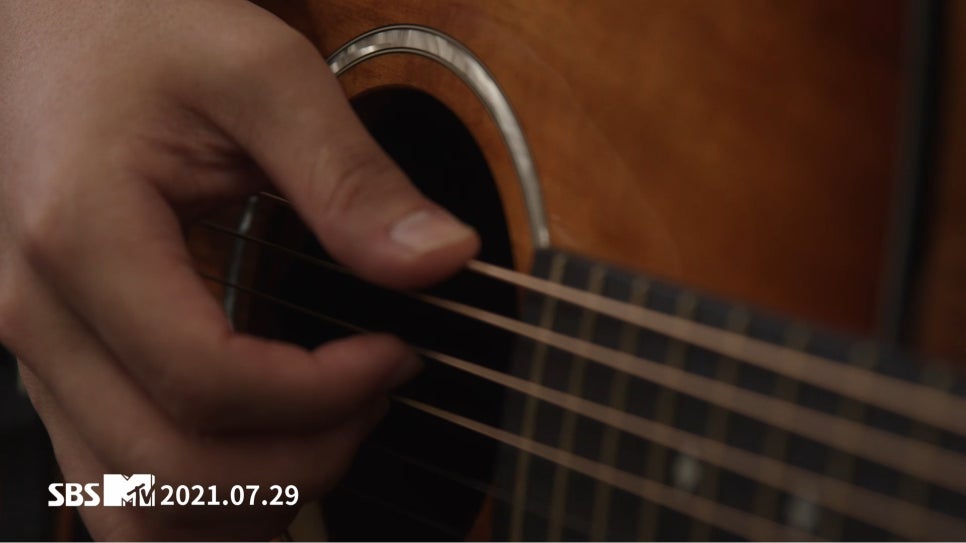
I also worked on the music video simultaneously. I collaborated with PD Kilsangmun, who operates as a one-man team.
We had a Zoom meeting before the shoot to discuss the direction, color, and feel of the music video.
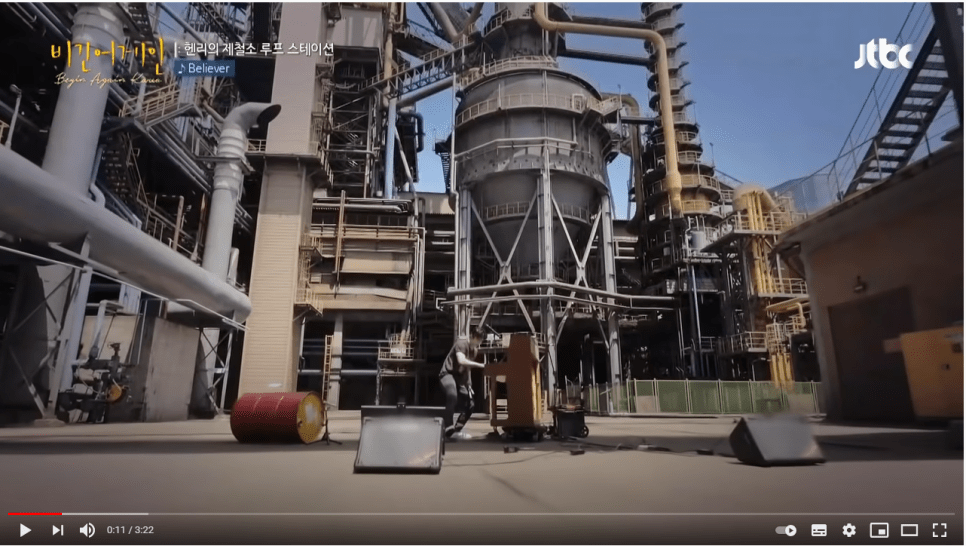
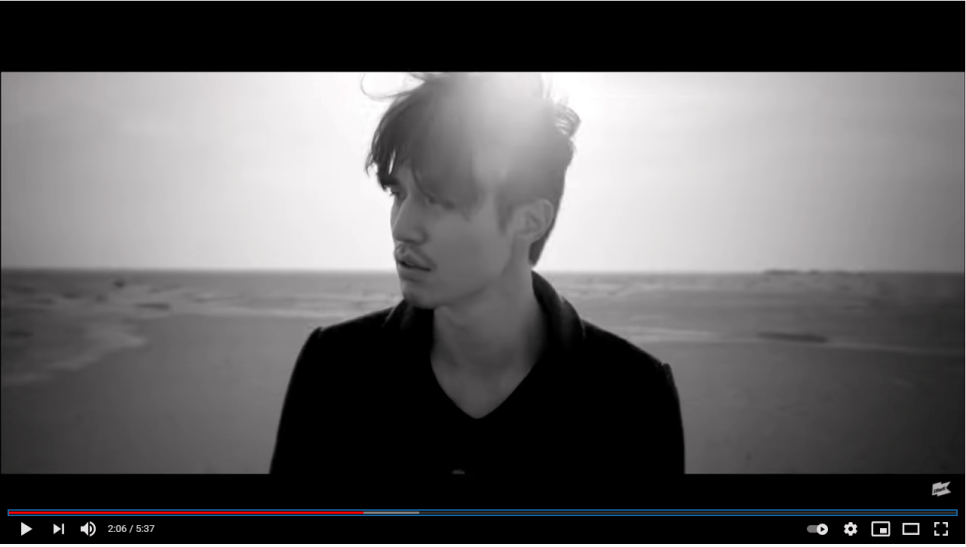
I wanted to shoot in a setting similar to the backgrounds in Rain’s “Gang” music video and Henry’s loop station scenes from JTBC’s “Begin Again.” I also wanted the color tones similar to Kim Dong-ryul’s “Lonely Voyage” and Replay by Wonder K.
The PD had a different interpretation of “noise,” viewing it as the overwhelming information in the world and wanting to depict an escape from it.
After exchanging ideas, the PD sent a plot. Unlike my previous music videos, the PD handled the entire story this time.
The initial plan was to film people overwhelmed by information like noise in a 3D effect, but we decided to go with a more traditional music video approach if that proved too challenging.
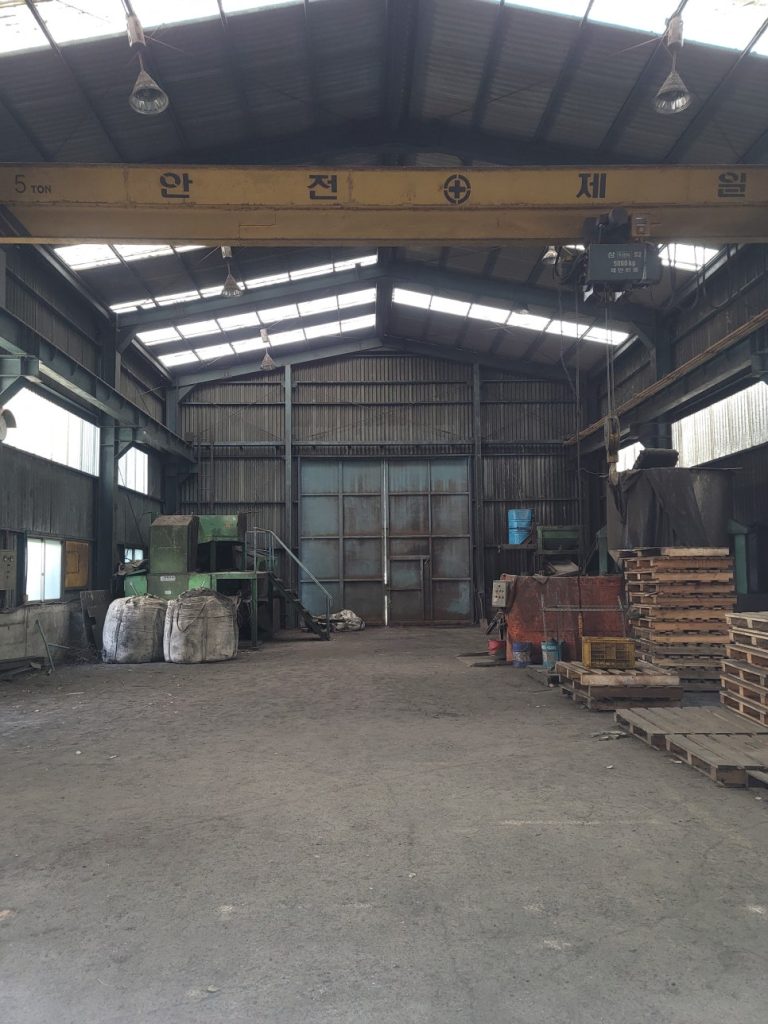
We chose an abandoned factory in Pohang for its low cost and nearby sea for additional shooting locations.
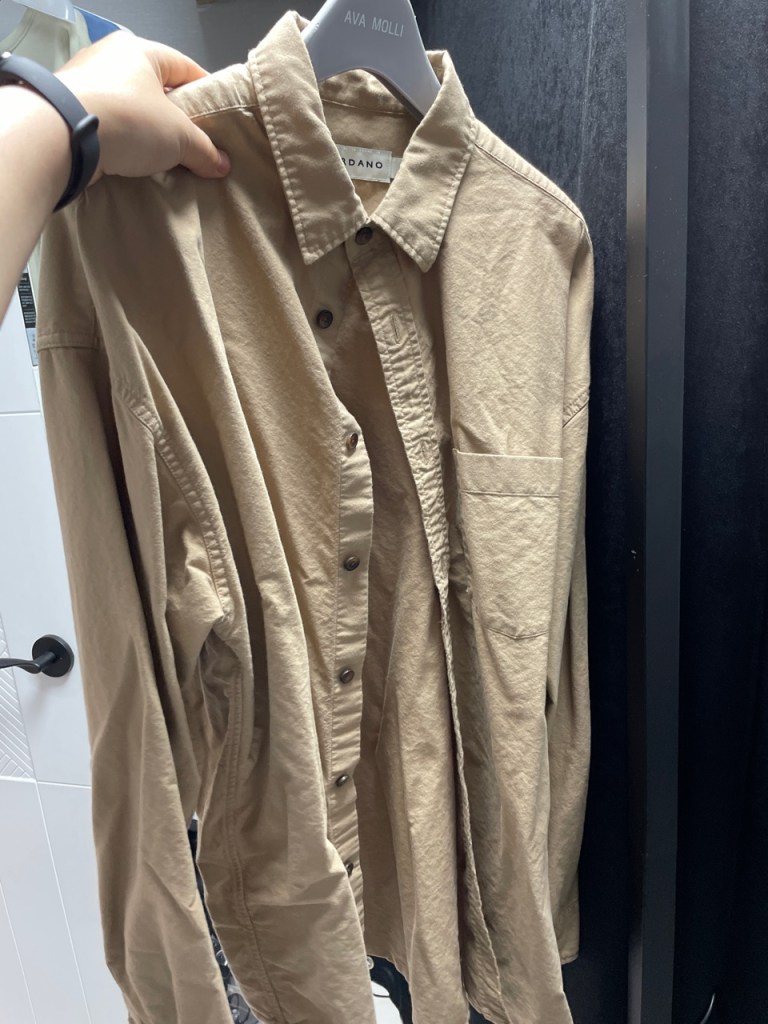
A few days before the shoot, I realized we hadn’t discussed costumes. Since I didn’t have the budget to buy new outfits, I used my own clothes.
The PD wanted a work uniform or khaki pants look, but I mostly had semi-formal or denim styles. So, we decided on a white t-shirt and blue jeans, with the PD providing an additional shirt.
We scheduled the shoot for Sunday, July 18th. As the PD works solo, he drove us to the location (I felt bad since I have a dormant license..).
We started early at 5 AM and arrived at the beach in Pohang around 10 AM. We began with the beach scenes as it would be difficult to shoot after sunset.
The sky seemed ready for rain, and the forecast predicted rain in the afternoon.
We shot the beach scenes, including multiple takes of running scenes from various angles. The PD ran alongside me, both of us sweating but with some relief from the breeze.
After about two hours of shooting until noon, we debated whether to eat. Both of us tend to feel unwell if we eat on important days, so we skipped lunch as well.
Instead, we had some snacks and rested at a cafe before heading to the abandoned factory.
The factory was dusty, with lots of dust kicked up during drone shots.. ^^;;
Eventually, my clothes were soaked, and shooting became difficult. I had a spare white t-shirt, so I switched between the two.
Despite the physical toll, it felt liberating once everything was done. As we hadn’t eaten all day, I offered to treat the PD to anything he wanted on the way back. However, most places at the rest stop were closed except for a few restaurants.
Feeling sorry, I promised to buy him a drink once the music video was out, but COVID-19 has made meeting up difficult.
We also took photos for the album cover at the factory. Ironically, the first photo we took turned out to be the best, which I edited for the album cover.
The PD drove us back, and we returned around midnight.
Two weeks later, on July 27th, the editing was complete. We decided to go with the second option without the 3D effects as the PD found it challenging.
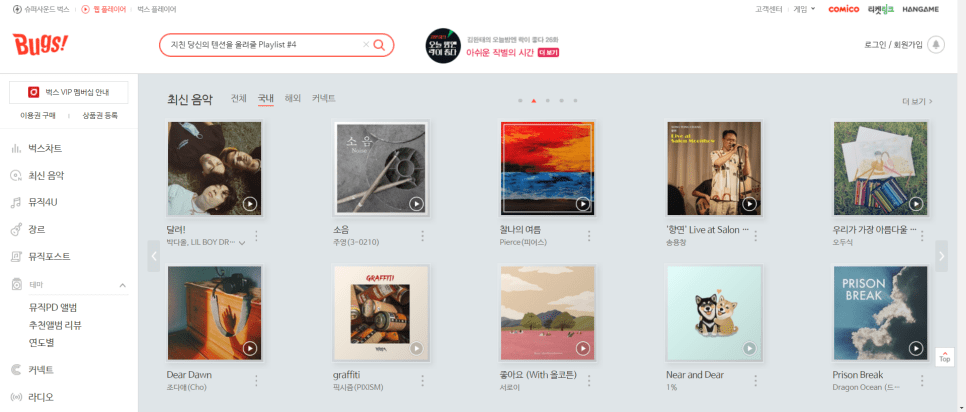
This time, it seemed more niche, and it didn’t get featured prominently elsewhere, but thankfully Bugs featured it on their main page.
That’s the end of this song’s production diary. I couldn’t write in great detail as time has faded some memories, but I hope you found it interesting! 🙂















 Jooyoung's Music Blog