How to Use The Tape Machine Plugins?

Hi! This is Jooyoung Kim, mixing engineer and music producer.

A few days ago, I met my teacher, who taught me guitar and MIDI. We talked about various topics, including tape machine plugins. That conversation inspired me to write a blog post about using tape machine plugins.

If you purchase a plugin through a link in this article, I may receive a small commission.

Let’s dive in!

First, I wrote an article about tape saturation. If you wonder how it works, please read the post above.

UAD (Universal Audio Digital)

Recently, Plugin Boutique was having a bundle sale on tapes.

Among this bundle, I will talk about three: Oxide Tape Recorder, Studer A800 Tape Recorder, and Ampex ATR-102 Master Tape.

Oxide Tape Recorder
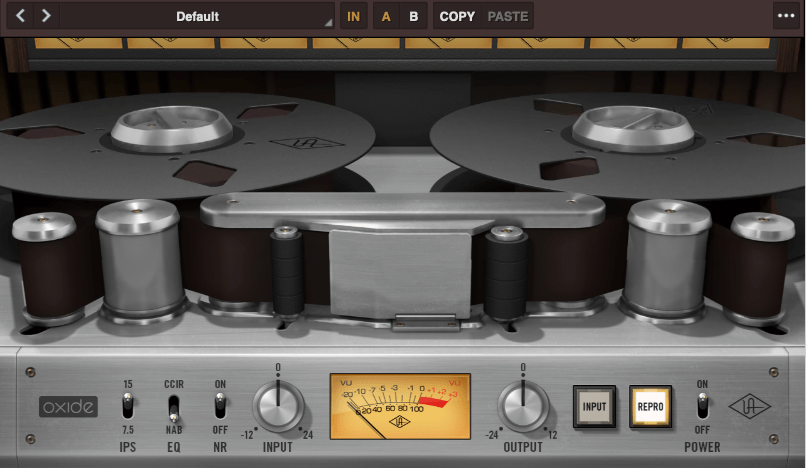
Oxide Tape Recorder is one of the best tape machine plugin made by UAD. The user interface of the Oxide Tape Recorder is simple and intuitive.

IPS means “Inches Per Second”. For example, when IPS is 15, the tape moves 15 inches per one second.
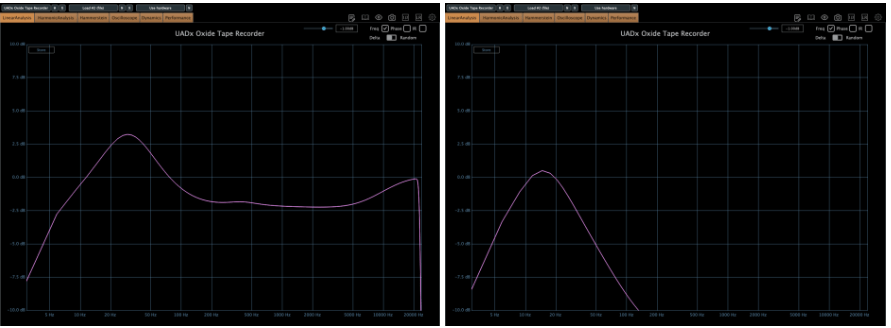
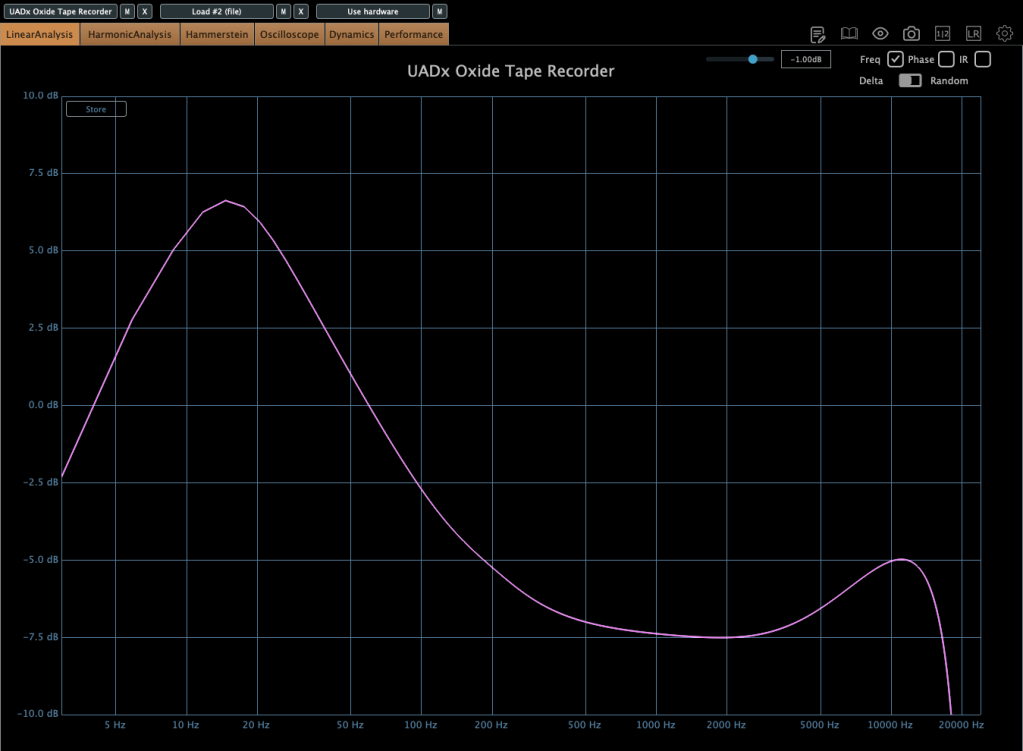
When EQ parameter is on NAB, left side is the frequency response of IPS 15, the other side is IPS 7.5
More gain at IPS 7.5
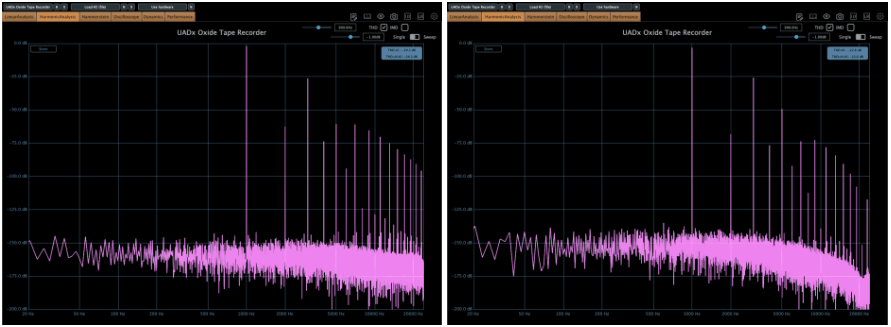
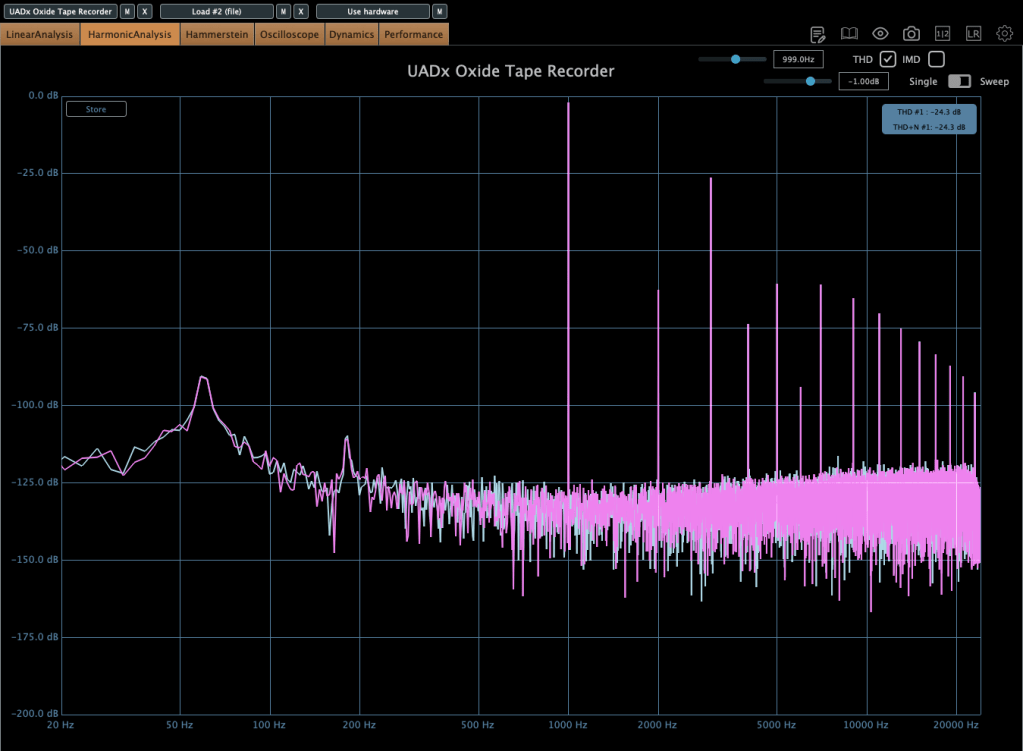
When EQ parameter is on NAB, left side is the harmonic distortion of IPS 15, the other side is IPS 7.5

You can see how IPS affects the frequency response and harmonic distortion.
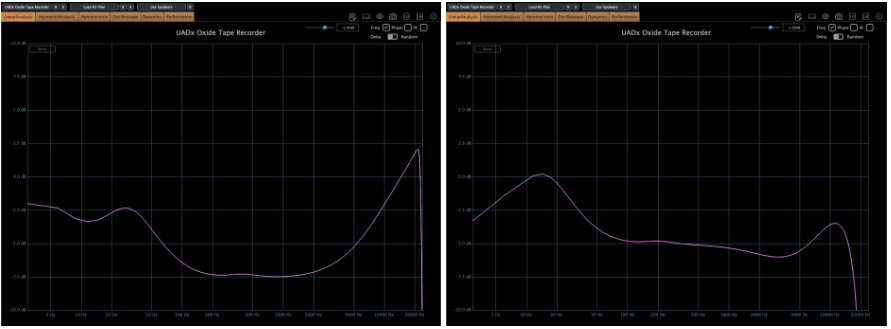
When EQ parameter is on CCIR, left side is the frequency response of IPS 15, the other side is IPS 7.5
If the input gain is too high, compression acts like a soft clipper.

The EQ parameter has two different values: NAB(National Association of Broadcasters) & CCIR(Comité Consultatif International des Radiocommunications, Now ITU-R)

People used to emphasize high frequency by recording process with tape recorder. This is due to high-frequency loss caused by the tape head and the machine. And then, de-emphasize the high frequency when the costumer play the tape.

At those situations, the EQ called NAB & CCIR was used.

NAB was the standard of the electricity with 60Hz alternating current like USA, and CCIR was the standard of 50Hz alternating current like EU(European Union).

The NAB standard sounds smoother and warmer than CCIR, whereas CCIR sounds clearer and sharper than NAB. It means CCIR more emphasize the high frequency field. You can see how the two differ by the upper frequency response graph.
The NR parameter means just “Noise Reduction”. If it turns off, the noise occurs.

That’s all you need to know about the Oxide Tape Recorder plugin. Simple!

Ampex ATR-102 Master Tape
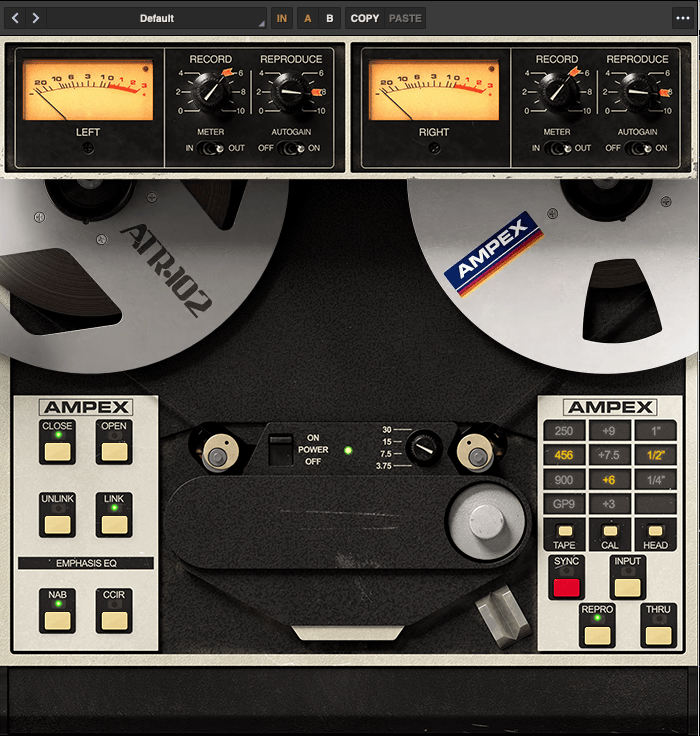
The parameters of the Ampex ATR-102 Master Tape are not as simple as those of the Oxide Tape Recorder. However, if you understand NAB, CCIR, and IPS, it’s easy to use.

Let’s see the parameters.

The record(input) and reproduce(output) knobs are located at the top of the plugin.
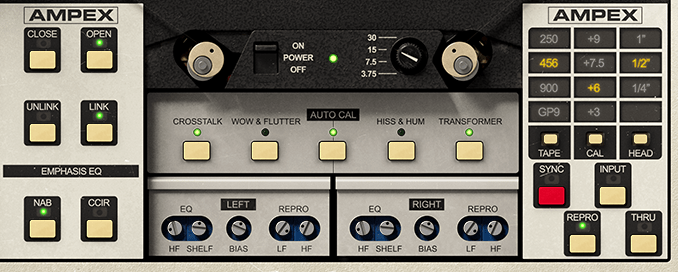
Down side of the plugin, there are buttons that enable detailed adjustments(open and close), and to choose NAB or CCIR.

The right side, you could change type of the tape, calibrate the volume, and choose the tape head width.

Based on 250 tape and NAB(when you choose IPS 30, couldn’t choice Emphasis EQ),
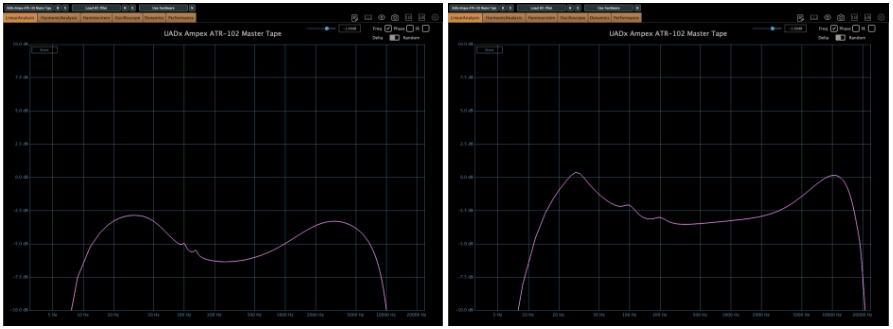
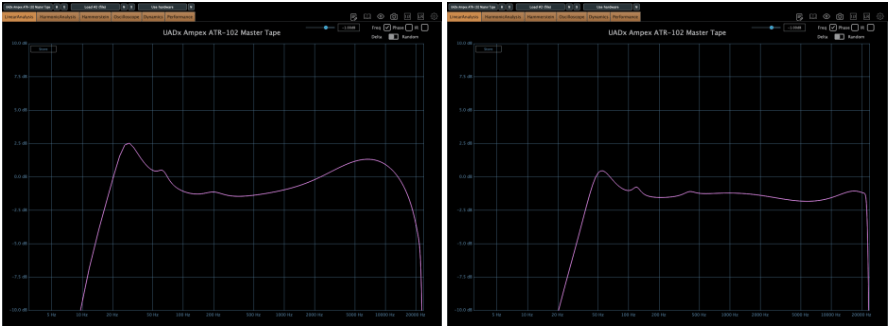
Left – IPS 3.75, Right – IPS 7.5
Left – IPS 15, Right – IPS 30

there are significant differences in frequency response.
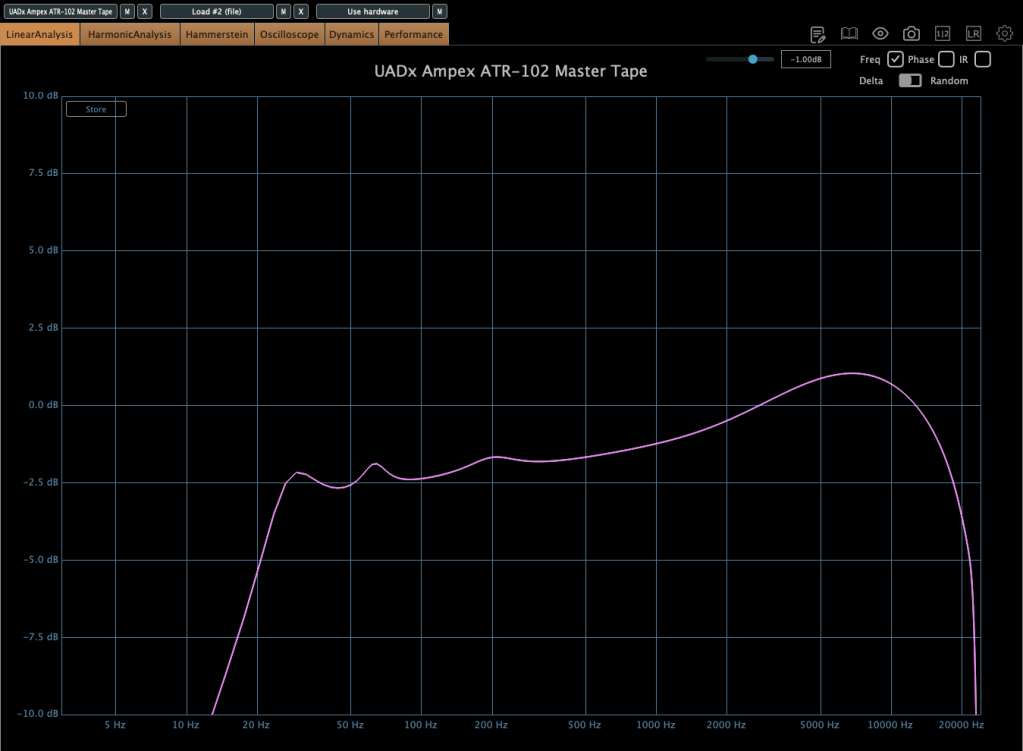
When the tape speed is at IPS 15, this graph shows how the frequency response change by selecting NAB to the other(CCIR).

Input gain and output gain value also make some difference, but it’s not that important..

Compression characteristic is unusual – increase high-volume signals even more – however, it’s not a noticeable difference, so I’ll skip the explanation.

Studer A800 Tape Recorder
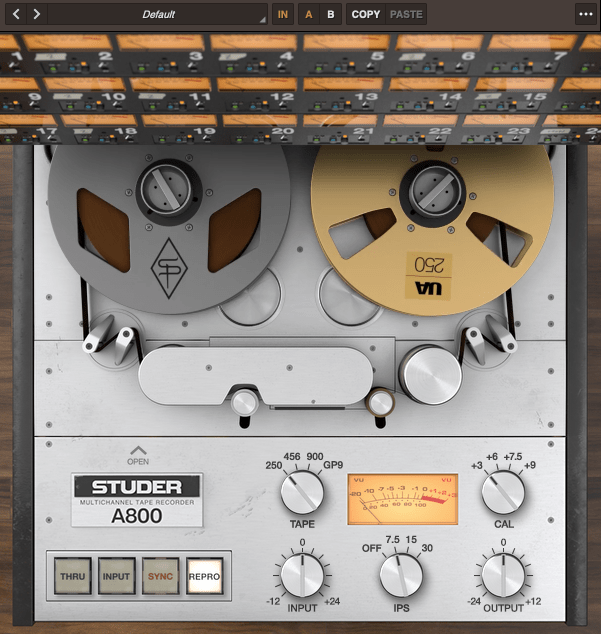
The parameter – tape type, calibration, IPS…

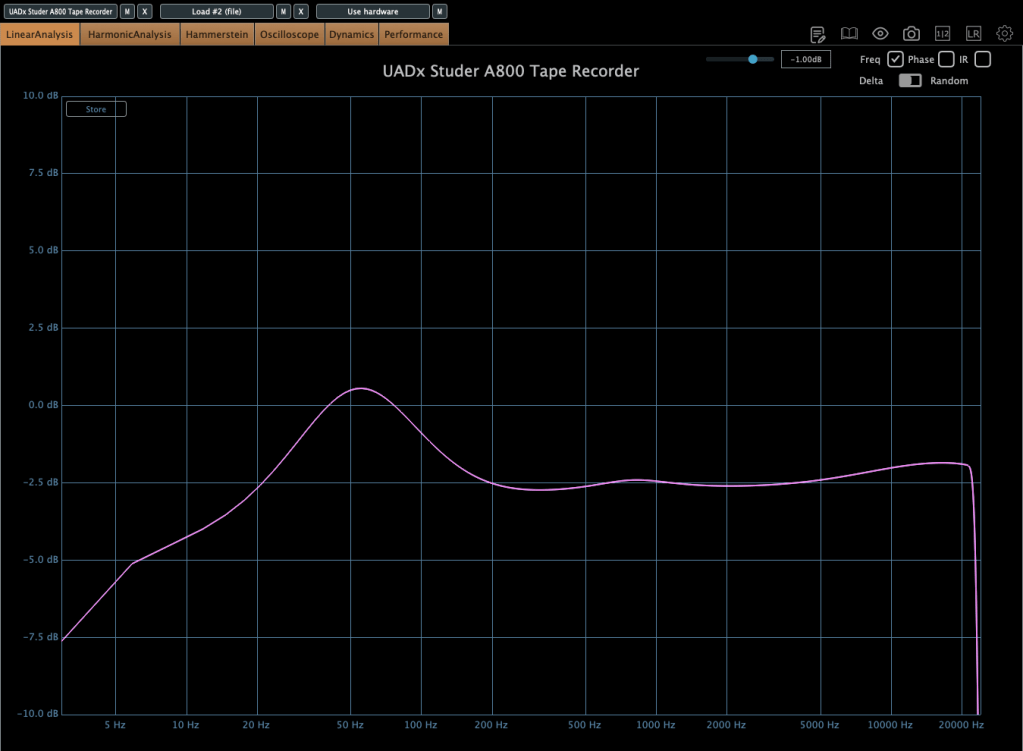
Left – IPS 7.5, Right – IPS 15
IPS 30

now it’s really simple. Isn’t it?

Now, without further ado, you can think of it as a friend that emphasizes the low range, and the frequency response changes like this depending on the IPS!

IK Multimedia

IK Multimedia makes various plugins like virtual instruments, mixing and mastering effects – their tape machine plugins are really great.

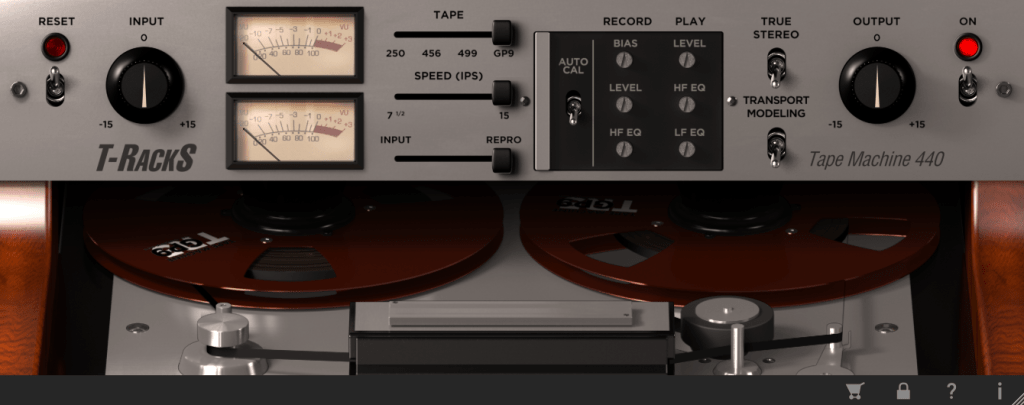
The total bundle sale started on Black Friday, but it’s still on sale. T-racks 5 MAX included in the total bundle includes a total of four tape machine plug-ins: Tape Machine 24, 80, 99, and 440. Let’s look around.

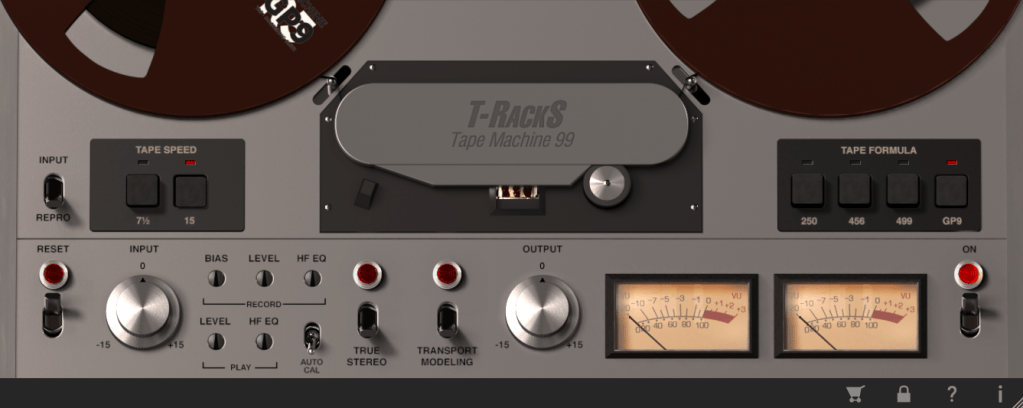
Parameters seems similar.. Tape types, IPS..

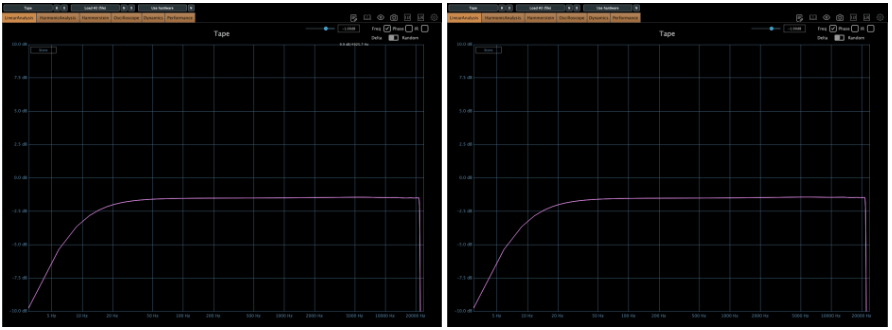
IPS 15 in GP9 tape

True stereo parameter makes the difference response between left and right, and transport modeling makes the variation value of the volume by time.
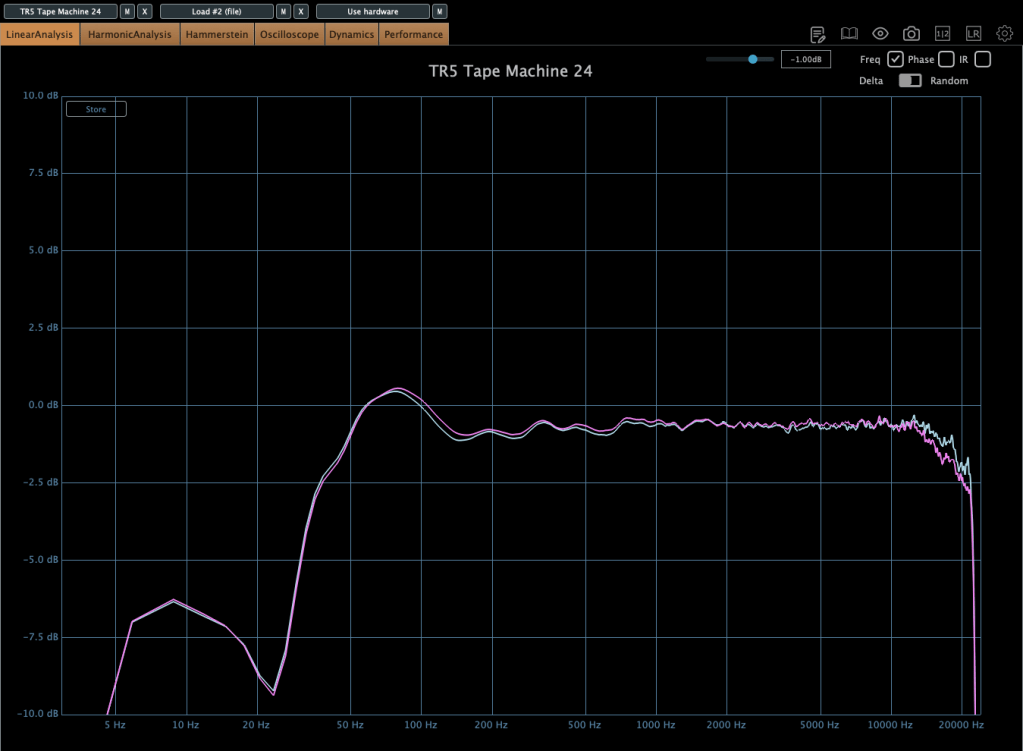
IPS 30 in GP9 tape

The other plugins’ parameters are same as Tape Machine 24 plugin. Just the machines are different, and they make difference in frequency response.

Simple!

Softube Tape
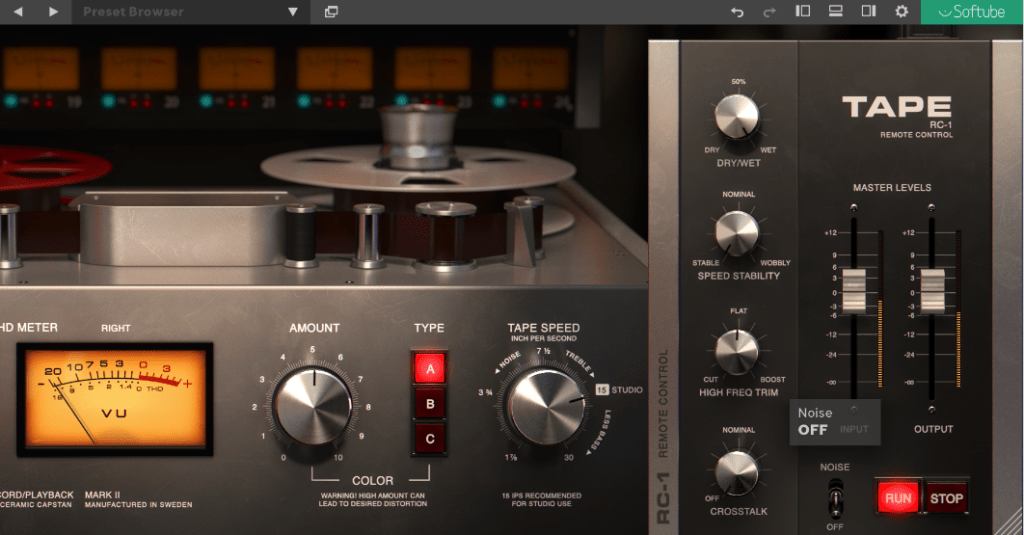
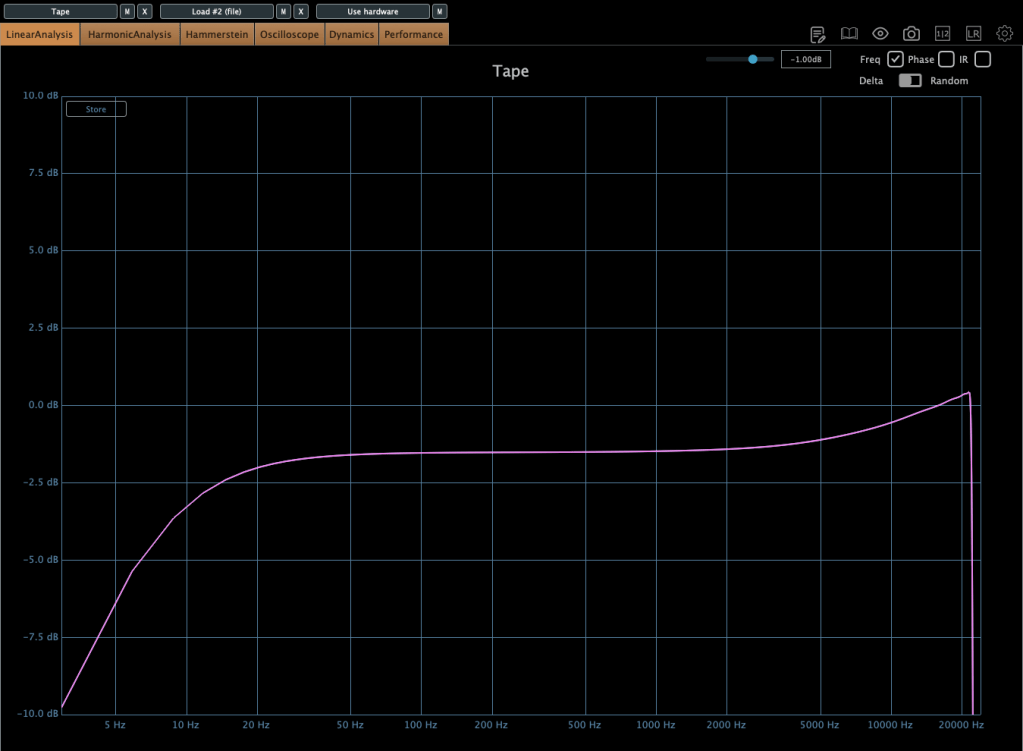
Softube’s Tape plugin is very clean tape machine plugin. The harmonic distortion quantity could changeable by Amount parameter, and tape type could be selected by the Type parameter. (Type A is clean side, B has quit a lot of low frequencies, C has the characteristic between A and B)
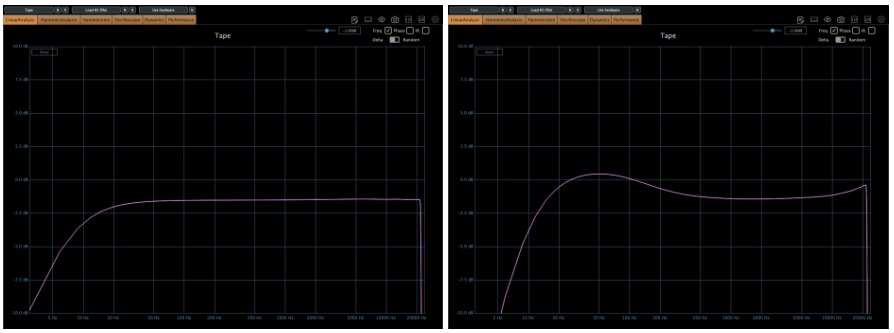
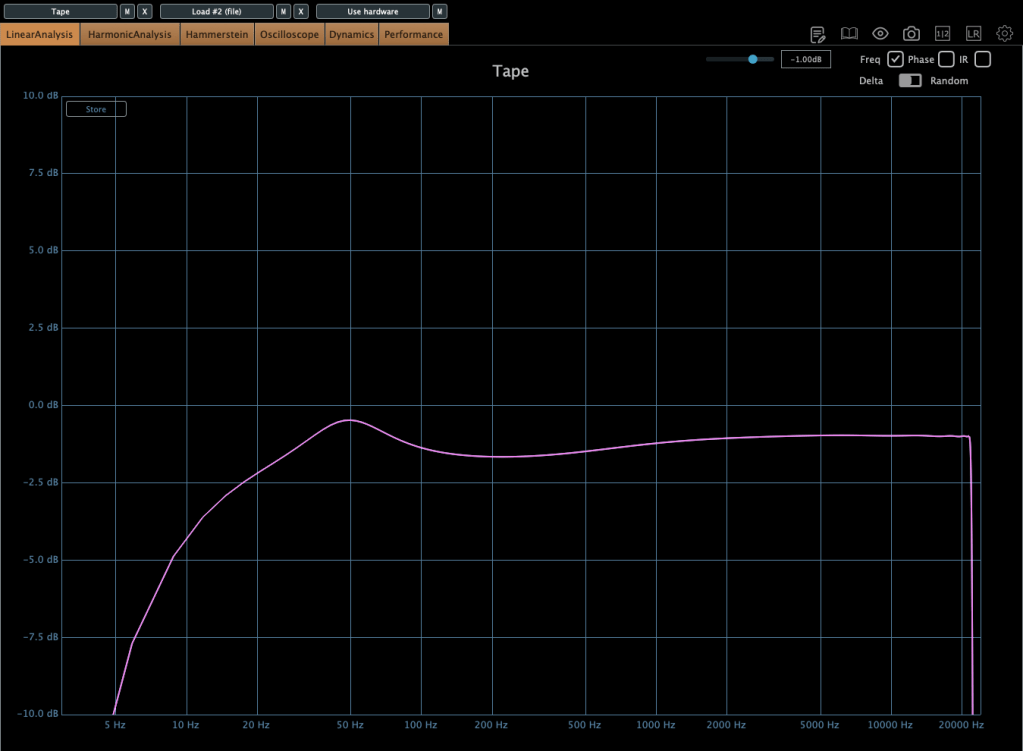
Left – Default type A, Right – Default type B
Default type C

Tape speed could be changed by IPS too.
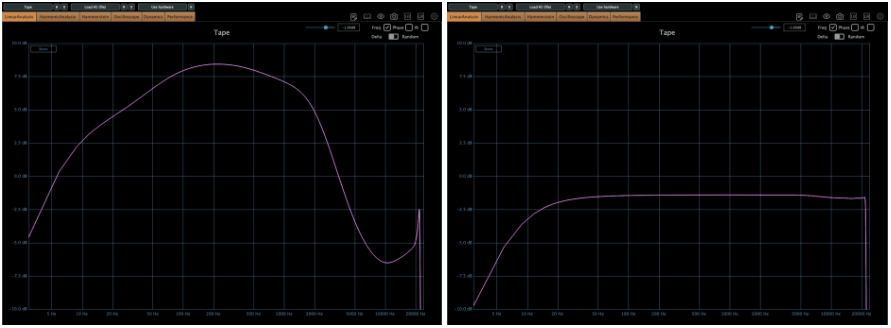
Type A tape Left – IPS 7/8, Right – IPS 3 3/4
Type A tape Left – IPS 7 1/2, Right – IPS 15
Type A tape IPS 30

Waves also has a famous tape machine plugin called Kramer and J37, but as I was writing this, the patterns became too similar, so I will omit them.

However, there is a parameter called Bias that exists only in Waves.

If you wonder about the bias, please read upper article.

If you look at it so far, you will feel something. IPS, EQ and the tape type are everything about a tape machine.

I think that just remembering this will make it easier to use the tape plugins.

Thanks for reading! See you in the next post.
The Basics of Mixing – 8.1 What is Reverb?

Hello! I’m Jooyoung Kim, a mixing engineer and music producer.
Today, we’ll be diving into the topic of reverb.

Shall we get started?

What is Reverb?

Reverb is short for “reverberation,” which can be translated as “echo” or “resonance.”

In essence, reverb is an effect that creates echo or resonance.
But why do we use it?

Normally, when we speak to each other, we aren’t whispering directly into each other’s ears.
This means we’re always hearing a bit of natural echo from our surroundings.

But what about recordings?

While room mics can capture some of that natural reverb, most recordings are done quite close to the source, almost like someone is whispering directly into your ear. As a result, these recordings often lack natural reverb and can feel “dry.”

To add that missing resonance, we use reverb. However, it’s not just about simulating the sound of a room or a studio. Reverb can create the illusion of a concert hall or an entirely virtual space, making the music sound more musical and immersive.

To understand how to use it effectively, we need to dive into how reverb is actually created.

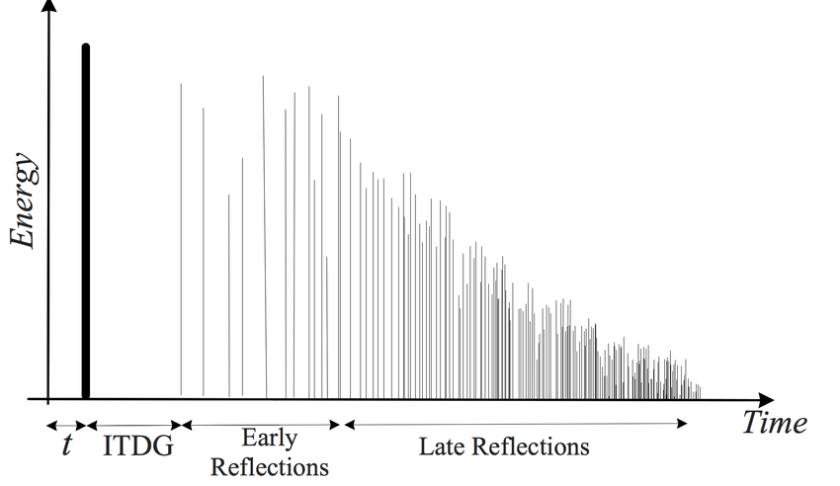
Kaplanis, Neofytos & Bech, Søren & Jensen, Søren & Waterschoot, T.. (2014). Perception of reverberation in small rooms: A literature study. Proceedings of the AES International Conference. 2014.

As I mentioned in the “7.3 How to Use Delay” section of the previous post, reverb is created when sound waves bounce off surfaces like walls.
The first reflections of sound that reach our ears after bouncing off a surface are called Early Reflections, and these are typically the loudest part of the reverb.

Afterward, the sound continues to reflect multiple times, gradually forming the full reverb. The time it takes for the reverb to decay by 60dB from its original level is called RT60.

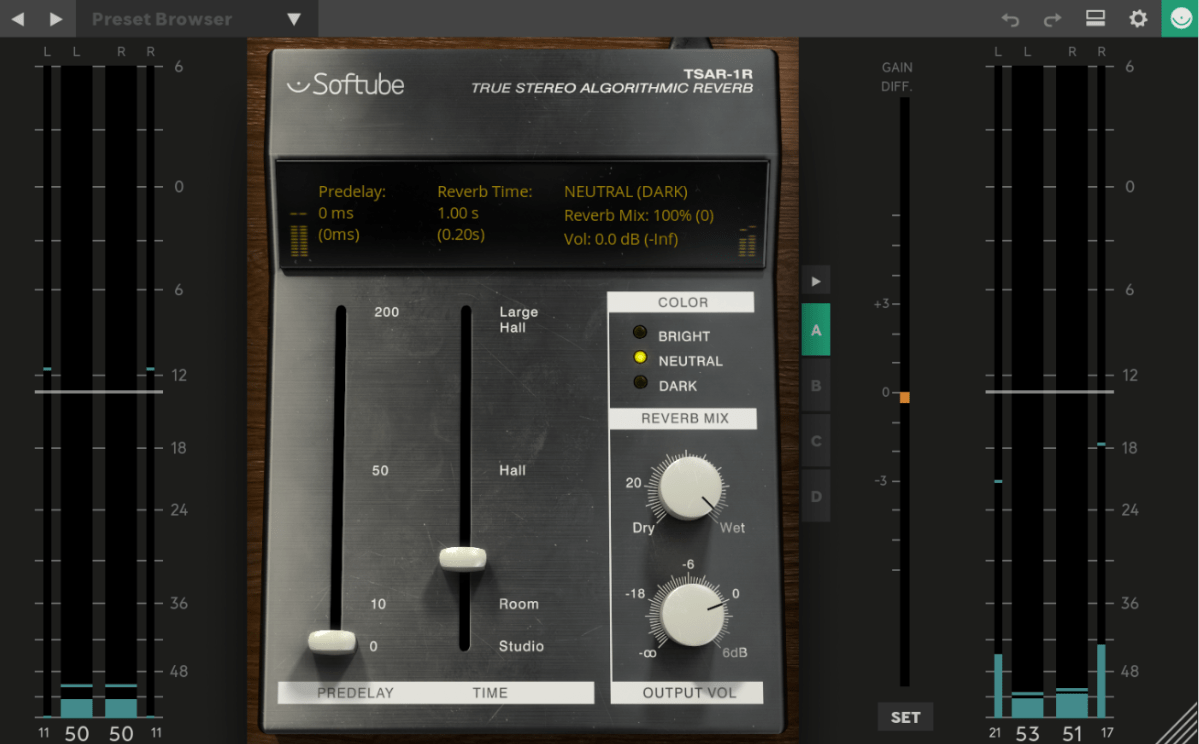
There is also a natural delay between the original sound and when we hear the reverb. To control this delay in reverb plugins or hardware, we use a parameter called Pre-Delay, which allows us to set the time gap between the original sound and the onset of early reflections.

For orchestral instruments, it’s common to use reverb based on Impulse Response (IR). Since sound travels at about 340 meters per second at room temperature, we can map out how reverb behaves based on the distance of the space, and calculate the time difference between the original sound and the reverb start time.

For example, if there’s a 2-meter distance, you can calculate the delay as 2m ÷ 340m/s = 0.005s, or a 5ms difference.
Setting the Pre-Delay to around 5ms can simulate this effectively.

In mixing, when a sound is intended to be closer, it’s good practice to have a larger gap between the original sound and its reverb (larger Pre-Delay). For distant sounds, a smaller Pre-Delay works better.

At the end of the day, if it sounds good, that’s what matters most!

In the upcoming posts, I’ll cover the history, types, and practical applications of reverb.

See you in the next post! 🙂

Basics of Mixing – 7.1 What is Delay?

Hello! This is Jooyoung Kim, an mixing engineer and music producer. Today, I want to delve into the time effect known as delay.

Shall we get started?

So, what exactly is delay?

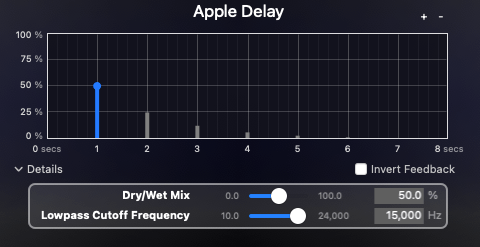
It’s simple, really. Delay is an effect that repeats the same sound with a time difference.

Why would we use this effect, though? There are several reasons, which can be summarized as follows:

  1. Using only reverb can sometimes create unnatural reverb tails.
  2. The feedback feature allows for the creation of very long reverb tails.
  3. It can add an artificial groove to a source.
  4. Special delay effects can be applied to instruments (especially common with electric guitars, and can also be used with short delays).

Effectively using delay can create a rich and natural reverb. If you’ve only been using reverb to add space to your mix, try incorporating delay as well.

I personally favor UAD’s Precision Delay because it lets you set the delay time in seconds rather than adjusting it via feedback. By setting the delay time similarly to RT60, which I’ll discuss in the reverb section, the sound can fade naturally.

Using a delay plugin to set the pre-delay instead of the reverb plugin’s pre-delay can also be effective. Especially if the reverb plugin doesn’t allow synchronization of the pre-delay time with the BPM, you can achieve a precise pre-delay using a delay plugin that does.

Setting a very short delay with minimal feedback and then filtering out high and low frequencies, while adjusting the volume, can create a subtle groove that wasn’t originally show in the source. This can add a sticky, rhythmic feel to percussion, which is particularly useful in genres like R&B and hip-hop.

Using historical replica delays can also help recreate the vintage sound of old-school or retro music.

There are countless crucial aspects of mixing, but I believe that handling reverb effectively is one of the key factors that define the quality of a sound. However, this is an area that’s hard to explain solely with words. You really have to experiment with various delay and reverb plugins to grasp it fully. It’s a challenging aspect, even for me.

Today, we’ll wrap up with this brief overview of delay. See you in the next post!

Create Your Own Virtual Instrument with NI’s Kontakt!

Hello everyone! This is Jooyoung Kim, an engineer and music producer.

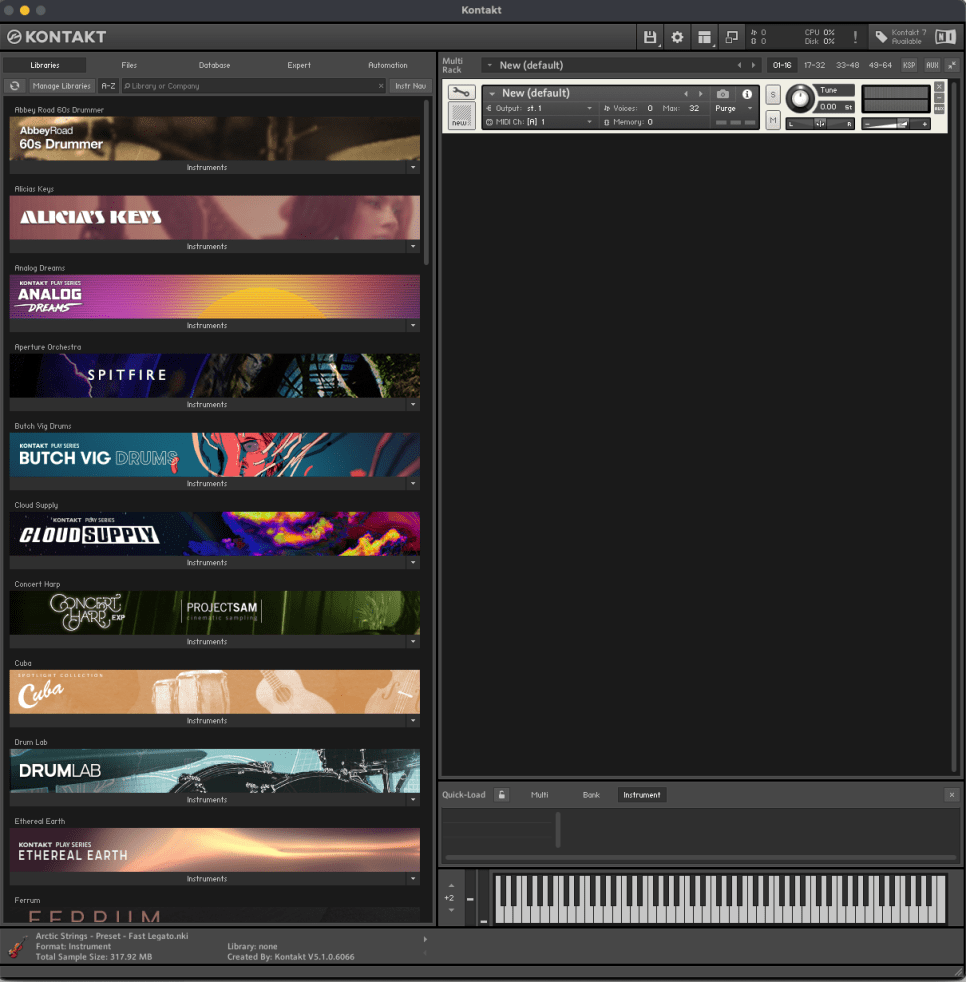
Today, I’d like to share a simple guide on creating your own virtual instrument using Kontakt 6 (often just referred to as Kontakt).

While Kontakt 7 is the latest version, I haven’t upgraded to the newest Komplete bundle due to the lack of significant new libraries. Therefore, I’m using Komplete with Kontakt 6 for this tutorial. The process should be similar across versions, so I hope this will still be helpful.

Given Kontakt’s extensive features, I will not cover every detail here. For in-depth editing, I recommend checking the manual.

Let’s get started!

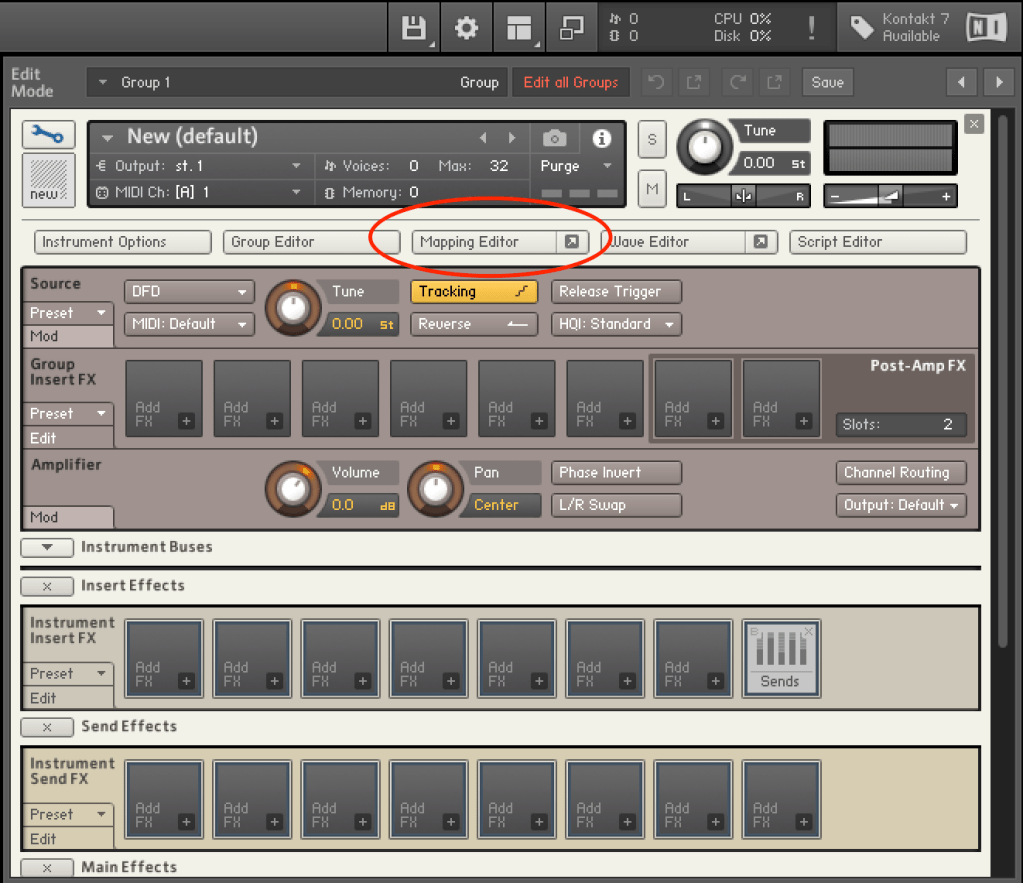
First, open Kontakt and double-click the empty space on the right to create a sampler. Click the wrench icon in the upper left corner to open the settings tab, as shown above. There are a lot of settings available!

First, let’s open the Mapping Editor highlighted in the picture.

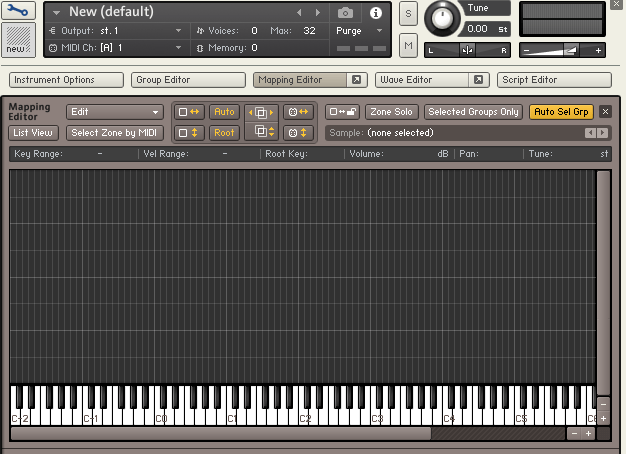
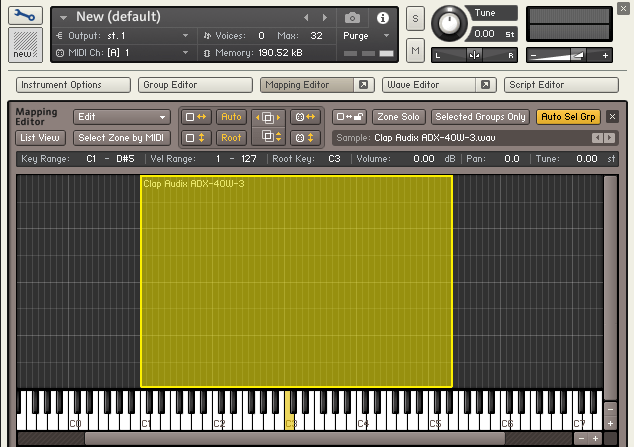
You’ll see a piano roll screen along with a grid that looks like an Excel spreadsheet. The horizontal axis represents pitch, and the vertical axis represents velocity. Load your desired sample onto this grid.

The grid and the piano roll will be colored like this. Pressing the colored keys on the piano roll will play the original sample, while pressing other keys will change the pitch.

You can adjust the highlighted areas with your mouse.

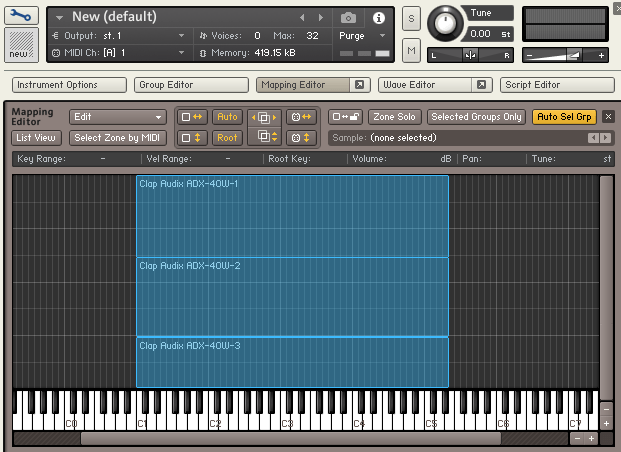
By properly adjusting the areas, you can set different samples to play depending on the velocity when you press a key, as shown above.

Similarly, you can click and drag the colored areas on the piano roll to adjust the pitch range.

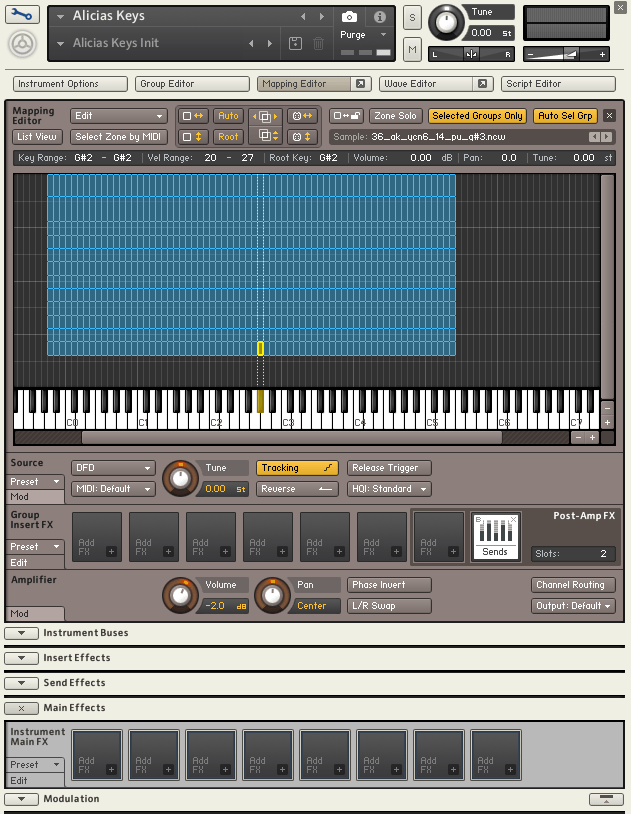
For example, if you open the settings for Alicia’s Keys, a commonly used instrument, and examine the mapping, you’ll see 12 velocity layers for each key. Instruments created with Kontakt often have such detailed velocity mappings. The more sophisticated the instrument, the fuller the mapping editor will be.

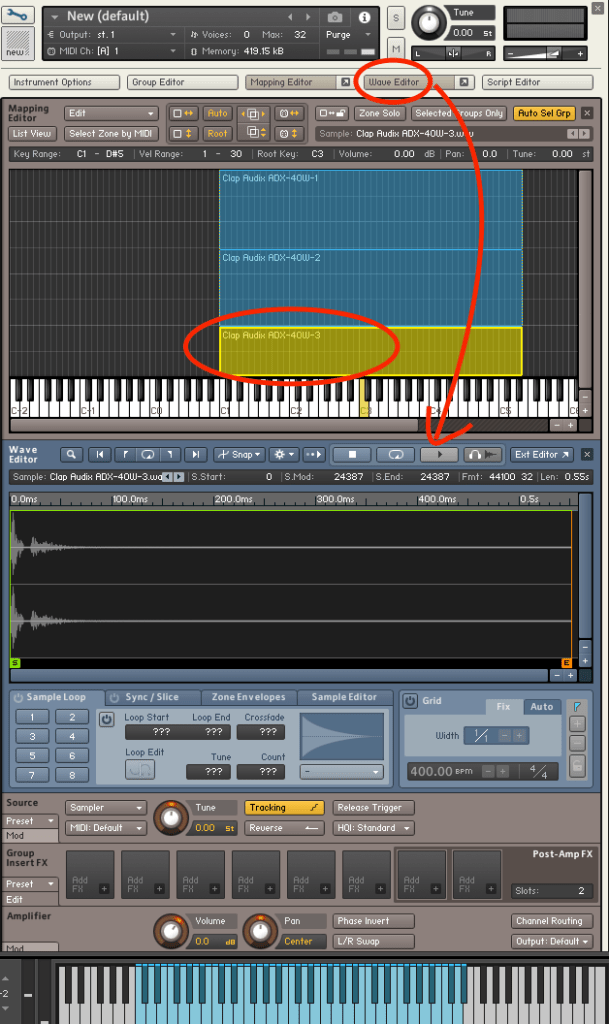
After completing the mapping, you can use the Wave Editor to fine-tune the samples to your liking.

You can loop the sample or perform various other edits.

The parameters are similar to those of general samplers, so if you’re familiar with samplers, you should find it easy to use.

If you’re new to samplers, exploring Kontakt can help you understand the structure of virtual instruments created with it, which can be useful when purchasing such instruments.

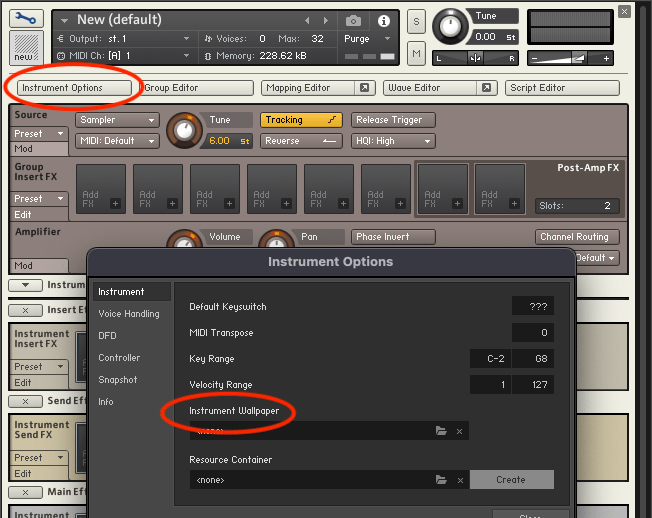
After some basic editing, the sound of your virtual instrument is complete. Finally, select Instrument Options and add a wallpaper with a TGA or PNG file (the manual suggests a width of 633 pixels).

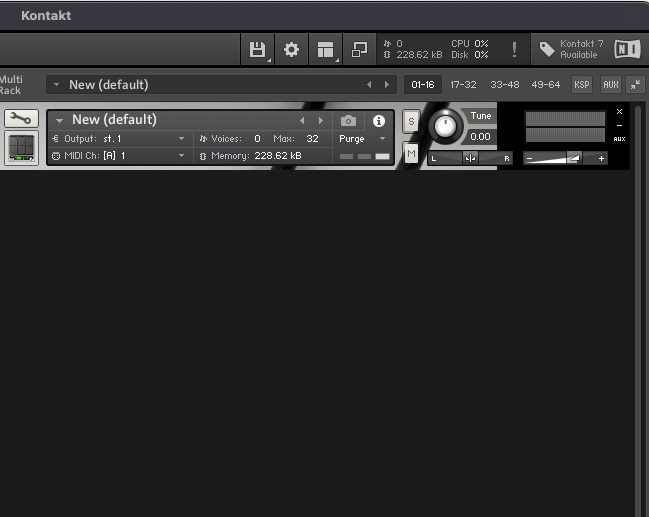
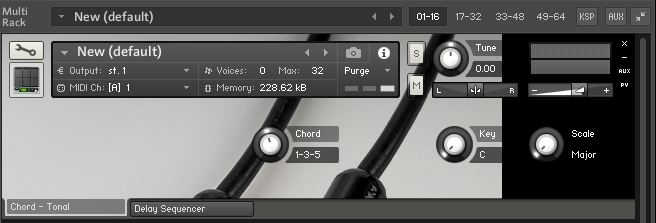
This gives you a virtual instrument with a polished look. But what if you want adjustable parameters like other Kontakt instruments?

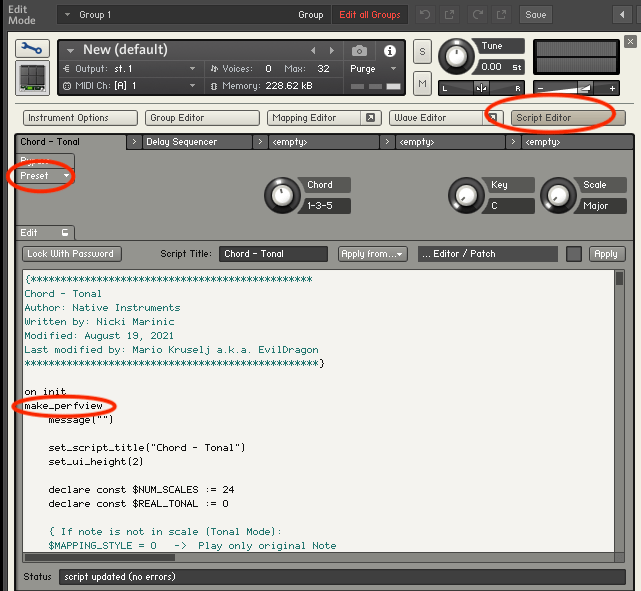
You need to use the Script Editor to add those features.

If you don’t want to dive too deep, you can simply select a factory preset from the side and add the “make_perfview” command between the “on init” and “end on” lines.

This will display the factory preset script in the main window, known as the performance view. To create a more customized performance view, you’ll need to learn scripting from various forums.

https://community.native-instruments.com/categories/scripting-workshop

For those who want to explore further, NI has a community that’s worth checking out.

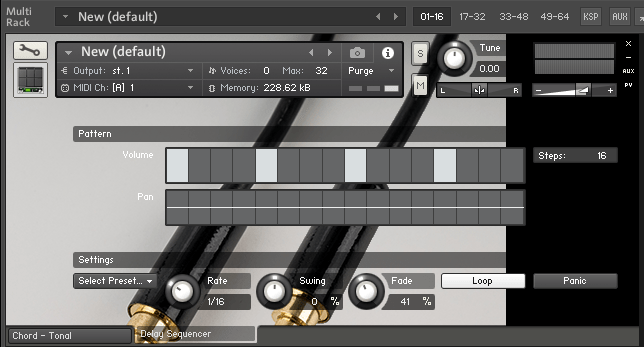
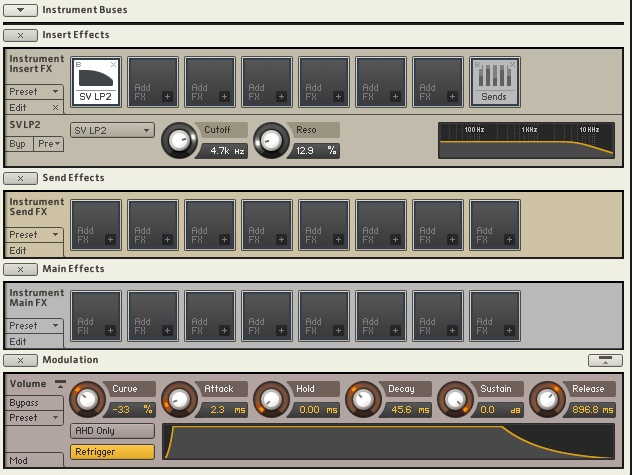
Other settings like Effects, Envelopes, and Buses are similar to those in other samplers or track settings, so I won’t explain them in detail here.

It may seem challenging at first, but once you understand it, you’ll be able to use other Kontakt-based virtual instruments more flexibly. If you’re into music production, it’s definitely worth studying.

I hope this post is helpful for those dealing with virtual instruments.

See you in the next post!