Hello, this is Jooyoung Kim — an audio engineer and music producer.
I ended up taking on way more classes than I expected this semester…
and honestly, just preparing for them is killing me. Haha. Every day feels like it disappears while I’m organizing lecture materials… 😢
And somehow, it’s already been almost two weeks…!
Today, following up on my previous post, I’d like to talk about running simulations.
Alright—let’s get started!
To run simulations in KiCad, you need a library file for each component.
The file extension is .lib.
As an example, here’s roughly what the library file looks like for a potentiometer (variable resistor) I created:
* Logarithmic Potentiometer Subcircuit (A-type taper).SUBCKT DUAL_POT_10K_LOG 1 2 3 4 5 6 SET=0.5 VALUE=10k* Unit A (Log curve: 10% resistance at 50% rotation)Ra1 1 2 {VALUE*(1-pow(10, -SET))+0.001}Ra2 2 3 {VALUE*pow(10, -SET)+0.001}* Unit BRb1 4 5 {VALUE*(1-pow(10, -SET))+0.001}Rb2 5 6 {VALUE*pow(10, -SET)+0.001}.ENDSFor components that are already built into KiCad, these libraries are applied automatically.
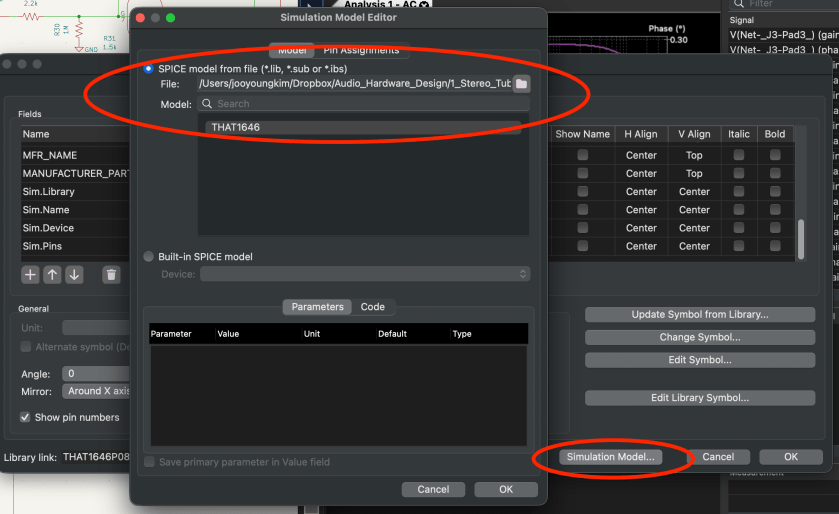
But for components that aren’t, you have to double-click the part, go to the component properties, click Simulation Model, and manually add everything… one by one.
Yeah… that part alone ate up a lot of time. 😅
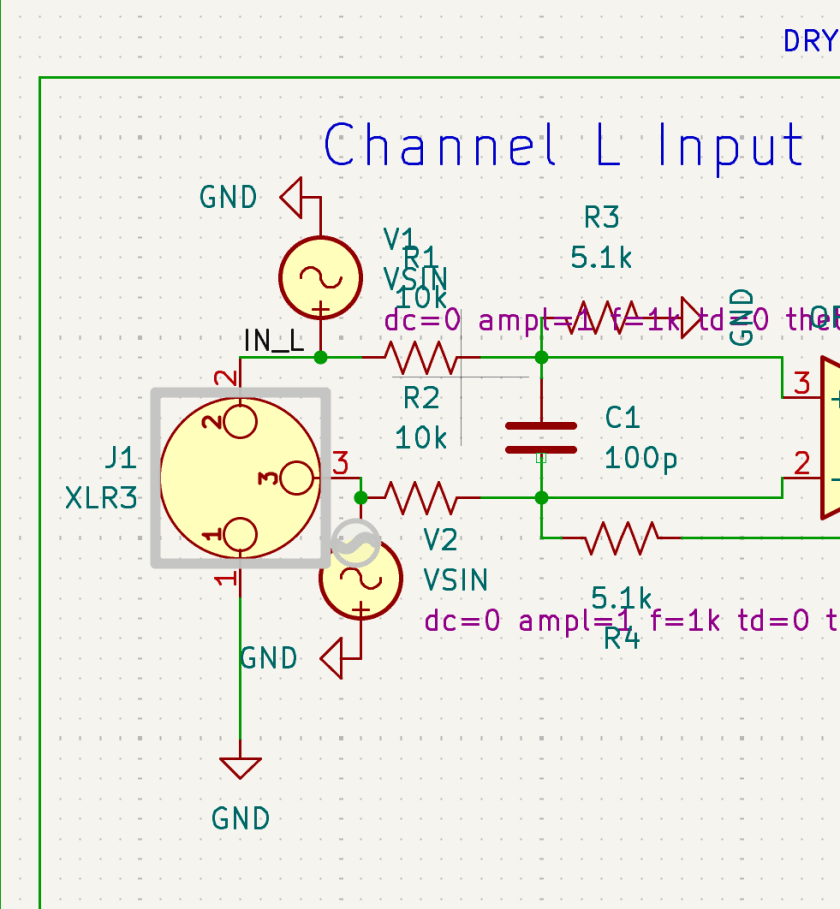
For the audio output stage, you can simply exclude the XLR jack from the simulation. If you connect it to ground through a large resistor, you can still simulate the audio signal at the output.
Simulation isn’t exactly… simple.
You need to supply DC where DC is required, and AC where AC is required. When checking frequency response and phase response, you’ll need to apply an AC sine signal to both the hot and cold sides.
What’s especially annoying is that every single pin must be connected. If even one pin is left floating, KiCad will keep throwing errors.
Personally, once the circuit is mostly finalized, I find it easier to copy it into a separate file and run simulations there.
Yes, you can exclude individual components from simulation, but…
if there’s an oscillator in the schematic, things get messy again when moving on to PCB layout. 😓
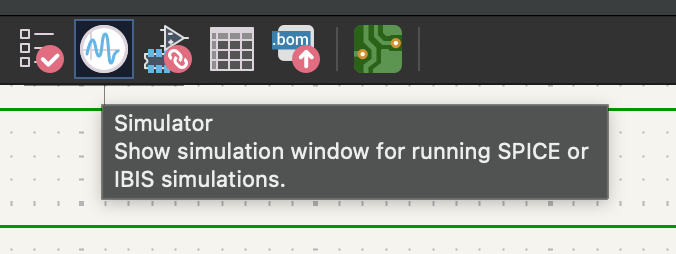
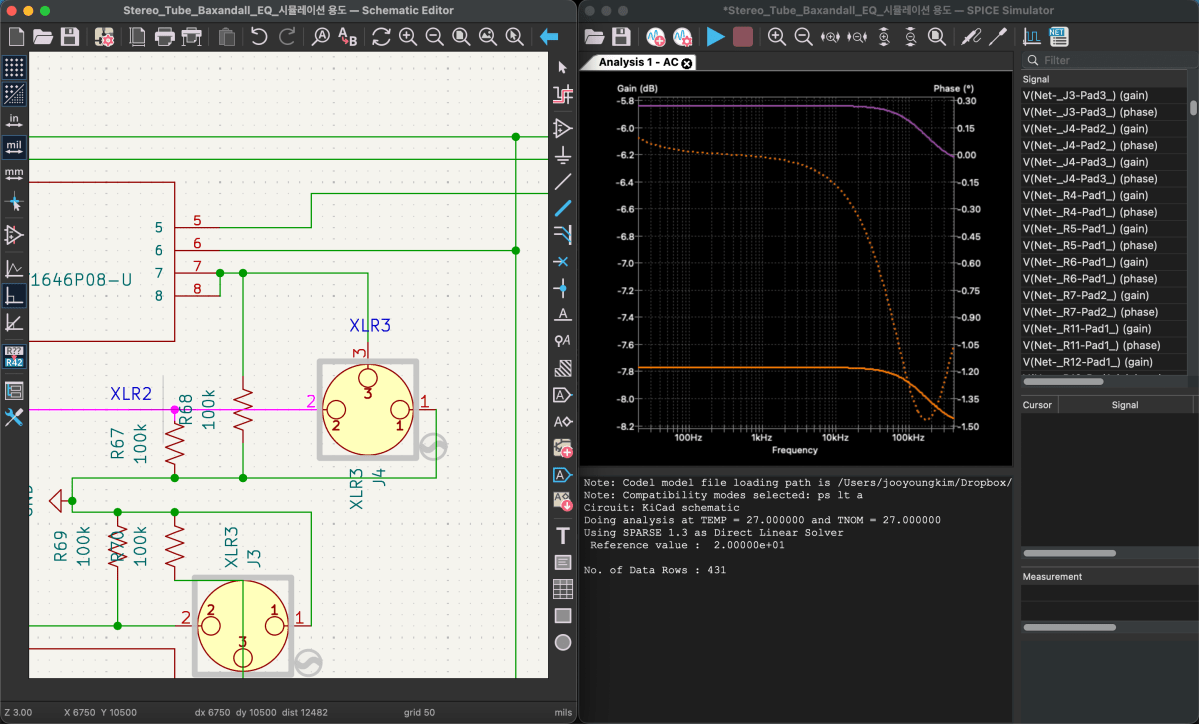
Anyway—once all the libraries are properly set up, you can click the oscillator-looking icon in the top-right corner. That will bring up the simulation window.
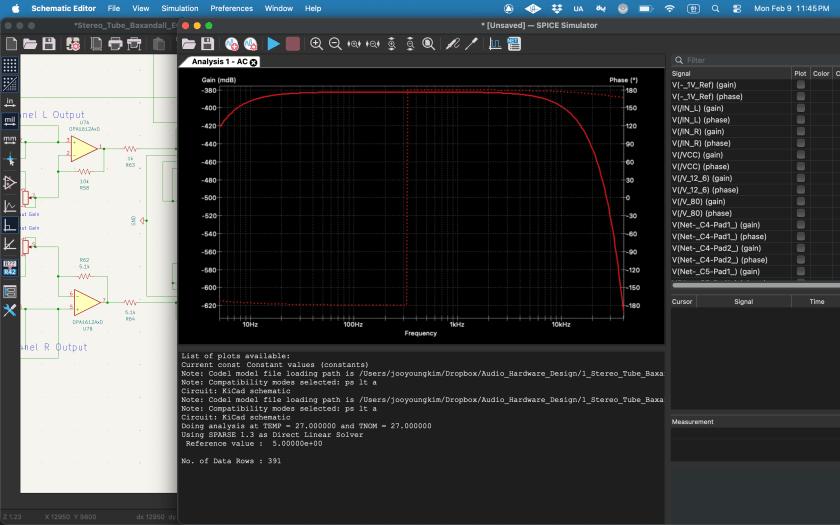
If you click the play button in the top-left, a settings window appears where you choose what and how you want to analyze.
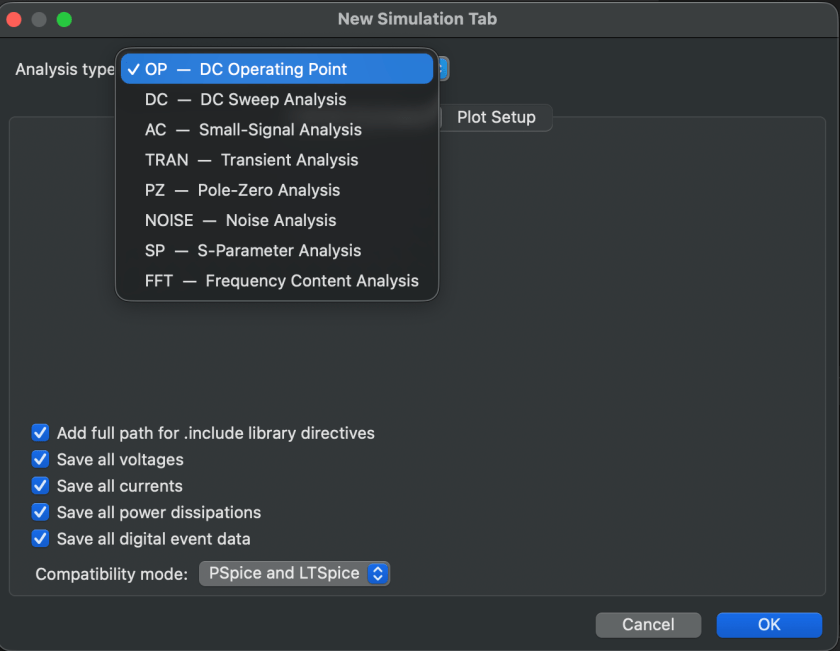
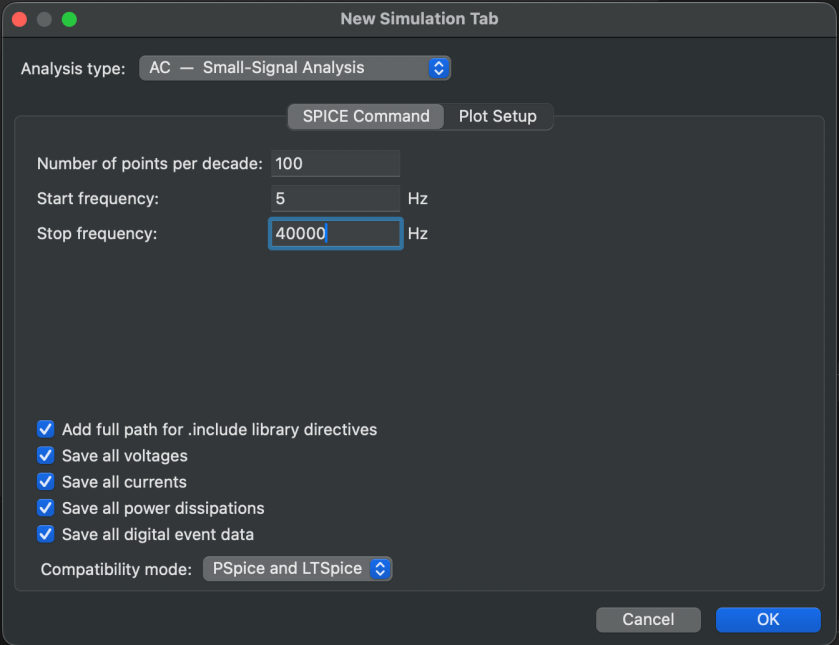
Since we’ve attached an AC 1 V source to observe frequency and phase response,
we’ll select AC analysis. With just these settings, you can already see the response clearly.
Now, if playback actually works, it feels amazing. But realistically… it probably won’t work on the first try. (It definitely didn’t for me.) If it doesn’t run, something is disconnected, or a library is wrong—and you’re in for a lot of fixing.
One important thing: if you’ve broken out pins separately for XLRs or DC/AC wiring, you must make sure they’re excluded from the simulation.
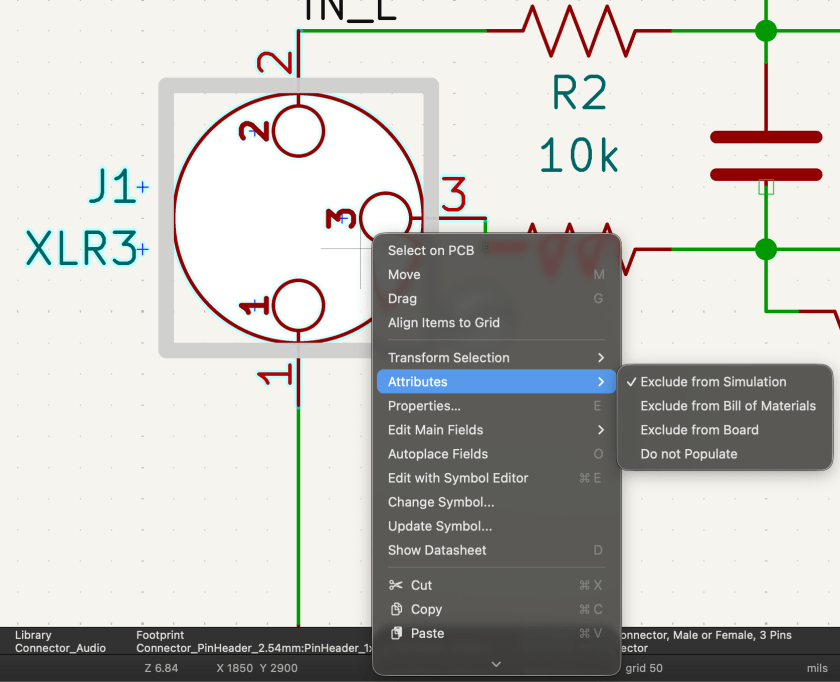
You can do this by right-clicking, then selecting Attribute → Exclude from Simulation. The same Attribute settings can also exclude things from board or component configurations.
Simulation is critically important—and you shouldn’t only check the final stage. Especially for processors with multiple stages, you need to verify that the signal behaves correctly at each step.
If impedance isn’t handled properly, the signal simply won’t flow the way you expect—and that will happen. Also, if you want to view signals in an oscillator-style analyzer, you’ll need to switch from AC analysis to Transient analysis.
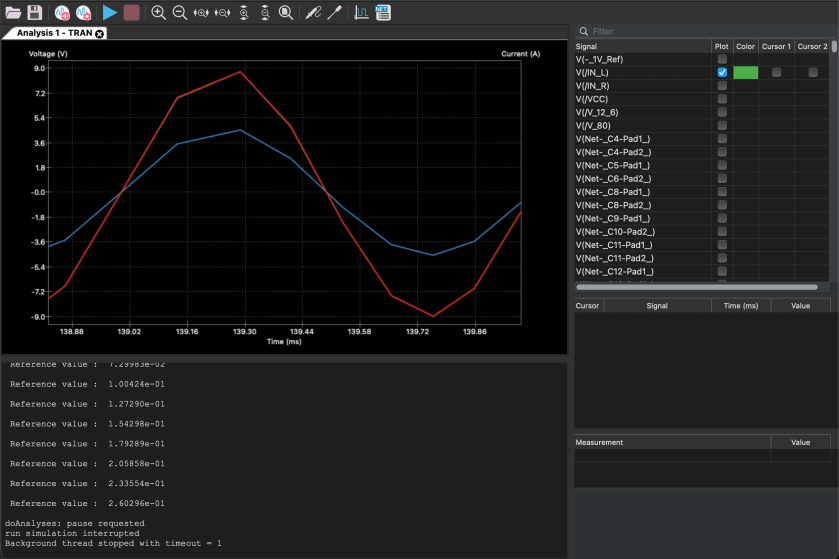
This is also a convenient place to check for phase inversion.
And if you see signals that don’t line up properly here… welcome to modification hell. 😄 While running simulations to write this blog post… I literally just realized a major mistake.
I already ordered the PCB and finished soldering everything… so yeah, I’m screwed. Haha.
Resistor values are easy enough to change, but everything else was fine—until I noticed that bypassing the EQ flips the phase… and I only realized this now. 😭😭
The final THAT chip is a 16-pin device, but I used an 8-pin footprint and bought an adapter socket. Unfortunately, I placed two of them way too close together, so I’ll probably have to desolder and reposition them.
Including the power section, there must be around 180 components total… I’ll likely have to order a separate Ver.2 PCB later and migrate everything over. 😢
Anyway—this is exactly why simulation matters.
One more important thing: in simulations, op-amps are assumed to be ideal. Because of that, in Transient analysis, you won’t see distortion even at maximum dB levels. You need to keep this limitation in mind when interpreting results.
After all that, it’s time to move on to PCB design.
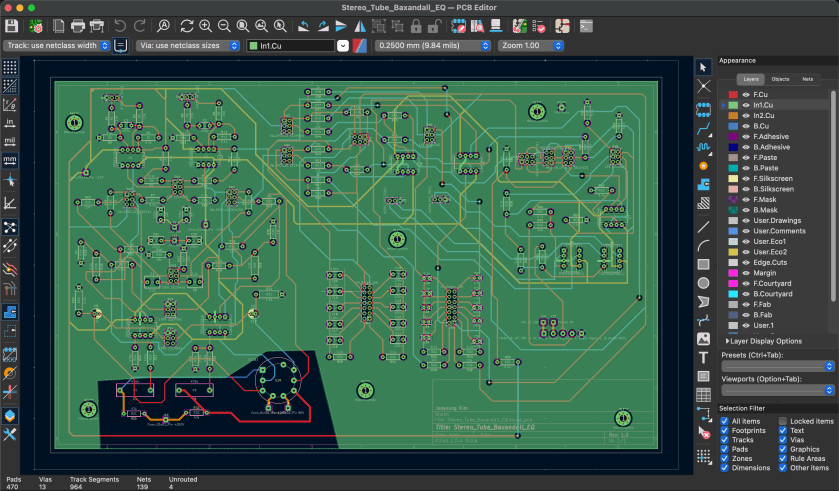
Apparently, this is often called “art” or “artwork.”
And honestly… there’s no grind quite like this kind of grind. If I include PCB layout as well, this post will get way too long, so I’ll wrap things up here for today.
See you again in the next post! 😊

 Jooyoung's Music Blog