The Basics of Mixing – 8.1 What is Reverb?

Hello! I’m Jooyoung Kim, a mixing engineer and music producer.
Today, we’ll be diving into the topic of reverb.

Shall we get started?

What is Reverb?

Reverb is short for “reverberation,” which can be translated as “echo” or “resonance.”

In essence, reverb is an effect that creates echo or resonance.
But why do we use it?

Normally, when we speak to each other, we aren’t whispering directly into each other’s ears.
This means we’re always hearing a bit of natural echo from our surroundings.

But what about recordings?

While room mics can capture some of that natural reverb, most recordings are done quite close to the source, almost like someone is whispering directly into your ear. As a result, these recordings often lack natural reverb and can feel “dry.”

To add that missing resonance, we use reverb. However, it’s not just about simulating the sound of a room or a studio. Reverb can create the illusion of a concert hall or an entirely virtual space, making the music sound more musical and immersive.

To understand how to use it effectively, we need to dive into how reverb is actually created.
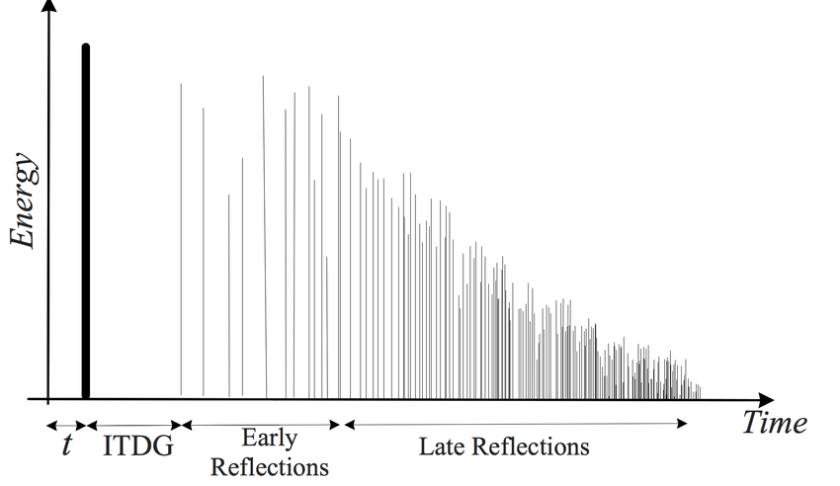
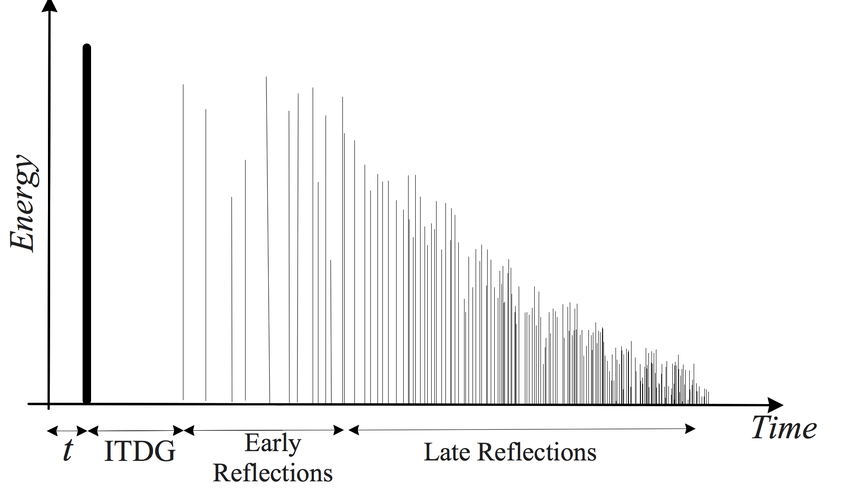
Kaplanis, Neofytos & Bech, Søren & Jensen, Søren & Waterschoot, T.. (2014). Perception of reverberation in small rooms: A literature study. Proceedings of the AES International Conference. 2014.

As I mentioned in the “7.3 How to Use Delay” section of the previous post, reverb is created when sound waves bounce off surfaces like walls.
The first reflections of sound that reach our ears after bouncing off a surface are called Early Reflections, and these are typically the loudest part of the reverb.

Afterward, the sound continues to reflect multiple times, gradually forming the full reverb. The time it takes for the reverb to decay by 60dB from its original level is called RT60.

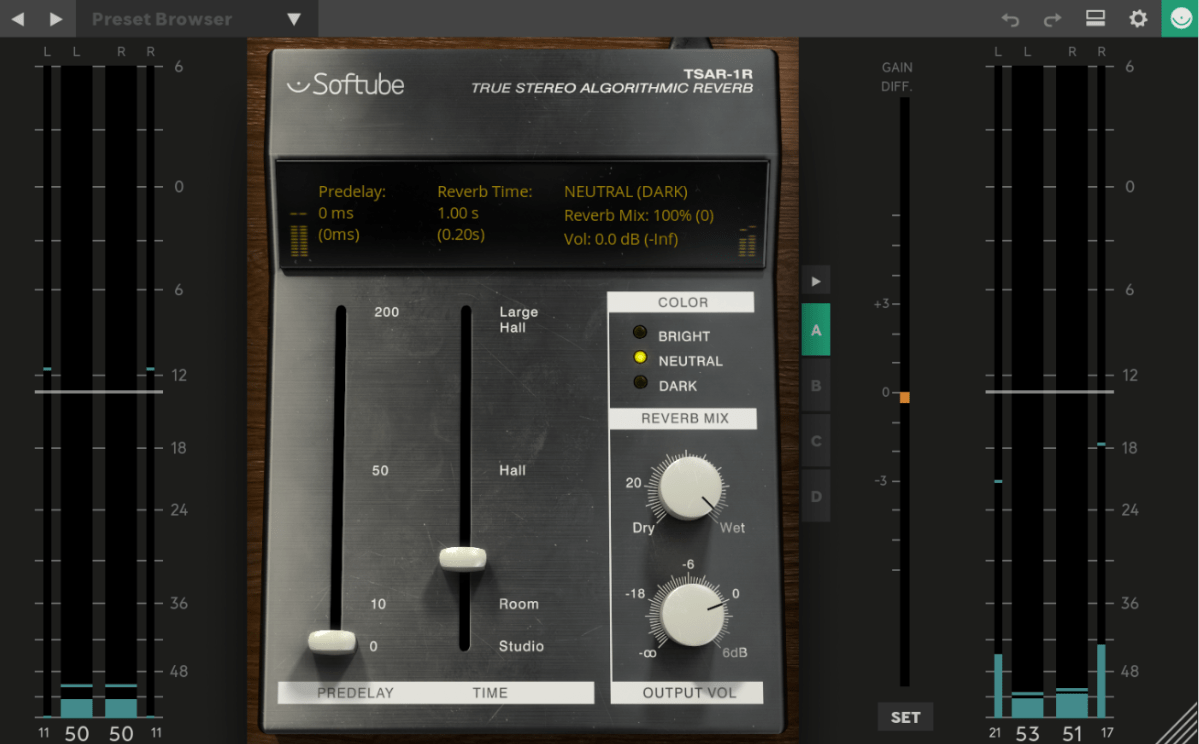
There is also a natural delay between the original sound and when we hear the reverb. To control this delay in reverb plugins or hardware, we use a parameter called Pre-Delay, which allows us to set the time gap between the original sound and the onset of early reflections.

For orchestral instruments, it’s common to use reverb based on Impulse Response (IR). Since sound travels at about 340 meters per second at room temperature, we can map out how reverb behaves based on the distance of the space, and calculate the time difference between the original sound and the reverb start time.

For example, if there’s a 2-meter distance, you can calculate the delay as 2m ÷ 340m/s = 0.005s, or a 5ms difference.
Setting the Pre-Delay to around 5ms can simulate this effectively.

In mixing, when a sound is intended to be closer, it’s good practice to have a larger gap between the original sound and its reverb (larger Pre-Delay). For distant sounds, a smaller Pre-Delay works better.

At the end of the day, if it sounds good, that’s what matters most!

In the upcoming posts, I’ll cover the history, types, and practical applications of reverb.

See you in the next post! 🙂
Free Plugins and Plugin Purchase Sites Overview

Hello! I’m Jooyoung Kim, a mixing engineer and music producer.

It seems like my posts about plugins are getting a lot of attention, so I’ve decided to compile a list of websites where you can find free plugins and purchase plugins at great prices.

Let’s dive in!

1. Audio Plugin Deals

    Audio Plugin Deals is a great site where you can find free plugins every month or so under their Free section. They also have time-limited deals in the Deals section, and discounted products are always available in The Shop.

    When you make a purchase, you earn Rewards points, which can be used for discounts on future purchases in The Shop. Just keep in mind that some items in The Shop have a minimum purchase requirement, even if you’re using points.

    2. Plugin Boutique

    At Plugin Boutique, you can almost always get a free plugin when you make a purchase. They also offer Virtual Cash, similar to Audio Plugin Deals’ Reward system, which can be used without restrictions on future purchases.

    If you spend over £50, you receive a token that can be exchanged for a sample pack from Plugin Boutique. They occasionally run exclusive free plugin offers, so signing up for their newsletter could bring some pleasant surprises.

    You can also find permanently free plugins in their Free section, though quality varies, so it’s worth testing them out.

    3. Audio Deluxe

    What sets Audio Deluxe apart from other sites is the regular availability of discount coupons, making prices even lower than they appear. You also earn points that can be used on future purchases.

    However, most of the free plugins offered here can be found on other sites, so there isn’t much of an advantage in that regard.

    4. every Plugin

    As I’ve mentioned before, Every Plugin is one of the best places to buy Waves plugins at a lower price. They often have the best prices on Eastwest plugins too. If you’re planning to buy, it’s a good idea to compare prices here with other sites.

    The downside is that you need to sign up and log in to see the prices. Also, they don’t offer any free plugins.

    5. JRR Shop

    JRR Shop offers discounts on plugins and also sells hardware equipment. You can find free plugins under their Free Stuff section. They frequently have good deals, so it’s worth checking out if you’re looking for a specific plugin.

    6. W.A. Production

    W.A. Production mainly sells sample packs and MIDI files, but they occasionally offer free plugins and samples, making it a site worth knowing about.

    7. Blue Cat Audio

    At Blue Cat Audio, if you go to the Download section and scroll down, you’ll find a Free Pack with all their free versions. The interface might not be the most attractive, but the plugins are solid. Although they primarily make their own plugins, I included them here as part of this list of free plugin sources.

    8. Don’t Crack

    Don’t Crack is a well-named site with occasional good discounts. I remember getting a Flux Session pack at a very reasonable price last year. The site’s layout might feel a bit sparse, like JRR Shop, but you can find some great deals if you dig around.

    9. Plugin Discounts

    I haven’t used Plugin Discounts much, but like Every Plugin, you need to log in to see the prices.

    10. Bedroom Producers Blog

    This is a large blog that regularly features free plugins and various discounts. They often curate good deals and organize them by time, and sometimes they offer exclusive discounts or free plugins. It’s a great site to check in on from time to time.

    11. Production Expert

    Production Expert isn’t a plugin store, but it’s a great resource for news, discounts, and free plugin information. Signing up for their newsletter is a good way to stay updated on the latest deals and news.

    In addition to these, companies like Universal Audio frequently release free plugins these days, so it’s worth exploring and finding the ones that suit your needs.

    That’s all for today. See you in the next post!

    Basics of Mixing – 7.3 Using Delay

    Hello! I’m Jooyoung Kim, a mixing engineer and music producer.

    Today, I’m going to talk about how to effectively use delay in your mixes.

    Let’s get started!


    Delay is often used during the composition stage.

    For instance, on instruments like guitars and electric pianos (EP), you can use the Feedback control to create a long-lasting echo, or apply a Ping Pong delay to bounce the effect between the left and right channels. In such cases, delay is usually synced to the BPM of the track.

    From an audio perspective, when working with EPs that frequently use Auto Pan, you can send the signal to a delay, then apply the same Auto Pan effect to the delay, making the delay move left and right along with the instrument.

    You can also add saturation to the delay to achieve a unique echo effect.

    When using delay in sound design, it generally serves two purposes, as discussed in “7.1 What is Delay?”:

    1. To create natural reverberation, often in combination with reverb.
    2. To add an artificial groove to the source.

    When using delay, it’s common to filter out the high frequencies to make the effect more natural. Low frequencies are often filtered out as well to prevent interference with the original sound. Keep these concepts in mind as we explore further.

    Let’s start with the first use case.

    Kaplanis, Neofytos & Bech, Søren & Jensen, Søren & Waterschoot, T.. (2014). Perception of reverberation in small rooms: A literature study. Proceedings of the AES International Conference. 2014.

    I’ll discuss this more when we cover reverb, but the graph above is a simple representation of how sound behaves in a space, showing how volume changes over time.

    The bold line at the beginning represents the direct sound, followed by Early Reflections, which are the first reflections that bounce off the walls, and finally, the Late Reflections, which are the numerous echoes that occur after multiple reflections.

    The point at which the sound level drops by 60dB from its initial value is known as RT60 or T60 (Reverberation Time 60). This is the reverberation time you see in reverb plugins.

    The purpose of using delay in this context is to enhance the Early Reflections, making them sound more natural. While reverb alone can simulate Early Reflections, combining it with delay can produce an even more natural sound. If you set the Feedback value so that the delay fades out around the same time as the reverb, you can create a more seamless and natural reverberation.

    I haven’t included an example because it’s time-consuming to create, but I believe you’ll notice a significant difference when you try it yourself.

    Now, let’s move on to the second use case.

    When using delay for groove, the Feedback value is typically set to zero, and the delay time is kept very short, usually between 10 to 50 milliseconds.

    Where can you use this type of delay? Essentially, on any source in a track that needs a groove, whether it’s a kick, snare, clap, bass, or even vocals.

    Of course, depending on the track, not using delay might sound better. It’s important to listen and decide whether it suits the song.

    Initially, these techniques might seem subtle, but such details can significantly impact the quality of your track. That’s why it’s important to experiment and listen closely.

    On a side note, I’ve finally finished writing the manuscript for the mixing book I’ve been working on. I was fortunate enough to receive a recommendation from a well-known figure, but the publication is delayed due to copyright issues with the photos.

    For example, Antelope responded the day after I reached out, saying, “Feel free to use everything! Have a great day!” in a very casual tone. On the other hand, Universal Audio said their legal team would review my request and get back to me. I first contacted UA on July 31st, and I’m still waiting for their response… Hopefully, they’ll reply soon… 😢

    I’ll see you in the next post! 🙂
    Cableguys FilterShaper XL Sale (Until 8/31)

    Hello! I’m Jooyoung Kim, a mixing engineer and music producer.

    Today, I wanted to share an exciting deal from one of my favorite companies, Cableguys, who are currently offering a discount on their FilterShaper XL plugin.

    As with my recent plugin reviews, I received an NFR (Not for Resale) code from Plugin Boutique for this product.

    Let’s dive in!

    FilterShaper Core in ShaperBox 3

    Cableguys is known for their best-selling product, ShaperBox.

    ShaperBox can inject an artificial groove into your instruments, and I found it so compelling that I purchased it myself before I even partnered with Plugin Boutique.

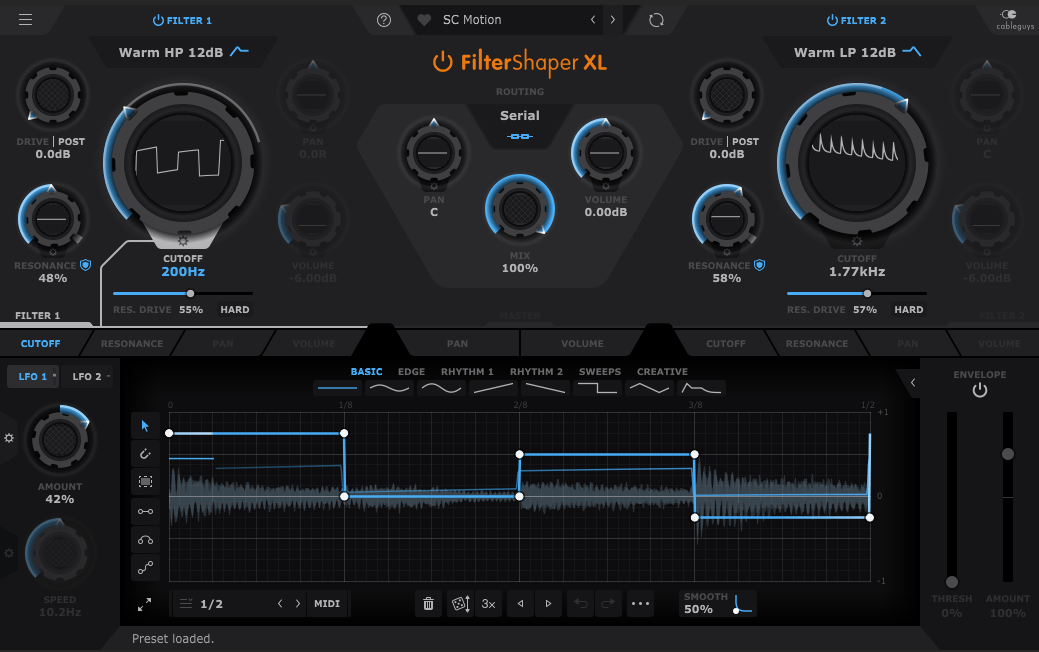
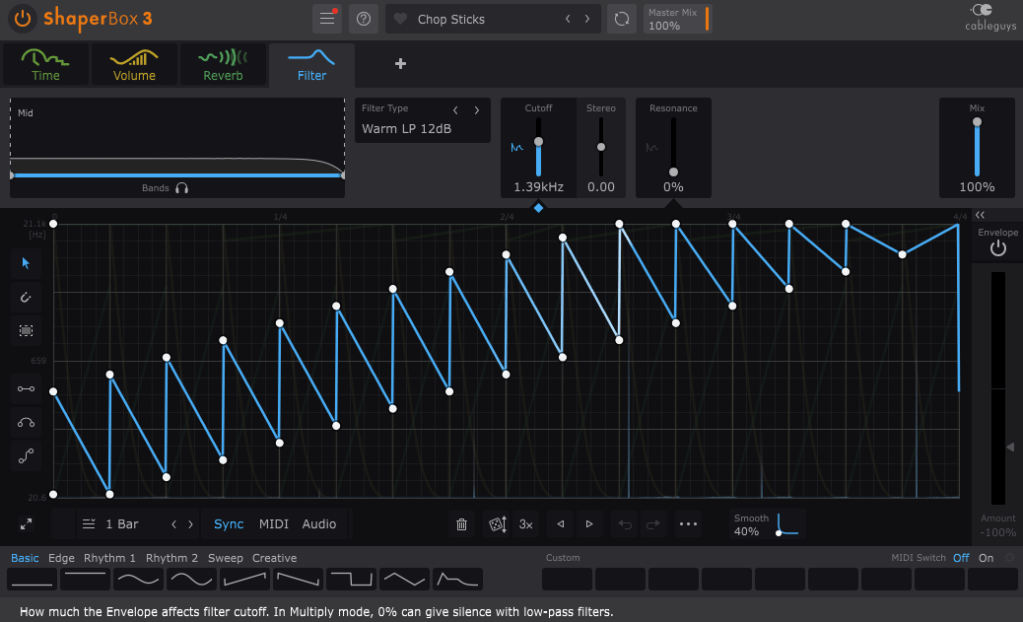
    Within ShaperBox, there’s a tool called FilterShaper Core. FilterShaper XL is essentially an enhanced version of FilterShaper Core, with additional parameters and features.

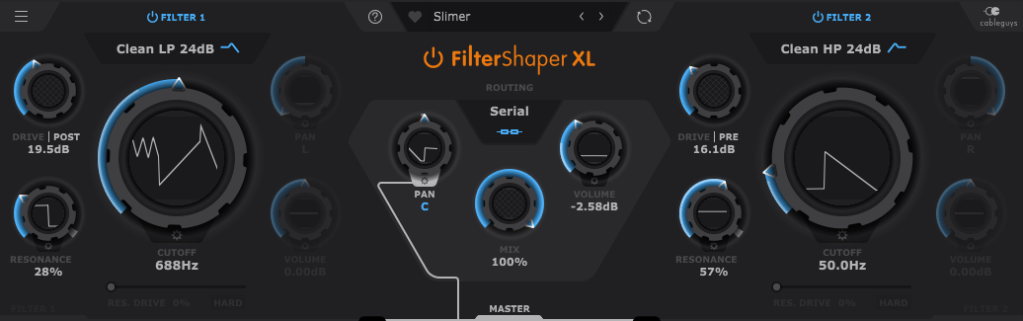
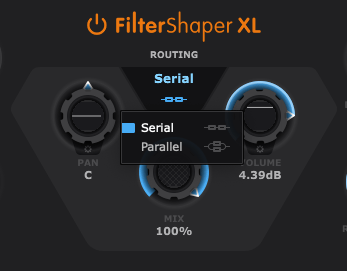
    Looking at the UI, you’ll notice it’s split into left and right sections. Both sides represent filters, and the central Routing button allows you to choose between serial or parallel connections.

    Pan, Mix, and Volume controls are likely familiar to most of you, so I’ll skip explaining those..:)

    Now, let’s explore the filters!

    If you’ve used filters before, this should feel intuitive. Even if you’re less experienced, you’ll probably grasp the basics of Cutoff (which determines the frequency at which the sound is attenuated), Pan, and Volume.

    The Drive control allows you to choose between Pre and Post settings. Adding Drive enhances harmonics and can act somewhat like a compressor as the sound level increases and then decreases at a certain point.

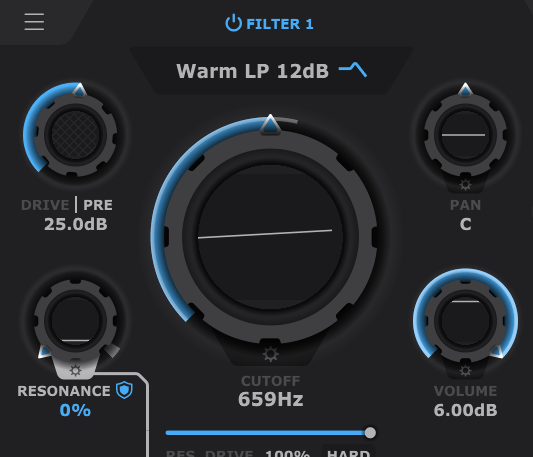
    Resonance, as shown in the image above, determines the amount of emphasis around the cutoff frequency.

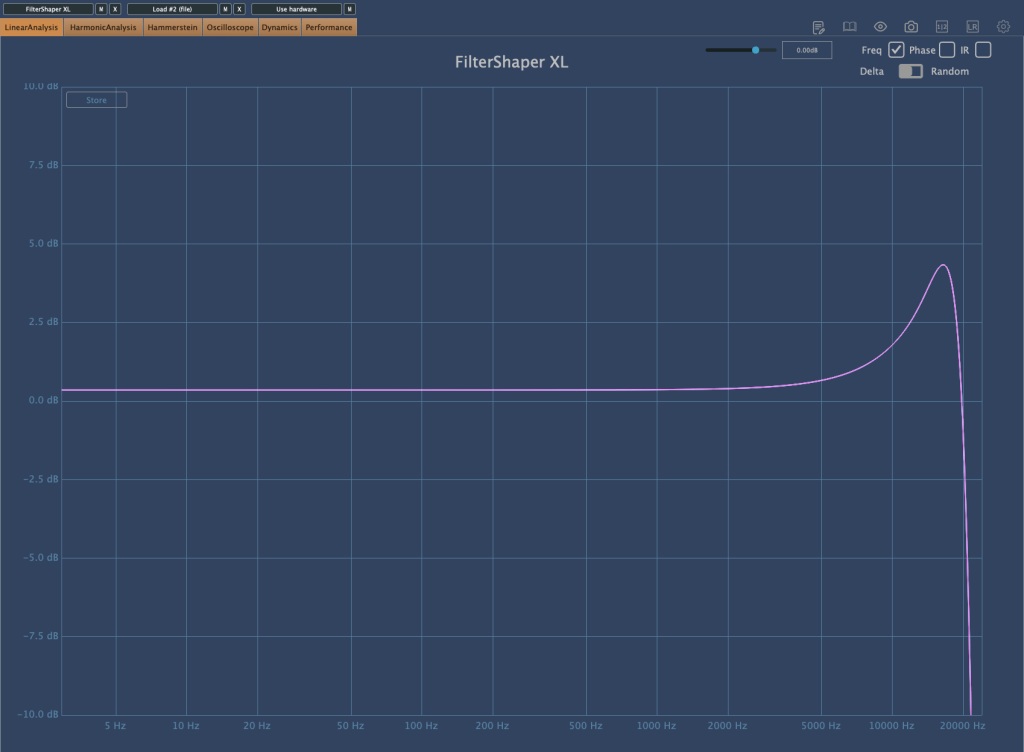
    Filter 2 off, Filter 1 with Drive 0, Resonance 0, Res. Drive 0, Volume 0, Cutoff Frequency at maximum (21.1kHz)
    Res. Drive at 50%
    HARD button enabled with Res. Drive at 0

    The Res. Drive below Resonance applies Drive specifically to the resonance band, creating harmonics and adding compression. The HARD button intensifies these effects.

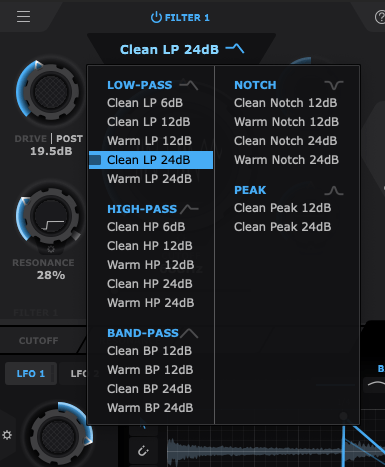
    Also, by clicking the text right below the Filter Power button, you can select the type of filter you want to use. That’s pretty much everything about the filter window!

    Now, let’s move on to the lower section.

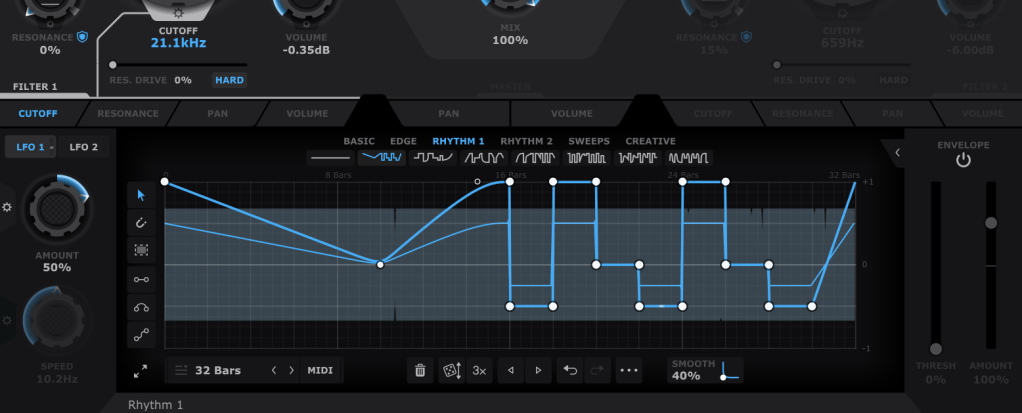
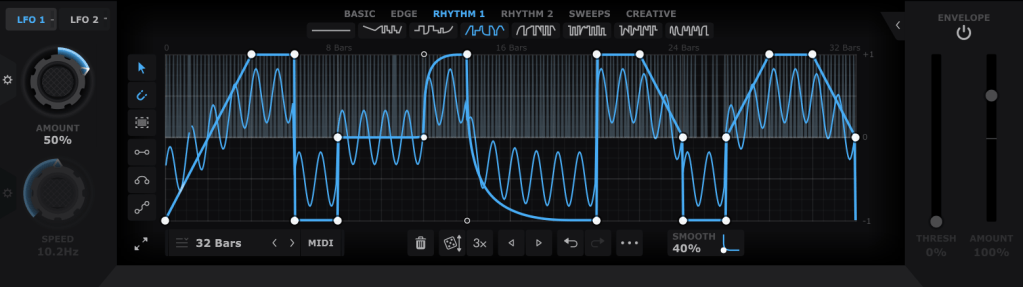
    In the bottom section, you can draw automations for each filter’s parameters, allowing them to repeat automatically. You can create points by double-clicking with the mouse and drag them to shape the automation. Various cursor tools on the left can make this easier, and you can also start with presets available at the top.

    Using both LFO 1 and LFO 2 (located at the top left), you can modulate LFO values like this. The thin blue line in the background represents the LFO that will modulate the parameter.

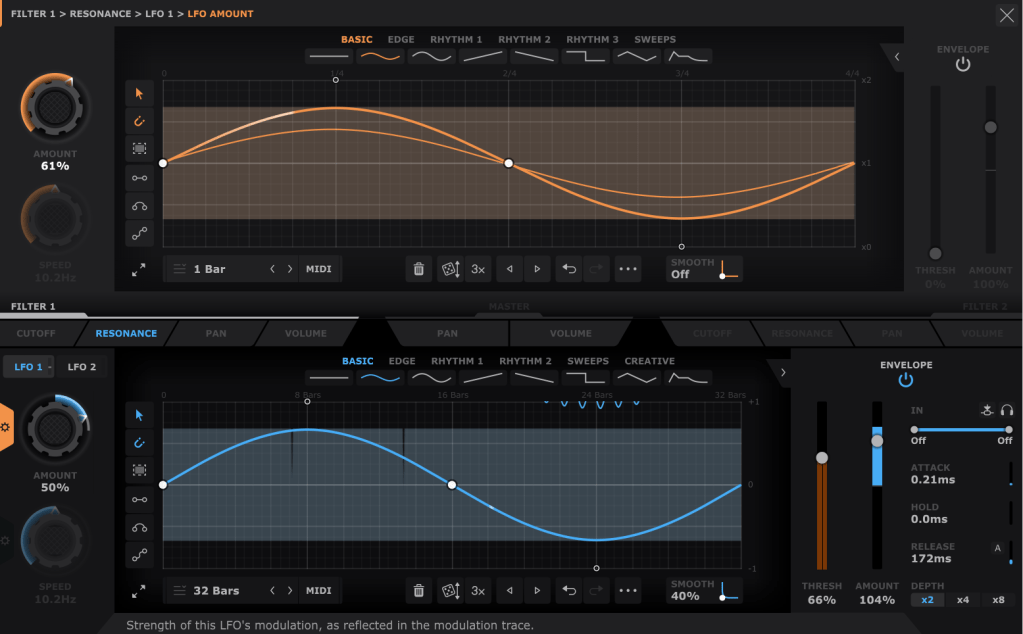
    The Pan and Volume controls in the center manage the panning and volume of the master output. You can also adjust the amount of LFO modulation by clicking the settings button on the Amount knob in the bottom left corner.

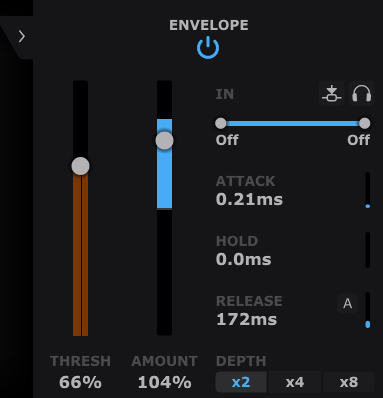
    Lastly, the Envelope Follower in the bottom right lets you change the intensity of the LFO based on the input signal. You can also set the LFO’s LFO in the same section, giving you more control.

    It may seem complex at first, but it’s very intuitive once you start using it.

    If you’d like to hear how it works, check out the demo video by Cableguys.

    This sale is valid until the end of the month.

    This plugin is versatile and can be creatively used in any genre, whether you’re into acoustic music, rock, dubstep, D&B, K-Pop, or anything in between. I highly recommend it to all music producers.

    I primarily use acoustic instruments, and with a bit of tweaking—using a minimal Mix value—you can add a tight groove to your instruments that would be impossible to achieve with just human performance.

    Having at least one or two plugins like this is essential, in my opinion. If I had to recommend just two, I’d go with this one and Volume Shaper. If your budget allows, picking up ShaperBox 3 during a sale would also be a satisfying purchase.

    Also, if you buy any plugins from Plugin Boutique this month, you’ll receive either Softube’s VCA Comp or Imagine Audio’s K7D delay for free.

    If you don’t have a dbx160-style compressor, I’d recommend the VCA Comp. If you need a versatile delay for guitars, electric pianos, or analog delay, go for the K7D.

    See you in the next post!