EastWest Sounds Hollywood Orchestra Opus + Space II Reverb Review (38th Anniversary Sale – Up To 81%, ~Mar 29)

Hello! This is Jooyoung Kim, an audio engineer and music producer.

Last month, I requested NFR (not for resale) codes for EastWest Sounds’ Hollywood Orchestra Opus and Spaces II from Plugin Boutique for review. However, since the previous manager left the company, some communication errors occurred. As a result, I only realized two days ago that the NFR codes had already been delivered to my iLok account. I have apologized to the current manager for the oversight and am writing this article now, albeit a bit late.

Anyway, it’s been a long time since I last wrote an article introducing new plugins. As with my previous articles, Plugin Boutique provided the NFR codes for this review. If you purchase these plugins through the links provided, I’ll receive a small commission, which helps me keep this site going!

Then.., let’s start!


Hollywood Orchestra Opus Edition Diamond
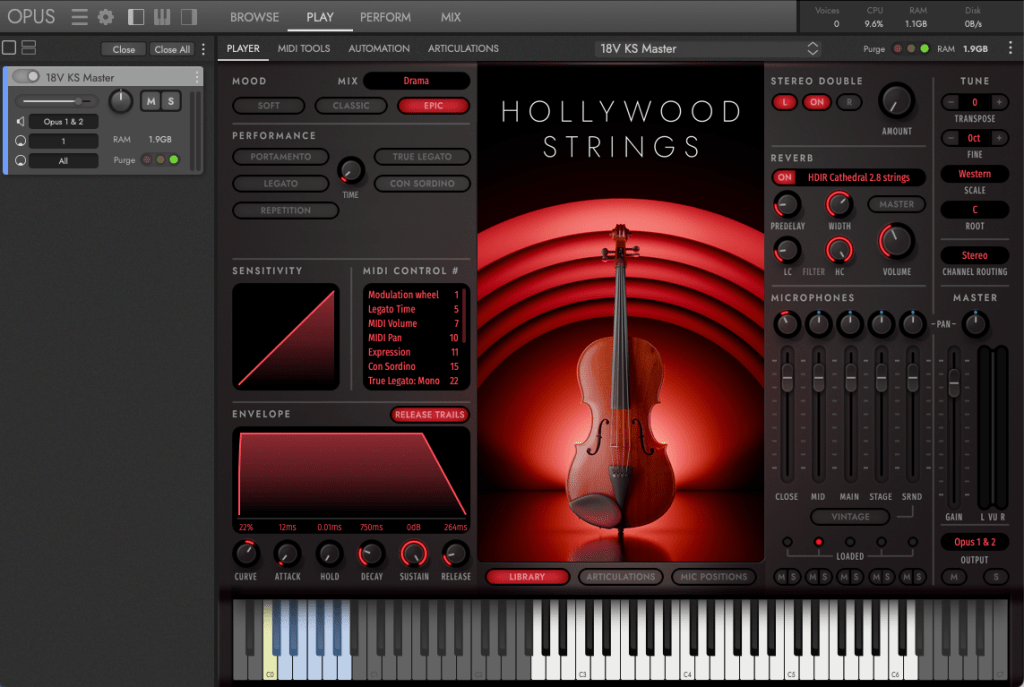
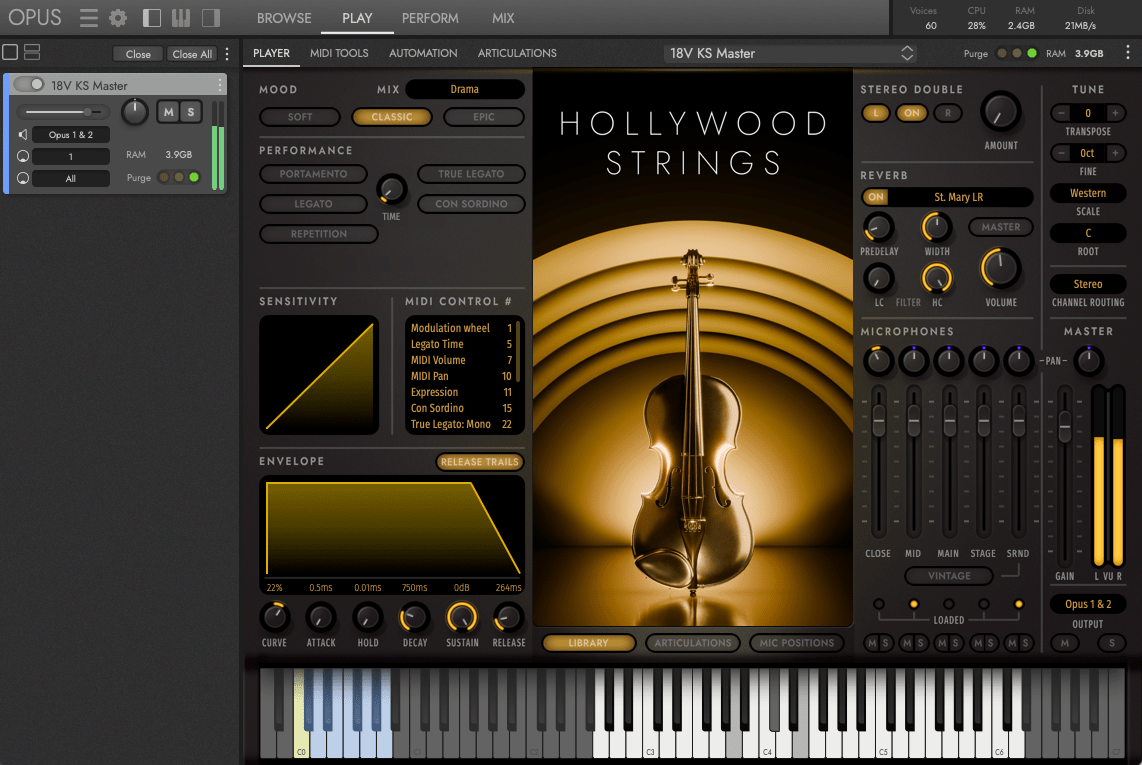
In the past, EastWest Sounds offered the ‘Hollywood Orchestra’ series in Diamond, Gold, and Silver editions. Today, these divisions have been phased out and unified into a single, comprehensive version: OPUS (OPUS is the name of the playback engine).
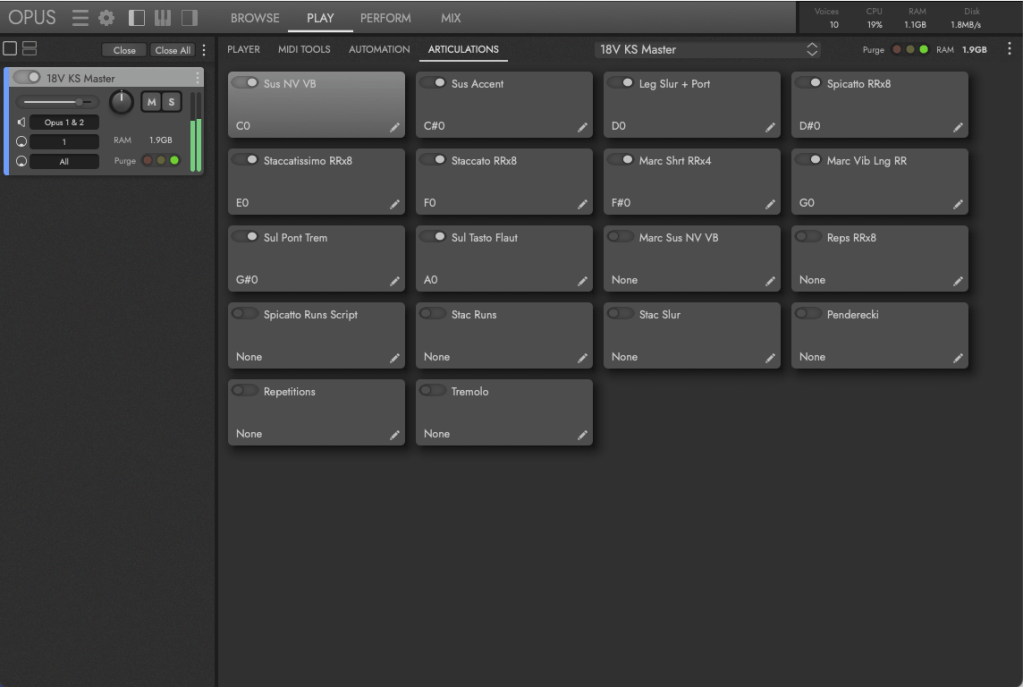
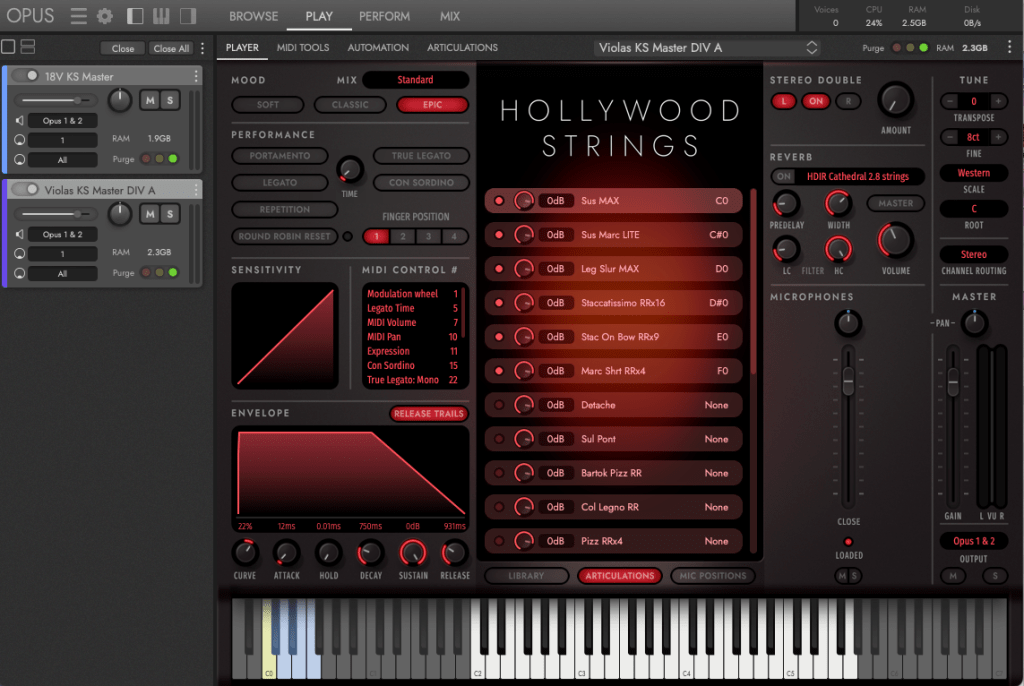
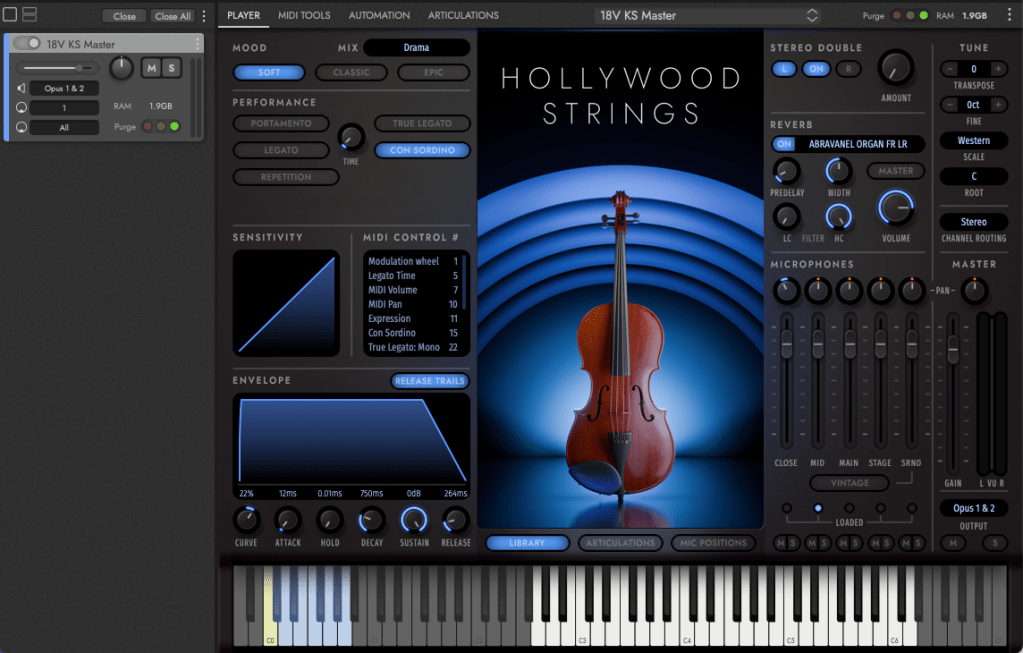
The Hollywood Orchestra Opus bundle includes strings, brass, woodwinds, and percussion. It also includes solo instruments, and the total recording data comes in at approximately 944GB. As you can see the above pictures, there are plenty of selectable articulations in each instruments.
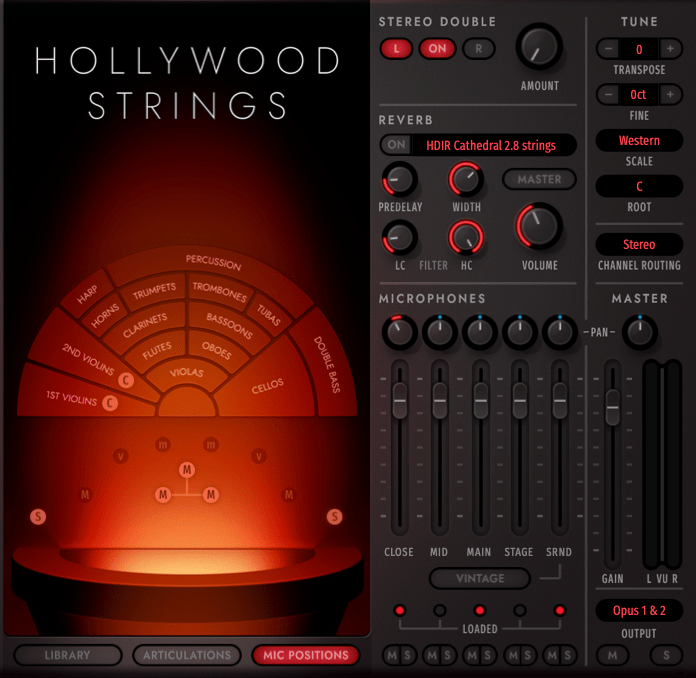
In orchestral recording, I believe that having flexible and mixable microphone positions is crucial. As a variety of miking techniques are used in classical music, each position serves a distinct role and offers a unique sound. This versatility allows the library to fit specific production needs, whether for modern dramas, cinematic scores, or traditional classical compositions.

This product provides six microphone positions: Close, Mid, Main, Surround, Vintage, and Stage (the latter being exclusive to expansion instruments). These options greatly help in shaping the sound from the perspective of both mixing engineers and composers.
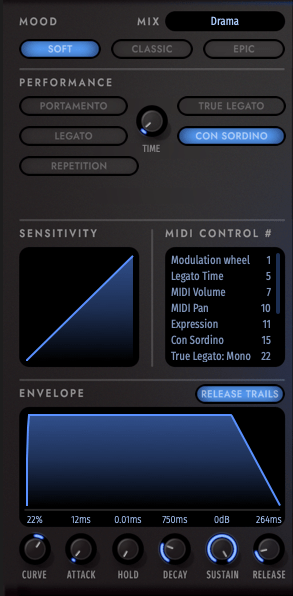
Personally, I find the selectable Moods and envelope controls incredibly helpful for composing. In the past, I often wanted strings with a sharper, more aggressive attack, but I was frequently limited by the technical constraints of my other virtual instruments.

With these features, it is much easier to shape the sound directly and intuitively. This versatility allows these instruments to be used across various genres, from pop, rock, and indie acoustic tracks to cinematic film scores.
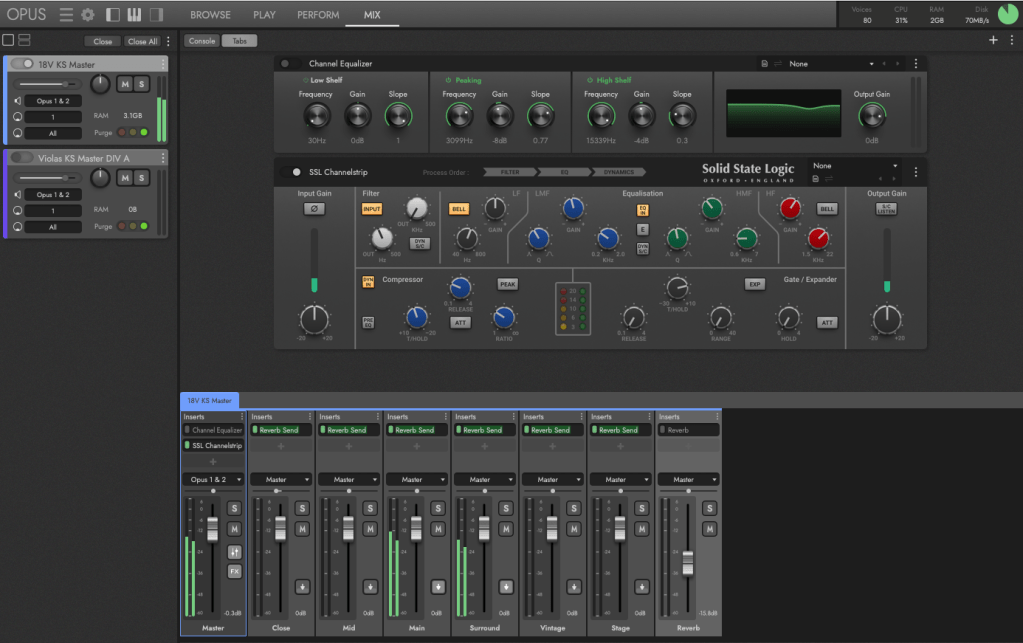
The Mixer view is also impressive. It features an officially licensed SSL (Solid State Logic) Channel Strip, Transient Shaper, and Bus Compressor. Having these high-end tools directly integrated into the engine is a huge advantage for shaping your orchestral sounds.
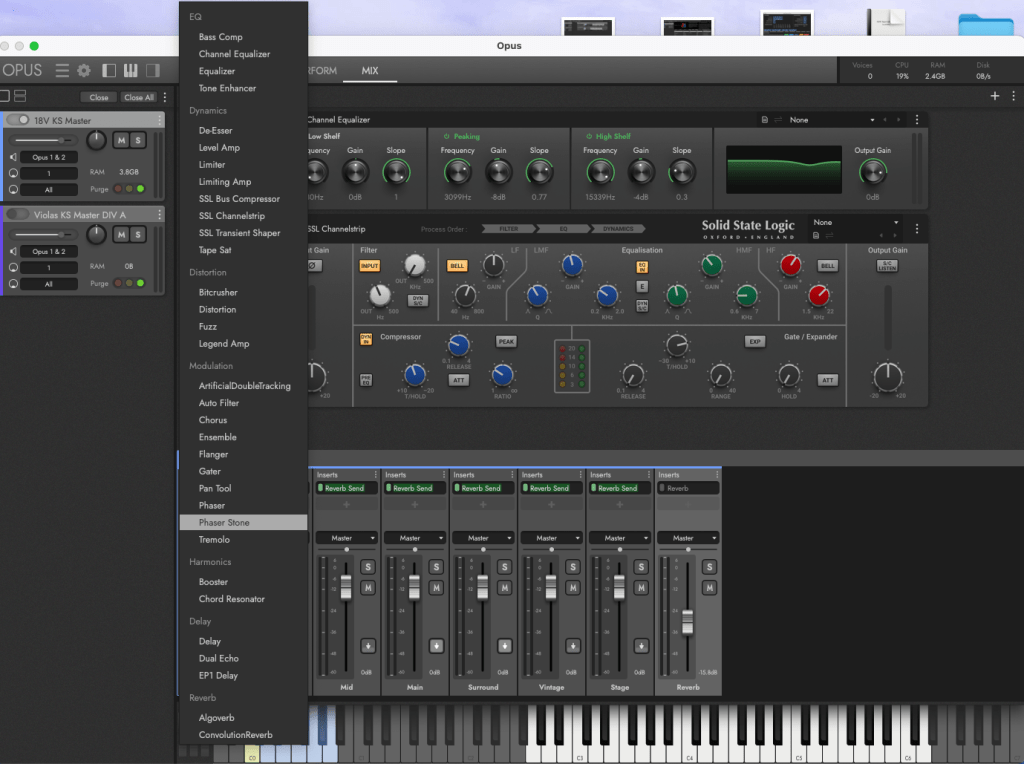
Furthermore, the Mixer view offers a wide array of built-in effects, allowing you to create unique and experimental textures by applying them to traditional orchestral instruments.

You can listen to the sounds on their official YouTube channel.


Space II Reverb
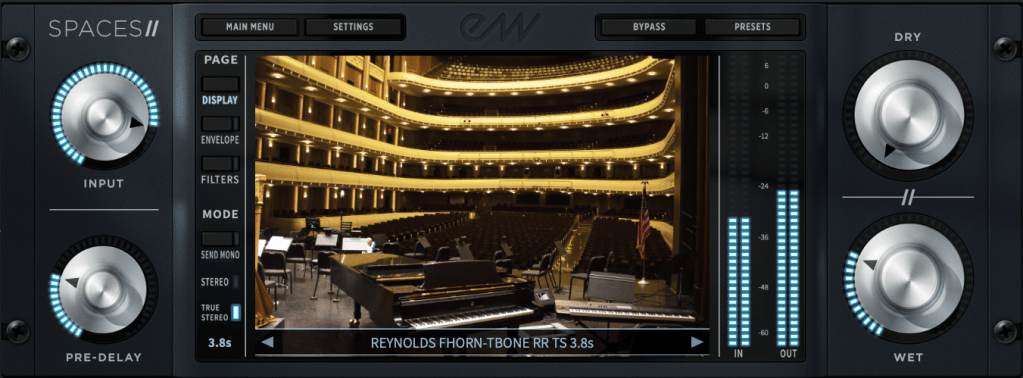
If you are interested in audio engineering or the field of MIDI orchestration, you’ve likely heard of this reverb. It is a legendary tool that is widely considered an industry standard.

While it used to be quite expensive—priced at over $200 in the past—frequent discount deals now make it a much more affordable and attractive choice for many composers.

This reverb is based on IR (Impulse Response) technology, which I explained in a previous post.
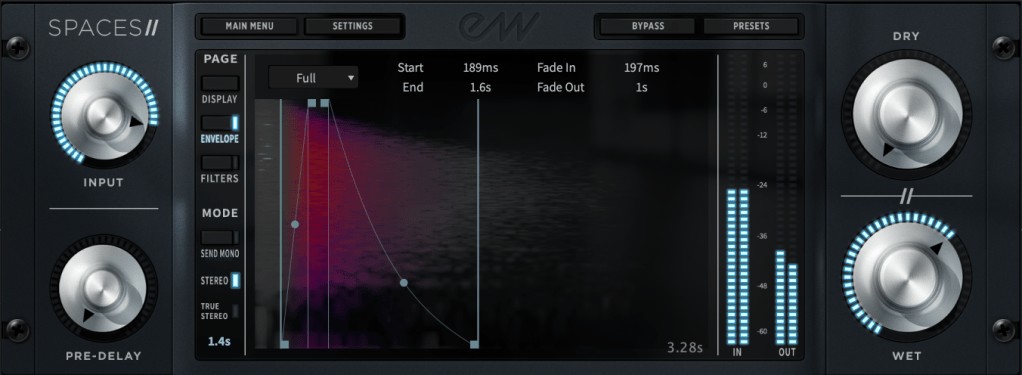
The reverb sound can be finely adjusted with envelope and filter controls (such as high/low-cut). In my opinion, these features are the core strengths of this reverb, and those two functions work seamlessly to shape the perfect space.
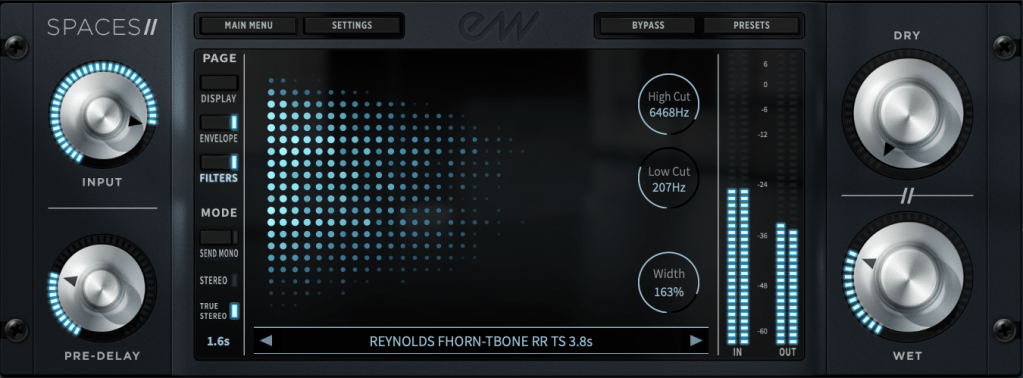
Spaces II features over 1,020 presets, including 353 new snapshots. What sets it apart is the True Stereo (S-S) processing. Unlike standard reverbs that sum the input to mono, True Stereo preserves the actual stereo imaging of your instruments, providing an incredibly realistic and wide orchestral stage.

Decisively, the reverb sounds that this plugin is included are really great!


Final Thoughts
For my final thoughts, my best advice is: Buy it when it’s on sale!

Currently, the Hollywood Orchestra Opus is priced at just $196.90 (including tax), which is an unbeatable value for the sound quality you get. I remember investing around $600 in the BBC Symphony Orchestra in the past, but I believe the Opus bundle offers superior versatility, making it suitable for a much wider range of genres beyond just classical music.

Additionally, it layers beautifully with other orchestral libraries, making it easy to create a more complex and rich sound. The results are outstanding even when used alongside different brands.

I’ll see you in my next post!
Life Update (Mar 3, 2026)

Hello! This is Jooyoung Kim, an audio engineer and music producer.

This semester, I’m teaching at three different institutions: a junior college, a university, and a graduate school. Since they are located in different cities, I’ve been completely exhausted lately (I have to travel to Osan on Mondays, Daegu on Tuesdays, and Seoul on Wednesdays). Because I was preparing those class materials, my February passed in a blur.

Additionally, every Monday, Wednesday, and Thursday, I wake up at 6 a.m. for English speaking classes, and I spend my weekends taking several courses to prepare for the TOEFL. While I feel incredibly grateful and blessed, the lack of time for my own music-making is really weighing on me…


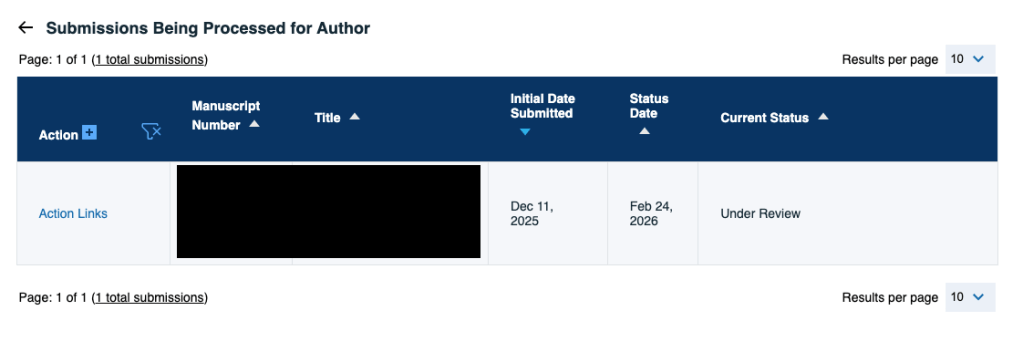
A research paper I submitted last year is currently under review. Meanwhile, I have completed another project involving a deep learning-based hardware compressor simulation and am now conducting listening experiments with participants. Tomorrow, I’ll meet last two subjects, and finally, it will be done. However, I’ve got to interpret the result and discuss what those things mean. It must take few days..


I chose a “TAKACHI” rack case to house my DIY audio hardware circuit and had an in-depth conversation with the manager. I really appreciate him. However, the enclosure was quite expensive due to the machining (drilling) process. I’ll talk all about that in another post.


Yap.. That’s all..! Quite simple, isn’t it? There was nothing interesting in my recent life. I must rest right now. Writing also makes me exhausted. See you in the next post..!

DIY Audio Project #1 | Tube Saturator with Baxandall EQ (Part 3): Design and Order PCB Circuit

Hello, I’m Jooyoung Kim — an audio engineer and music producer.

Lately, I’ve been so tied up with outside commitments that I feel like I’ve neglected my own music projects. After visiting the exhibition by artists Chungha Ester Lim and Inguen Nam last time, I found myself reflecting quite a bit. Today, I went back again to see the works and reset my mindset.

I’m juggling a lot of different things, so time is always tight—but even if I have to carve it out little by little, I need to make it happen. The same goes for this blog.

Anyway, today’s post continues from the previous one and focuses on the PCB fabrication process.

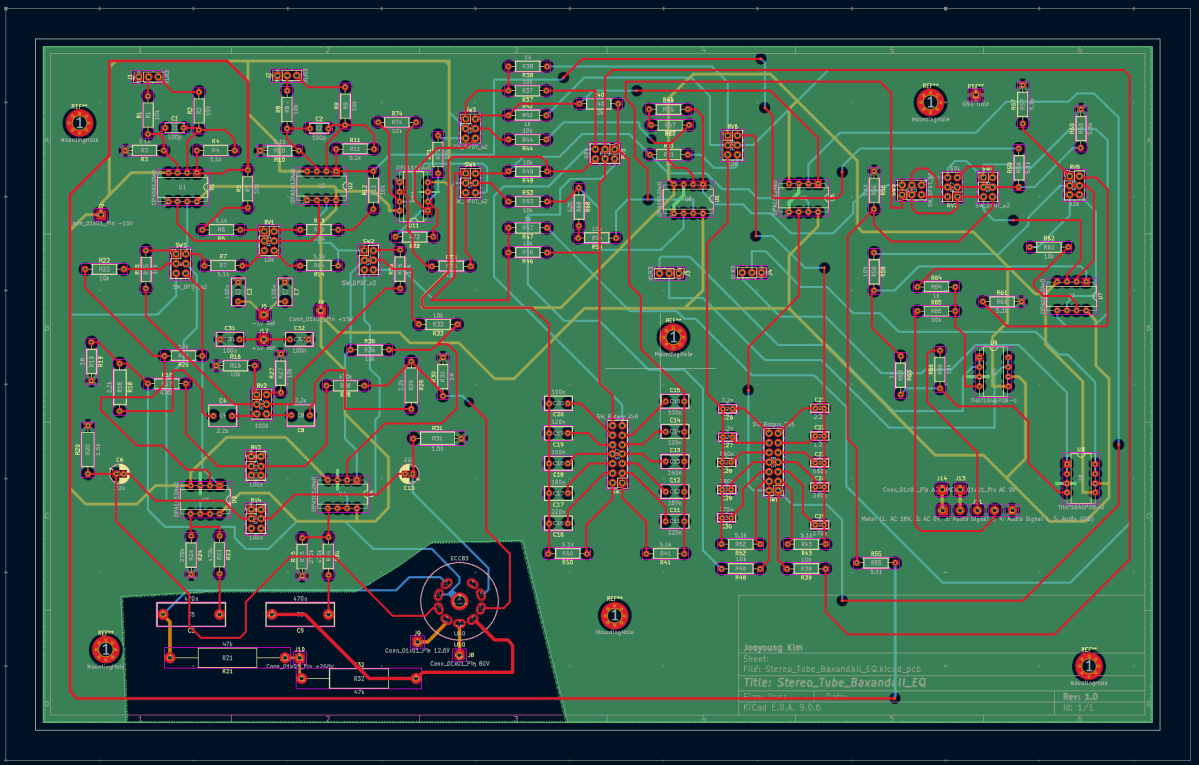
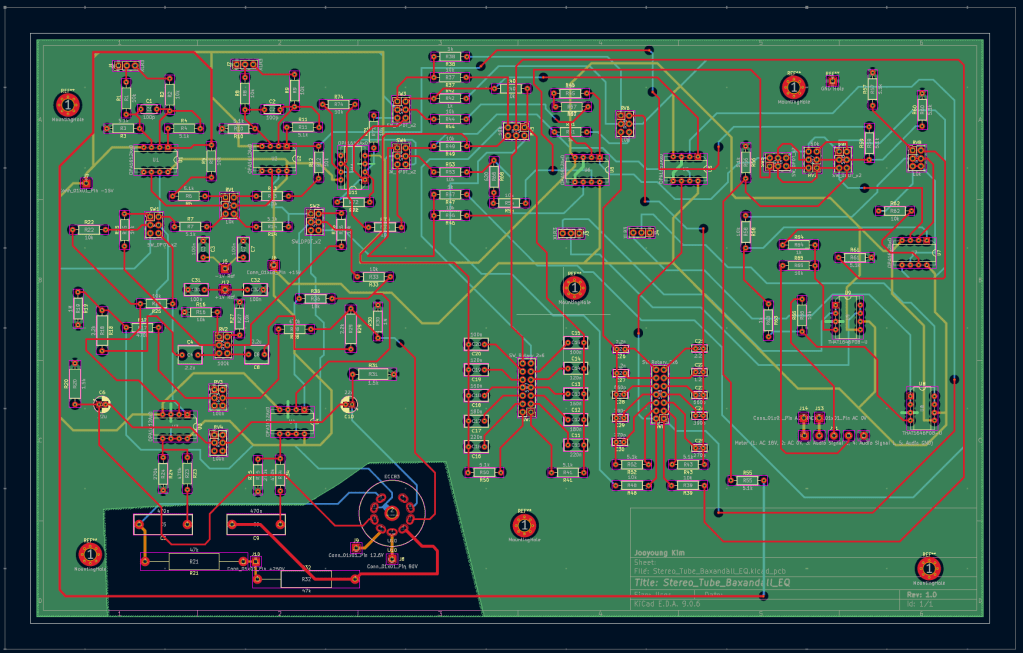
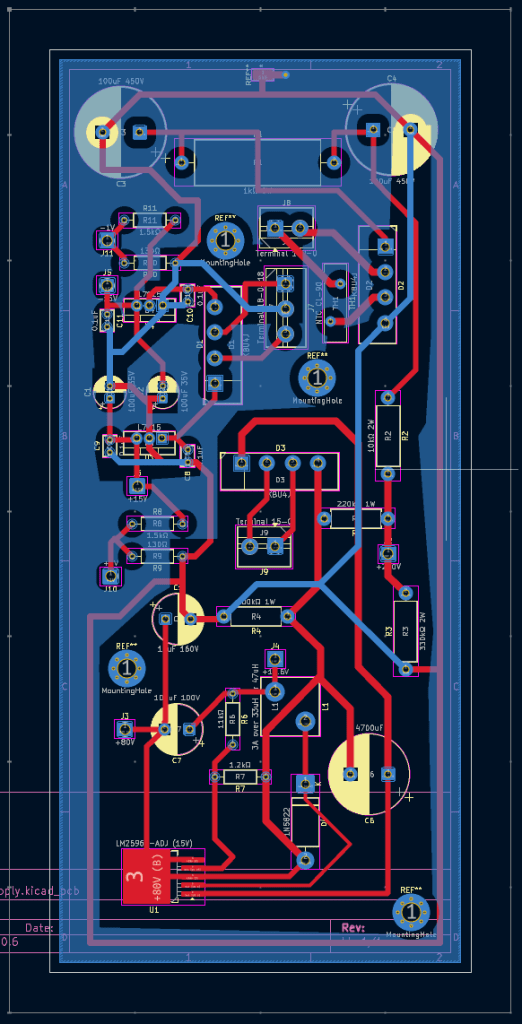
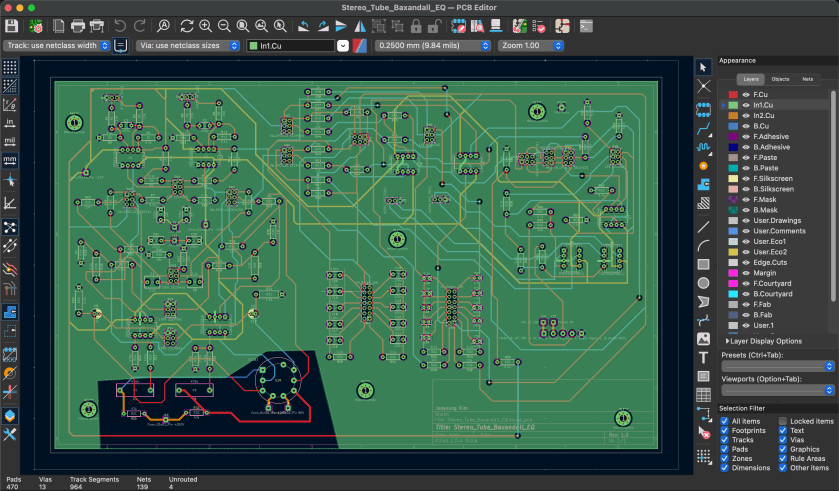
Once the schematic design is complete, the next step is translating it into a PCB layout. At its most basic, a PCB consists of two layers: the first layer carries the signal traces, and the second layer serves as ground. However, in audio equipment with a high component count, two layers may not be sufficient. In my case, I had to distribute multiple DC voltage rails throughout the circuit, and several chips had many pins that required careful routing. As a result, I designed the main board as a four-layer PCB, while the power supply board remained a two-layer design.

The issue—if I didn’t mention this in the previous post—is that even if everything looks perfect in the schematic, it doesn’t automatically translate cleanly onto the PCB.

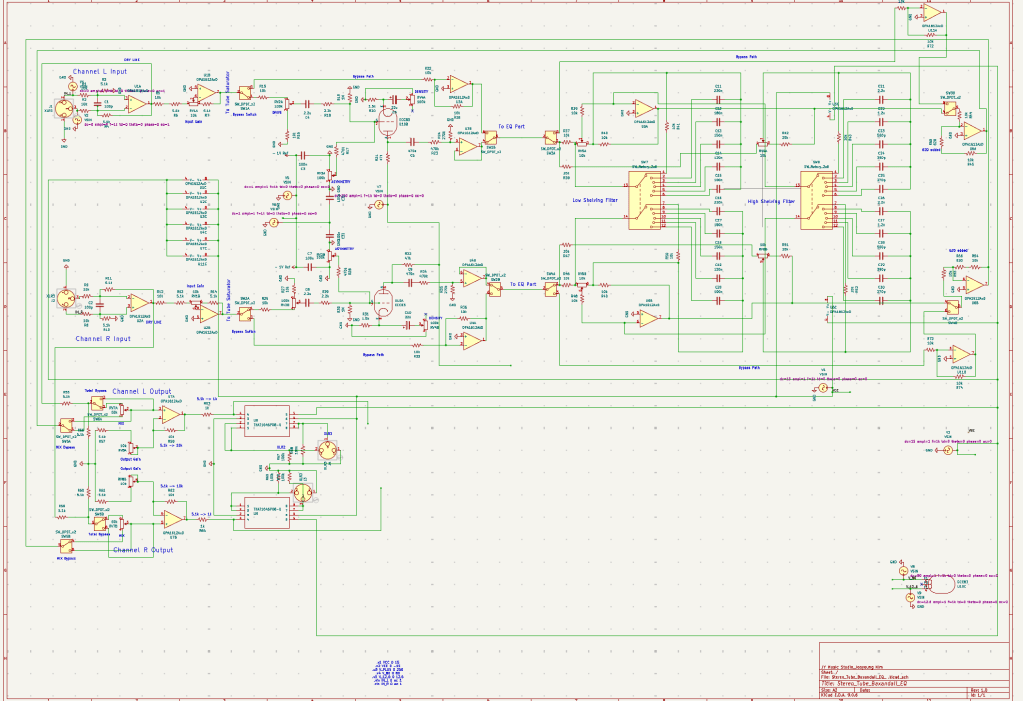
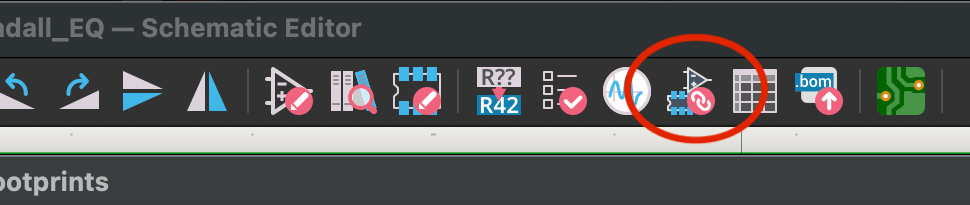
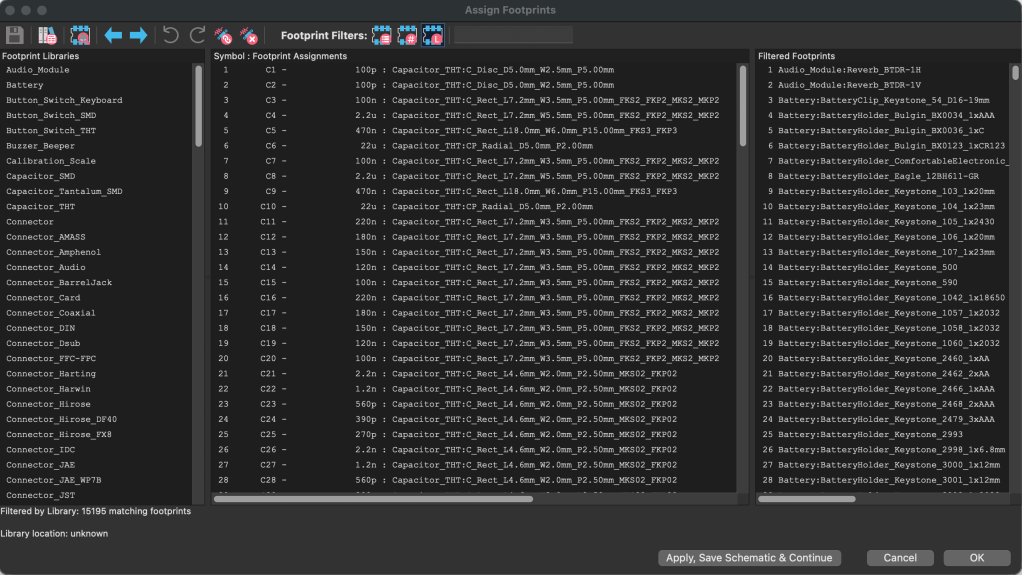
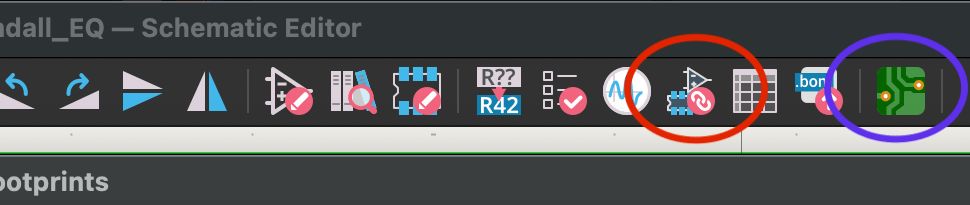
If you look at the top-right area of the schematic, you’ll see link indicators for the op-amps and IC chips. Clicking one of those opens a window where you have to manually assign the correct physical package for each component. This is called a footprint.

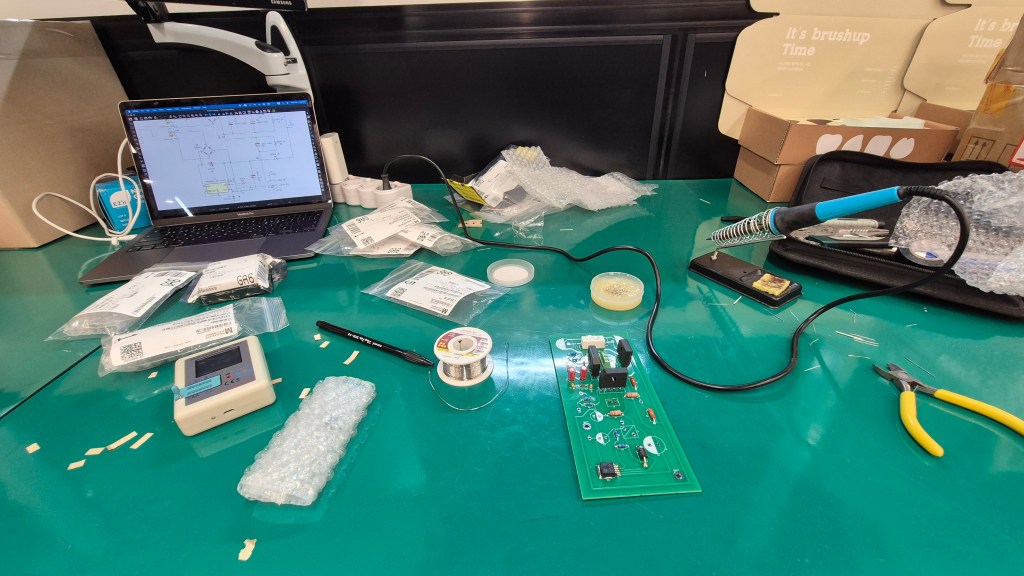
To assign the correct footprint, you need to carefully cross-check each part against its datasheet and match the exact specifications. Honestly, that process nearly drove me crazy. After soldering everything together, I discovered about three problematic spots. I managed to fix them with some creative rework, but since I also had to revise the EQ bypass section anyway, I ended up redesigning the PCB and placing a new order. The thought of desoldering everything and starting over again is… thrilling, to say the least.

And even after that, you’re still not done. Once everything is set up, clicking the PCB editor icon opens the layout window.

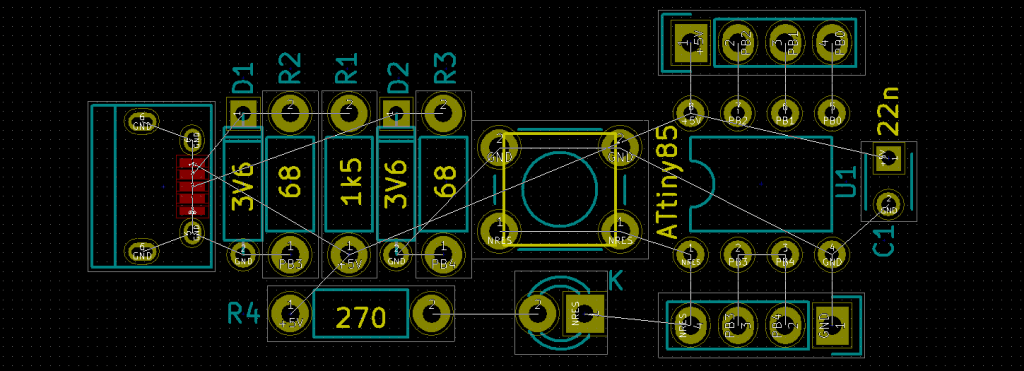
From there, you import all the assigned footprints. When they first load, they appear scattered randomly across the board.

I had around 150 components on the main board alone, so seeing them all clumped together at once was a bit overwhelming.

From that point on, it’s a lot of manual routing. For the ground plane, there’s no need to manually connect traces—filling the ground layer with copper automatically connects everything. For the power supply board, however, I kept it to two layers to reduce costs, so I cleared certain copper areas and routed the power traces manually. In the main board, I also removed copper around the high-voltage tube section to help minimize potential noise issues.

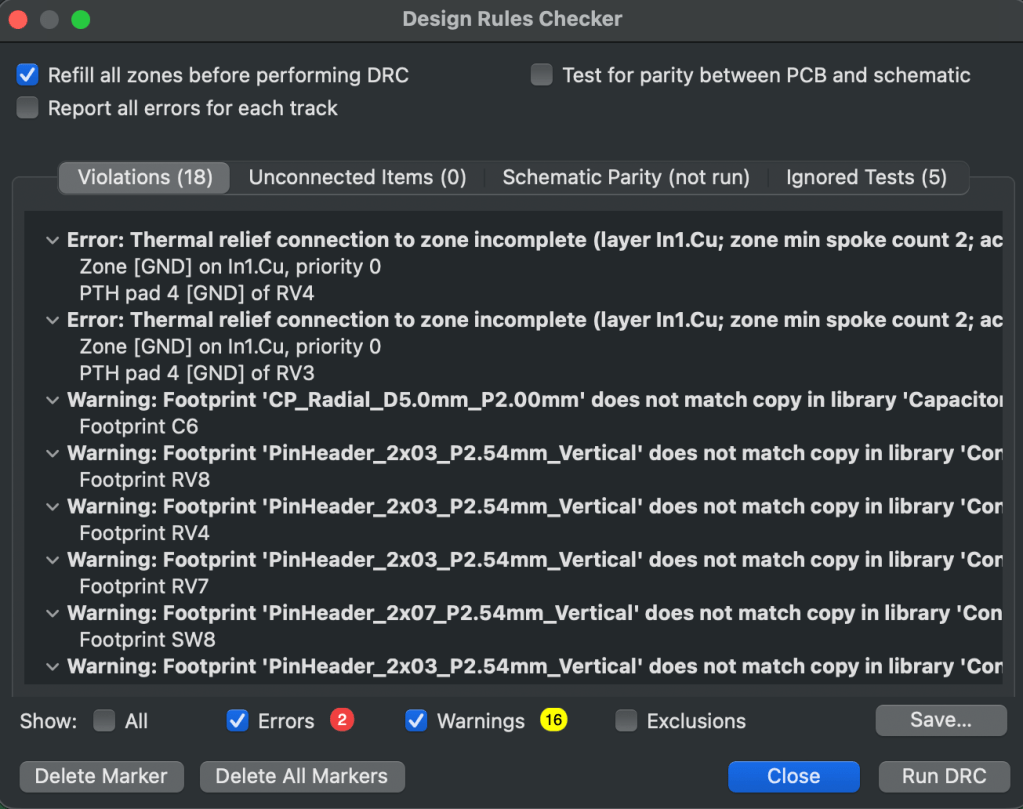
Once the layout is complete, you run a final design rule check. You’ll see a list of errors and warnings. If certain warnings are triggered by intentional design decisions, you can ignore them—but everything else should be reviewed carefully. In my case, I found a few unconnected traces that I had missed.

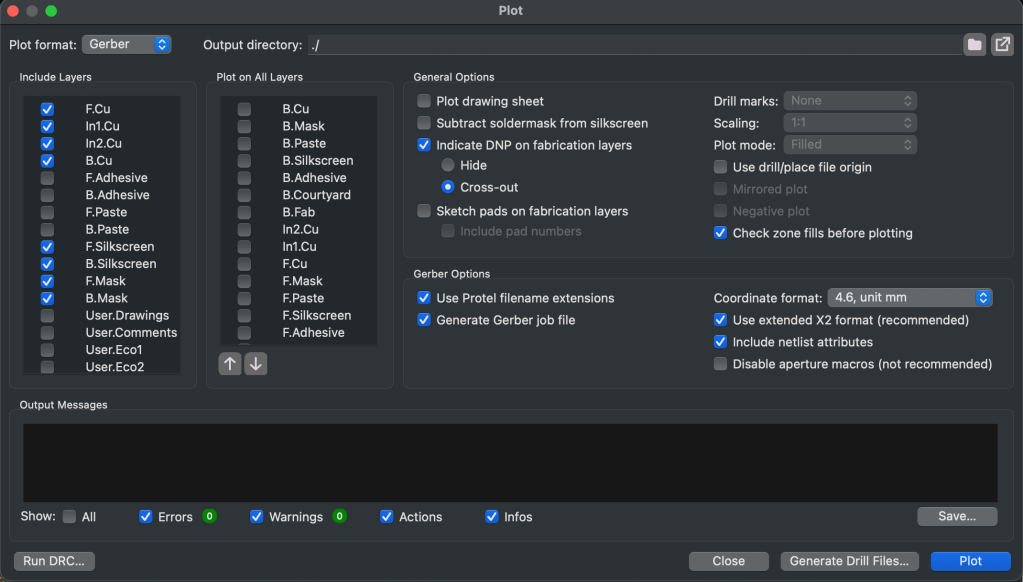
After that, you define the board outline using the Edge.Cuts layer. Then you go to File → Plot, select all the required layers, and generate the fabrication files. Since the plotted files don’t include drill data, you also need to export a separate drill file.

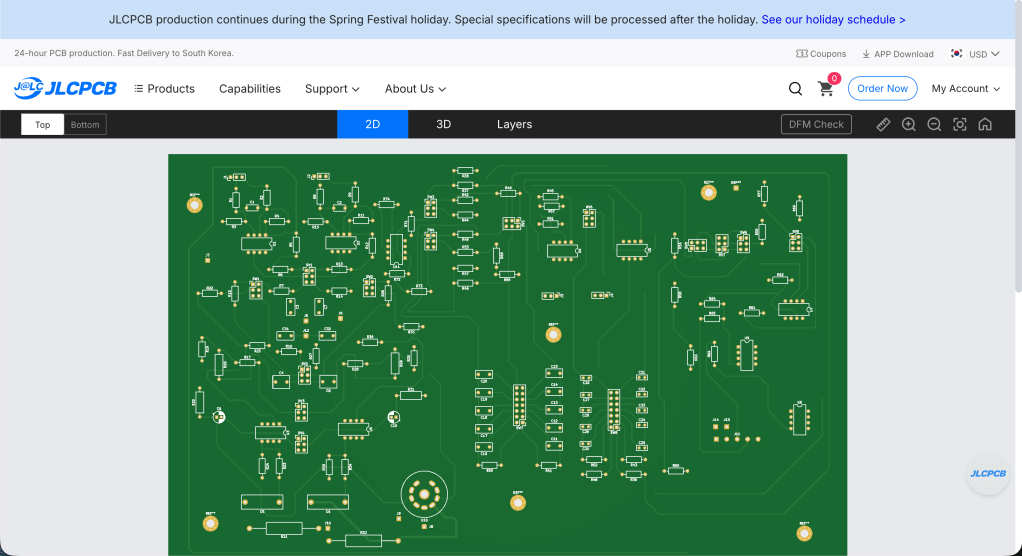
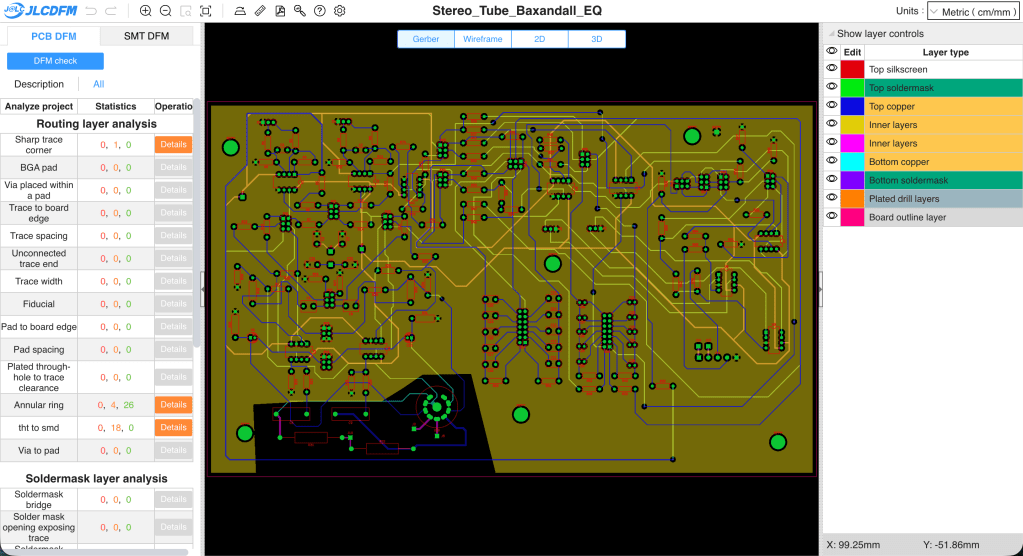
I ordered my PCBs from JLCPCB. After compressing all the generated files into a single ZIP archive and uploading it, you can preview the board before placing the order. There’s also a DFM (Design for Manufacturability) check that identifies potential production issues or design mistakes. It seems the manufacturer performs an additional review after you place the order as well.

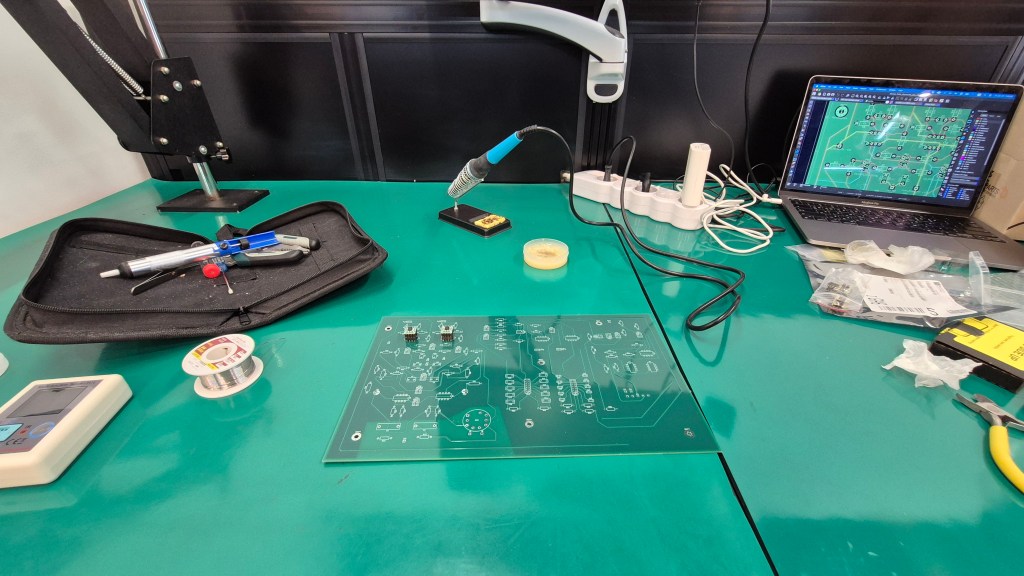
Once the boards arrive, all that’s left is soldering. For distributing multiple voltage rails, I had a custom toroidal transformer made. Since the design includes vacuum tubes, higher voltages are required—far beyond what a simple adapter can provide. Toroidal transformers also tend to be more resistant to ground-related noise.

In the next post, I’ll talk about the case fabrication and the final assembly process. I’ve already sent out the enclosure drawings, and since the PCB has been revised, the final installment may take a bit longer to publish. In the meantime, I’ll think about what topic to cover next.

See you in the next post!
DIY Audio Project #1 | Tube Saturator with Baxandall EQ (Part 2): Simulation

Hello, this is Jooyoung Kim — an audio engineer and music producer.

I ended up taking on way more classes than I expected this semester…
and honestly, just preparing for them is killing me. Haha. Every day feels like it disappears while I’m organizing lecture materials… 😢

And somehow, it’s already been almost two weeks…!

Today, following up on my previous post, I’d like to talk about running simulations.

Alright—let’s get started!


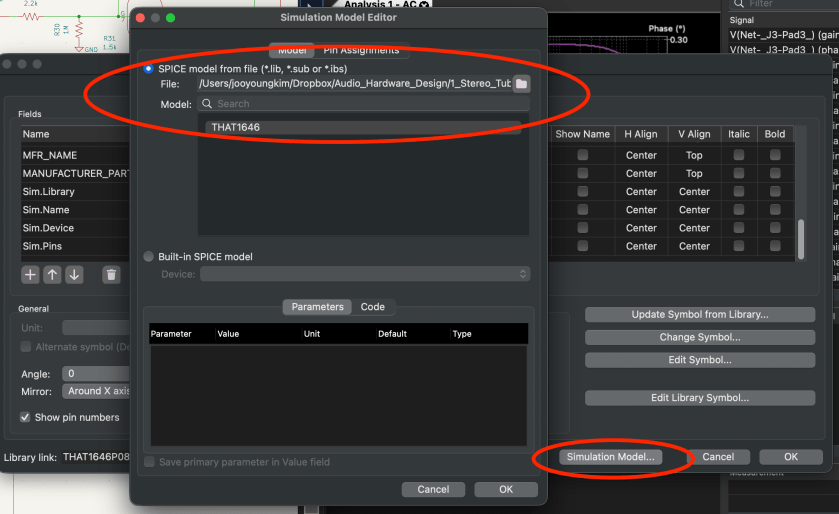
To run simulations in KiCad, you need a library file for each component.

The file extension is .lib.
As an example, here’s roughly what the library file looks like for a potentiometer (variable resistor) I created:

* Logarithmic Potentiometer Subcircuit (A-type taper)
.SUBCKT DUAL_POT_10K_LOG 1 2 3 4 5 6 SET=0.5 VALUE=10k
* Unit A (Log curve: 10% resistance at 50% rotation)
Ra1 1 2 {VALUE*(1-pow(10, -SET))+0.001}
Ra2 2 3 {VALUE*pow(10, -SET)+0.001}
* Unit B
Rb1 4 5 {VALUE*(1-pow(10, -SET))+0.001}
Rb2 5 6 {VALUE*pow(10, -SET)+0.001}
.ENDS

For components that are already built into KiCad, these libraries are applied automatically.

But for components that aren’t, you have to double-click the part, go to the component properties, click Simulation Model, and manually add everything… one by one.

Yeah… that part alone ate up a lot of time. 😅

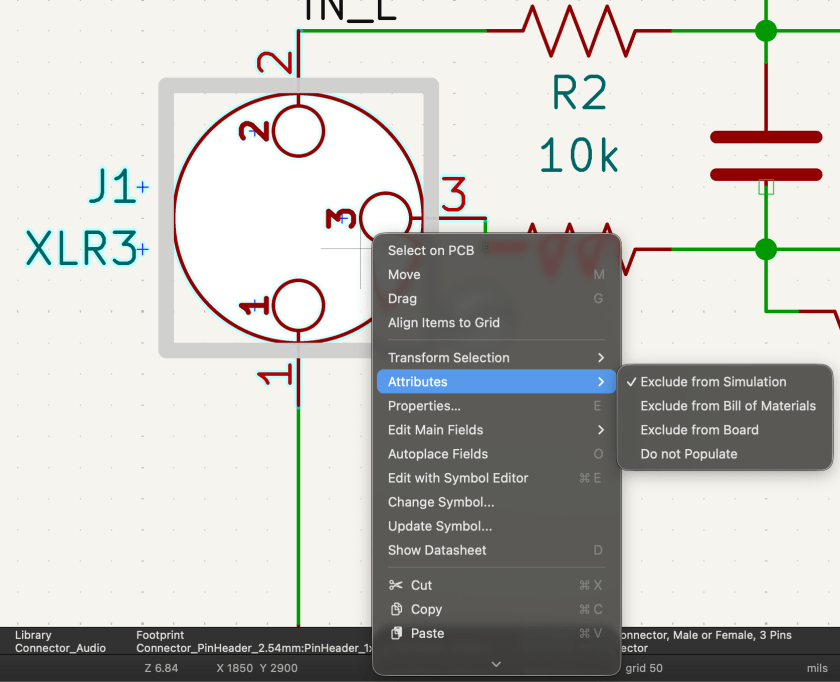
For the audio output stage, you can simply exclude the XLR jack from the simulation. If you connect it to ground through a large resistor, you can still simulate the audio signal at the output.

Simulation isn’t exactly… simple.

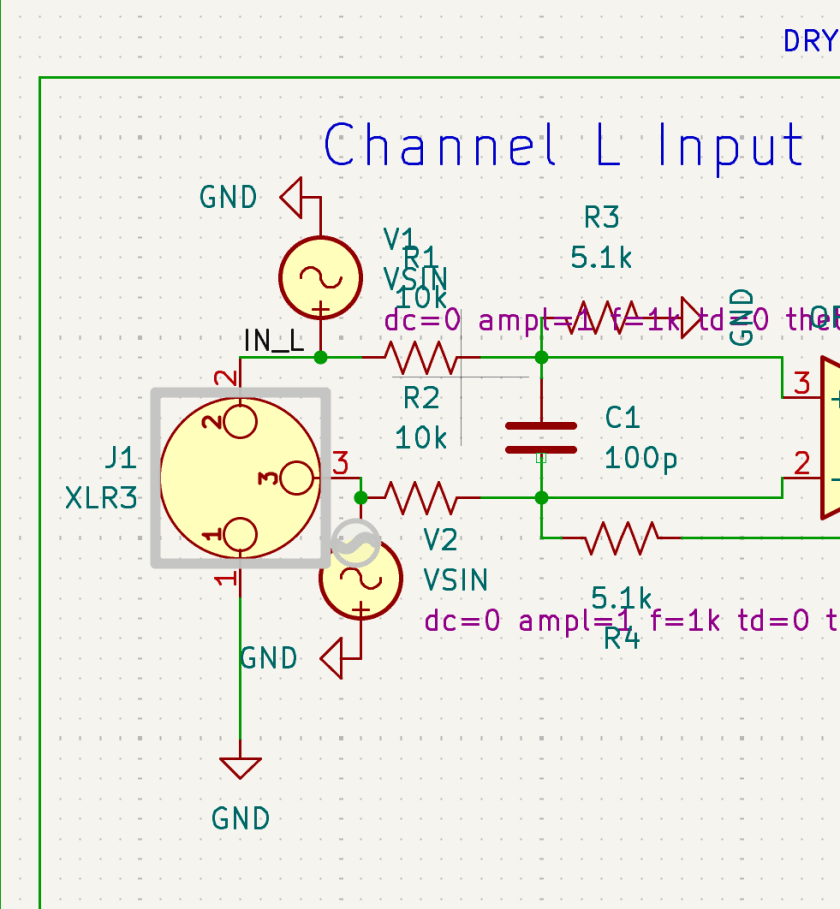
You need to supply DC where DC is required, and AC where AC is required. When checking frequency response and phase response, you’ll need to apply an AC sine signal to both the hot and cold sides.

What’s especially annoying is that every single pin must be connected. If even one pin is left floating, KiCad will keep throwing errors.

Personally, once the circuit is mostly finalized, I find it easier to copy it into a separate file and run simulations there.

Yes, you can exclude individual components from simulation, but…
if there’s an oscillator in the schematic, things get messy again when moving on to PCB layout. 😓

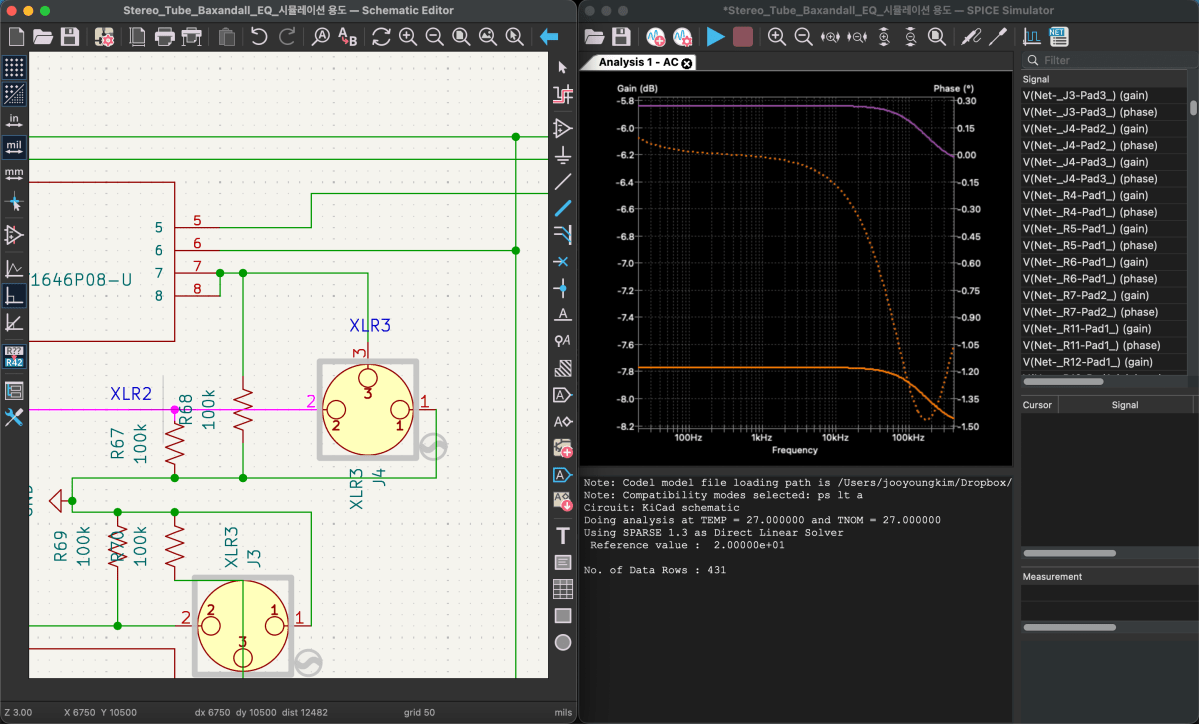
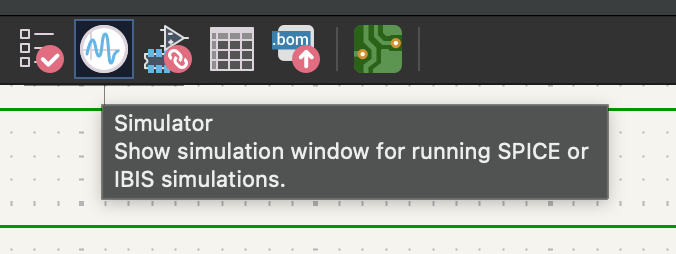
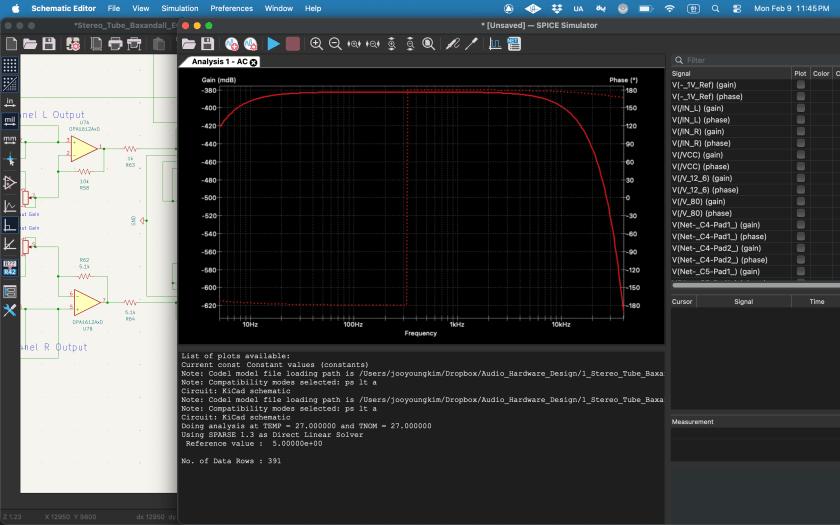
Anyway—once all the libraries are properly set up, you can click the oscillator-looking icon in the top-right corner. That will bring up the simulation window.

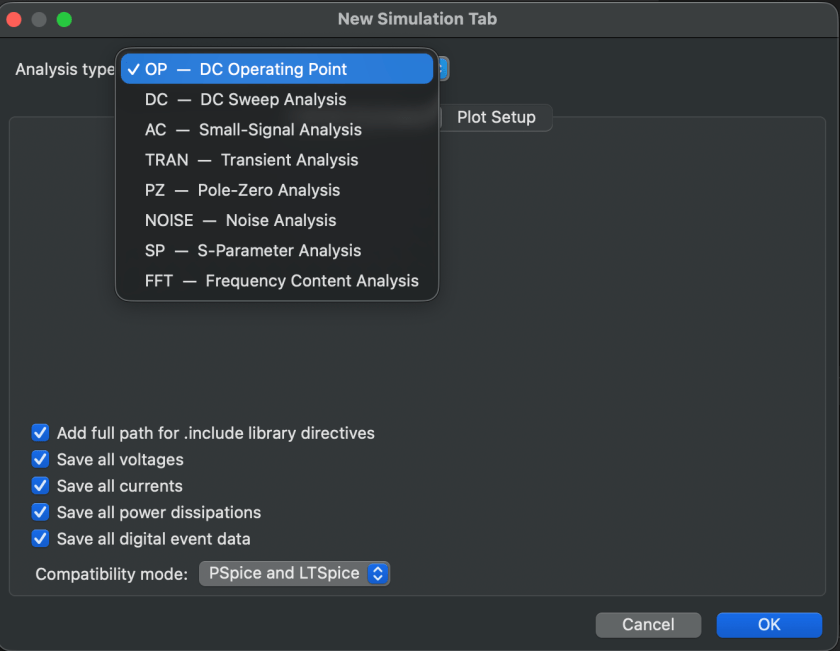
If you click the play button in the top-left, a settings window appears where you choose what and how you want to analyze.

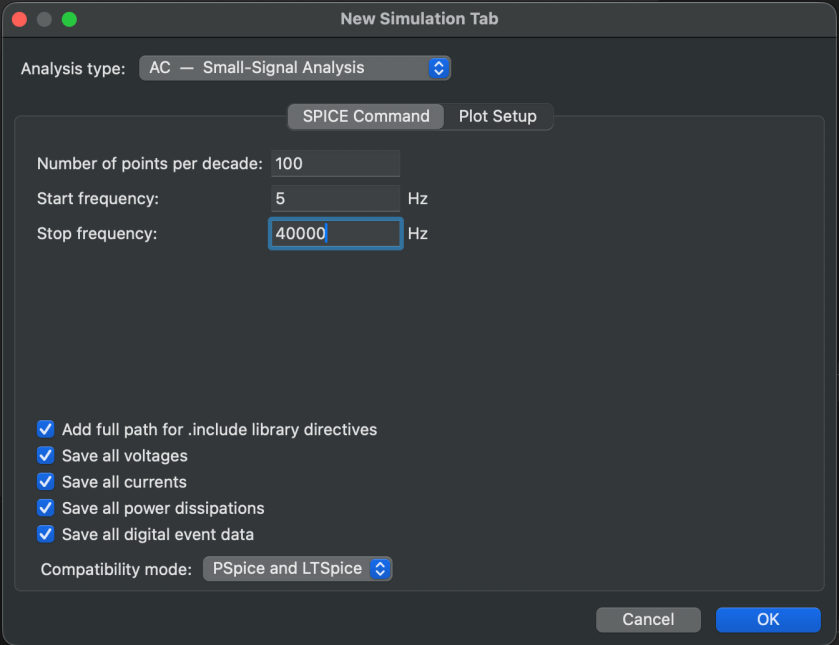
Since we’ve attached an AC 1 V source to observe frequency and phase response,
we’ll select AC analysis. With just these settings, you can already see the response clearly.

Now, if playback actually works, it feels amazing. But realistically… it probably won’t work on the first try. (It definitely didn’t for me.) If it doesn’t run, something is disconnected, or a library is wrong—and you’re in for a lot of fixing.

One important thing: if you’ve broken out pins separately for XLRs or DC/AC wiring, you must make sure they’re excluded from the simulation.

You can do this by right-clicking, then selecting Attribute → Exclude from Simulation. The same Attribute settings can also exclude things from board or component configurations.

Simulation is critically important—and you shouldn’t only check the final stage. Especially for processors with multiple stages, you need to verify that the signal behaves correctly at each step.

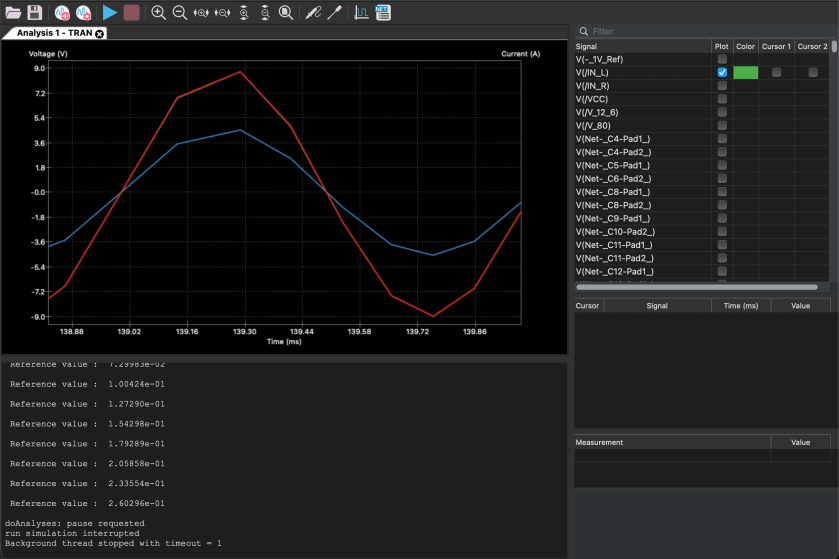
If impedance isn’t handled properly, the signal simply won’t flow the way you expect—and that will happen. Also, if you want to view signals in an oscillator-style analyzer, you’ll need to switch from AC analysis to Transient analysis.

This is also a convenient place to check for phase inversion.

And if you see signals that don’t line up properly here… welcome to modification hell. 😄 While running simulations to write this blog post… I literally just realized a major mistake.

I already ordered the PCB and finished soldering everything… so yeah, I’m screwed. Haha.

Resistor values are easy enough to change, but everything else was fine—until I noticed that bypassing the EQ flips the phase… and I only realized this now. 😭😭

The final THAT chip is a 16-pin device, but I used an 8-pin footprint and bought an adapter socket. Unfortunately, I placed two of them way too close together, so I’ll probably have to desolder and reposition them.

Including the power section, there must be around 180 components total… I’ll likely have to order a separate Ver.2 PCB later and migrate everything over. 😢

Anyway—this is exactly why simulation matters.

One more important thing: in simulations, op-amps are assumed to be ideal. Because of that, in Transient analysis, you won’t see distortion even at maximum dB levels. You need to keep this limitation in mind when interpreting results.

After all that, it’s time to move on to PCB design.

Apparently, this is often called “art” or “artwork.”

And honestly… there’s no grind quite like this kind of grind. If I include PCB layout as well, this post will get way too long, so I’ll wrap things up here for today.

See you again in the next post! 😊