Hey there! I’m Jooyoung Kim, a mixing engineer, and music producer.
It’s been a whirlwind week with listening experiments, live performance recordings, and mixing, so I haven’t had much time to focus on the blog… haha. I worked on a pretty unconventional setup for a recent gig—more on that in the next post!
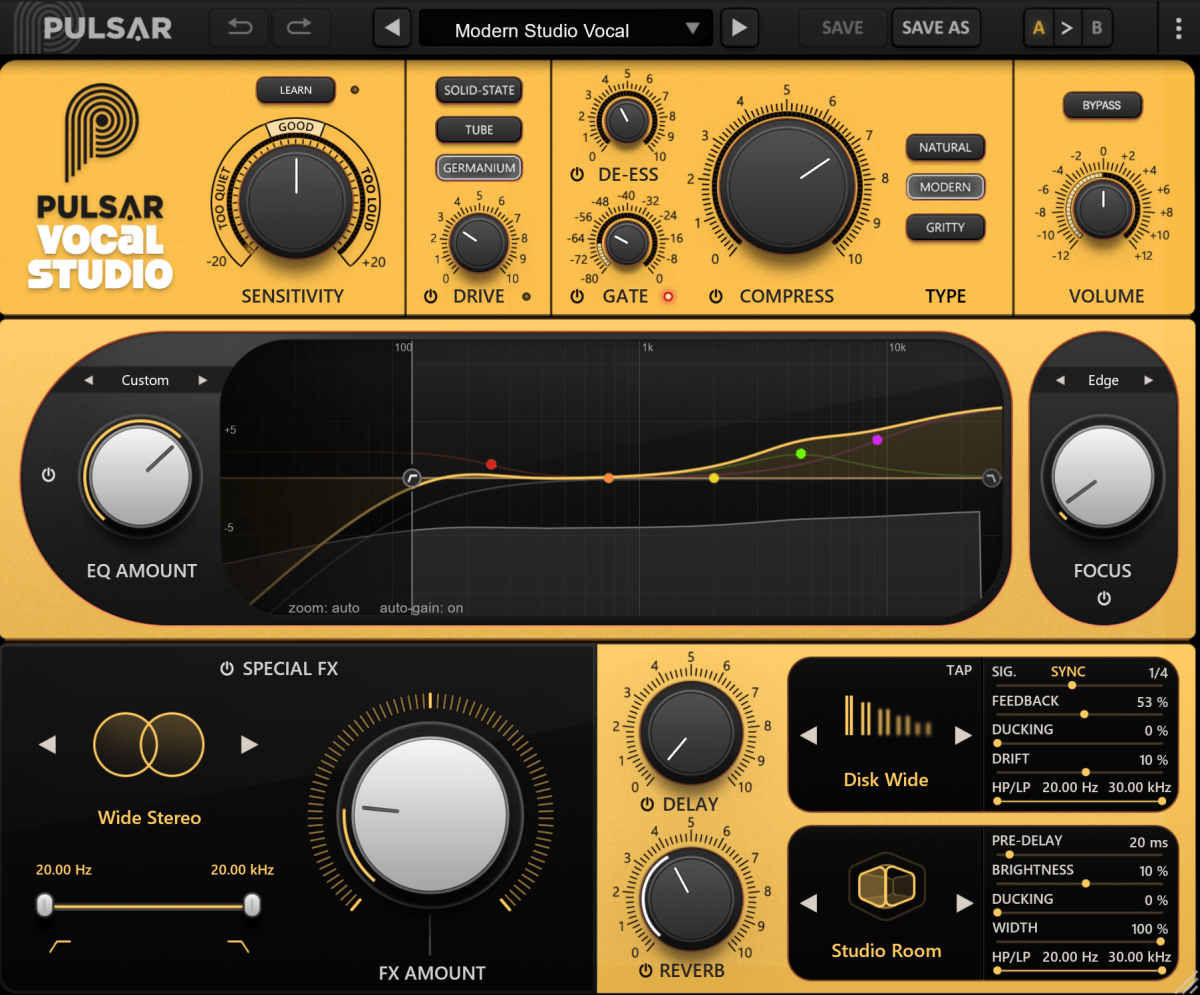
Today, I’m excited to introduce Pulsar Audio’s Vocal Studio, a new plugin designed specifically for vocals, brought to you thanks to Plugin Boutique.
If you purchase through the link on my blog, I’ll earn a small commission, which really helps me keep things going… thank you! 😊
Think of this as an all-in-one vocal effect and channel strip. It’s packed with everything you need: compression, EQ, gain, saturator, gate, de-esser, delay, reverb—you name it, it’s here.
Top Section
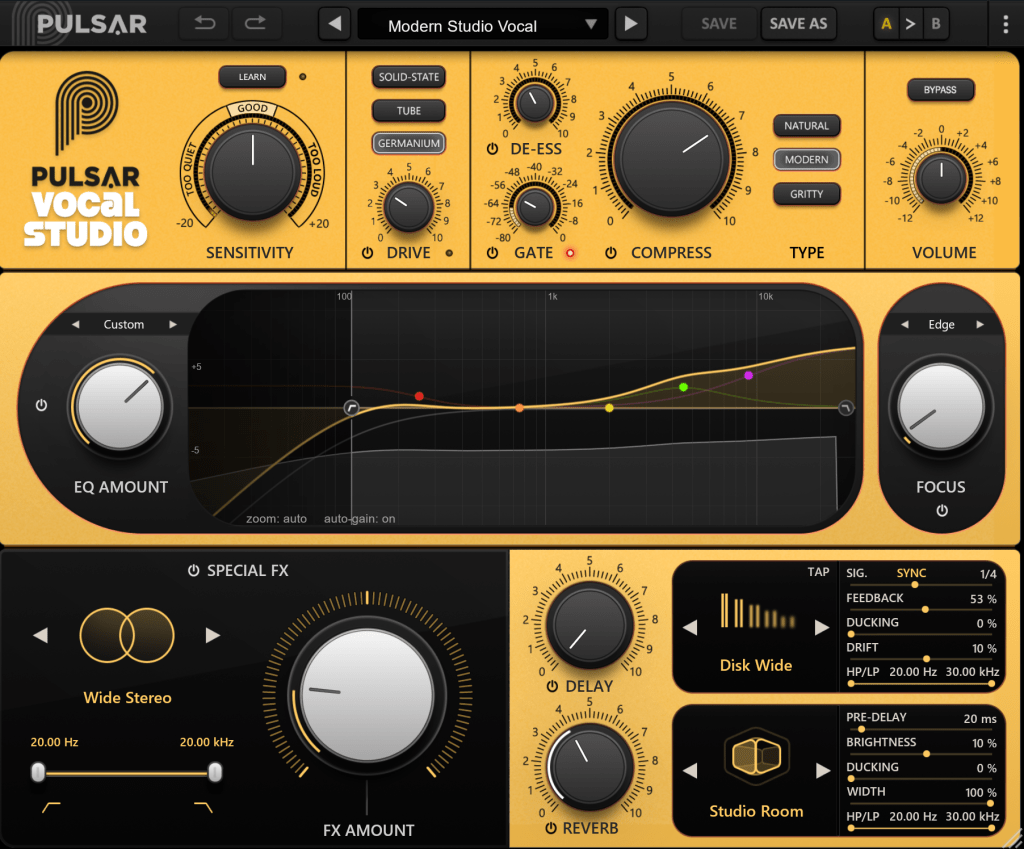
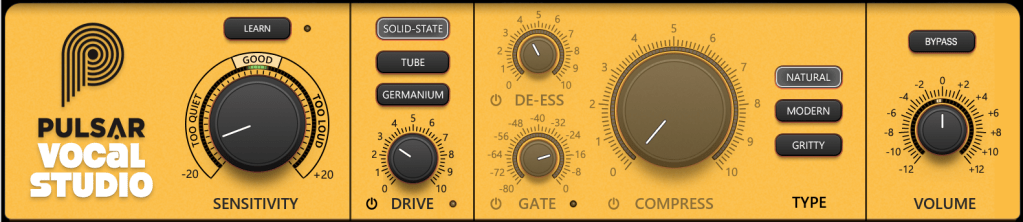
Let’s break down the controls in the Top Section of the Pulsar Vocal Studio interface:
Sensitivity: Automatically adjusts volume to maintain consistent levels, working independently of the compressor.
Drive: A saturator offering three distinct flavors—Solid State (inspired by Neve-style circuits), Tube (emulating a pentode preamp), and Germanium (mimicking a germanium transistor preamp).
De-ess: Reduces sibilance by attenuating frequencies around 4kHz and above.
Gate: Exactly what it sounds like—a gate! 😄
Compress: Offers three compression modes—Natural (FET-based, smooth and transparent), Modern (faster attack/release with added saturation), and Gritty (the fastest and most aggressive for a bold effect).
Volume: Adjusts the final output level of the plugin.
Mid-Section
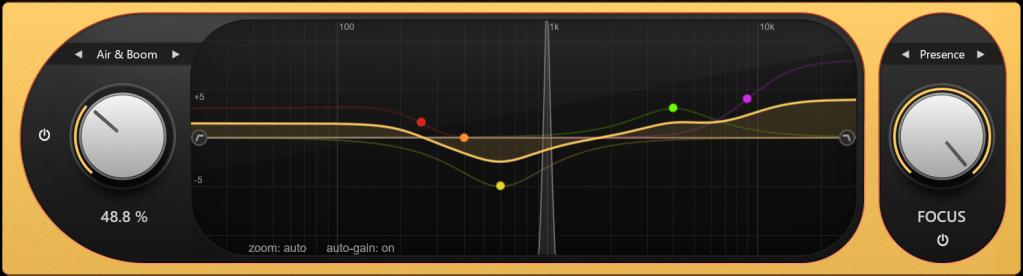
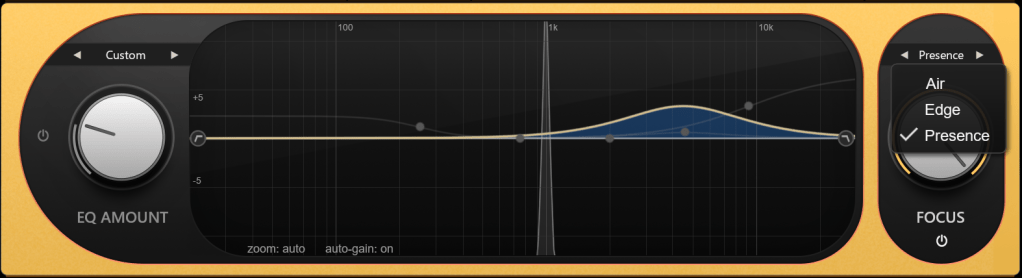
On the left, you’ve got controls for how much EQ to apply. On the right, the Focus section offers three dynamic EQ presets: Air, Edge, and Presence.
Bottom Section
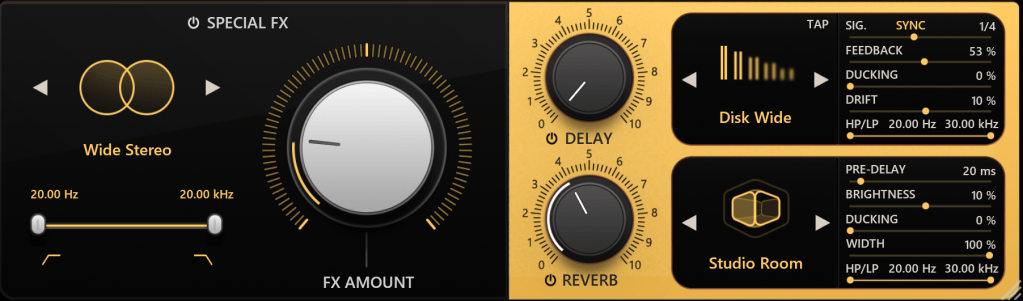
Down below, the Special FX section lets you add creative effects.
Delay: Includes standard delay, ping-pong, slap delay, and more.
Reverb: Offers a wide range of types—hall, plate, spring, room, chamber, ambience, you name it.
All delay and reverb parameters are fully tweakable, of course.
Impressions
This plugin is a bit heavy on CPU due to its many effects, but if you think of it as a one-stop shop for an entire vocal track, it’s well worth it. Personally, I think the reverbs are so clean and polished that I’d love to see them sold separately at a lower price. They’re some of the best digital reverbs I’ve come across!
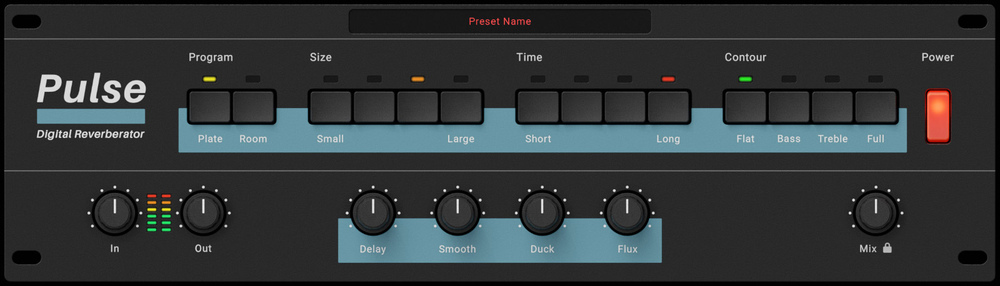
This month, if you buy any plugin from Plugin Boutique, you’ll get Wave Alchemy’s Pulse—a faithful recreation of the Lexicon PCM-60 reverb—for free. Don’t miss out!
If you’re in the market for a vocal channel strip, Pulsar Vocal Studio is definitely worth checking out.
Hi! This is Jooyoung Kim, a mixing engineer and music producer.
During my undergraduate studies in physics, I often used my extra credits to take music courses. Looking back, I regret not taking any Python classes—especially now that I’m studying plugin development, data processing, and methodology. Without AI tools, I wouldn’t have been able to start coding at all.
Currently, I’m in the final semester of my master’s program in the Department of New Media Music. I’m not too worried about my thesis, so this semester, I’m focusing on a personal project: developing a saturation plugin in my own way. I know it will be challenging, but I also aim to write a paper introducing a new methodology for building audio plugins.
Now, let’s talk about oversampling and upsampling. This article is based on my book, ‘Basics of Mixing‘, released in South Korea.
What are oversampling and upsampling?
Many audio plugins offer oversampling, but what exactly is it, and how does it work?
Oversampling: Increasing the existing sample rate by an integer multiple (e.g., ×2, ×4, ×8, etc.).
Upsampling: Increasing the existing sample rate, but not necessarily by an integer multiple.
In oversampling, the process inserts zeros into the empty values and interpolates them using a low-pass FIR (Finite Impulse Response) filter..
It’s me! The right one is the photo on the left doubled horizontally.
Think of it like stretching an image by an integer factor: the blank spaces are filled in through interpolation. After processing the audio, the plugin then downsamples the result back to the original rate.
On the other hand, upsampling converts the sample rate to another rate through interpolation. This is a different process from oversampling.
Why do we use oversampling and upsampling?
Oversampling helps reduce aliasing and creates a more natural-sounding result, while upsampling is primarily used for changing the sample rate.
However, does an oversampling function always make a plugin sound better? That’s a different discussion.
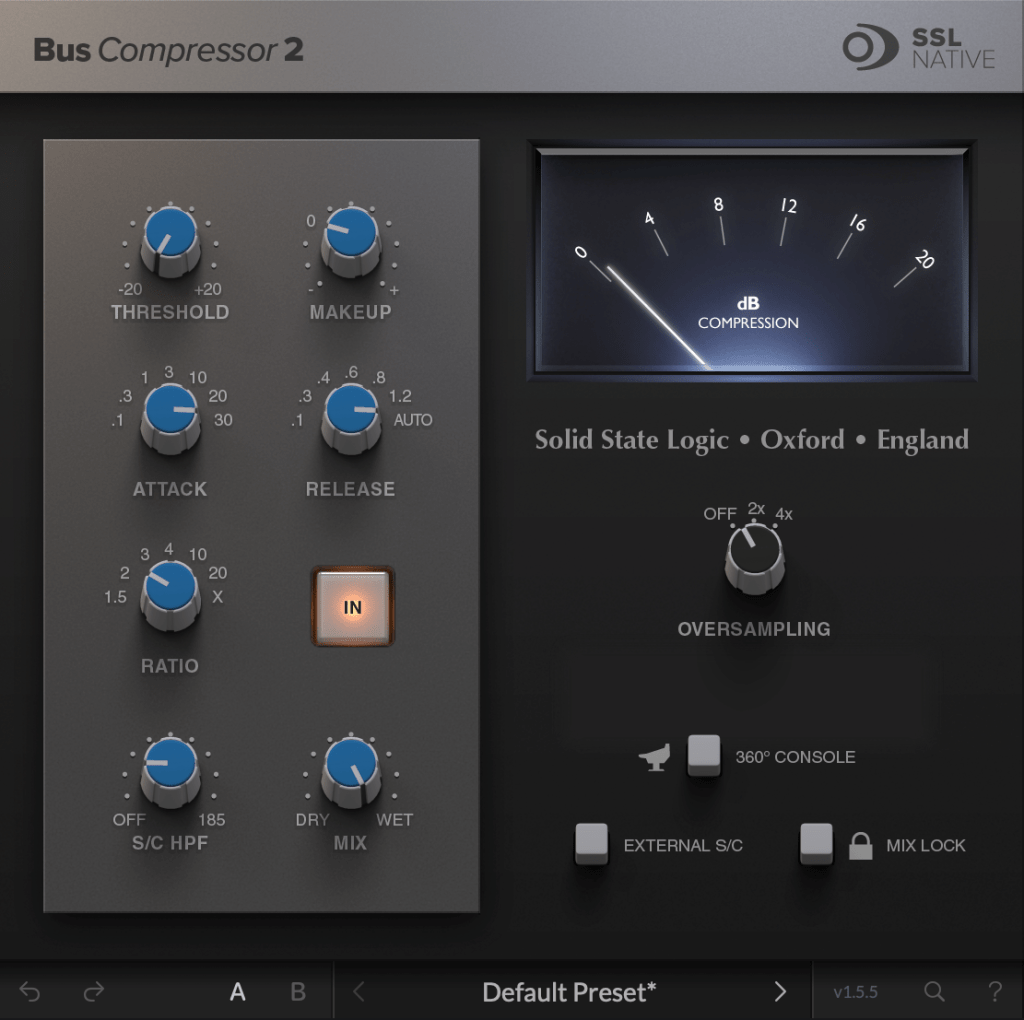
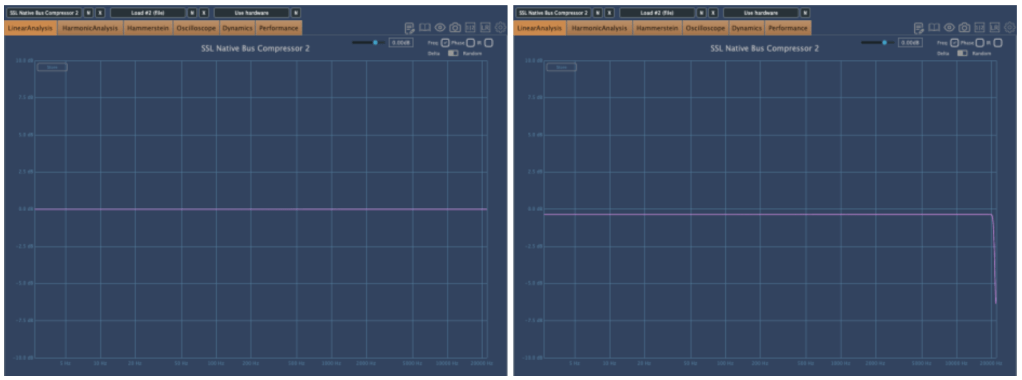
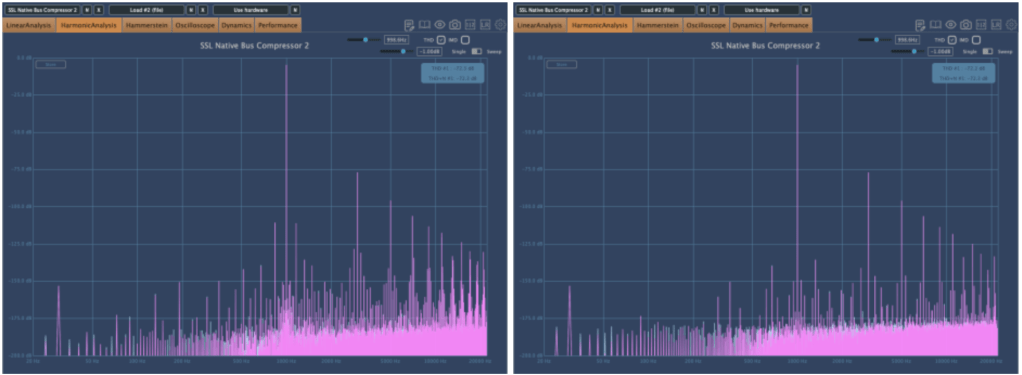
For example, the SSL Bus Compressor 2 plugin provides an oversampling option. Below, you can see the frequency response of the plugin:
The left graph shows the response without oversampling. The right graph shows the response with 2× oversampling.
Both graphs exhibit harmonic distortion at the same positions. While other measurements appear similar, even small differences between the two can result in noticeable changes in sound. In my experience, non-oversampled processing often sounds better.
That was a brief explanation of oversampling and upsampling! See you in the next post!
Hi! This is Jooyoung Kim, mixing engineer and music producer.
A few days ago, I met my teacher, who taught me guitar and MIDI. We talked about various topics, including tape machine plugins. That conversation inspired me to write a blog post about using tape machine plugins.
If you purchase a plugin through a link in this article, I may receive a small commission.
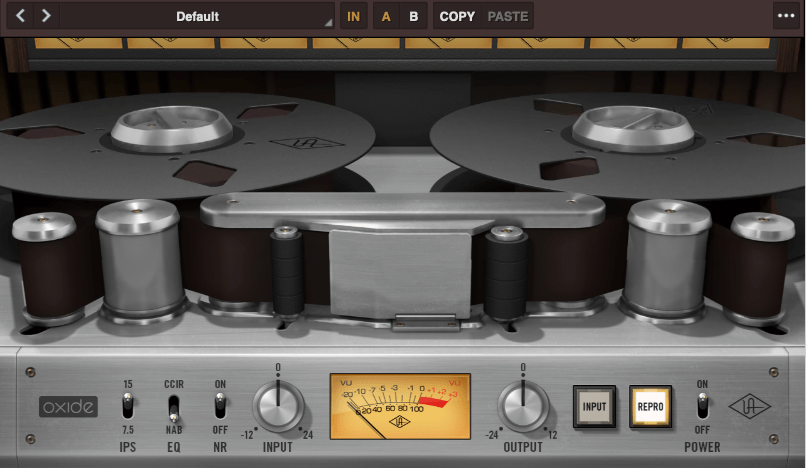
Oxide Tape Recorder is one of the best tape machine plugin made by UAD. The user interface of the Oxide Tape Recorder is simple and intuitive.
IPS means “Inches Per Second”. For example, when IPS is 15, the tape moves 15 inches per one second.
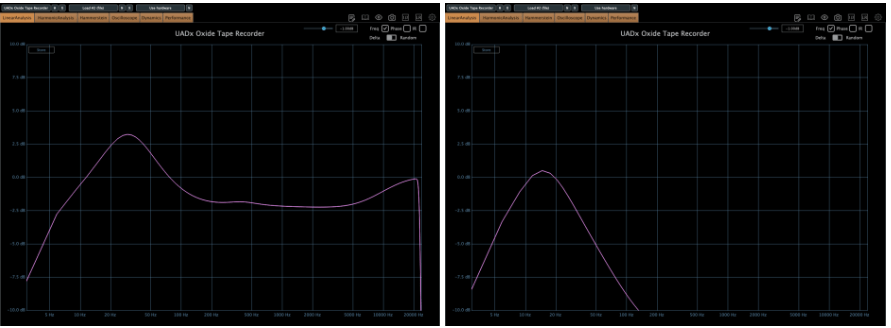
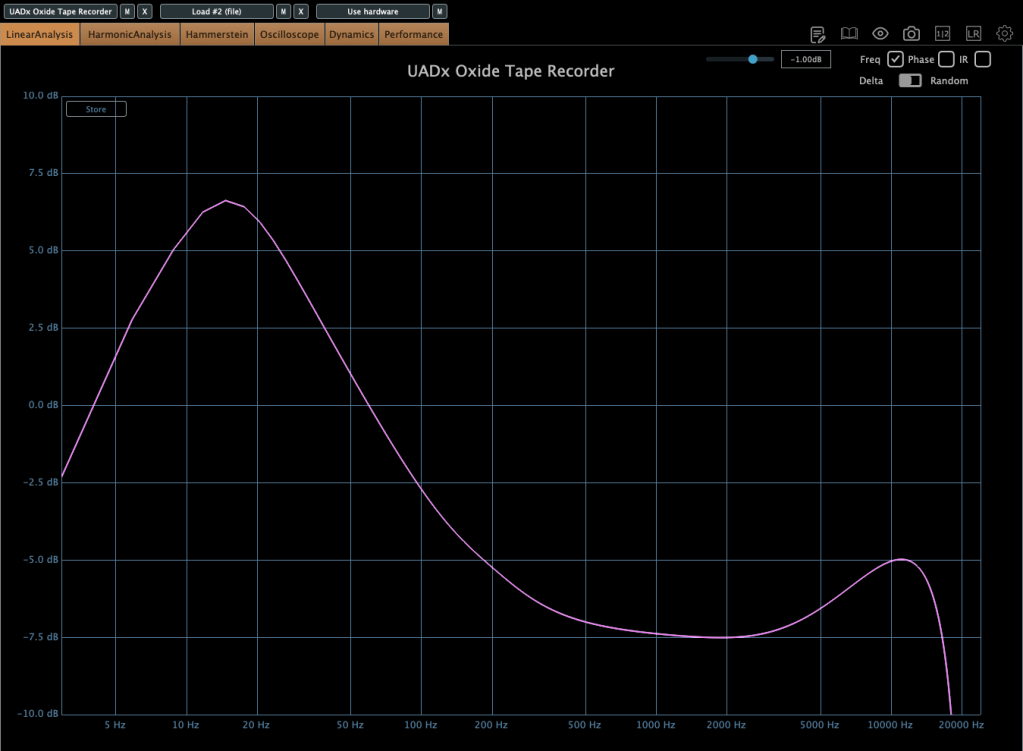
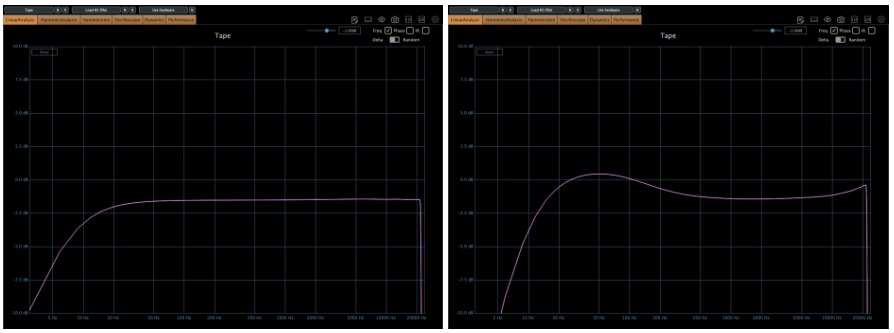
When EQ parameter is on NAB, left side is the frequency response of IPS 15, the other side is IPS 7.5
More gain at IPS 7.5
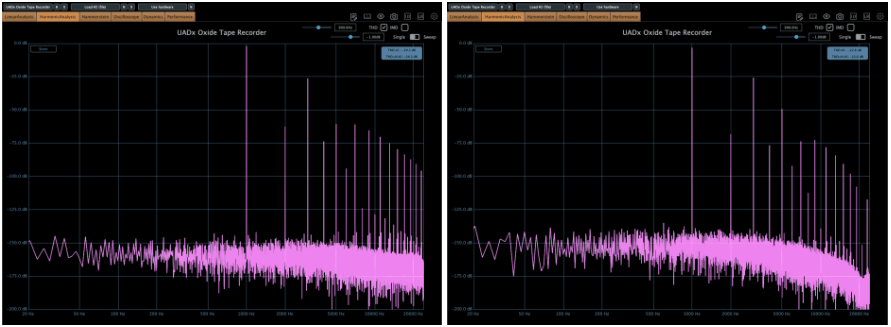
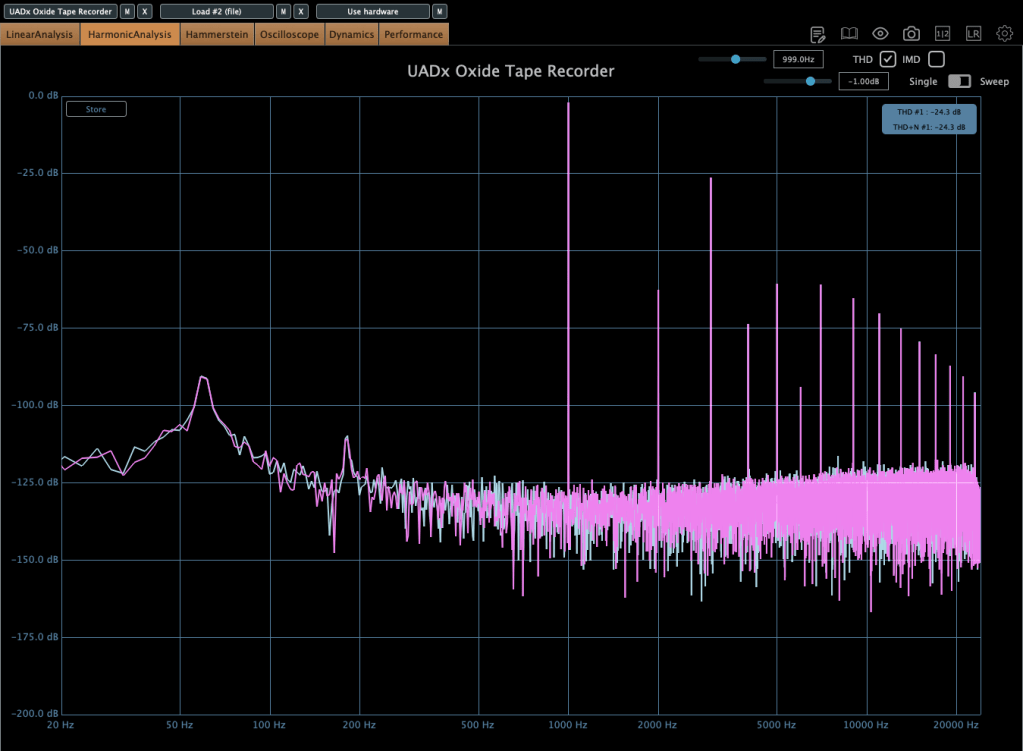
When EQ parameter is on NAB, left side is the harmonic distortion of IPS 15, the other side is IPS 7.5
You can see how IPS affects the frequency response and harmonic distortion.
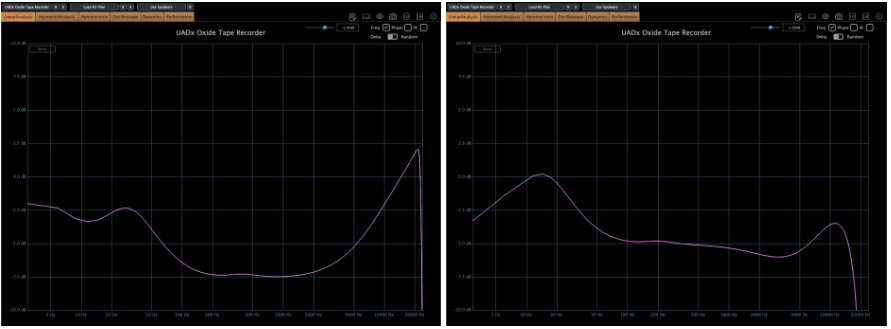
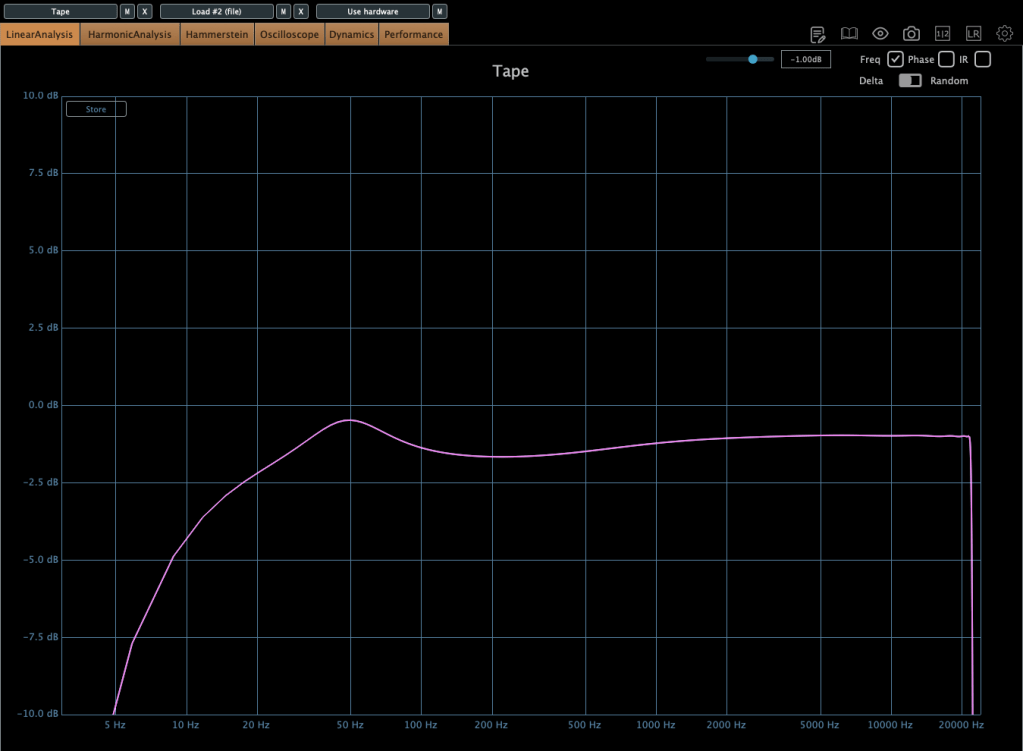
When EQ parameter is on CCIR, left side is the frequency response of IPS 15, the other side is IPS 7.5
If the input gain is too high, compression acts like a soft clipper.
The EQ parameter has two different values: NAB(National Association of Broadcasters) & CCIR(Comité Consultatif International des Radiocommunications, Now ITU-R)
People used to emphasize high frequency by recording process with tape recorder. This is due to high-frequency loss caused by the tape head and the machine. And then, de-emphasize the high frequency when the costumer play the tape.
At those situations, the EQ called NAB & CCIR was used.
NAB was the standard of the electricity with 60Hz alternating current like USA, and CCIR was the standard of 50Hz alternating current like EU(European Union).
The NAB standard sounds smoother and warmer than CCIR, whereas CCIR sounds clearer and sharper than NAB. It means CCIR more emphasize the high frequency field. You can see how the two differ by the upper frequency response graph.
The NR parameter means just “Noise Reduction”. If it turns off, the noise occurs.
That’s all you need to know about the Oxide Tape Recorder plugin. Simple!
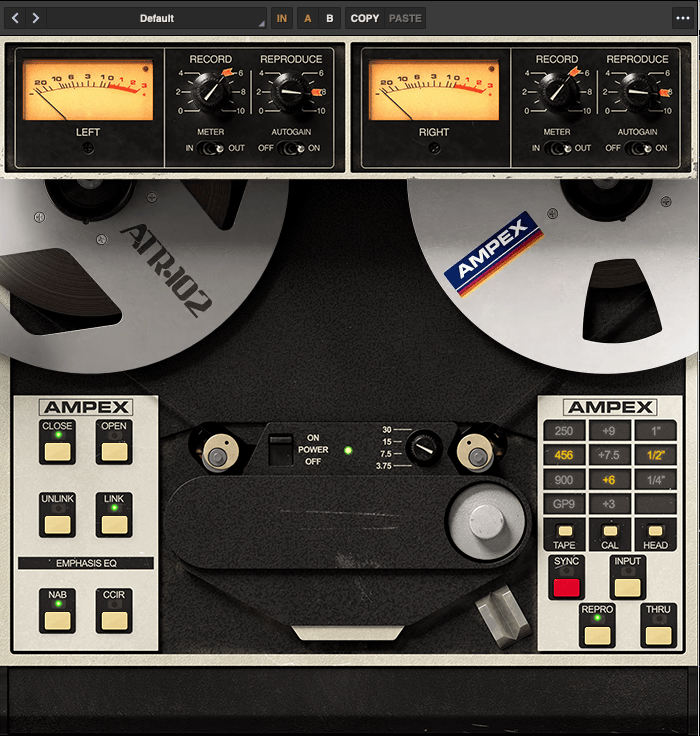
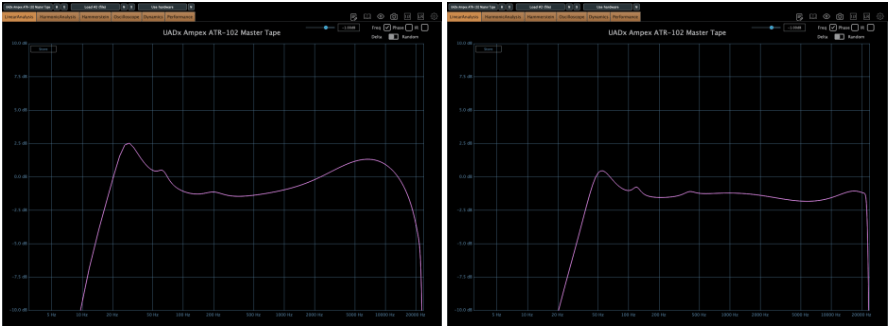
The parameters of the Ampex ATR-102 Master Tape are not as simple as those of the Oxide Tape Recorder. However, if you understand NAB, CCIR, and IPS, it’s easy to use.
Let’s see the parameters.
The record(input) and reproduce(output) knobs are located at the top of the plugin.
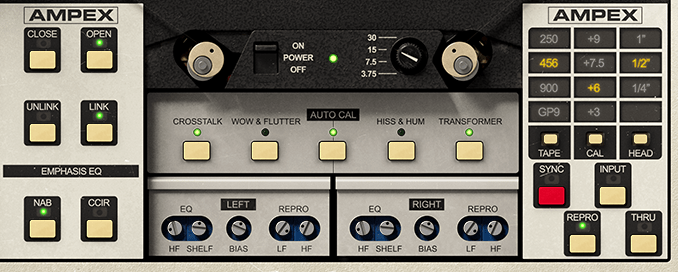
Down side of the plugin, there are buttons that enable detailed adjustments(open and close), and to choose NAB or CCIR.
The right side, you could change type of the tape, calibrate the volume, and choose the tape head width.
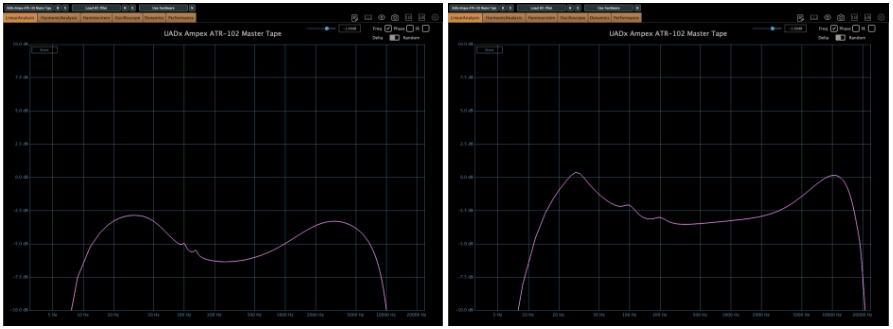
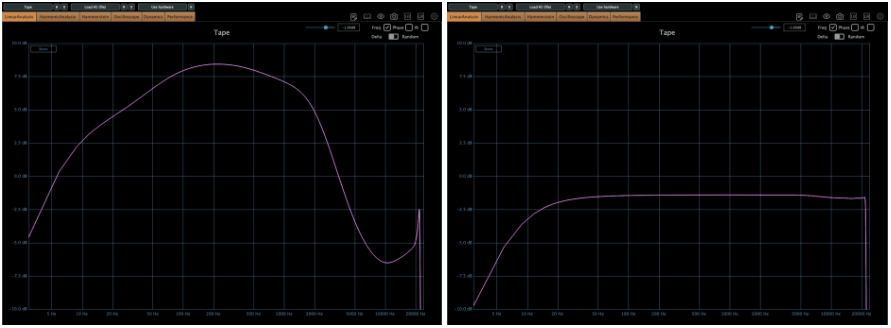
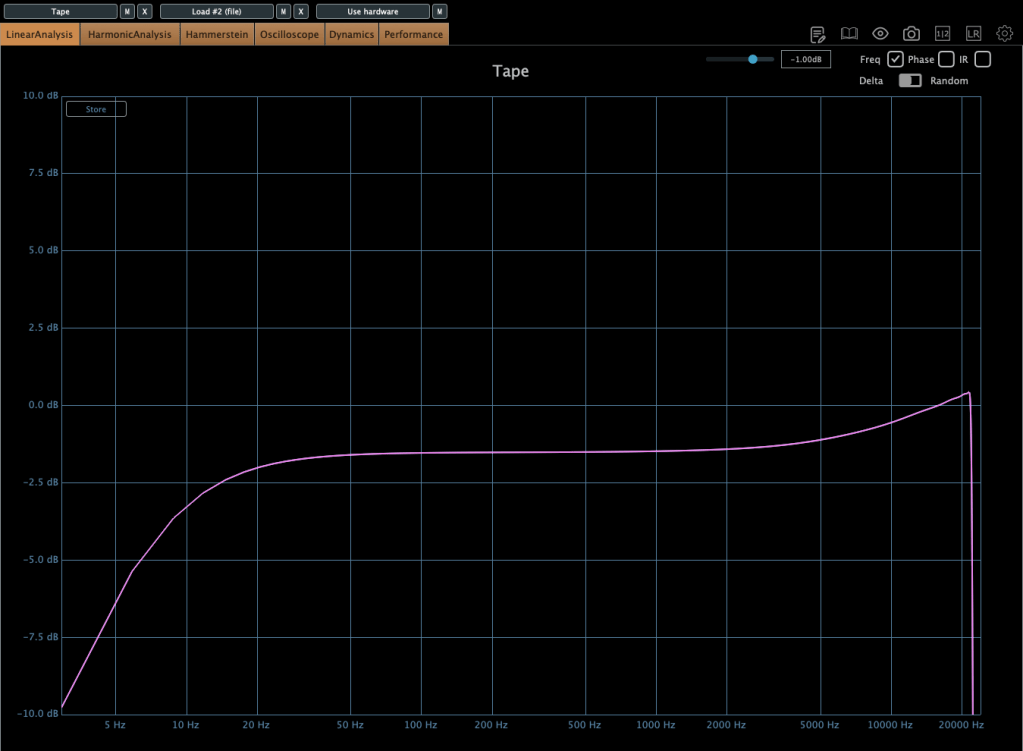
Based on 250 tape and NAB(when you choose IPS 30, couldn’t choice Emphasis EQ),
Left – IPS 3.75, Right – IPS 7.5
Left – IPS 15, Right – IPS 30
there are significant differences in frequency response.
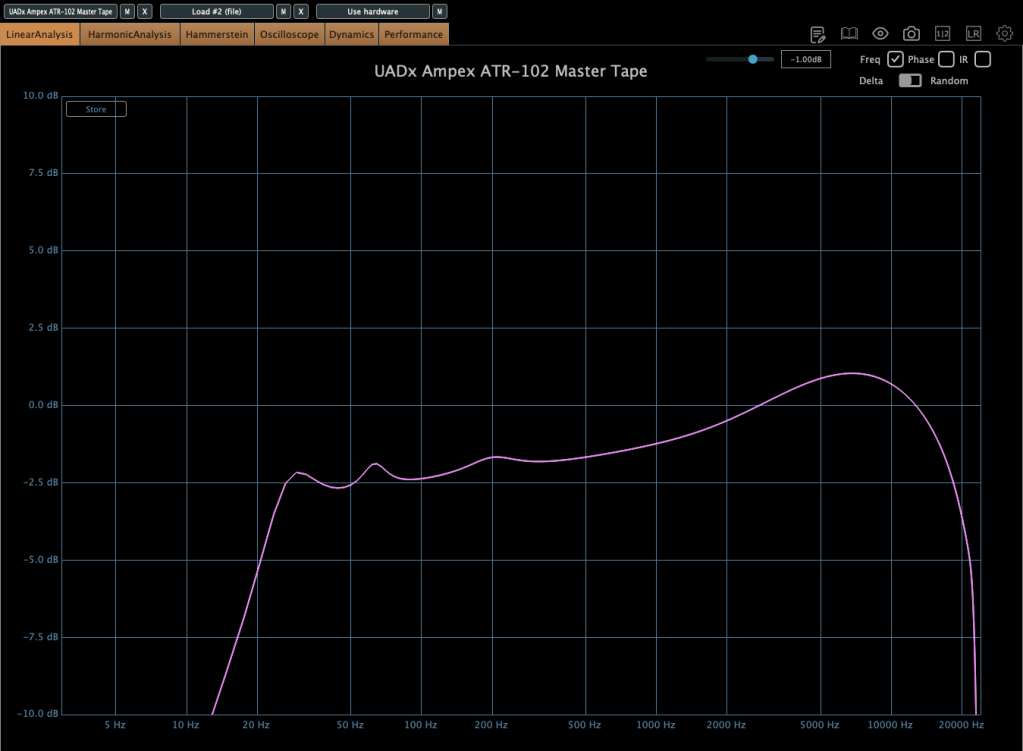
When the tape speed is at IPS 15, this graph shows how the frequency response change by selecting NAB to the other(CCIR).
Input gain and output gain value also make some difference, but it’s not that important..
Compression characteristic is unusual – increase high-volume signals even more – however, it’s not a noticeable difference, so I’ll skip the explanation.
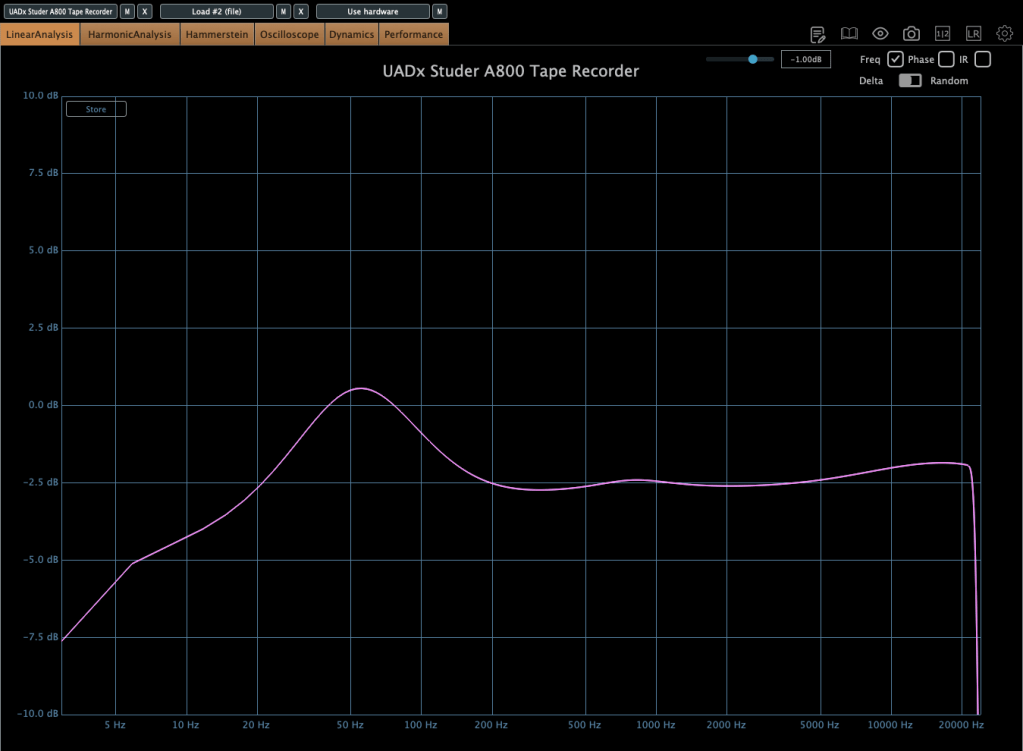
Now, without further ado, you can think of it as a friend that emphasizes the low range, and the frequency response changes like this depending on the IPS!
IK Multimedia makes various plugins like virtual instruments, mixing and mastering effects – their tape machine plugins are really great.
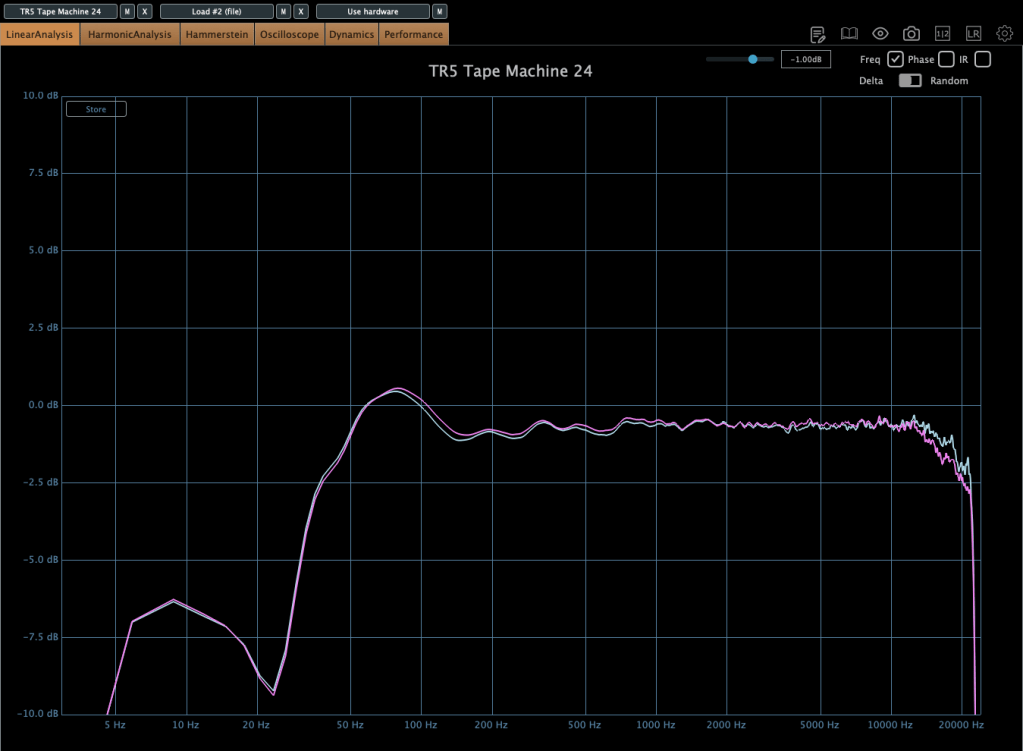
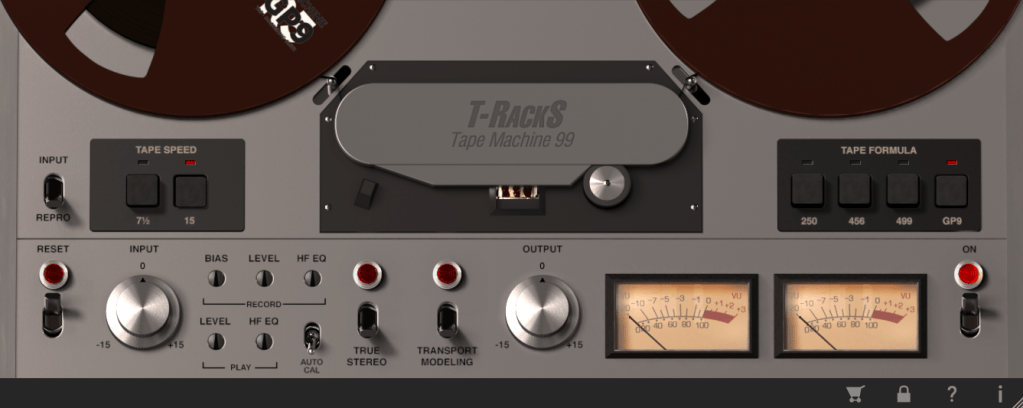
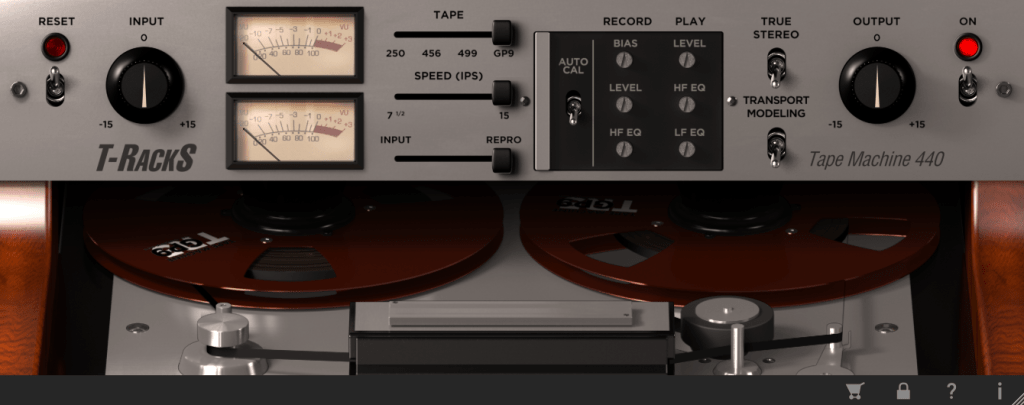
The total bundle sale started on Black Friday, but it’s still on sale. T-racks 5 MAX included in the total bundle includes a total of four tape machine plug-ins: Tape Machine 24, 80, 99, and 440. Let’s look around.
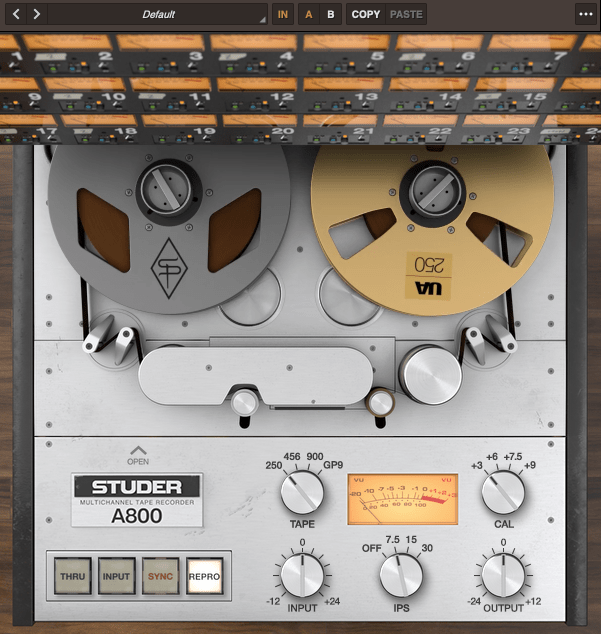
Parameters seems similar.. Tape types, IPS..
IPS 15 in GP9 tape
True stereo parameter makes the difference response between left and right, and transport modeling makes the variation value of the volume by time.
IPS 30 in GP9 tape
The other plugins’ parameters are same as Tape Machine 24 plugin. Just the machines are different, and they make difference in frequency response.
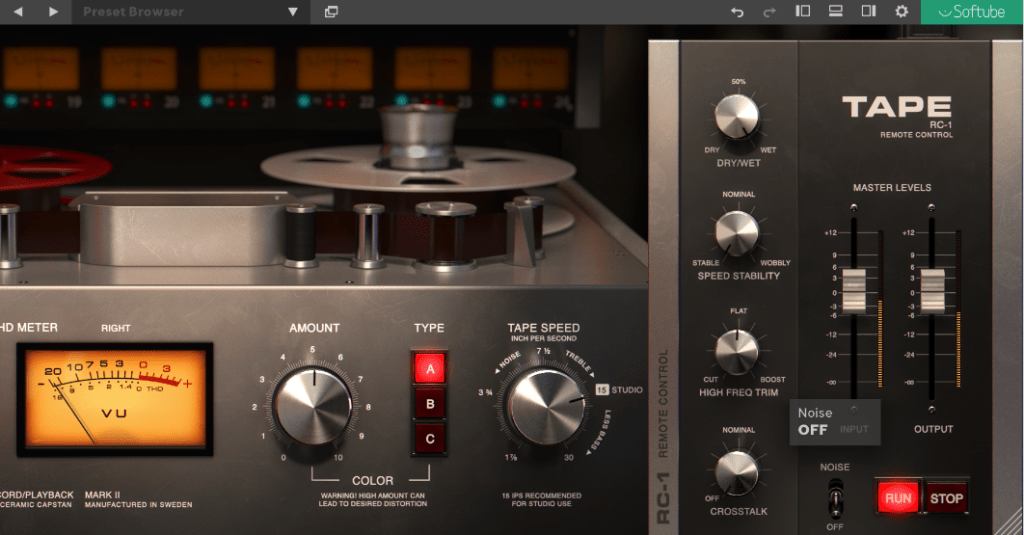
Softube’s Tape plugin is very clean tape machine plugin. The harmonic distortion quantity could changeable by Amount parameter, and tape type could be selected by the Type parameter. (Type A is clean side, B has quit a lot of low frequencies, C has the characteristic between A and B)
Left – Default type A, Right – Default type B
Default type C
Tape speed could be changed by IPS too.
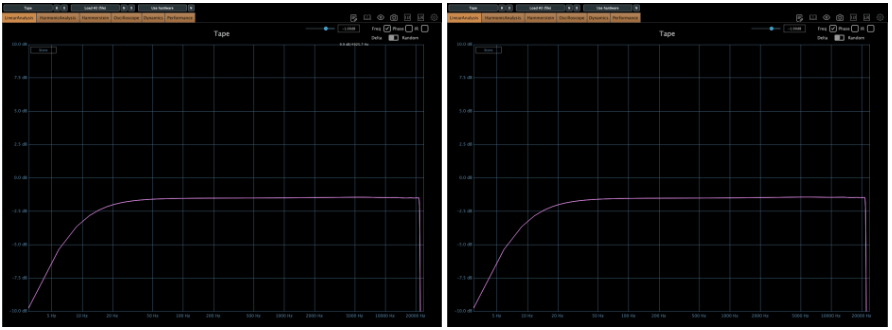
Type A tape Left – IPS 7/8, Right – IPS 3 3/4
Type A tape Left – IPS 7 1/2, Right – IPS 15
Type A tape IPS 30
Waves also has a famous tape machine plugin called Kramer and J37, but as I was writing this, the patterns became too similar, so I will omit them.
However, there is a parameter called Bias that exists only in Waves.
Hi! This is Jooyoung Kim, mixing engineer & music producer.
Before, we talked about hardware. Today, I’ll begin by introducing mastering. This article is based on my book, Basics of Mixing, published in South Korea.
Let’s dive in!
What is Mastering?
Why do we master audio?
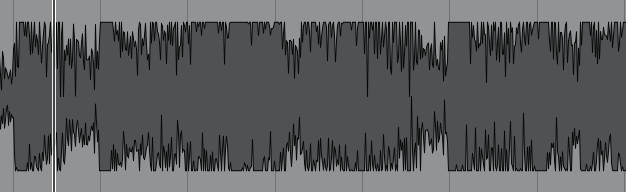
The loudness of mixed music is too low
So gain more volume for the mixed music, maintaining the instruments’ balance
Of course, mastering involves many aspects. You can easily understand mastering with the two sentences above.
Simply put, mastering is the final step in music production. It can also be described as packaging the mixed music. The package does not change after mastering.
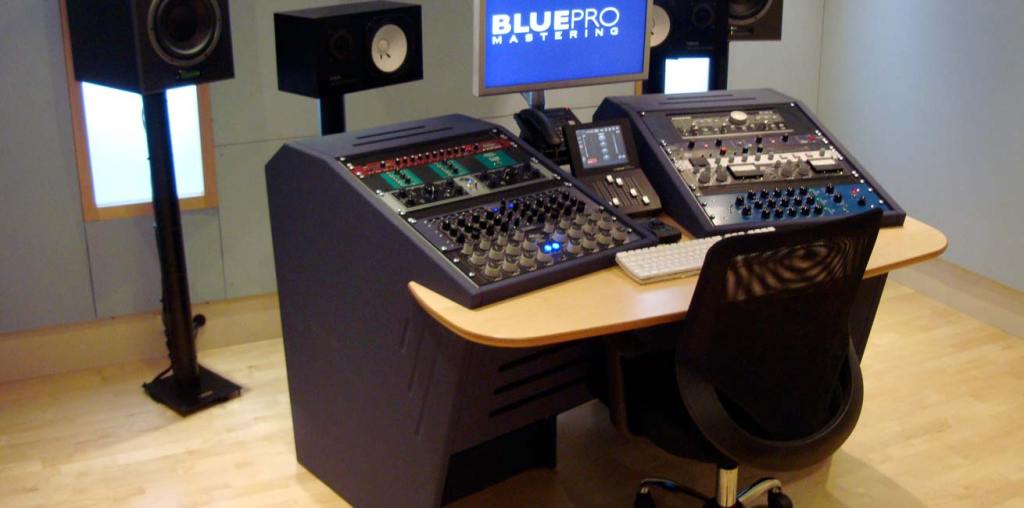
Room acoustics are the most important factor in building a mastering studio. Also, great quality ADC(Analog-Digital Converter)/DAC(Digital-Analog Converter), speakers and hardware are necessary too.
Building a mixing studio is also expensive. However, in mixing studio, audio hardwares take quite large volumes-they make room acoustics worse.
A desk with hardware may look good and fancy, but it takes up a lot of space. This can lead to comb-filtering effects. Removing the desk is a great solution, but as you know, it’s easier said than done..
One more thing, a mixing engineer listens to a song too many times, making it hard for them to recognize problems. Therefore, when you need to master a song or an album, I recommend hiring a mastering engineer.
Nevertheless a mixing engineer should provide a louder monitor file to clients than the mixed file. Due to budget constraints, mixing engineers sometimes have to master their own files.
In this chapter, for those situations, I’ll talk about the process and concepts about mastering.








 Jooyoung's Music Blog