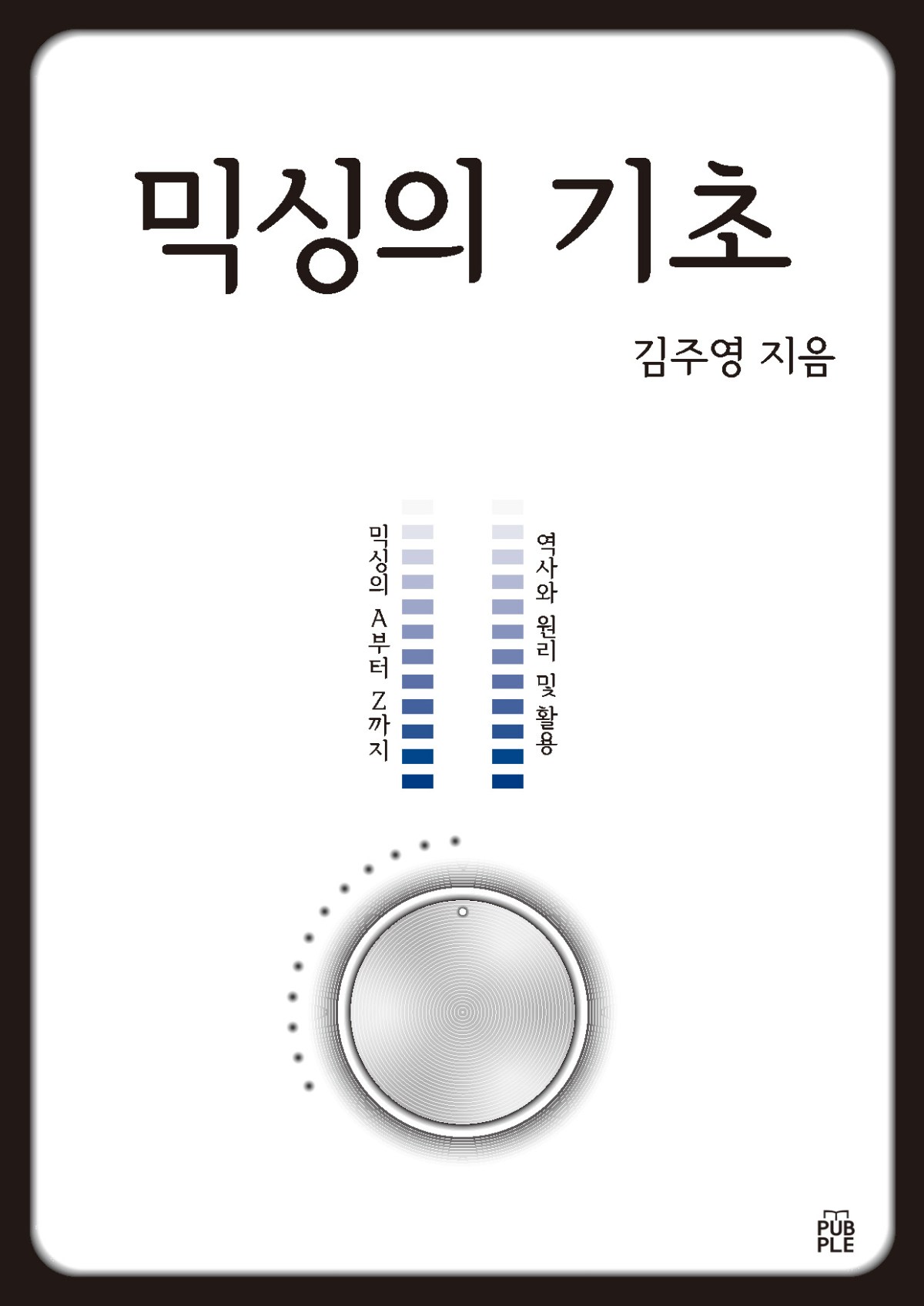
Since I first started diving into audio engineering head-on, I’ve gone through countless books and resources. One of the biggest frustrations I encountered was the lack of educational materials available in Korean. As I continued my studies, I made a promise to myself that I’d one day write a book on mixing.
After finishing the manuscript, I sent it to several publishers, but many found the content to be too complex. While navigating those hurdles, I discovered the POD (Print on Demand) service offered by Kyobo Bookstore in Korea, which allowed me to publish the book online. Although it’s a bit limiting, the book can now be purchased through Kyobo’s website.
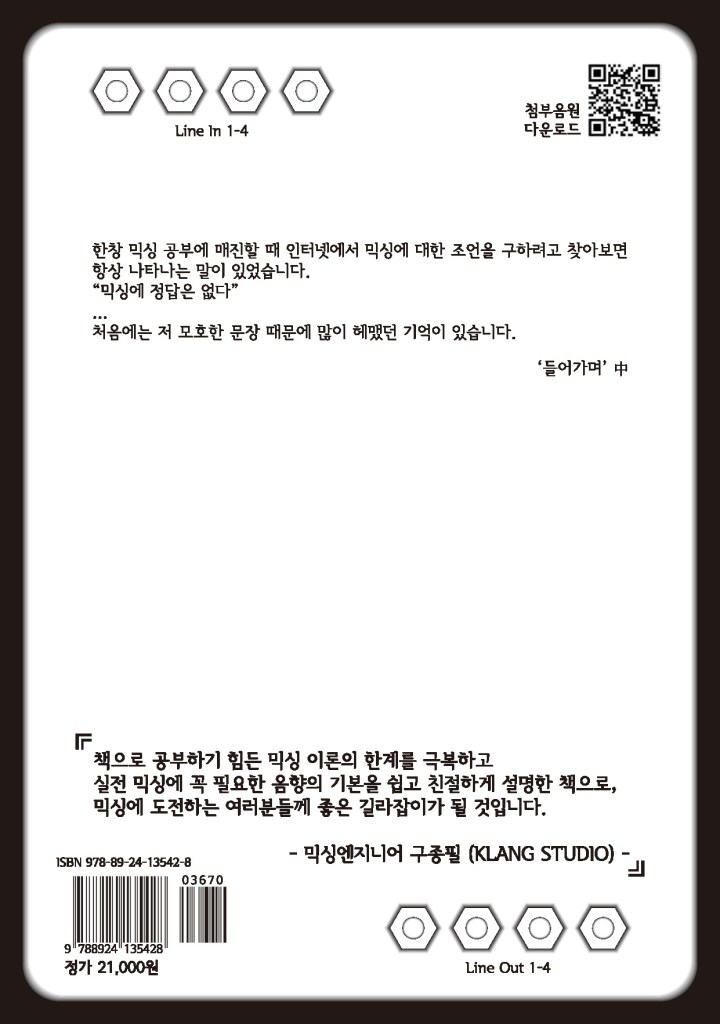
I’m deeply grateful to my mentor, Director Yongsoo Choi, and Professor Minho Jang from my university, for reviewing my manuscript. I’m also honored that the renowned engineer, Director Jongpil Koo from Klang Studio, read the book and wrote a recommendation for it. There are so many people to thank for their support and encouragement throughout this process.
To be clear, I’m not claiming to be an expert or someone with an extraordinary career. But I’ve worked hard to organize and share everything I know in the most comprehensive way possible. While the content isn’t exactly easy, I believe it’s worth the effort.
Since this blog is mostly in English, I know most of you won’t be able to read the book. However, if you have any questions about its content, feel free to reach out to me at joe1346@naver.com, and I’ll be happy to respond.
(If you purchase through the links above and below, I receive a small commission, which helps support the blog. Thank you! ^^)
As I mentioned in my previous post, these plugins are not resource-heavy on your computer. They’re affordable, high-quality, and come with a clean, intuitive UI, making them a solid option if you’re considering basic third-party plugins.
Lifeline Expanse is also being reviewed with NFR (Not for Resale) codes provided by Plugin Boutique.
Let’s dive into Lifeline Expanse!
Lifeline Expanse includes five modules: Format, Dirt, Reamp, Width, and Space.
The Lo and Hi options in Expanse are simple cut-off filters, so I’ll skip explaining them.
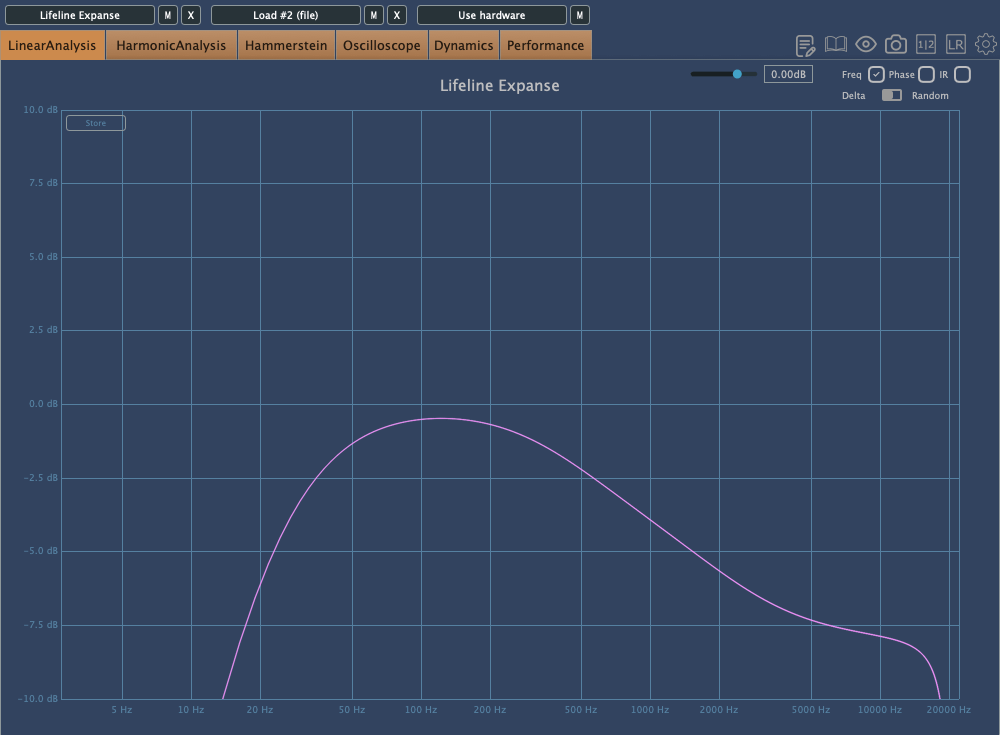
The waveform on the left shows a de-esser-like effect where high frequencies are attenuated based on the incoming signal, while the shield in the middle acts as a limiter.
Unlike Console, Expanse doesn’t add various types of saturation, but even with the filter range maxed out, it still introduces tonal changes. Now, let’s take a closer look at the individual modules.
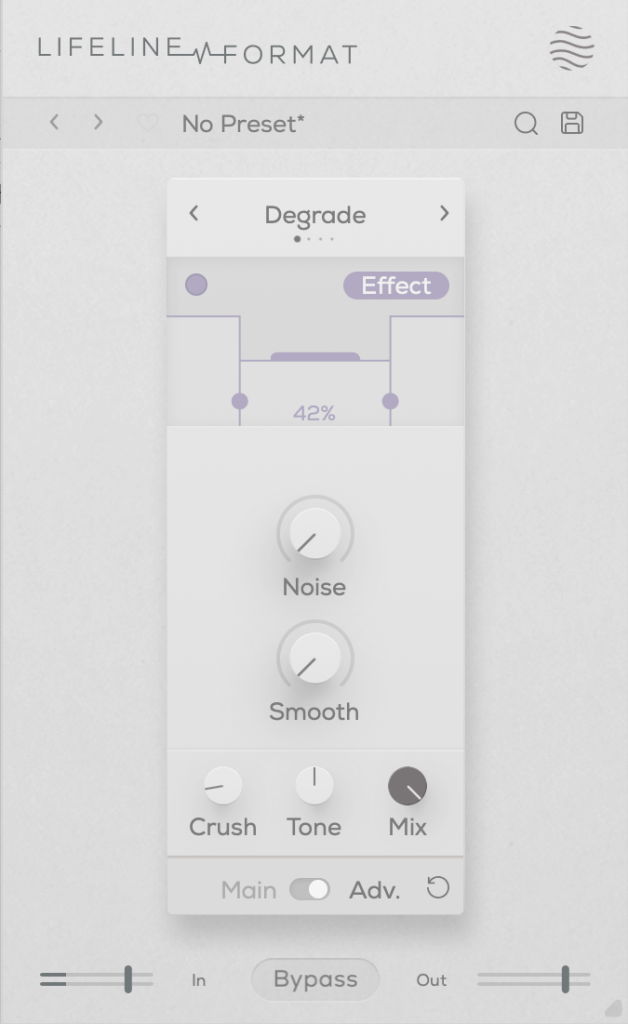
This plugin adds a characteristic digital distortion to your source.
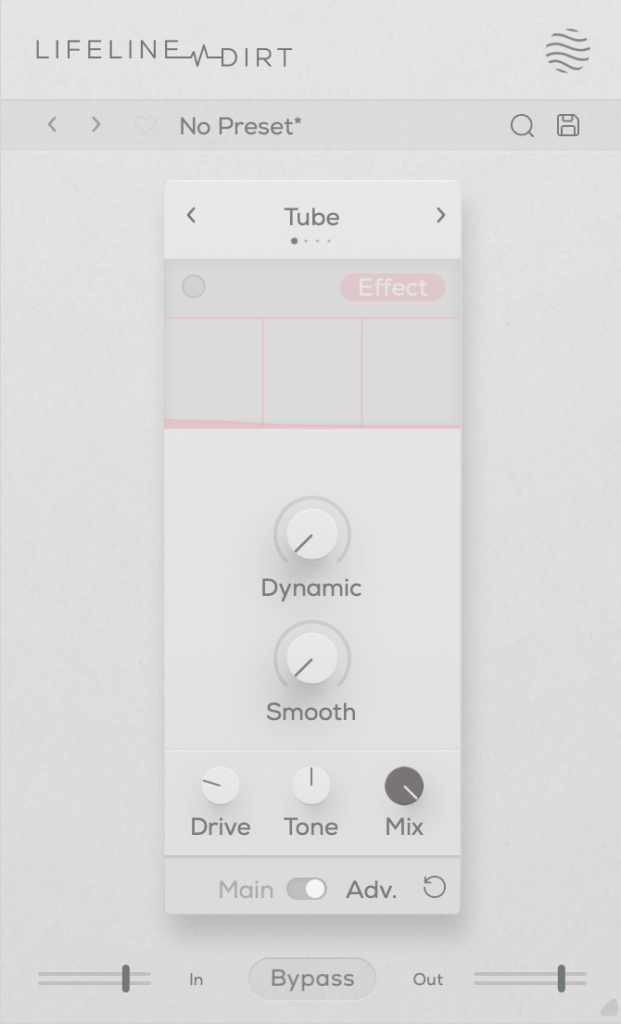
In the Advanced window, you can split the frequency range into three bands, adjust their volume, and even add noise. The Smooth option can make the changes less harsh.
Other key controls include Crush, which adds the distortion, and Tone, a tilt EQ centered around 650Hz.
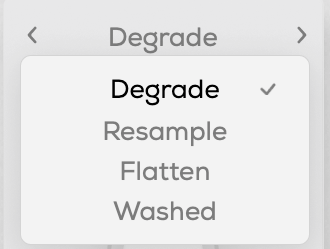
There are four modes:
Degrade: Reduces the bit depth of the incoming audio, creating digital distortion.
Resample: Lowers the sample rate of the audio, adding digital artifacts.
Washed: Simulates the sound of a degraded, low-quality MP3, creating an underwater-like effect.
Flatten: Combines gating and bitcrushing, reducing the resolution of the audio.
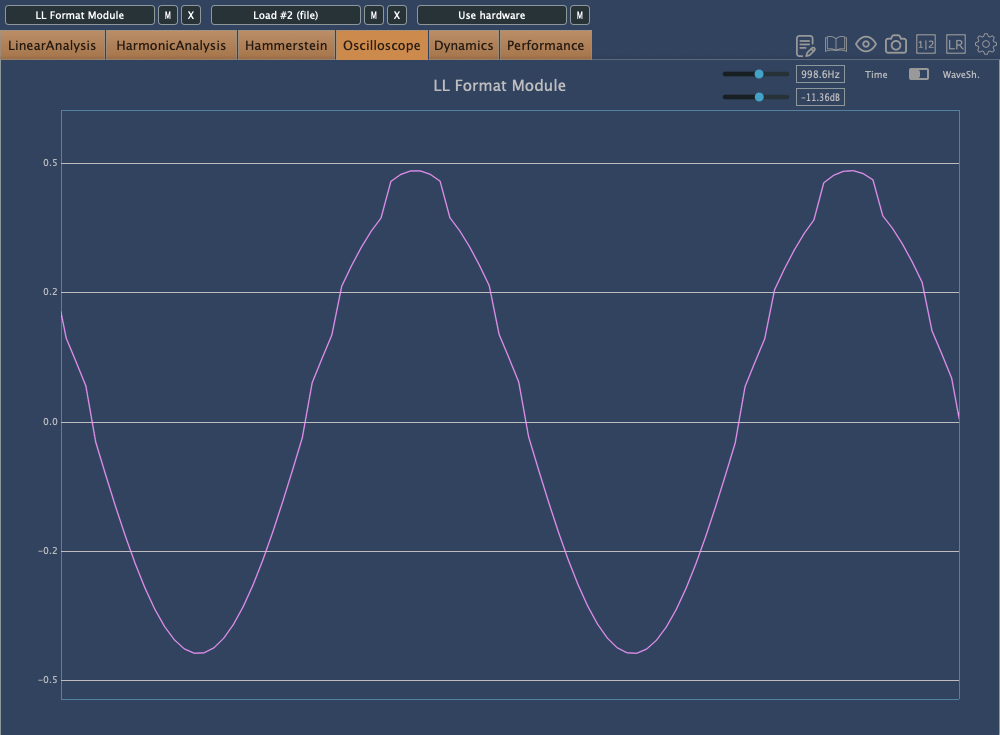
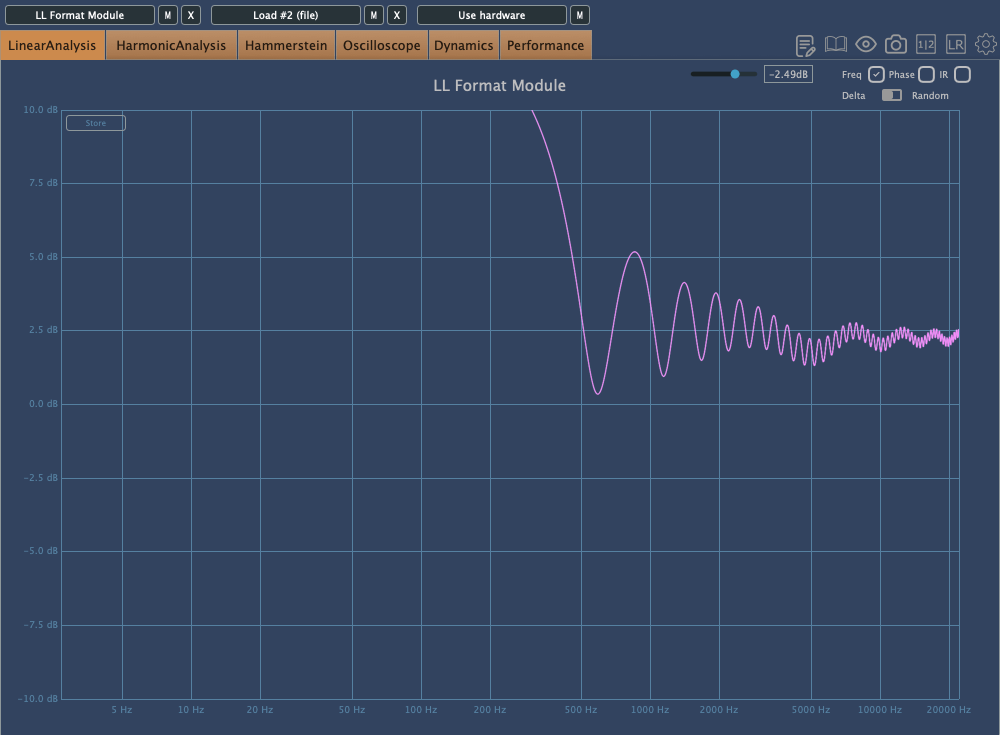
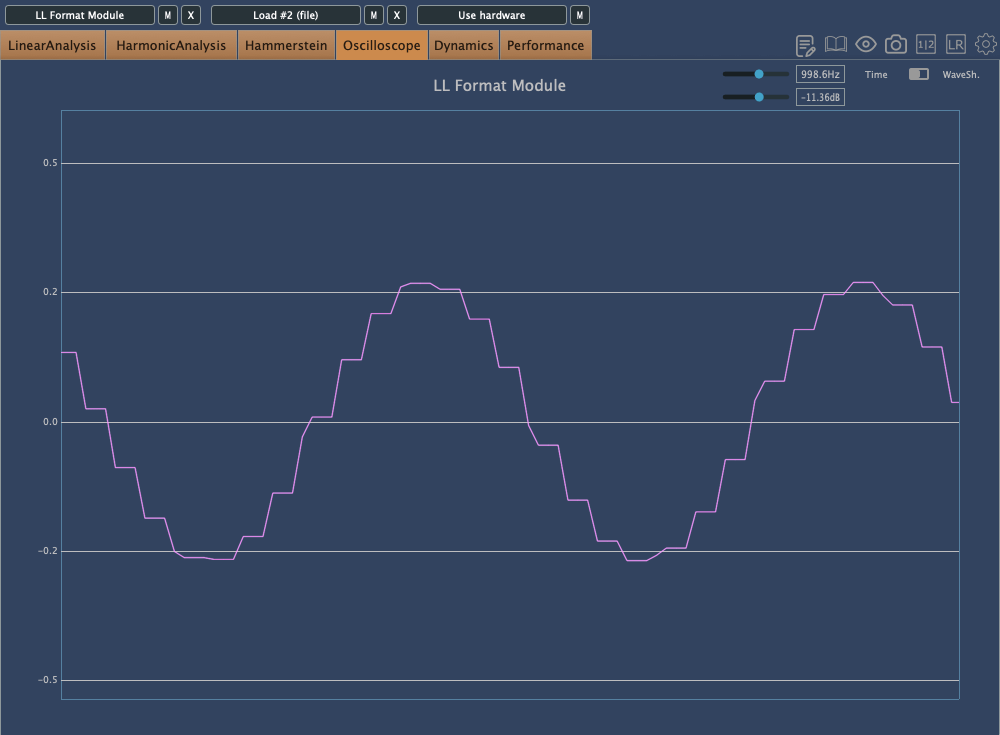
Let’s take a closer look.
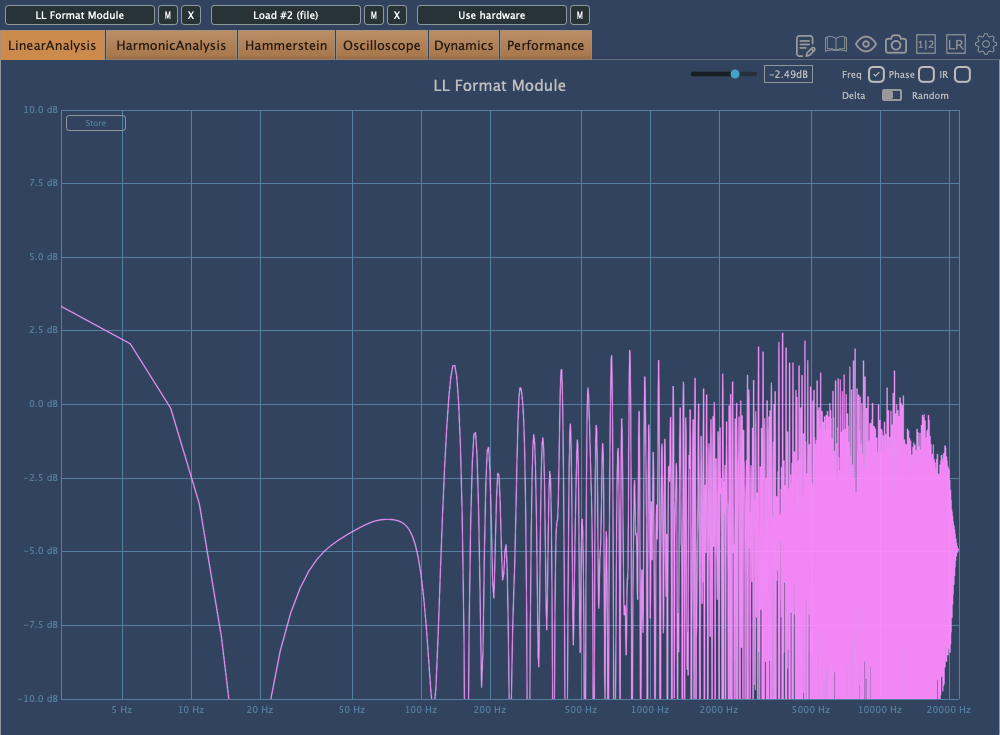
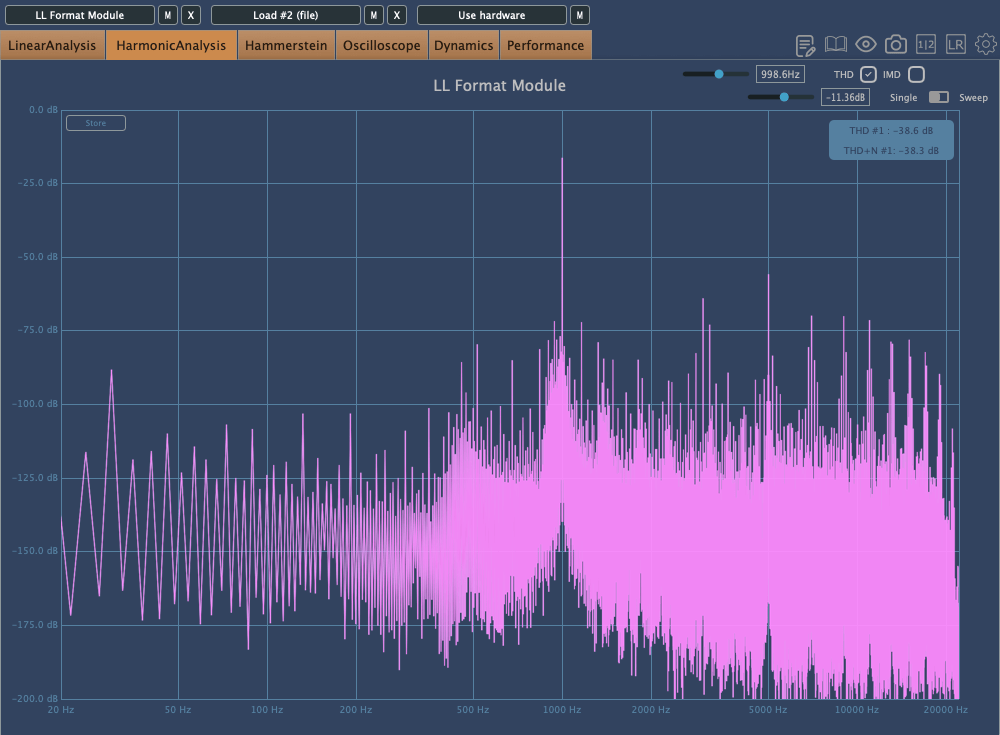
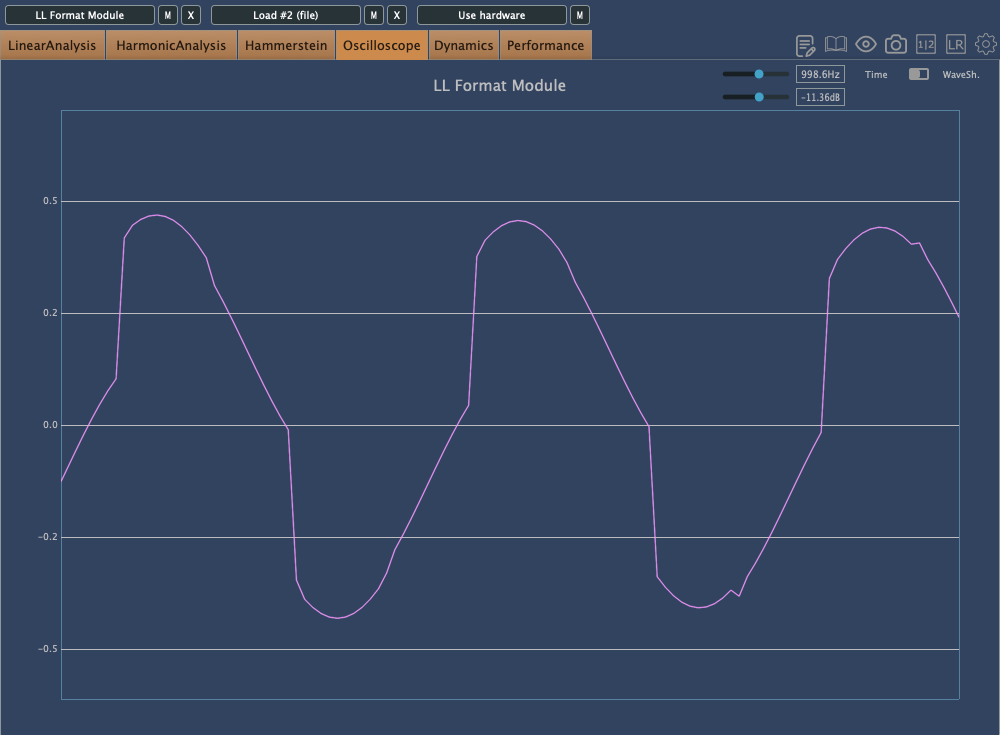
This is Degrade mode, where reducing the bit depth makes the waveform appear choppy in the oscilloscope.
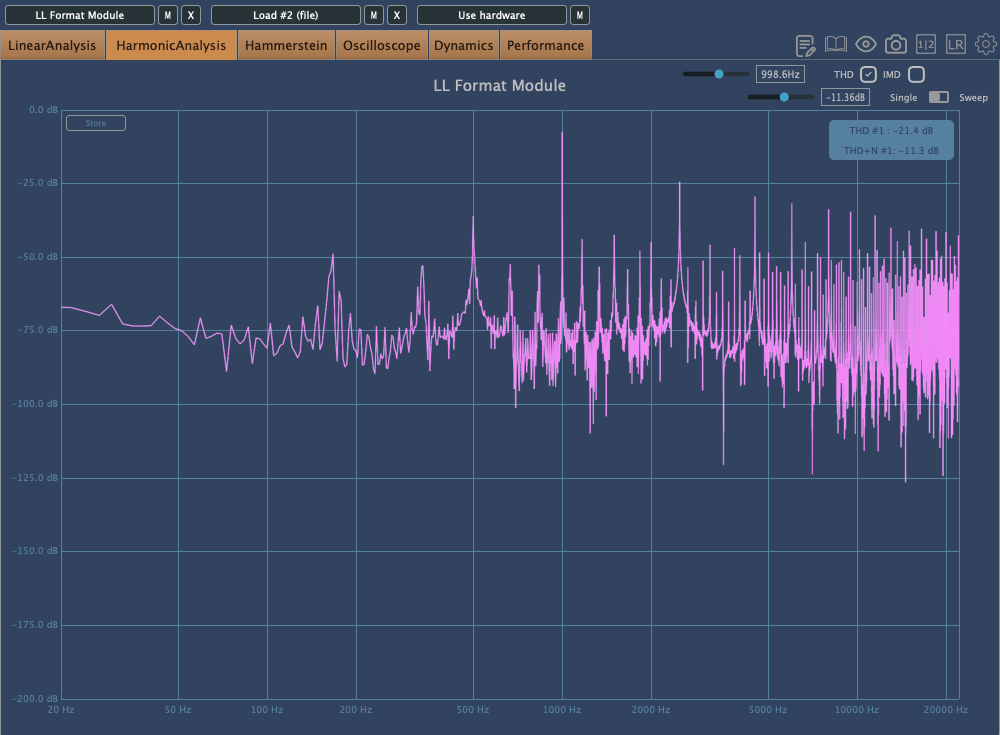
In Resample, harmonics reflect back at the Nyquist frequency, and those oscillations can be seen on the scope. It’s constantly in motion due to added frequencies.
Washed mode just smears everything.
Flatten shows harmonic reflections, indicating a resampling effect, combined with reduced bit depth, resulting in multiple distortions.
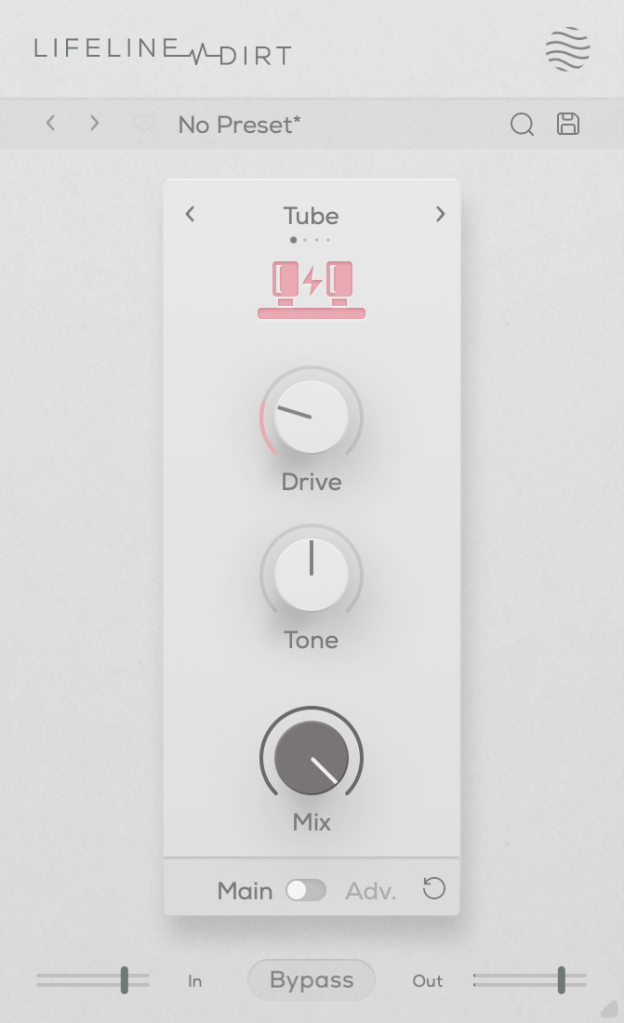
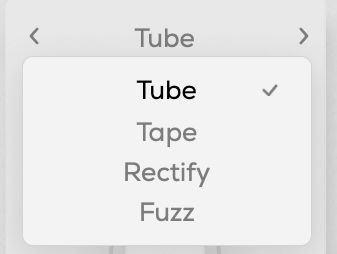
You can choose from four types: Tube, Tape, Rectify, and Fuzz. The controls are the same as in Format, so I won’t repeat the explanation.
All four modes emphasize low and mid frequencies while cutting highs. As the name “Dirt” suggests, pushing the Drive knob can make it act almost like a compressor or limiter at higher levels.
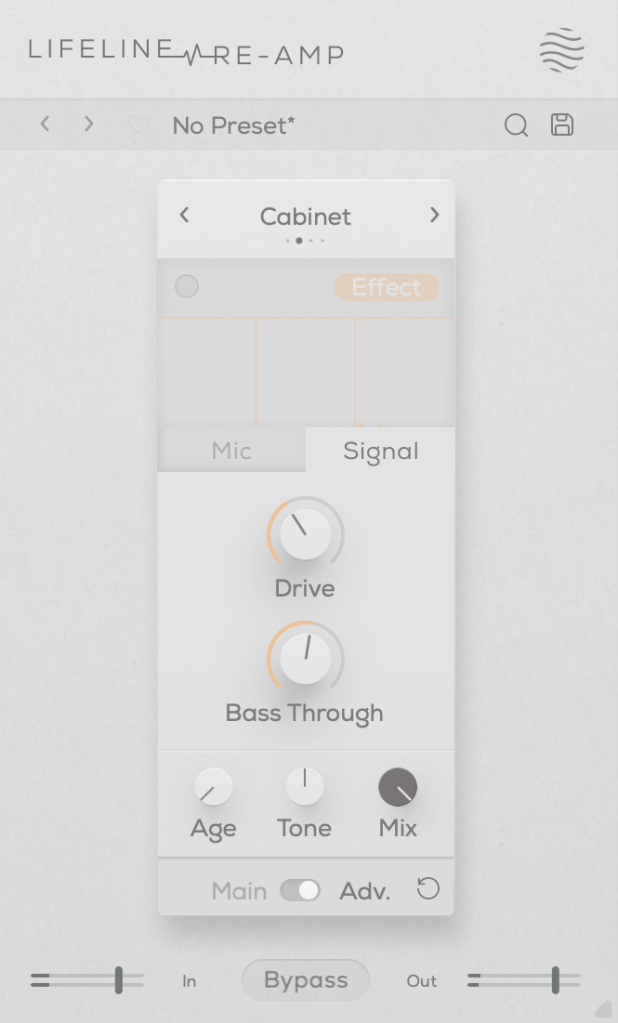
As the name suggests, Re-Amp is designed to simulate re-amping.
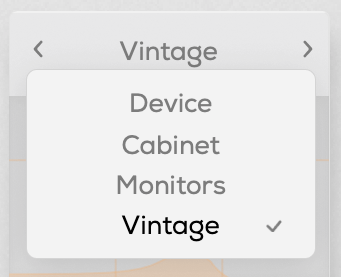
You can re-amp through small electronics, guitar cabinets, monitor speakers, or cassette recorders, with two speaker options in each category to choose from.
True to the re-amping concept, it allows you to adjust the distance of room and close microphones, and blend their sounds together.
Increasing the Age value causes the highs and lows to gradually roll off, eventually introducing wow and flutter effects.
The Drive knob adds harmonic distortion, while Bass Through prevents distortion from affecting the selected low-frequency range.
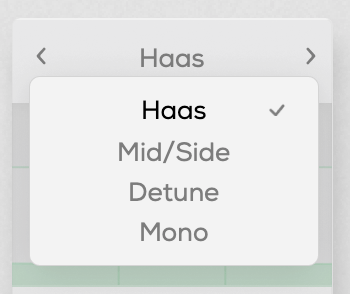
You can select from Haas, Mid/Side, Detune, and Mono modes.
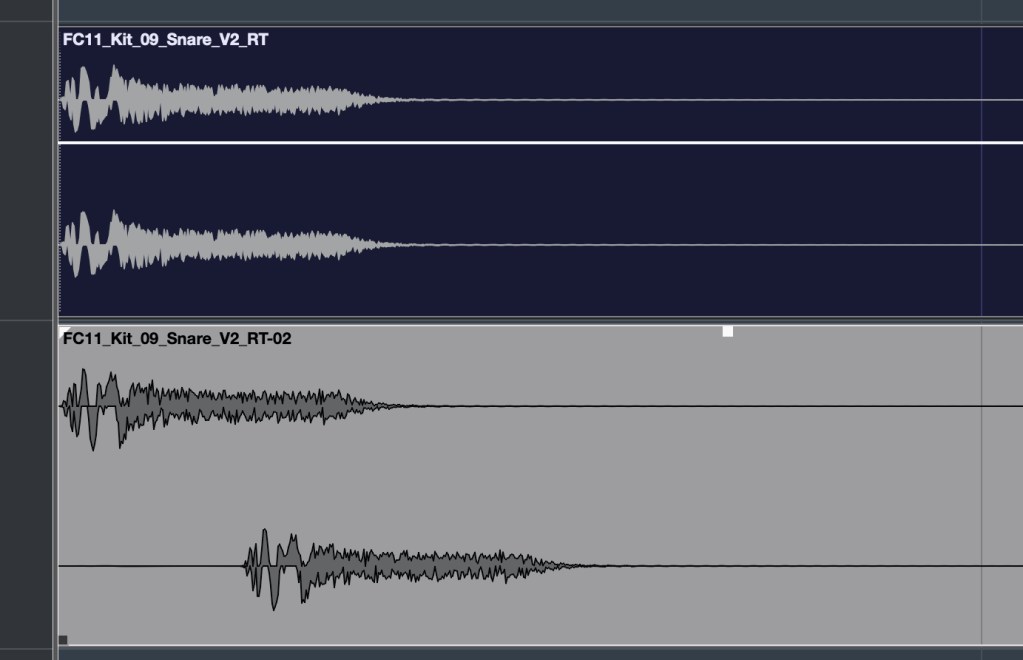
The Haas effect, as shown in the image, uses time delays to create a stereo image. Mid/Side enhances the side channels, Detune creates a wider image through pitch modulation, and Mono narrows the stereo field, gradually converting the sound into mono.
The Stereo knob enhances these effects, and Bass Mono ensures that frequencies below a set threshold are converted to mono.
I’ll skip further explanation, as the rest of the parameters are the same as in Format.
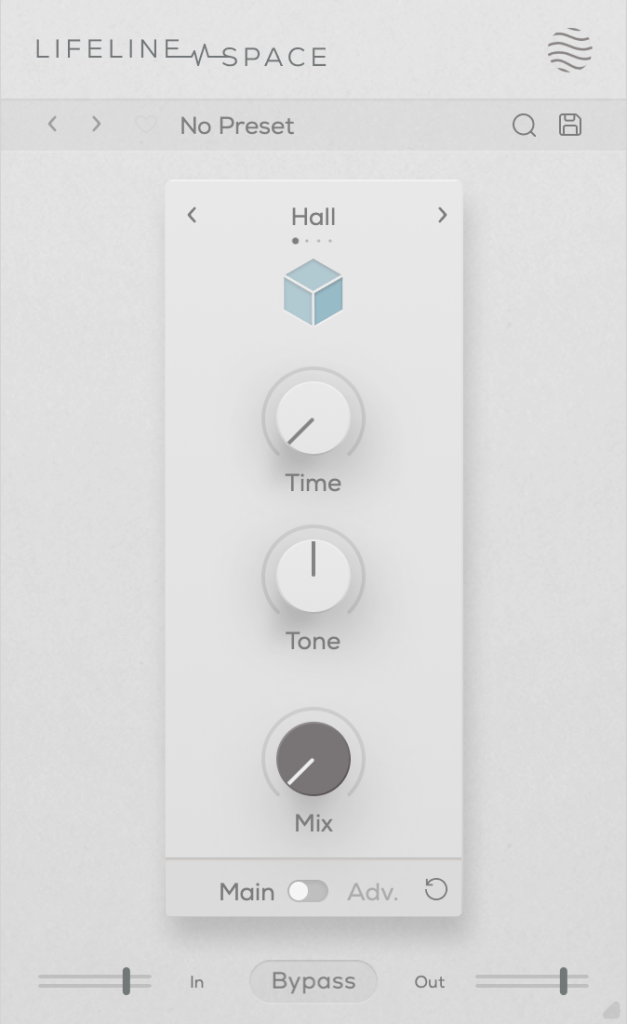
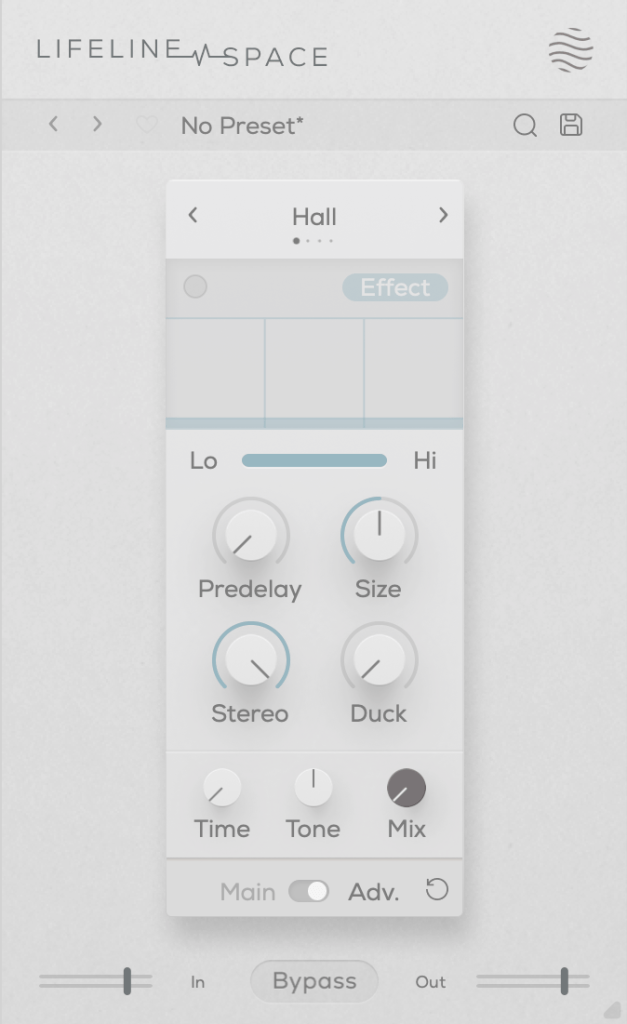
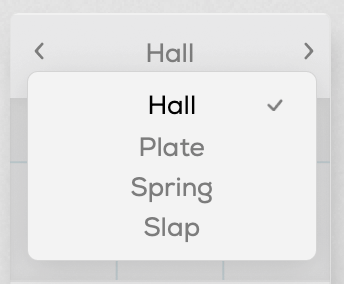
You can choose from Hall, Plate, Spring, and Slap reverb types, all offering solid digital reverb sounds.
Slap, in particular, has a delay with a significant amount of feedback, making it quite versatile.
A unique parameter here is Duck, which reduces the reverb based on the incoming input signal. Other parameters are typical for reverb plugins.
Each of these modules is priced at just $11, making them very affordable. Plus, if you purchase any plugin from Plugin Boutique, you’ll receive either the Pyros distortion plugin or the Bloom Vocal Aether Lite plugin for free.
Thanks for reading, and see you in the next post! 🙂
Hello, I’m Jooyoung Kim, an engineer and music producer.
We’ve discussed various processors that control dynamics. Today, let’s talk about limiters and clipping.
Let’s dive right in!
Limiters
A limiter is a type of compressor. Generally, when the ratio exceeds 10:1, we call it a limiter. When it reaches ∞:1, it’s often referred to as a brickwall limiter.
Limiters are processors that aggressively compress sound to prevent it from exceeding a certain volume level. A simple example of this would be guitar effects like distortion or overdrive, which are types of limiters. In mastering, limiters are used at the final stage to ensure the volume doesn’t exceed a certain level.
Any limiter, when viewed on a waveform, shows the top and bottom parts being cut off. This truncation introduces strong harmonic distortion, known as clipping, which we can perceive as a distorted sound.
Distortion-type limiters result in noticeable clipping, producing a heavily distorted sound. To minimize such distortion, some compressors/limiters include a feature called soft clipping.
Clipping / Soft Clipping
Elysia Alpha Compressor with Soft Clipping Function
Soft clipping gently smooths out the sharp edges of clipping. When a sine wave undergoes limiting with soft clipping, the result is a waveform that doesn’t have the abrupt cuts seen in regular clipping.
While soft clipping still introduces distortion, the sound is smoother compared to hard clipping. Using limiters or soft clipping helps to increase the overall loudness of a track. The reason for boosting volume is that people tend to perceive louder music as higher quality. However, equal LUFS (Loudness Units relative to Full Scale) values do not always mean the perceived volume is the same. For example, in vocal music, if the vocals are prominent, the music may seem louder even with similar LUFS values.
Even if you’re not mastering your own tracks, considering these aspects during mixing can help you create better productions.
Next time, I’ll explore reverb effects like delay. See you then!
Hello! this is Jooyoung Kim, an engineer and music producer.
Today, I’d like to explain Spinorama, a concept anyone interested in sound and speakers should know. Let’s get started!
Example of a Spinorama Graph
First, let’s briefly look at the history of how Spinorama measurements were developed.
Spinorama was created in the 1980s by Dr. Floyd Toole, a leading authority on speaker acoustics, while he was working at the National Research Council of Canada. In the 1990s, it was further refined in collaboration with Harman International. It has since been incorporated into standards issued by the American National Standards Institute (ANSI) and the Consumer Electronics Association (CEA).
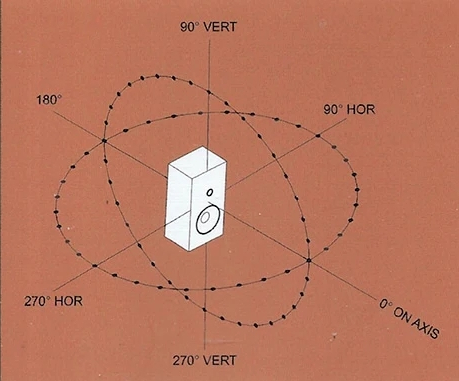
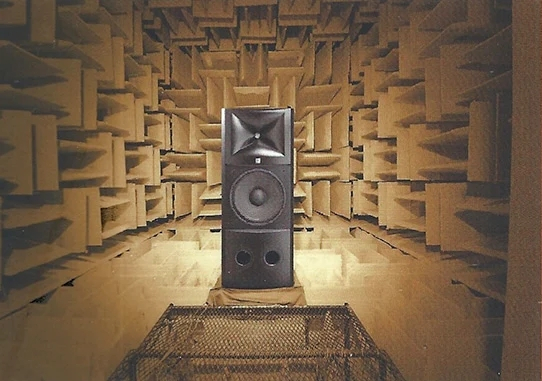
The measurement process, as shown above, involves taking measurements every 10 degrees horizontally and vertically in an anechoic chamber, resulting in a total of 70 data points.
This looks intense…
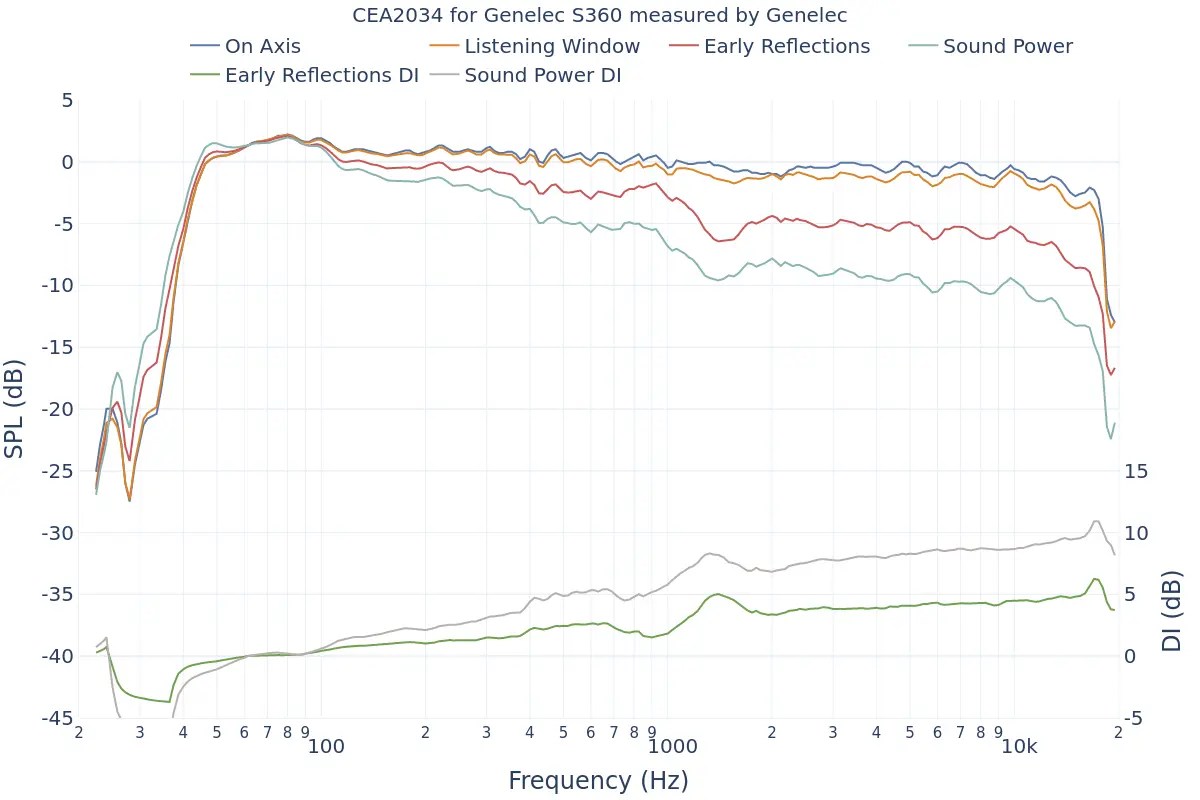
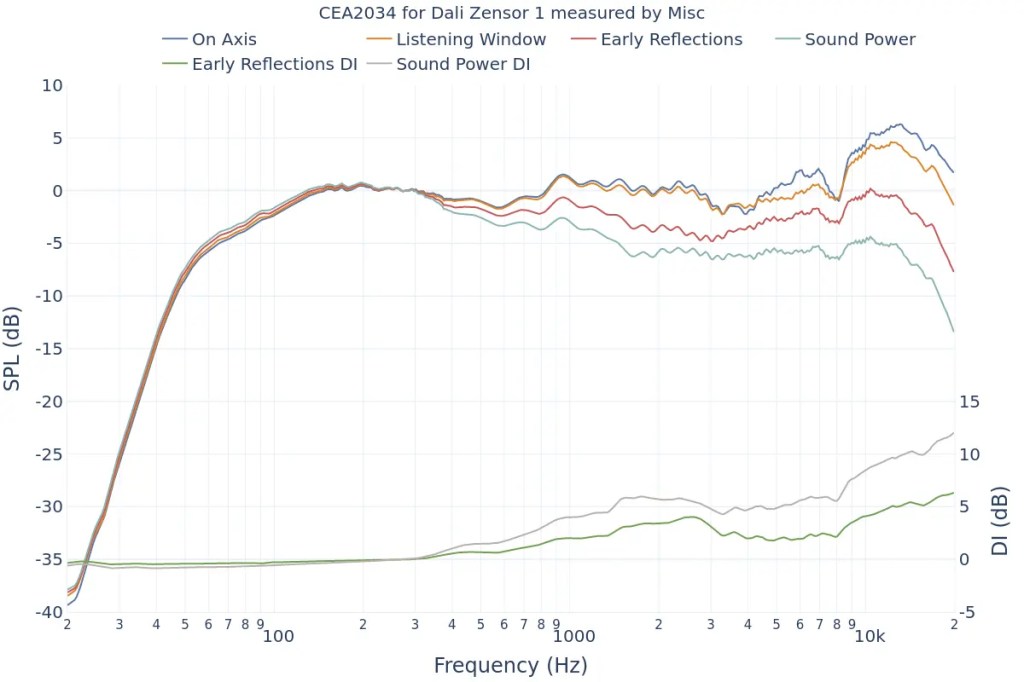
The collected data is represented in six frequency response graphs known as Spinorama charts.
KEF R3 META
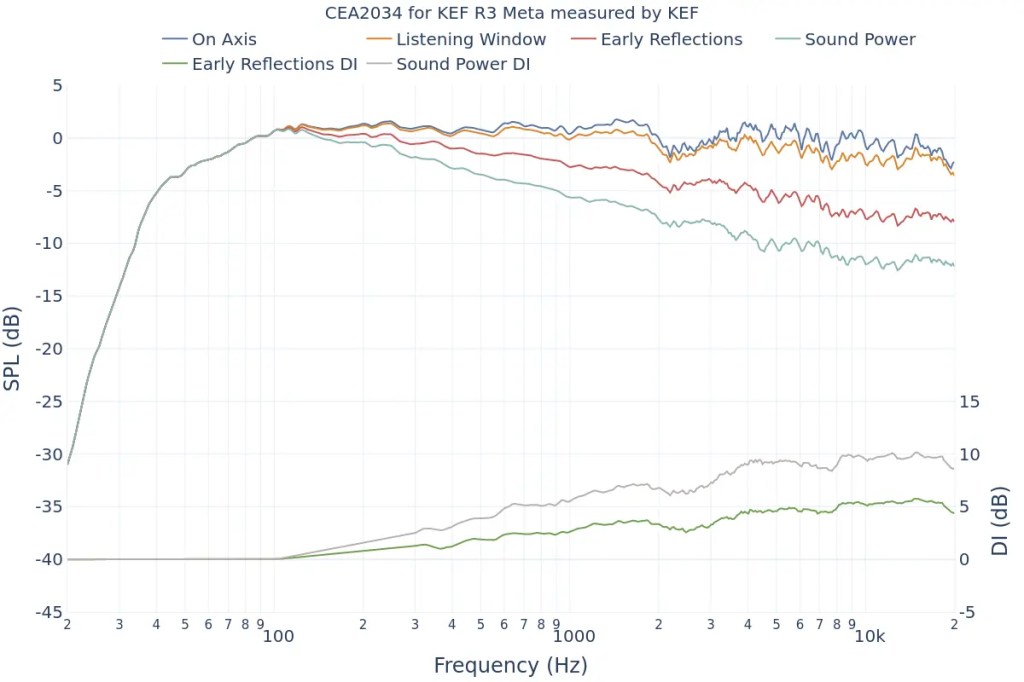
Let’s look at the Spinorama graph for my recently purchased KEF R3 META. The vertical axis is dB SPL (the unit we often use to measure sound levels, like airplane noise), and the horizontal axis is Hz (the unit of frequency).
The top blue line is the On Axis response, representing the frequency response directly in front of the speaker. Manufacturers commonly provide this graph, but it lacks comprehensive information.
The second orange line is the Listening Window response, which averages the frequency responses from ±10 degrees vertically and ±30 degrees horizontally, totaling 9 measurements. This approximates the expected response in a typical listening environment.
The third red line represents Early Reflections, showing the response of early reflected sounds. It averages 8 measurements taken at ±40, ±60, and ±80 degrees horizontally, and ±50 degrees vertically. A significant difference from the On Axis and Listening Window responses helps distinguish between direct and reflected sounds.
The light blue Sound Power response averages all 70 measurements. The more this graph parallels the other graphs without significant fluctuations, the better the speaker’s acoustic performance.
The green Early Reflections DI (Directivity Index) is the difference between the On Axis and Early Reflections responses. This graph helps to quickly understand the difference between direct and reflected sounds.
The brown Sound Power DI is the difference between the On Axis and Sound Power responses. Research suggests that smoother changes in both DI graphs are preferred by listeners (I’d provide the exact study, but finding it would take some time… I’ll update if I come across it later).
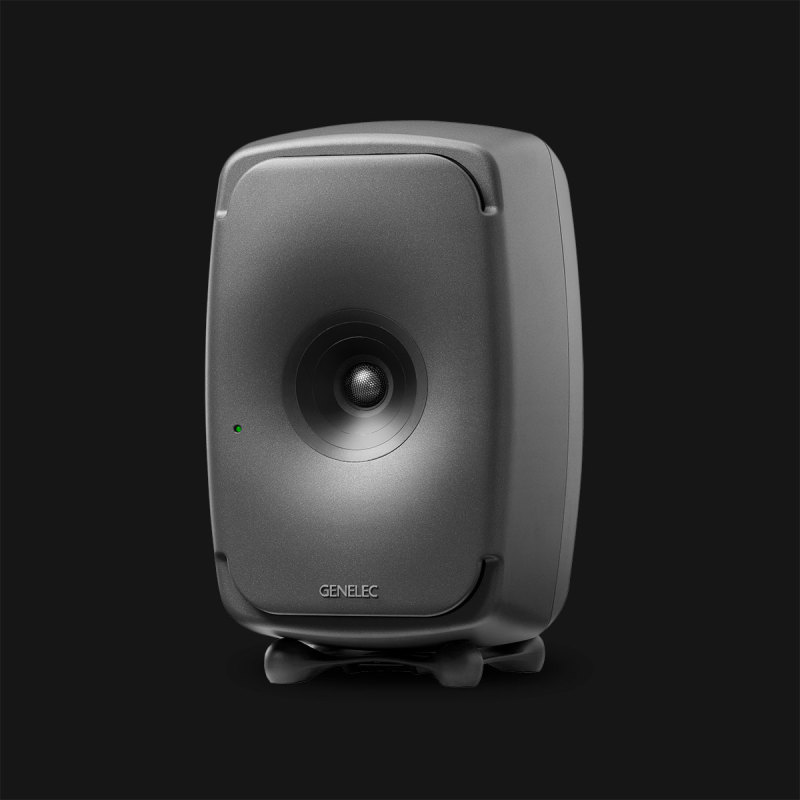
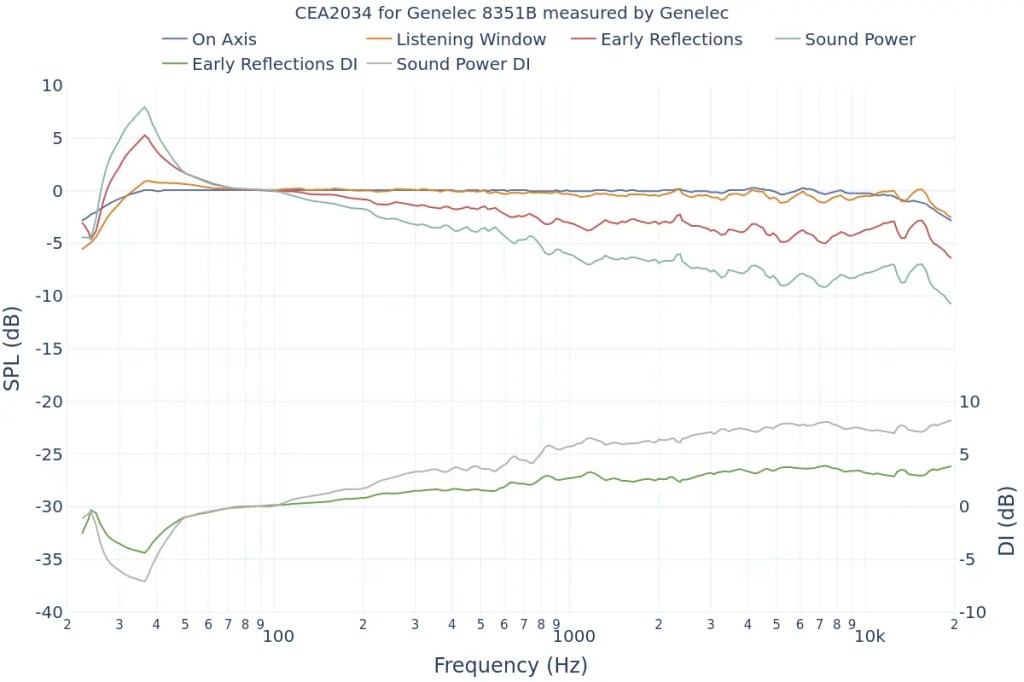
Genelec 8351B
The On Axis chart shows the basic frequency response.
The closer the Listening Window response is to the On Axis response, the more similar the sound will be for the listener and those around them. This indicates good off-axis performance, meaning the sound remains consistent even if the listener moves slightly.
The more aligned the Early Reflections, Sound Power, and On Axis graphs are, the higher the preference among listeners. If it’s hard to judge, check the DI graphs for a consistent slope.
This gives a basic understanding of Spinorama charts.
Of course, Spinorama charts have their limitations. As the title suggests, you shouldn’t choose a speaker based solely on these charts. However, they are a fundamental indicator for understanding a speaker’s performance, making them valuable knowledge for anyone in music or sound.
In future posts, I’ll discuss near-field measurements by the German company Klippel.
This site offers Spinorama charts for many speakers measured so far. Since it aggregates data from various sources, make sure to choose highly reliable sources in the settings tab for accurate information.
I hope this post is helpful for you! See you in the next post!











 Jooyoung's Music Blog