Mixchecker Ultra Rent to Own ($13.75/12 months)

hello? This is engineer and singer-songwriter Jooyoung Kim.

Today, I wanted to introduce Mixchecker Ultra, a higher version of Mixchecker, Audified’s representative plug-in, as it was released as Rent to Own at a plug-in boutique, so I requested an NFR (Not for Resell) code from the plug-in boutique and brought it.

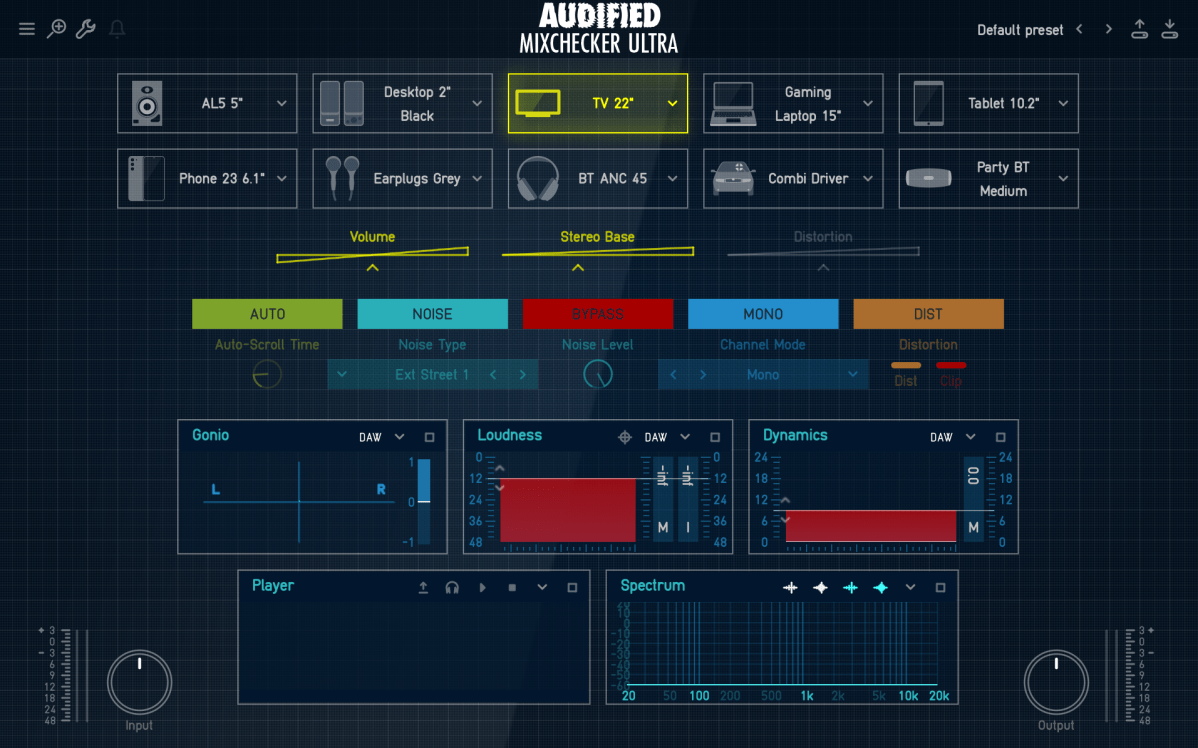
As its name suggests, Mixchecker, this plug-in can be useful for simply checking how something sounds in different environments.

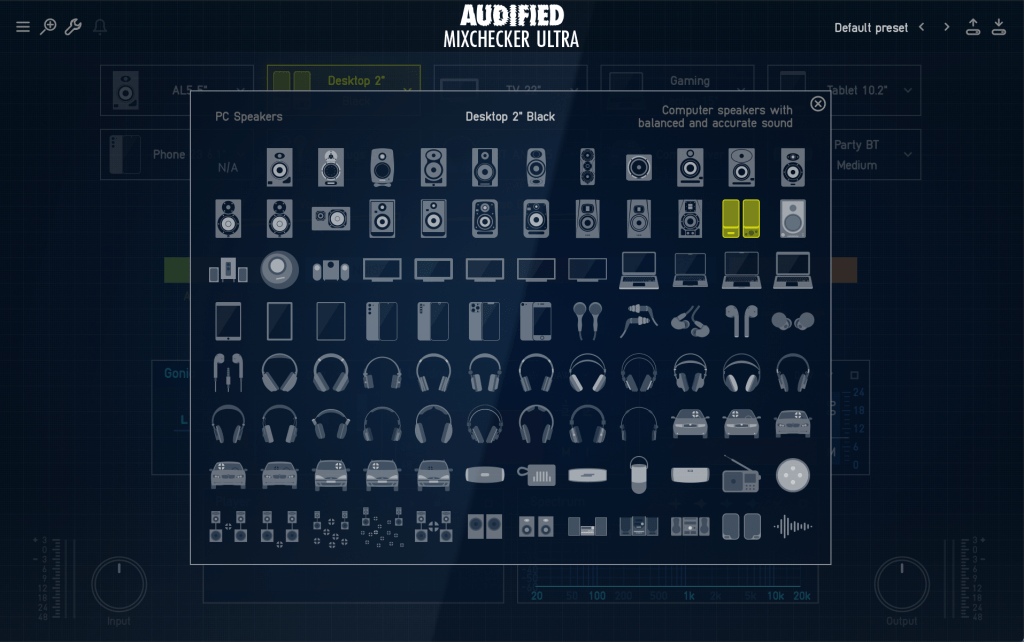
It is a format derived from the IR of various speakers, and if you are interested in equipment or machines, you will be able to tell which product it is from just by looking at the shape of the speakers, cell phones, headphones, earphones, etc.

​Even if you don’t know the product well, if you hover your mouse cursor over the icon, a name similar to the original product will appear in the center and a description will be written on the right, making it easy to find.

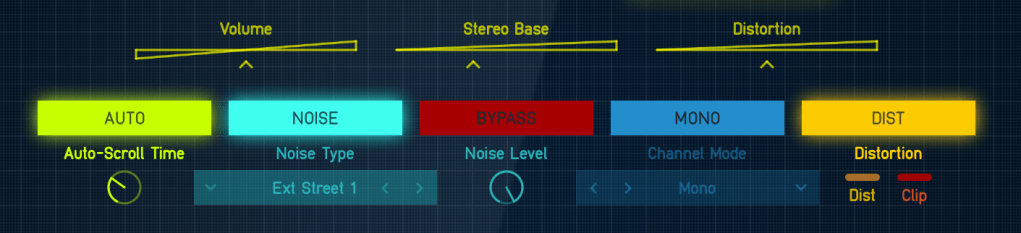
If you select Auto in the middle, the automatically set devices will play sequentially, and you can add noises from everyday life such as the street or subway through the Noise button and listen to them.

In addition, you can listen to various situations through functions such as Bypass, Mono, and Distortion.

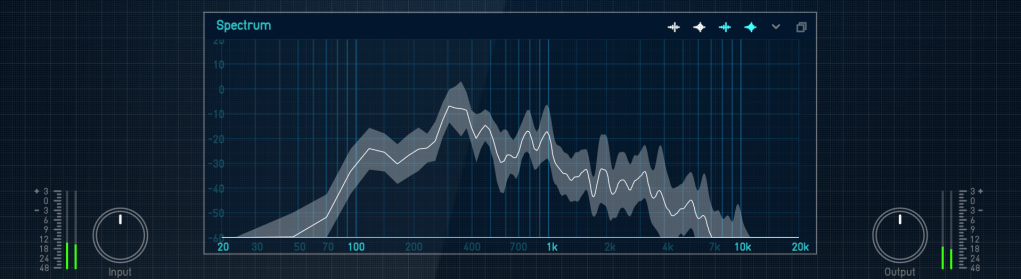
Analyzer functions are also included, and individual analyzers can be enlarged and viewed for easy visual inspection.

​You can just use it to check the mix, but it can be fun to use for special effects, such as playing with earphones or in the car.

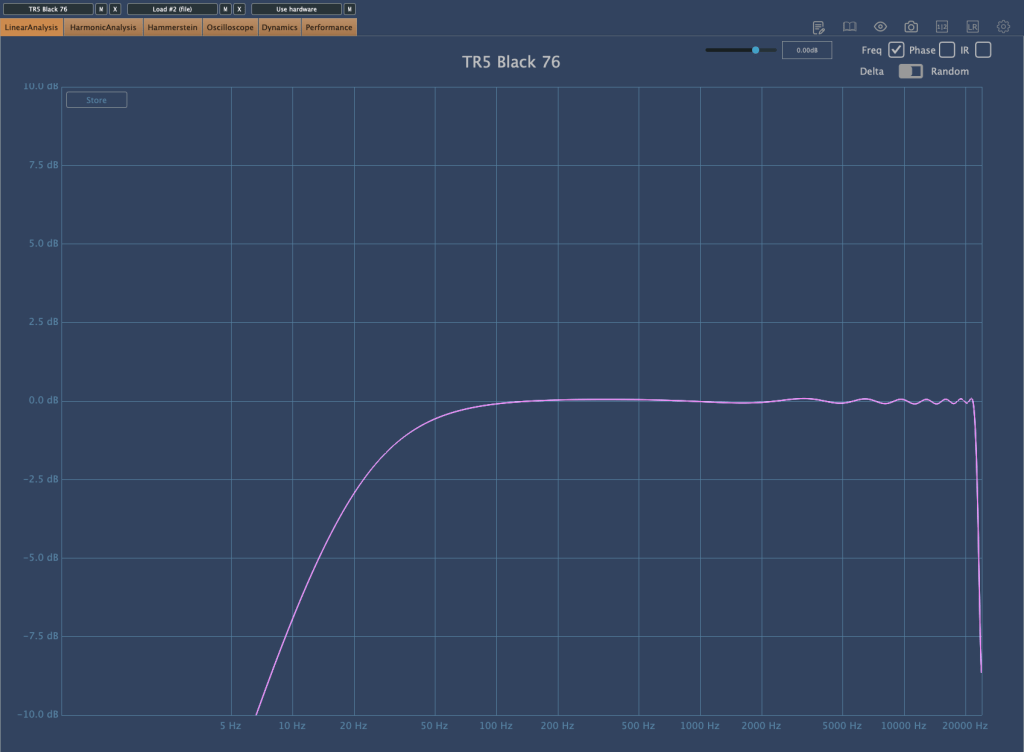
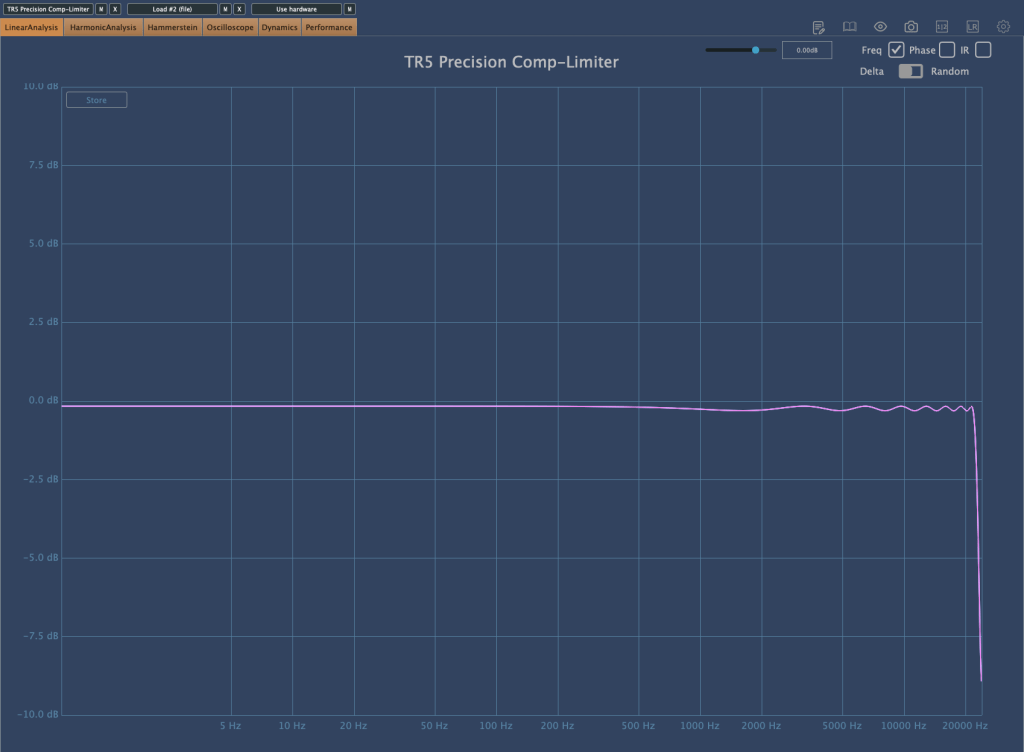
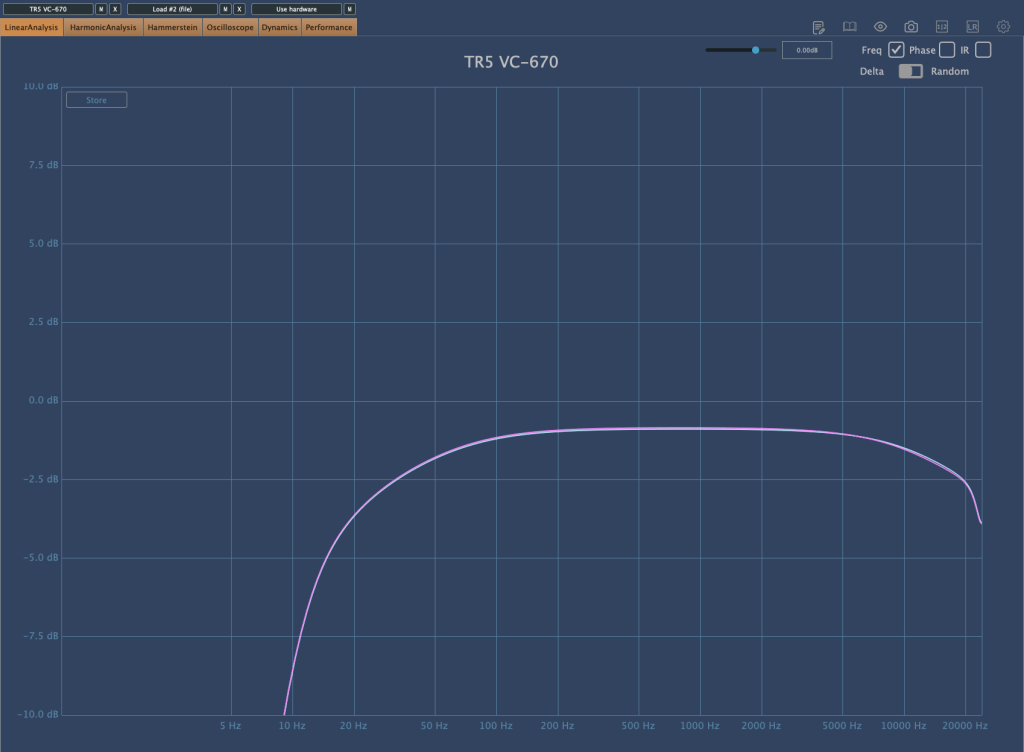
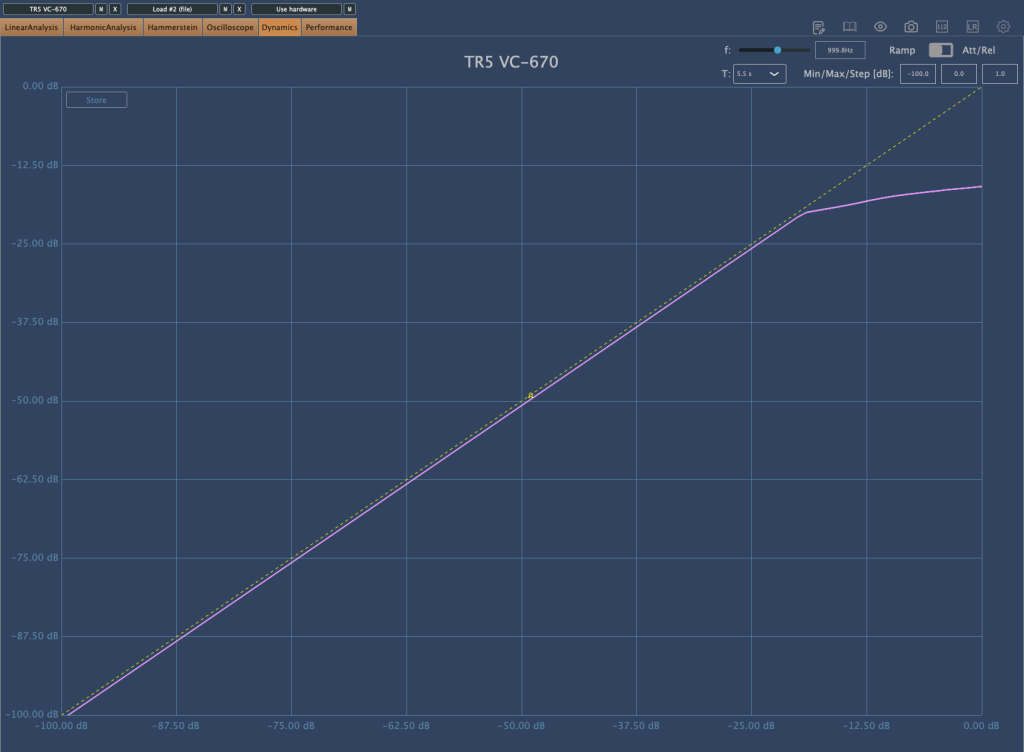
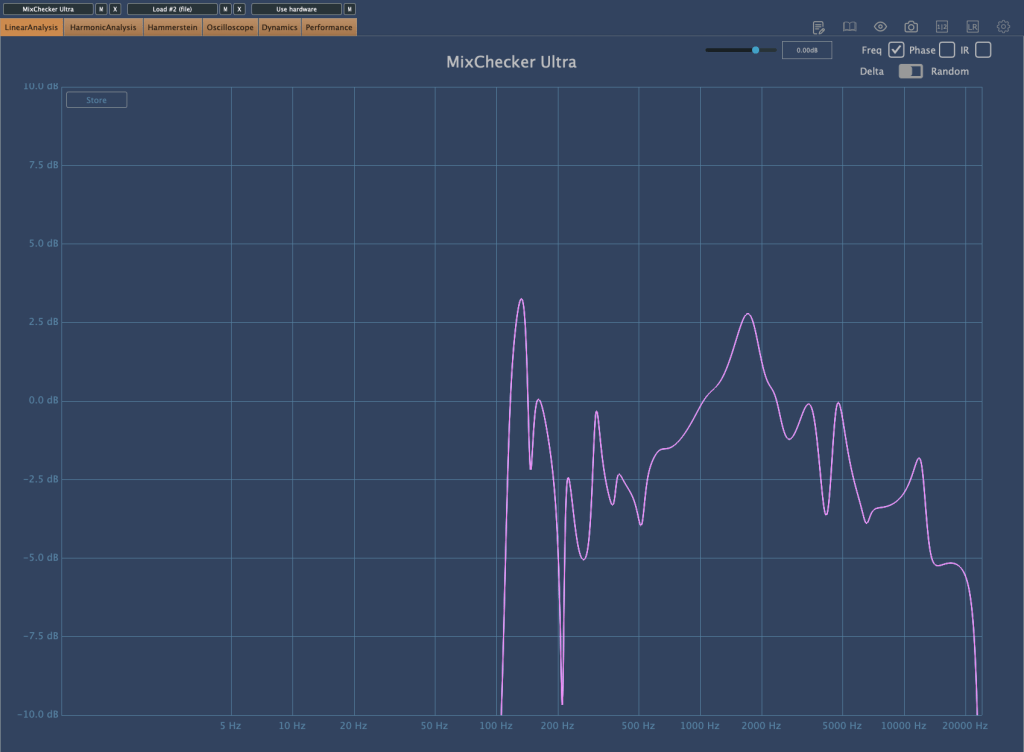
I measured Mixchecker’s NS-10M model using Plugin Doctor, and the Frequency Response came out interesting… haha.

​In fact, it is absurd to reproduce the sound of another speaker through one speaker. First of all, if the woofer is small, the low frequency range is not physically produced, so a small woofer cannot reproduce the sound of a speaker with a large woofer. Nevertheless, devices other than speakers, such as earphones, laptops, and TVs, seem to be represented quite well.

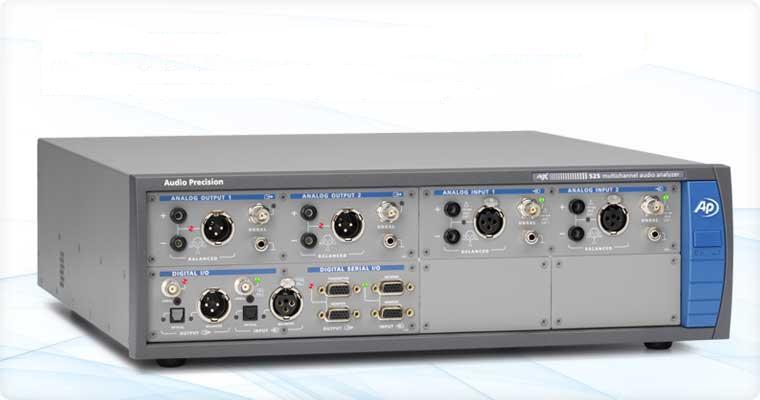
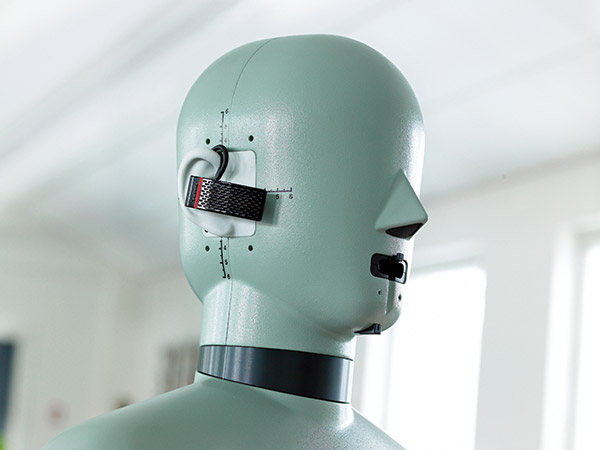
It is said that these speakers and various devices were measured and modeled in an anechoic chamber using an instrument called apx525 and B&K Type 4128-C.

​Mixichecker Pro is Audified’s flagship product that has been purchased by many people, with more than 20,000 units sold worldwide since its launch.

​The higher version, Mixchecker Ultra, contains many more features than the Pro version, so it would be a good idea for those who have been interested in mixing or mastering to take a look.

If you purchase from the plugin boutique, you will receive a plugin for free.

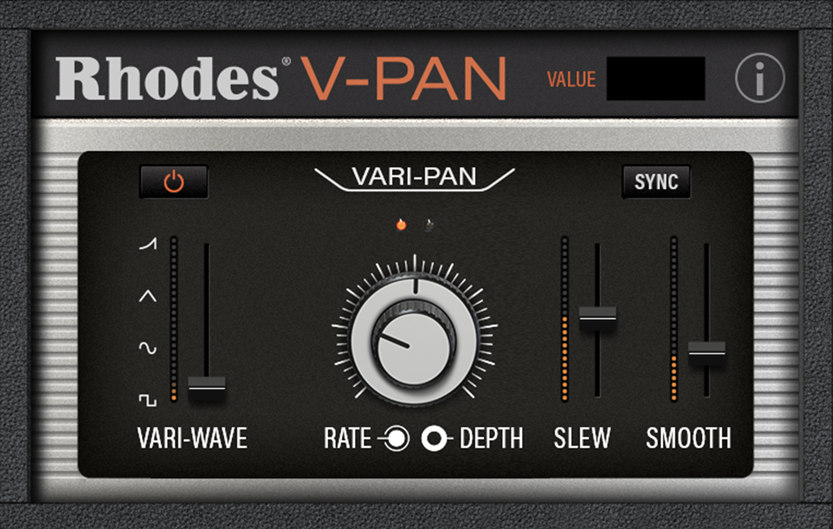
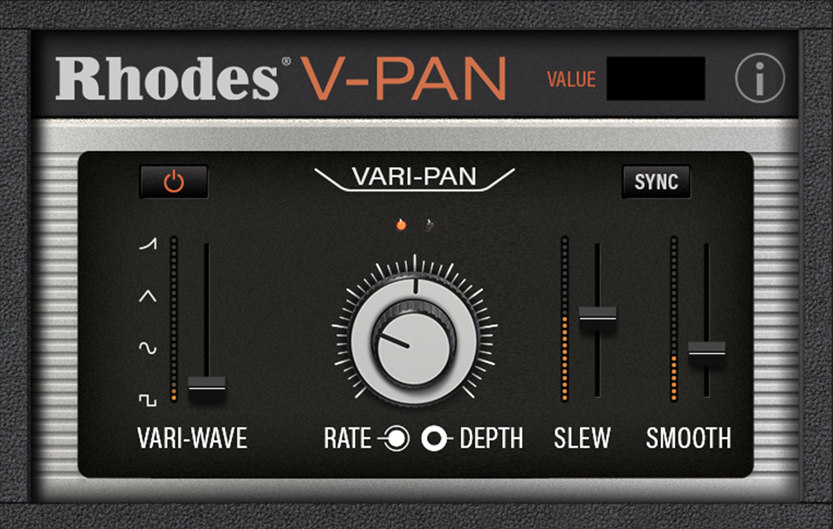
This month, they are giving away an autopan plugin called V-Pan from Rhodes, and a sound modulation plugin called Dehumaniser Simple Monsters from Krotos.

​If you purchase it, I hope you will receive one.
Well, see you again in the next article!

Arturia FX Collection 2 Plug-In Review (Part 7, Phaser BI-Tron)

※This article is a review written on July 21, 2021 after being selected for the FX Collection 2 experience group run by ‘Samick’ and receiving product support for a certain period of time. I only received support for the product and wrote the rest myself.

Finally, the last plugin, Phaser BI-Tron.

This Phaser is a clone plug-in of a pedal effect called Mu-tron Bi Phase, released in 1974. It consists of two phasers, and the routing of these two phasers can be adjusted to provide various effects. It is said that many famous musicians such as Stevie Wonder, Grateful Dead, Smashing Pumpkins, and Lee Scratch Perry (dub) used it, and the Expression Pedal of the original hardware was also reproduced so that the amount could be adjusted.

Routing through Phaser can be intuitively understood at a glance. When you change routing within the plugin, it is also shown on the display.

Signal Flow may seem a bit difficult, but actually handling the plugin is not that difficult.

​Basically, BI-Tron Phaser uses an LFO called Sweep Generator to adjust the degree of the Phaser effect. This can be given by a pedal, or by using both a pedal and a sweep generator, and the above Signal Flow can be seen as showing that it can be adjusted with various parameters.

I think you can roughly understand the rest if you look at it. The Phaser BI-Tron plug-in has more parameters that can be adjusted than you might think, so it’s a bit confusing, so let’s take a look at them one by one.

  • Sweep Generators

BI-Tron Phaser has two LFOs. Adjusts the LFO that goes into Phaser A and B. As you can see, you can adjust the rate to sync or adjust it between 0.200 Hz and 20.0 Hz.

​In addition, only Sweep Generator 1 can control the LFO rate with a pedal, and Sweep Generator 2 cannot be adjusted with a pedal. There are three LFO shapes to choose from: Sine, Ramp, and Square.

  • Phaser

It’s quite ironic that the plugin name is Phaser, but the parameter name is Phasor, but anyway, there are two Phasors, A and B.

Depth 1 and 2 determine the extent to which Sweep Gen 1 and 2 enter, respectively. At 1, the LFO will not be used at all, and at 10, the LFO will be used at the highest amount.

Through Feedback, you can change the feel of the Comb Filter, and through the Sweep button, you can decide whether to give the LFO to the Phasor with Sweep Gen, control it with the Pedal, or use a combination of both.

The Norm/Rev switch on Phasor B is a switch that reverses the polarity of Phasor B. If you only invert the phase of Phasor B like this, the effect will be more noticeable.

Arturia’s manual tells you to use R.INV in Advanced Control to create a fun Stereo Phasing effect.

  • Manual & Envelope

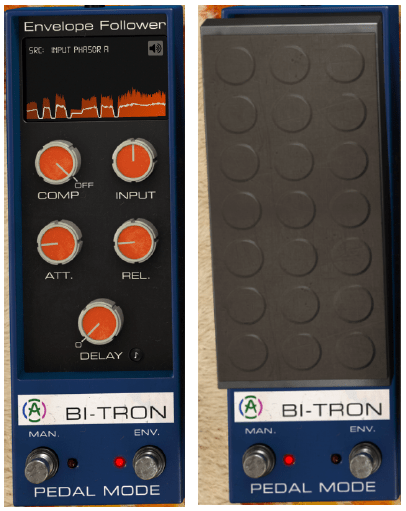
Manual Mode is a mode for manual control using the pedal. You can select it by pressing the button labeled MAN at the bottom left, and you can adjust it by pressing it with automation or the mouse.

​Envelope mode is a mode that allows the pedal to operate according to the envelope of the audio signal. It will be easier to understand if you touch it a few times, but roughly speaking, you can think of it as trimming the envelope based on the input source and using it as a trigger for Phaser.

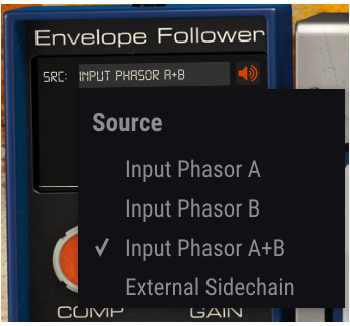
Right below the text that says Envelop Follower, there is a window where you can select the trigger source called SRC. Here, you can select the source that goes into A, the source that goes into B, a combination of both, or use Sidechain. You can also choose an external source.

You can see what these trigger sources sound like by clicking on the speaker shape on the right. However, what is a bit disappointing is that when you touch Comp, Input Gain, Attack Release, Delay, etc. below, you cannot hear the changing sound.

Delay is basically in ms units, but can be selected by beat through the Sync button, and the remaining units can be adjusted on a regular basis.

  • Advanced Control

Phaser BI-Tron’s Advanced Control includes controls for Hi Pass Filter and Phasor A and B.

​Hi Pass Filter is a 12dB/Oct filter. Filters the low range at the input stage so that only high frequencies are modulated. Arturia says it can be used to keep the low range of sounds with low registers stable, such as bass or kick.

The part written in Poles is a parameter for how much All-Pass-Filter will be used. The more you use, the stronger the Comb Filter effect will be and the less bandwidth it will require. It is said that the original hardware used 6 All-Pass-Filters.

Mix, like other plug-ins, is a parameter that determines the ratio of the dry/wet signal to be given, and R.INV is a switch that inverts the phase of LFO 1 and 2 entering Phasor A or B. If you press this switch, you can get a much wider stereo image.​

  • Samples

There are too many parameters in this, so it’s hard to know how to present it.

​Phasor A, B routing can be done differently, and whether Depth 1, 2, and Feedback of each Phasor can be controlled with a pedal or Sweep Gen. If controlled with Sweep Gen, how to set the LFO shape and rate, and adjust it with the pedal. Whether to control with the envelope, select the Pole and R.INV buttons, and even mix…

​Honestly, I think it would be very difficult to tell you about everything about the plug-in just by telling you a few of them. However, I can’t skip it without listening to the samples at all, so I’ll listen to one original track, one in the default state, and two that I’ve set up the way I want.

Honestly, I think it would be really difficult to judge based on this alone, and I also feel a bit disappointed, but I think it is an unavoidable limitation.

  • Phaser BI-TRON overall review

It’s not bad, honestly, it’s okay, but the plugin is too heavy. It’s a bit lighter than the Bus Force I mentioned in the previous article, but it’s still heavy.

​In particular, modulation-type plug-ins such as Phaser are mainly used for individual instruments or tracks, but the question arises as to whether this can be applied to individual instruments in a flashy way.

When you install one plug-in… Of course, adding 2-3 more doesn’t mean it will consume the CPU twice or triple, but I still think it’s a bit excessive.

Therefore, if I were to use it, I would probably use it with the feeling that it would only be used for one or two instruments, a bit like MSG.

Arturia FX Collection 2 Plug-In Review (Part 6, Flanger BL-20)

※This article is a review written on July 21, 2021 after being selected for the FX Collection 2 experience group run by ‘Samick’ and receiving product support for a certain period of time. I only received support for the product and wrote the rest myself.

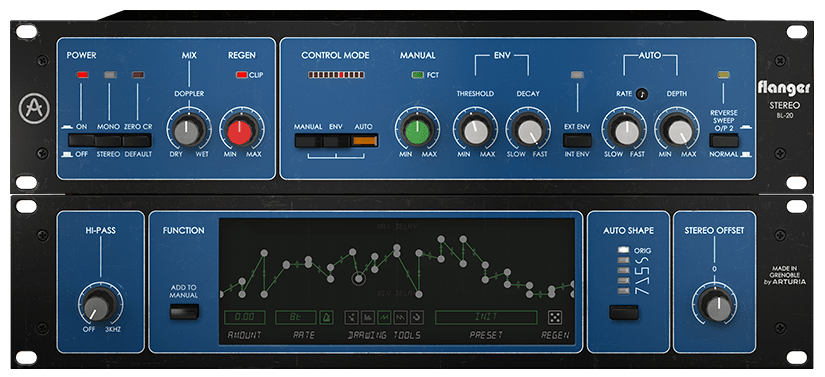
The Flanger BL-20 is a plug-in that is a clone of the Bel Flanger BF-20. This friend is said to have been released by a British company called Bel Electronics in the late 70s.

​Like the other two Chorus introduced above, it features BBD in the internal circuit and has a signal flow slightly similar to Dimension-D.

In some ways, this friend’s Signal Flow is similar to Dimension-D, but if you exclude Reverse Sweep, Stereo Offset, CV Gen, and the Regen part, which is the feedback part, the circuit can be considered almost the same.

Let’s move on to the parameter description.

  • Power

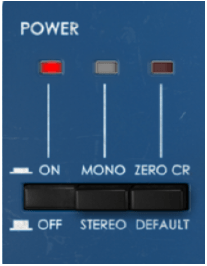
First of all, there are three switches in the power section. The leftmost switch is the On/Off switch, and the middle switch determines whether to receive the signal in Mono-Sum or Stereo.

​The switch on the right is not a switch on the original hardware, and is the switch that activates Zero Crossing Mode. When this button is activated, the polarity of the modulated signal is reversed and the dry signal of the average delay curve is delayed, resulting in a zero crossing effect.

​Generally, a Flanger is an effect that creates a Comb Filtering effect by combining a delayed signal and a dry signal. According to Arturia’s explanation, the Zero CR button inverts the phase of the delayed signal, resulting in the effect being created by subtracting the delayed signal from the dry signal. It still has the Flanger effect, but it’s stronger, thicker, and wetter.

  • Mix & Regen

Mix represents the ratio of the delayed signal (wet) and the original signal (dry). When you mix the two signals, the Comb Filter effect appears and the Flanger effect appears. If you turn it completely to Dry or Wet, the Flanger effect does not appear prominently.

Regen is the side shown in red in the Signal Flow above. Control the amount of feedback. You can increase the Comb Filter effect by increasing this amount.

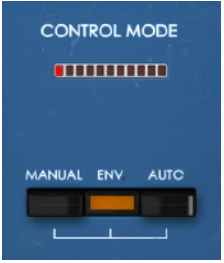
  • Control Mode

There are three buttons in Control Mode. Each button is a button that selects the way it operates, and you can use a combination of 2 or 3 types.

The effect can be adjusted by adjusting the corresponding part on the right side of the panel for each button, and the red LED above moves around depending on how you adjust it.

​By default, Auto Mode is turned on, and in this Auto Mode, the original triangle waveform LFO is controlled, but through Advanced Control, you can change the LFO waveform or adjust it as desired.

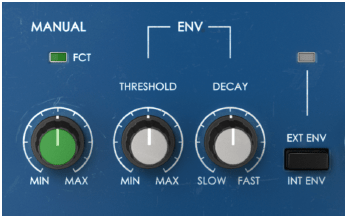
  • Manual & Env

Manual is a knob that manually adjusts the flanger. As you go to Min, the Comb Filter becomes a bit looser, and as you go to Max, the Comb Filter becomes tighter.

Env is a value created to respond to the level of the audio signal.

Env has three controls:
1) Threshold is a knob that adjusts the intensity of the flanger differently depending on the level of the audio signal.
2) Decay is a knob that controls the time it takes for the value to reach 0 after the envelope is deactivated.
3) The third control button is a button that can accept external sidechain signals and adjust the envelope accordingly.

It is not easy to understand if you just look at it like this, but you can think of it as somewhat similar to the Compressor parameters.

If you adjust the Threshold well, you can clearly see the difference between where the flanger enters strongly and where it enters weakly, and the faster you set Decay, the faster the flanger comes out, allowing you to use it more effectively.

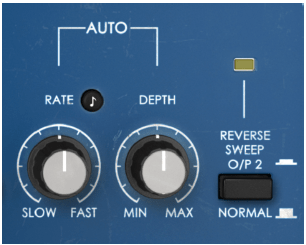
  • Auto & Reverse Sweep

Auto literally gives an LFO automatically to create a flanging effect. So the knobs are quite intuitive. You can adjust the speed (frequency) of the LFO or select the amount of Depth.

​The Reverse Sweep button inverts the phase of the Right channel, greatly widening the stereo image. It seems to be the same as the principle of M/S, and according to this, sound is produced even in the anti-phase area.

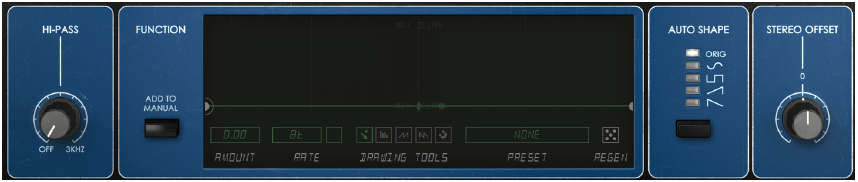
  • Advanced Control

In Advanced Control, there is a 12dB/Oct Hi Pass Filter function, a function to create the shape of a function generator that can be added to Manual mode (said to be the same as the generator included in Arturia’s Pigments or OB-Xa V), and an Auto LFO of 5. There are two functions to choose from, the Stereo Offset function, which is similar to Stereo Width, but works differently.

​Especially in the Function Generator function, you can use the Flanger quite a bit and have fun. We recommend that you try to drastically adjust the values ​​or waveforms displayed under the display with Preset.

  • Samples

I will just attach a simple sample. There are so many different parameters that it seems like it would be very confusing, but I will set it to my liking in the following order: Original Track – Manual – Manual+Function Generator – Env – Auto.

I’m really sorry to keep telling you this, but I think you’ll get a better feel for this type of modulation if you try it yourself.

​Also, the mono sounds were too boring, so I pressed the Reverse Sweep button to widen the stereo image. If you listen to the Reverse Sweep button being pressed in the Manual, you will get a feel for how Reverse Sweep works.

How do you feel? There are quite a number of ways to use these values, such as plug-in and mixing them, using the Function Generator in various ways, or changing the oscillator waveform in the Auto section.

​It felt a bit extreme, but I really liked it.

  • Flanger BL-20 overall review

It’s a plugin I didn’t expect much from, but it leaves a pretty good impression.

​The parameters are not that simple, so it takes some time to learn how to operate them, and you have to think about how to operate them, but once you learn them, you seem to be able to operate them quickly.

This friend thought it would be good to come out with a minor version of the plug-in that would not use the Advanced Control part.

Hmm… As I was writing this, a thought suddenly occurred to me. Arturia’s plug-ins are often a bit heavy, so it would be nice to be able to download not only BL-20 but also minor version plug-ins that do not use Advanced Control for all plug-ins. Although I took a slightly different route while using it, I am quite satisfied with the plugin.

Arturia FX Collection 2 Plug-In Review (Part 5, Chorus Dimension-D)

※This article is a review written on July 21, 2021 after being selected for the FX Collection 2 experience group run by ‘Samick’ and receiving product support for a certain period of time. I only received support for the product and wrote the rest myself.

Chorus Dimension-D is the one that made me interested in Arturia’s FX Collection.

The original was released in the late 1970s and operated with just a few simple buttons. This friend also has the characteristic of using BBD like Jun-6, and it can be seen that it is in line with the fact that the parameters are quite simple.

​Arturia added additional parameters to the original to allow for more diverse control of the Chorus effect.

Signal Flow is quite complex. The front part is somewhat similar to the previous Jun-6 (that’s why I introduced Jun-6 first…^^), but Comp and Expander are also added to the filter, and it shows various complex aspects. It is said that the reason for this was to solve the problem of a lot of noise in the BBD area.

​Anyway, there aren’t that many things we can control, so I think you can roughly look at it like this.

  • Mode & Dimension Mode

The Mode button is a button that determines whether to receive the source in Stereo or Mono. If you select Mono, the signal combined through Mono-Sum from the stereo source goes into the input.

There are a total of 5 Dimension Mode buttons. In the original hardware, the 0 button was just a Bypass button, but like the Signal Path below, Arturia made it possible to apply some color through Comp, Expander, and Filter together.

Additionally, button 1 is the softest Chorus, button 2 is a stronger Chorus but has half the Delay Time, and button 3 has a shorter Delay Time than the other two modes, but has twice the amount of LFO Modulation, making it a more distinct Chorus.

​Button 4 is a special button that applies more wet signals in addition to the other 3 buttons. Therefore, pressing it alone will not work. (There are quite a few different explanations on the web, but Arturia says this is what they actually measured..^^)

​In the original hardware, you can press multiple buttons, but even if you actually press them, only the effect with the highest number is used, so such a function is not included in the plug-in.

  • Advanced Control

In Advanced Control, you can adjust the shape of the LFO oscillator, Compressor/Expander’s Time Constant (you can think of it as a general term for response speed or methods), Width, and Dry/Wet.

​There are five types of oscillators to choose from: triangle wave (Default), Sine, Ramp (Ascending Saw Wave), two random forms, Sample & Glide, and Sample & Hold. The colors are much different than you might expect, so we recommend that you try them all.

In Dynamic Color, LF Sat 1&2 has a shorter Time Constant, resulting in slightly more Saturation, which is noticeable at Lower Frequency. Additionally, the position marked as Default is the same as the hardware’s default setting, and the position marked as Smooth is said to have smoother attack and release.

Width literally controls the stereo image, and Mix lets you control Dry/Wet.

  • Samples

There are so many additional parameters from Arturia that it would be too much to do them all. Therefore, we will not touch any additional parameters and will only adjust the Dimension Mode button in the default state.

The order is repeated a total of 8 times in the following order: original track – (0) – (1) – (2) – (3) – (1+4) – (2+4) – (3+4)

Surprisingly, contrary to Arturia’s explanation, I felt that button 3 was a bit quiet. I really liked the effects themselves.

  • Chorus Dimension D Overall Review

This is a plugin that I really liked. I wasn’t able to hear it here, but if you adjust the oscillator shape or dynamic color, the effects sound different and richer.

Also, personally, I thought that if I used this plug-in on friends who obscure the vocals in the center, such as Clap or Snare, and widened the stereo image a little, the effect would be really good.

Of all the plugins I’ve featured so far, I’d say just please take my money. Even if I don’t receive the plugin as a review event product, I will definitely buy it if it goes on sale someday.

Actually, I don’t have anything worth showing about this type of Modulation series, so it seems very difficult to use it analytically like Compressor or EQ. Therefore, it seems that a lot of subjective opinions are mixed in unintentionally. This can feel quite different from person to person, so if you are curious, we recommend that you try the demo right away.