Scaler EQ and Scaler 2 on Sale (Free Scaler 3 Update with Scaler 2 Purchase, Until 3/31)

Hey there! I’m Jooyoung Kim, an engineer and music producer.

Today, I want to talk about two standout plugins from Plugin Boutique that are currently on sale: Scaler EQ and Scaler 2. I’ve been lucky enough to receive these plugins as NFR (Not for Resale) copies from Plugin Boutique. Also, if you purchase through the links in this post, I’ll earn a small commission that really helps me keep going—so thanks in advance for the support! 😊

Let’s dive in!


Scaler EQ
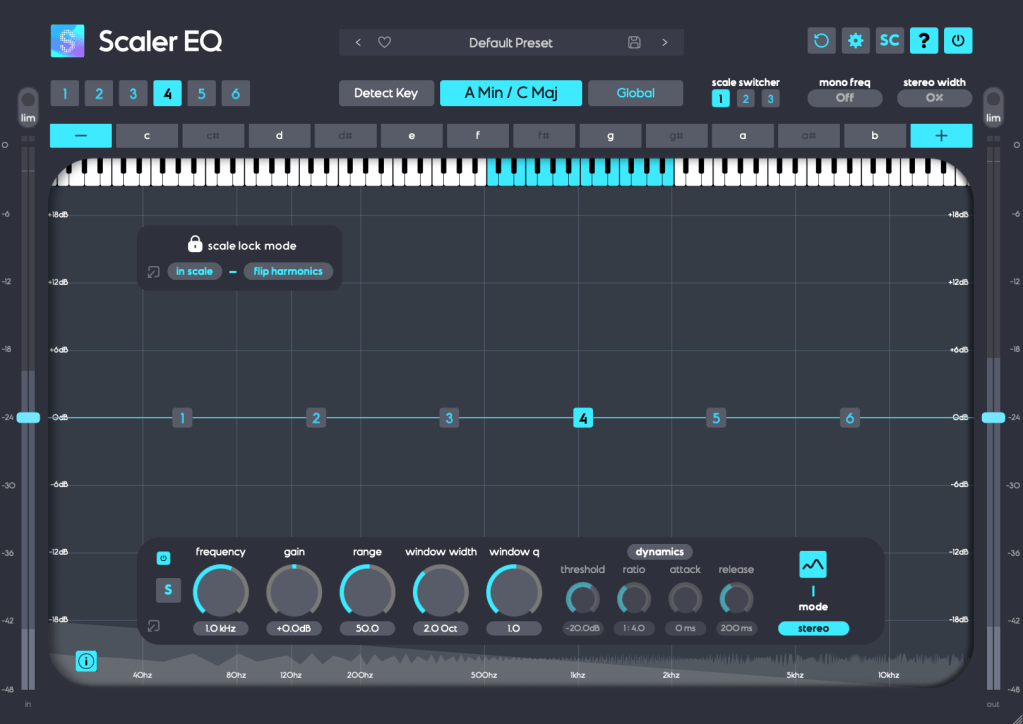
Scaler EQ is one of the flagship plugins from Scaler Music, distributed by Plugin Boutique. Sure, it has all the standard EQ features you’d expect, but what sets it apart are these three unique tricks up its sleeve:

  1. Key-Based Boosting and Cutting: It can boost sounds that fit the song’s key while reducing those that don’t.
  2. Magic Shelf Bands with Mid/Side Control: Adjust frequency responses using Mid/Side processing for a wider or more focused sound.
  3. Dynamic Control: Fine-tune the loudness with built-in dynamics processing.

Let’s take a closer look at how it works.

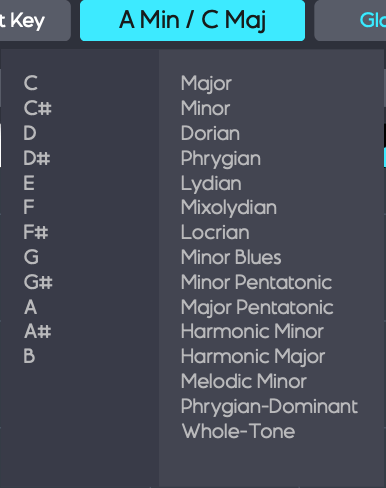
Play your track and hit the Detect Key button—it’ll automatically figure out the key of your song. You can also manually pick a key by clicking the middle key selection button. The Global button applies that key across all EQ bands.


In Scale Lock Mode, the In Scale setting boosts notes within the key when using Harmonic Peak mode (highlighted in white on the piano roll). Turn it off, and it’ll boost whatever notes you’ve selected instead.

The Flip Harmonics option comes into play when the gain is negative in Harmonic Peak mode—it cuts notes outside the key. Disable it, and it’ll cut the in-key notes instead.
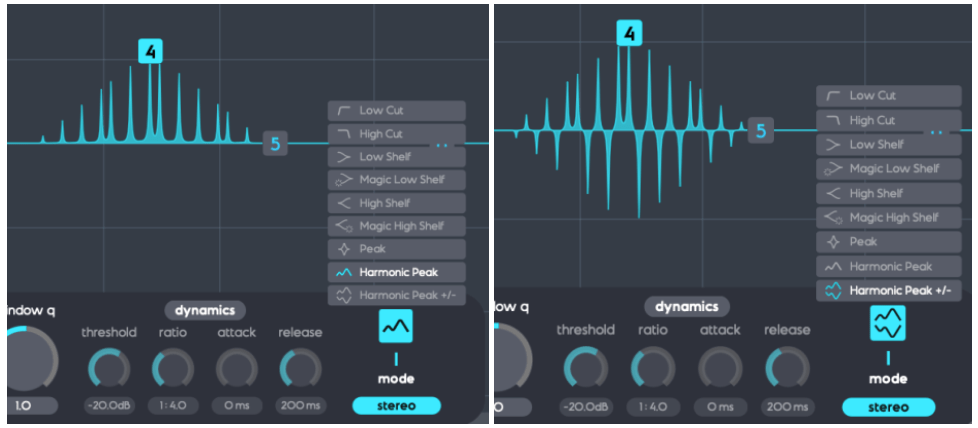
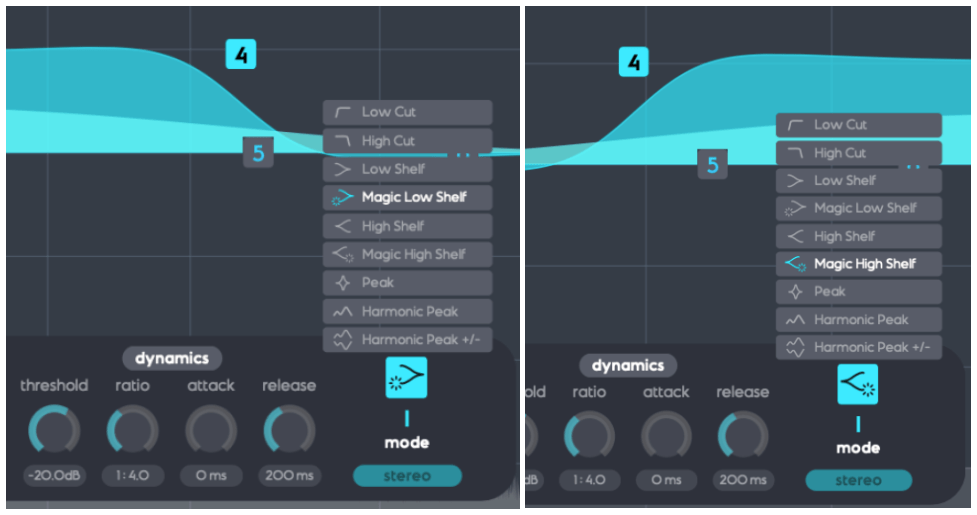
The Dynamics section feels pretty standard for a dynamic EQ, but the real stars here are Harmonic Peak, Harmonic Peak +/-, and Magic Low/High Shelf.

  • Harmonic Peak: Emphasizes notes within your chosen key.
  • Harmonic Peak +/-: Boosts in-key notes and cuts out-of-key ones at the same time.
  • Magic Low Shelf: Highlights the Mid over the Side for a punchier low end.
  • Magic High Shelf: Boosts the Side over the Mid for a wider, airier top end.

These features might sound simple, but when used well, they can bring out the harmonics of your key in totally unique ways, adding fresh colors to your sound.

As far as I know, Scaler EQ is the only EQ out there that adjusts sound based on musical scales like this. It’s a rare gem, and with it on sale, now’s a great time to grab it! 😊


Scaler 2
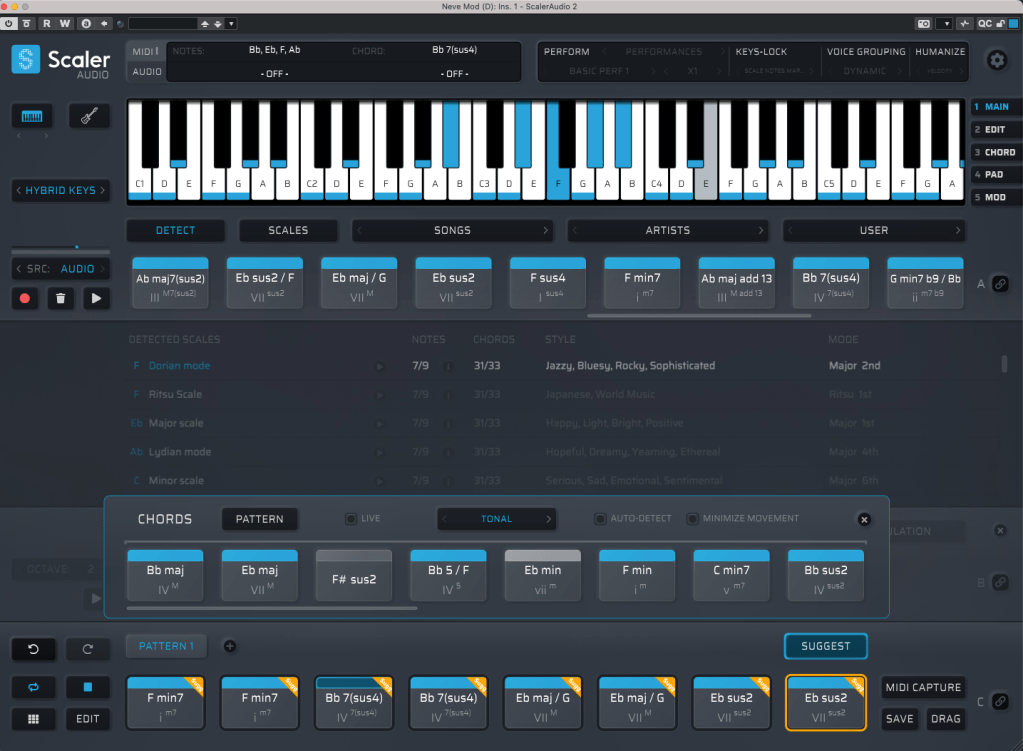
Scaler 2 is a versatile tool packed with features to help you create music. Here’s the core of what it does:

  1. Extract Chord Progressions: Pull chords from MIDI or audio files.
  2. Rearrange or Reharmonize: Tweak and transform those chords however you like.
  3. Choose Presets: Pick lines or voicings from its built-in instruments.
  4. Export as MIDI: Capture everything and drag it into your DAW.

When you download Scaler 2, you’ll get three versions:

  • Scaler2: The virtual instrument version.
  • ScalerAudio2: An effect version tailored for analyzing audio tracks.
  • ScalerControl2: An AU MIDI plugin, perfect for controlling external instruments in DAWs like Logic Pro.

You could take chords from a song you love and use them to build something entirely new. Or start fresh with over 400 genre-based chord sets and 200+ artist chord sets included as presets.

Personally, I think it’s a lifesaver when you’ve got a rough chord progression but can’t figure out the bass, melody, or guitar lines. It’s also great for nailing piano or guitar voicings if those feel tricky. Plus, it’s a handy tool for studying music—perfect for copying and analyzing songs you admire.

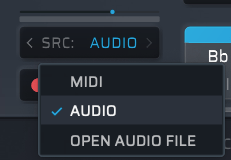
It might look overwhelming with all its features, but spend about 30 minutes messing around, and it’s not hard to get the hang of it. On the left, under SRC, you’ll see three options: MIDI, AUDIO, and OPEN AUDIO FILE. MIDI and AUDIO let you record in real-time to extract chords, while OPEN AUDIO FILE pulls them straight from an audio file. Once you do that, chords pop up alongside the detected scale, like in the image above.
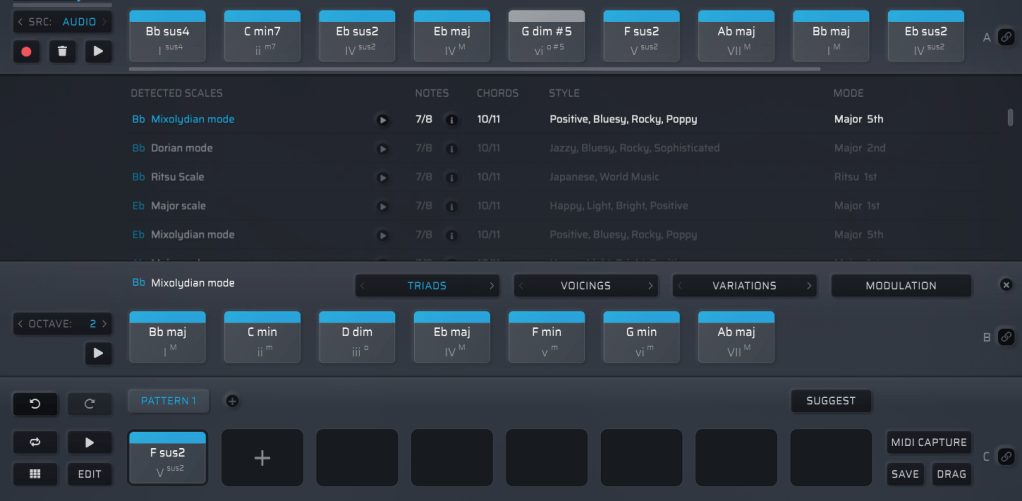
Chords in blue are within the detected scale, while those in gray are outside it. You can drag these chords down to create a pattern.

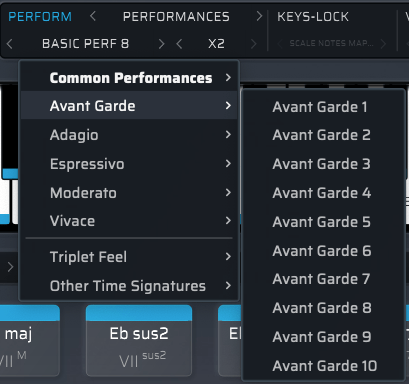
Once you’ve got a pattern, head to the top right where you’ll find Perform, Keys-Lock, Voice Grouping, and Humanize. These let you tweak the MIDI patterns—think arpeggios, strumming, or natural timing variations.

The catch? You can only preview sounds using Scaler 2’s built-in virtual instruments. That said, there’s a decent variety, so you can get a rough idea of how it’ll sit in your track.

When you’re happy with everything, hit the MIDI CAPTURE button at the bottom right, play it back, and record the pattern as MIDI.
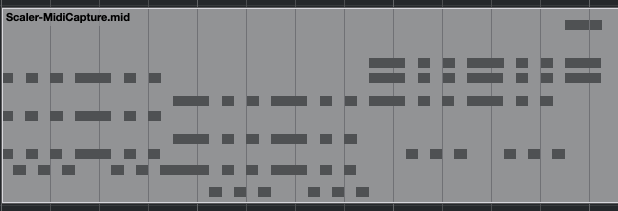
Then, drag the DRAG button into your DAW’s MIDI channel, and boom—your pattern’s ready to go!

Beyond that, Scaler 2 can suggest modulation paths (like where and how to change keys) and even hook up external instruments via MIDI routing—though that’s a bit trickier to set up.

Having used it myself, I can say it’s a super useful tool in tons of ways. It’s especially awesome for beginners learning to compose—it takes the intimidation factor out of chord progressions and music theory.


Bundle Deal and Final Thoughts

The sale runs until March 31st, and bundling Scaler 2 and Scaler EQ together gets you an even better deal. Plus, if you buy Scaler 2 now, you’ll get the upcoming Scaler 3 update (slated for this month) for free. It’s a steal at this price, so I’d highly recommend jumping on it while it lasts.

That’s it for now—hope to see you in the next post! 😊
Brainworx Mixing Month Plugin Sale (2): Black Box Analog Design HG-2 (~3/31, $31.90)

Hey there! I’m Jooyoung Kim, an engineer and music producer.

Today, I’m picking up where I left off to talk about more of the Brainworx plugins on sale this month:

  1. Shadow Hills Mastering Compressor – Compressor
  2. Shadow Hills Mastering Compressor Class A – Compressor
  3. Black Box Analog Design HG-2 – Saturator
  4. Black Box Analog Design HG-2MS – Saturator
  5. Mäag Audio EQ4 – EQ
  6. SPL Transient Designer Plus – Transient Shaper

In this post, I’ll be diving into the Black Box Analog Design plugins from that list—specifically HG-2 and HG-2MS.

As I mentioned last time, I personally bought and have been using 1, 3, and 5. For this round, I received NFR (Not for Resale) licenses for 2, 4, and 6 from Brainworx via Plugin Boutique.

Also, if you purchase through the links in this blog, I’ll earn a small commission, which really helps me keep going—so thank you in advance! ㅜㅠ

Ready? Let’s get started!


3 & 4) Black Box Analog Design HG-2 and HG-2MS

Click image to purchase Black Box Analog Design HG-2Ms

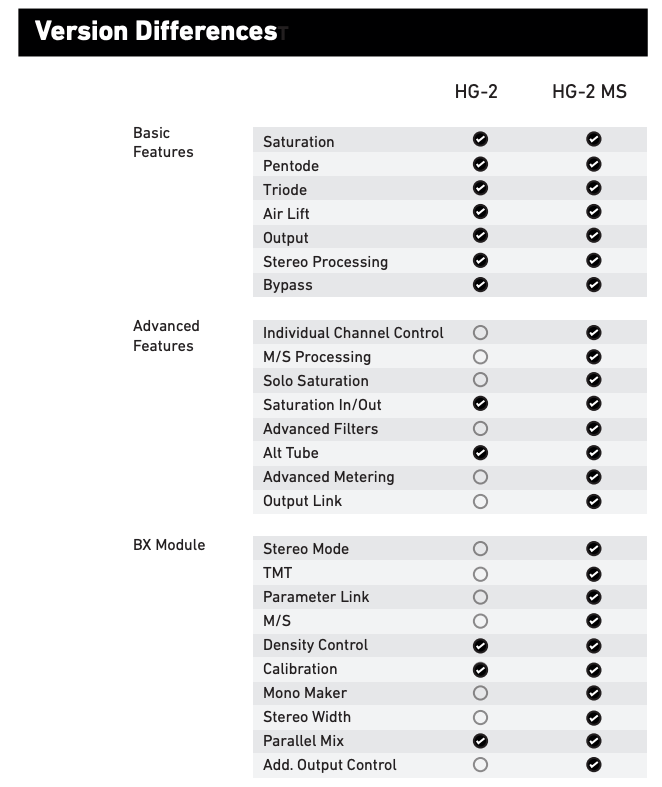
When I tested these two, I noticed that with the same parameter settings, their responses are pretty much identical. The differences are outlined in the manual, but since they’re so similar, I’ll explain them together using the HG-2MS as the reference point.

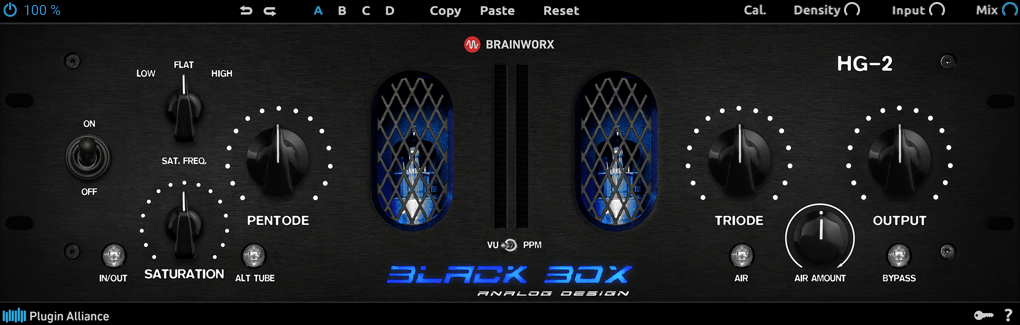
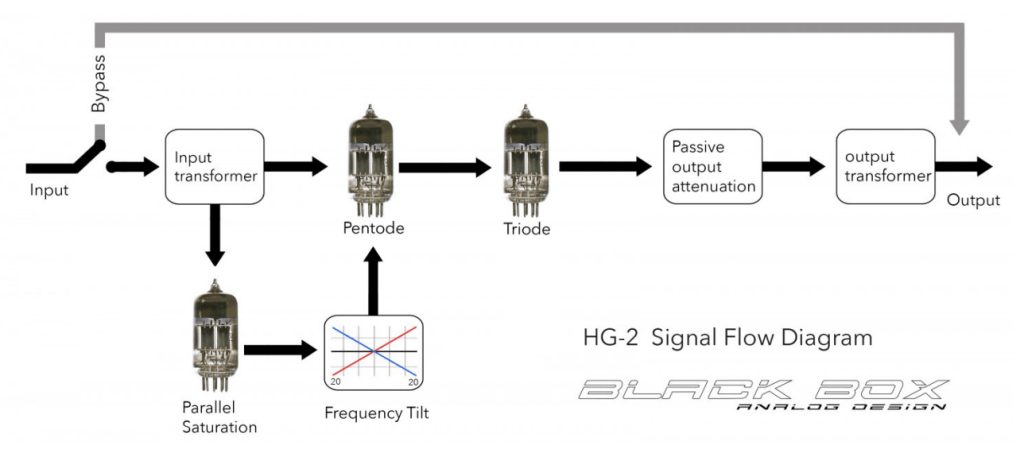
First off, these plugins are recreations of the HG-2 hardware from Black Box Analog Design. As you’d expect, it’s all about those glorious vacuum tubes front and center. The HG-2 uses a combination of pentode and triode tubes, running your signal through both for that signature tube saturation—that’s the core of what this hardware (and plugin) is about.

It also has an extra triode tube you can blend in. The original hardware’s signal routing looks something like this:

The output stage features a Sinemag transformer, while the parallel saturation path uses a pair of 12AX7 triode tubes.

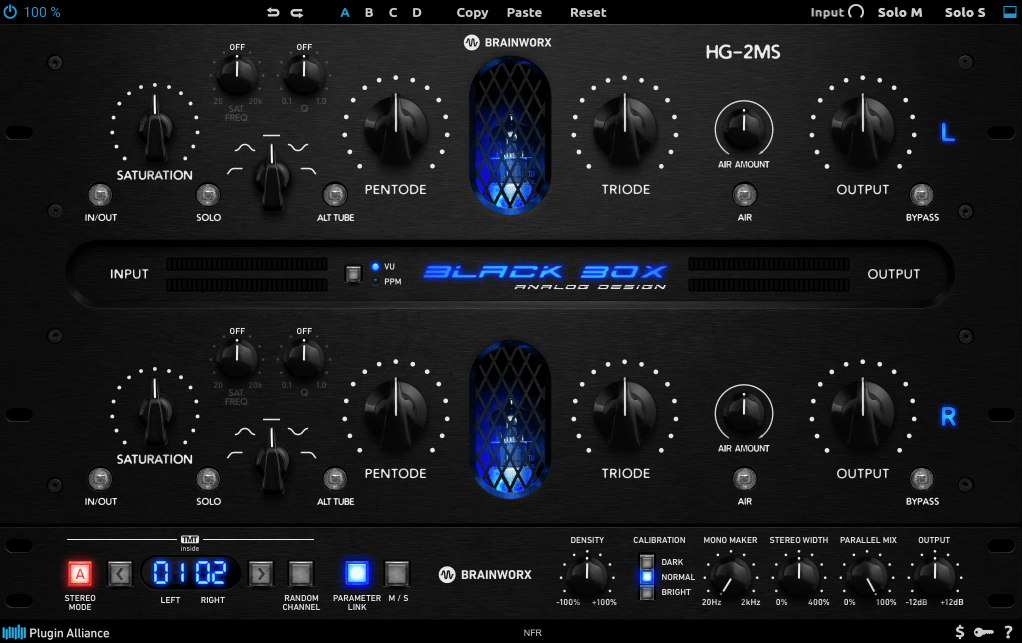
Looking at the parameters, the “Saturation” knob on the far left controls the amount of parallel saturation. The IN/OUT button toggles whether this parallel processing is active, and the ALT TUBE button switches the tube manufacturer for the parallel saturation path, altering the harmonic distortion character.

Even if you turn off the Saturation knob, the signal still passes through the pentode and triode tubes in series, so this is a piece of gear (or plugin) that’s inherently heavy on saturation. That means if you set either Pentode or Triode to 0%, you’ll get no sound at all.

Let’s break down how it works:

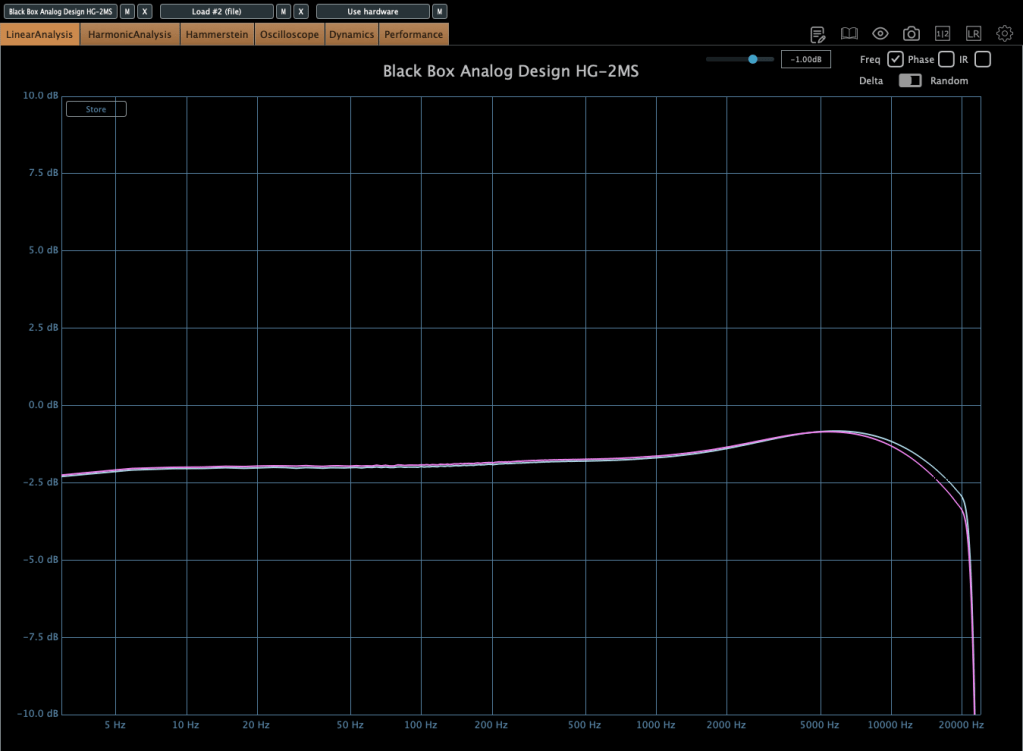
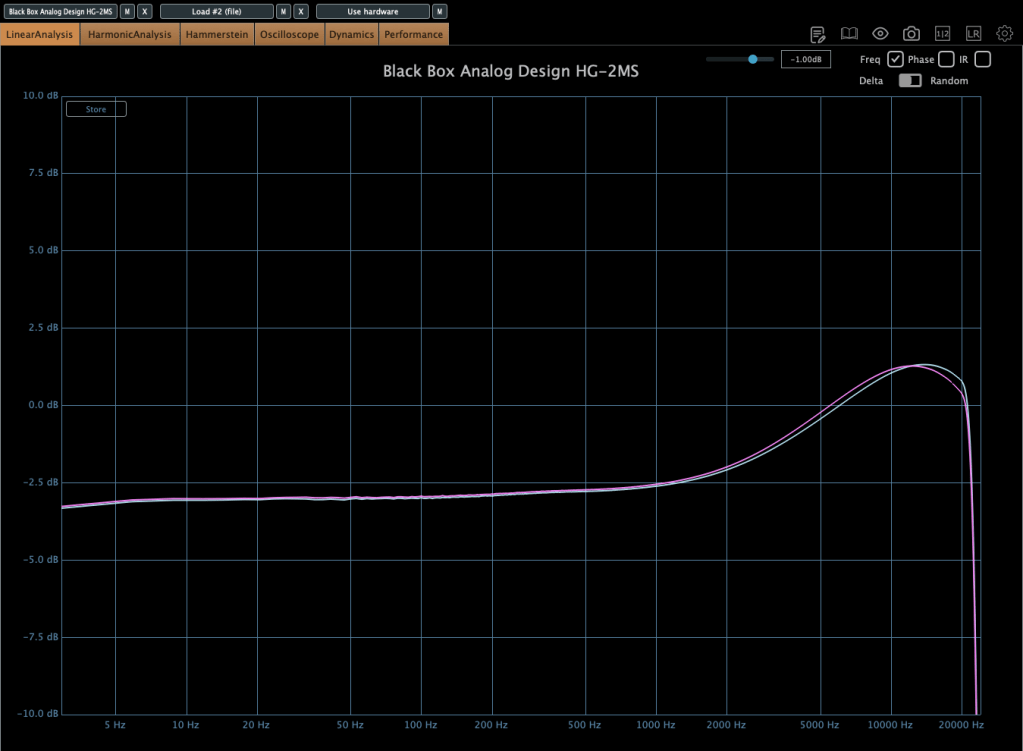
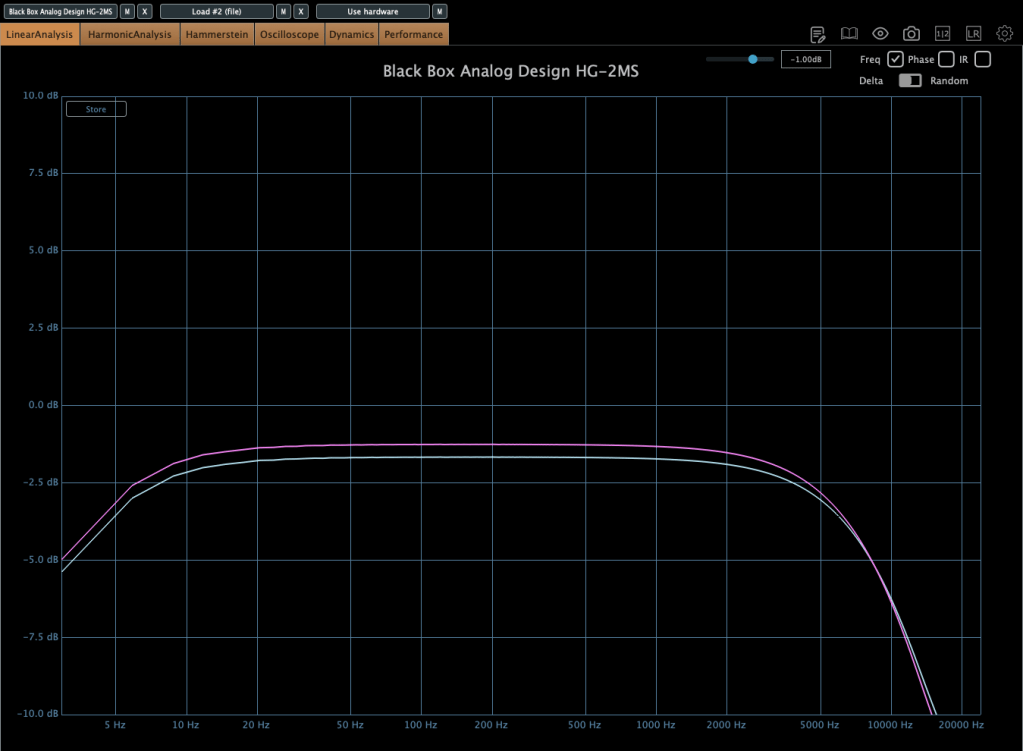
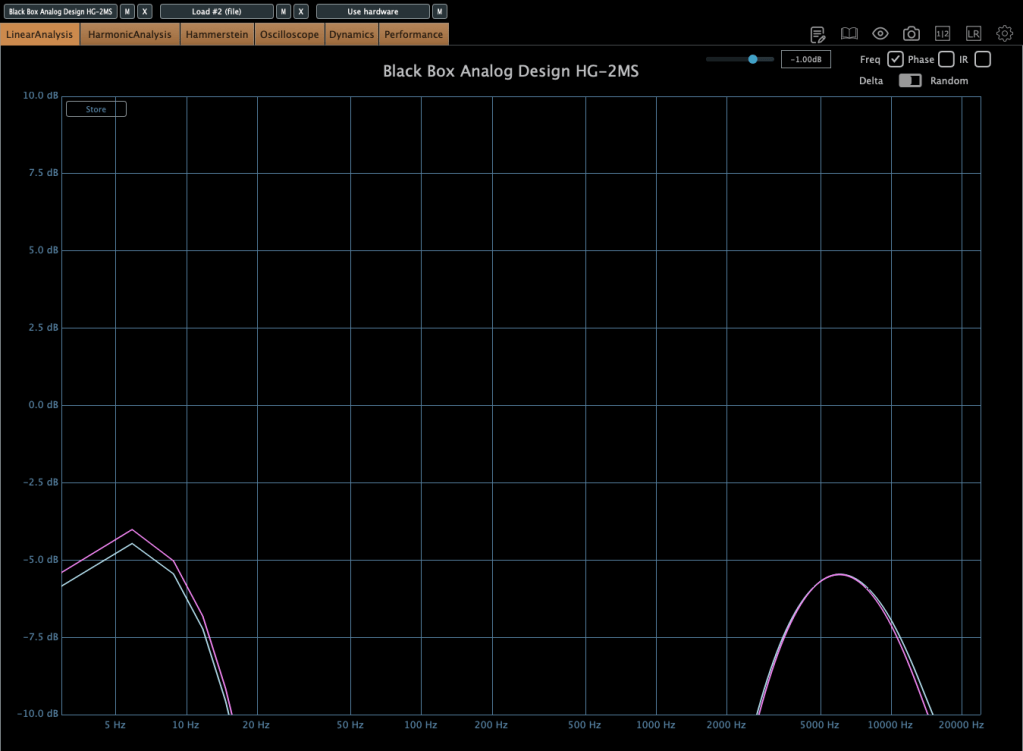
Photo: Frequency response—Default state, Saturation In, Alt Tube pressed, from top to bottom

This shows the frequency response in the default state, with Saturation turned on, and with Alt Tube engaged.

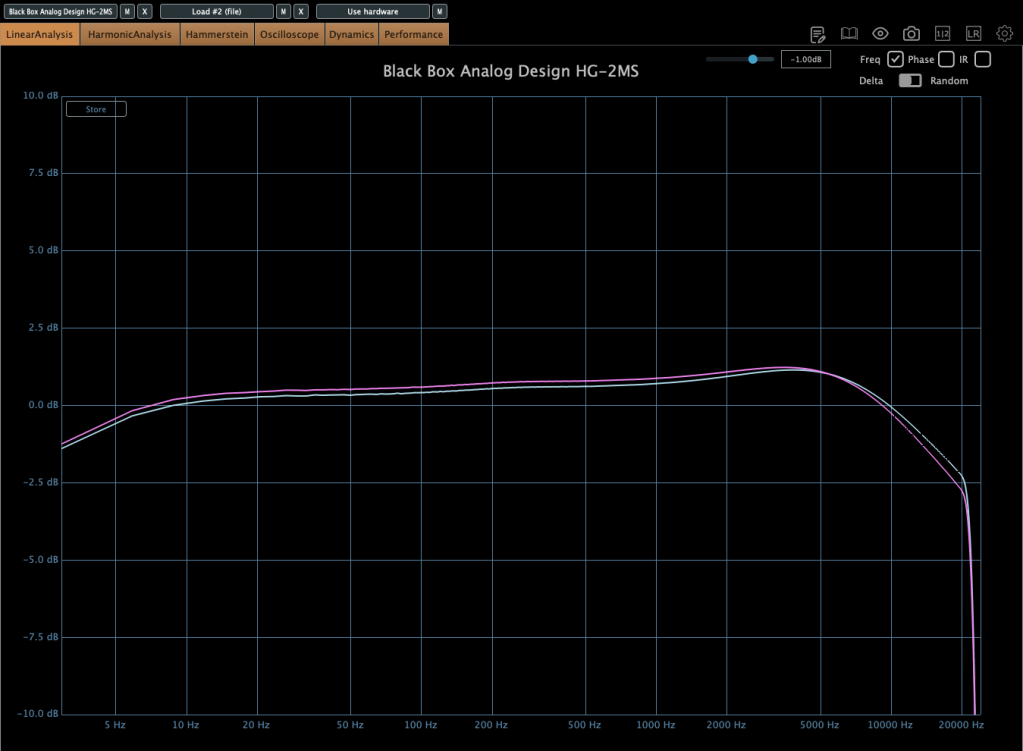
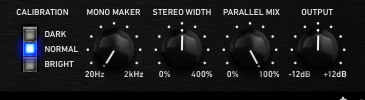
Photo: Frequency response—Dark vs. Bright calibration, from right bottom

Here’s the response with the Calibration knob set to Dark and then Bright.

Photo: Frequency response—Air Amount at 100%

This is with the Air Amount cranked to 100%.

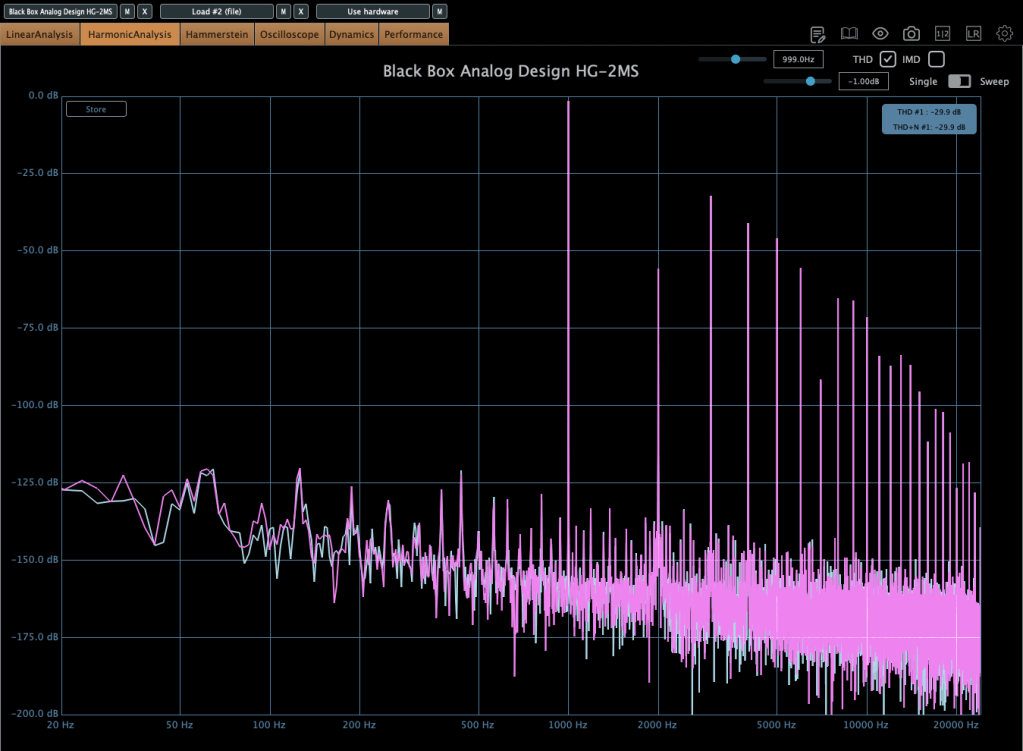
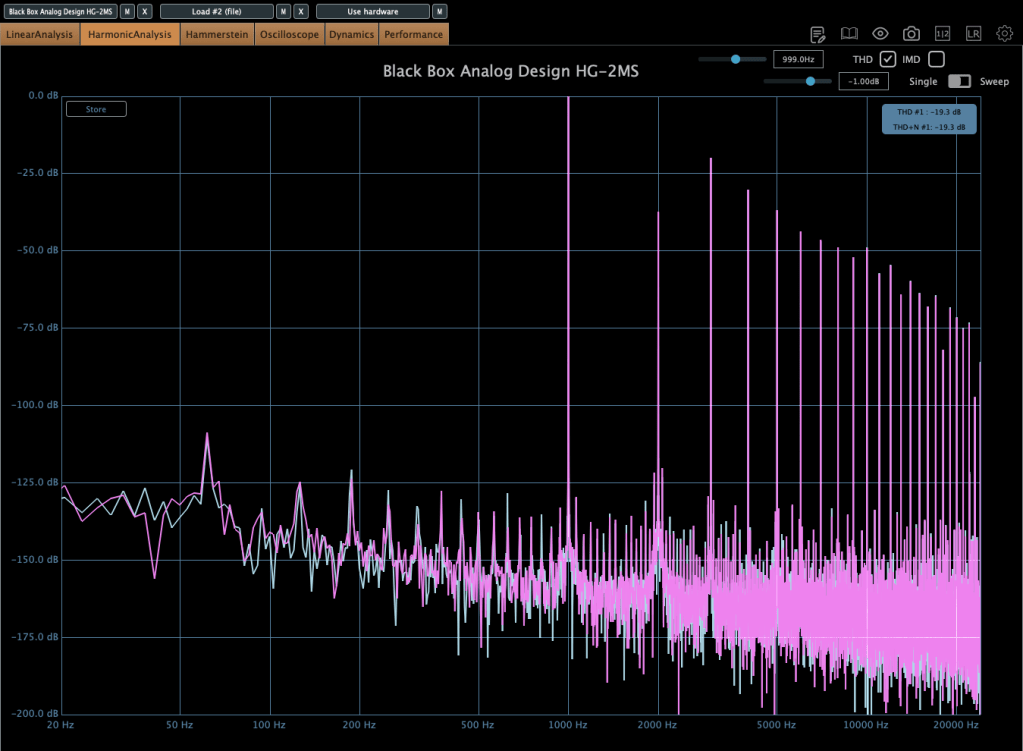
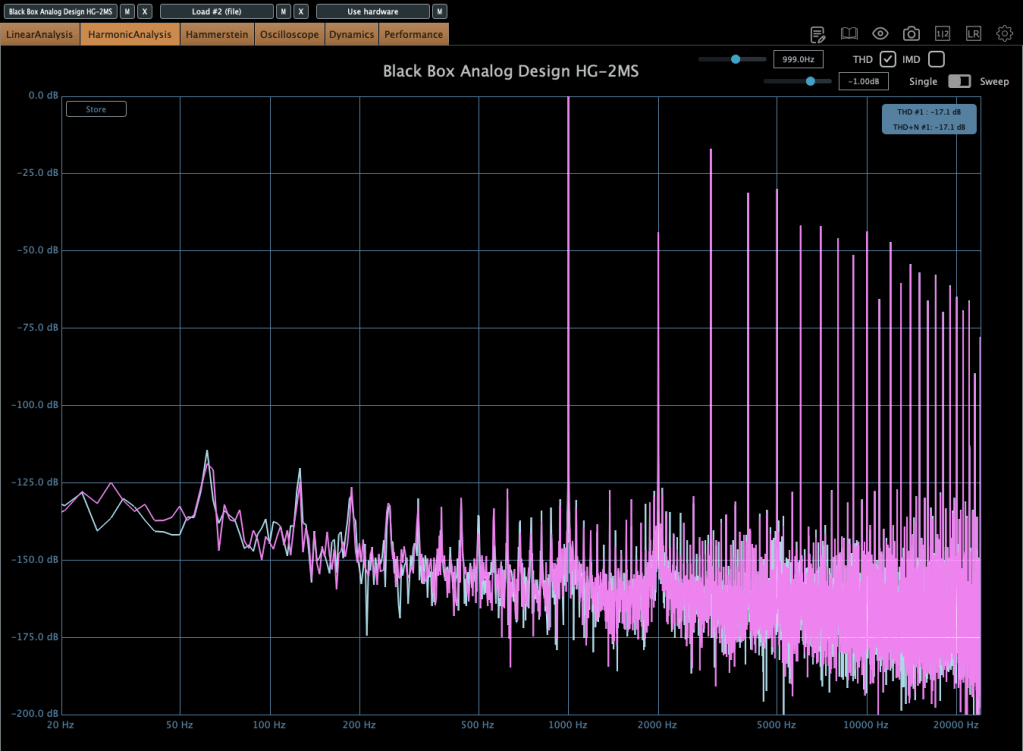
Photo: Harmonic distortion—Default state, Saturation In, Alt Tube pressed, from top to bottom

These show harmonic distortion in the default state, with Saturation on, and with Alt Tube pressed. You can see the distortion really jumps when you add parallel saturation—it’s noticeable in the harmonics, and you can hear it too; the overtones come alive.

Photo: Default state vs. Saturation In, left and right

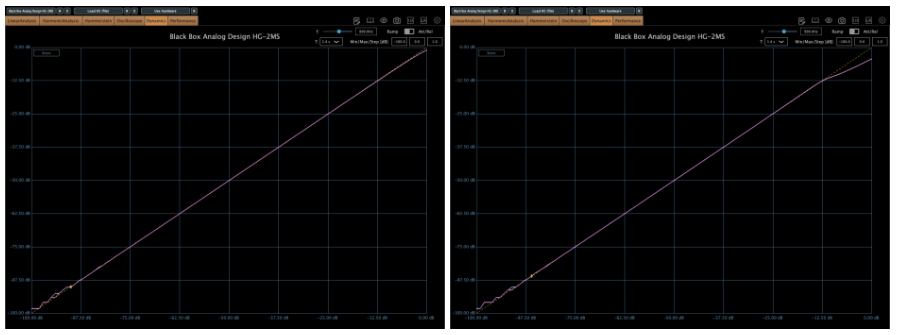
Interestingly, even though this isn’t a compressor, it starts to subtly compress when the input gets loud enough. The left is the default state, and the right is with parallel saturation active.

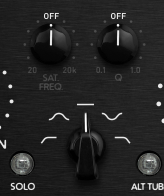
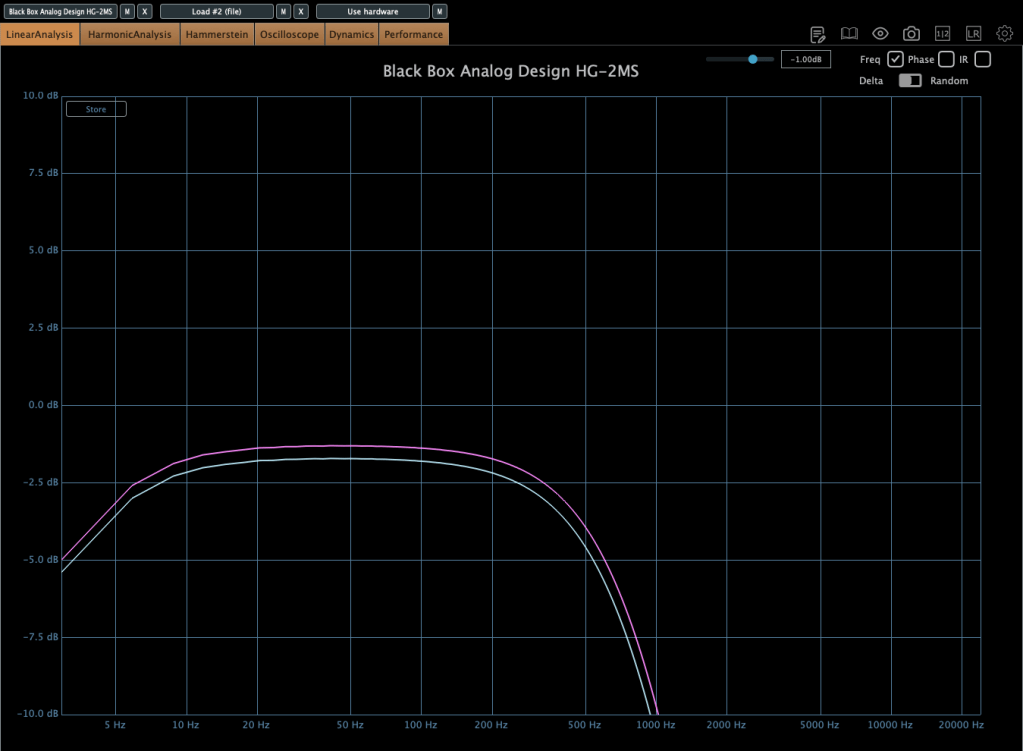
Now, these parameters let you shape how the parallel saturation sounds. Hit the Solo button, and you can isolate just the parallel saturation signal.

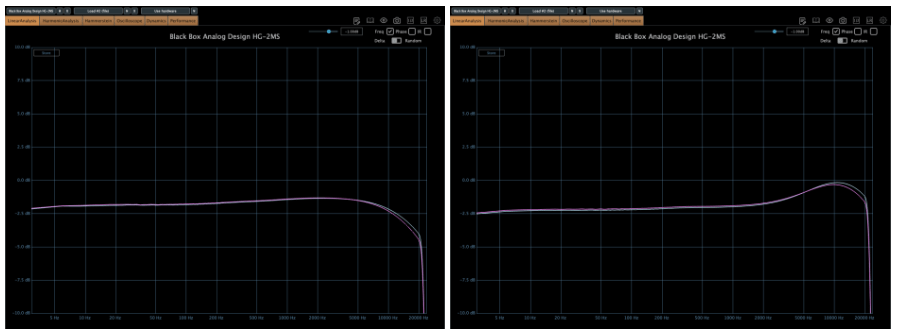
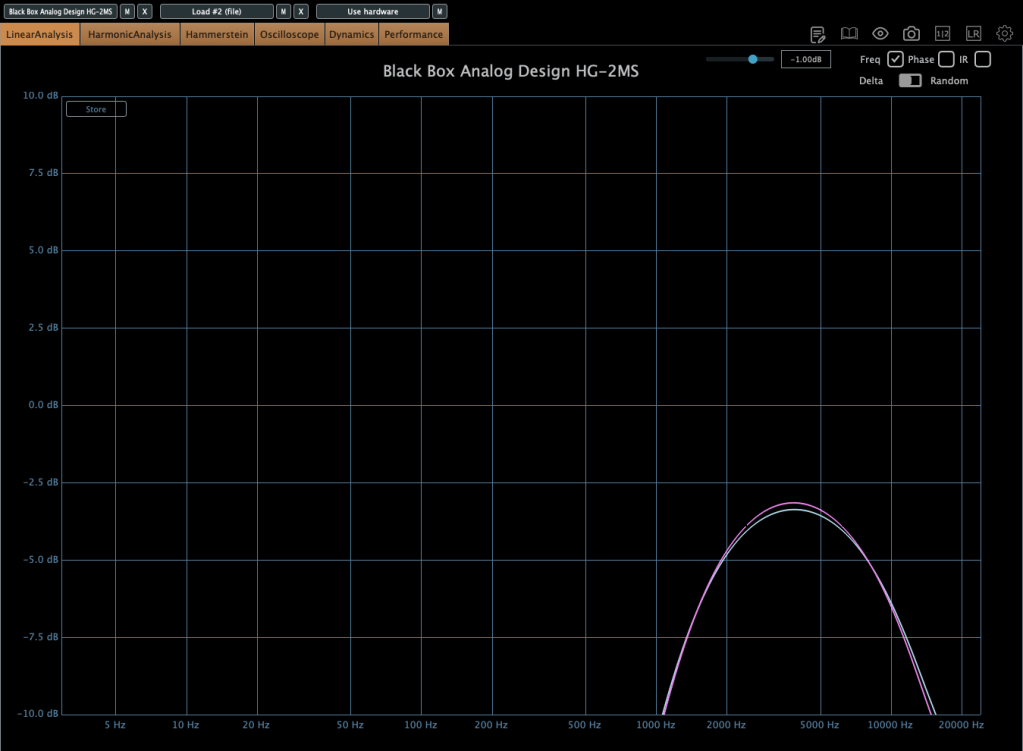
Photo: Frequency response by parameter—High Pass, Band Pass, Flat, Band Stop, Low Pass, from up to down

I measured the frequency response for each setting to show which frequency bands they affect—High Pass, Band Pass, Flat, Band Stop, and Low Pass.


Add colorful, frequency-selective tube saturation with M/S processing. Made by Brainworx, this is your mix bus’ best friend. Celebrated mix engineers like Dave Pensado, Bob Horn, and Jack Douglas rely on the sweet tubes and creamy-sounding transformers of the HG-2.

Personally, I like setting the Saturation to Flat, dialing back the Pentode a bit, and boosting the Triode. It gives a really nice sound—perfect for adding a touch of saturation at the final stage, like a sweet seasoning for your track.

If you’ve been thinking about a tube saturation plugin, this is a great chance to snag one at a discount.

That’s it for now—see you in the next post!

How to Use The Tape Machine Plugins?

Hi! This is Jooyoung Kim, mixing engineer and music producer.

A few days ago, I met my teacher, who taught me guitar and MIDI. We talked about various topics, including tape machine plugins. That conversation inspired me to write a blog post about using tape machine plugins.

If you purchase a plugin through a link in this article, I may receive a small commission.

Let’s dive in!

First, I wrote an article about tape saturation. If you wonder how it works, please read the post above.

UAD (Universal Audio Digital)

Recently, Plugin Boutique was having a bundle sale on tapes.

Among this bundle, I will talk about three: Oxide Tape Recorder, Studer A800 Tape Recorder, and Ampex ATR-102 Master Tape.

Oxide Tape Recorder

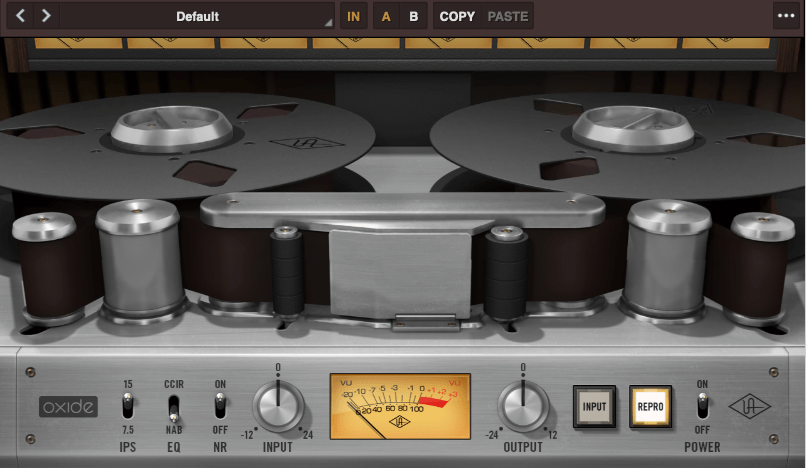
Oxide Tape Recorder is one of the best tape machine plugin made by UAD. The user interface of the Oxide Tape Recorder is simple and intuitive.

IPS means “Inches Per Second”. For example, when IPS is 15, the tape moves 15 inches per one second.

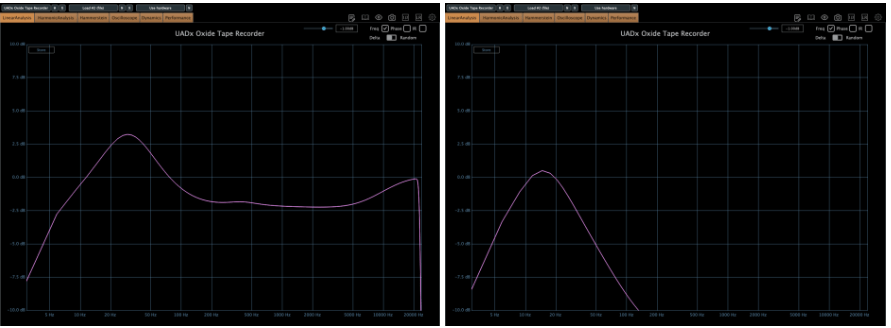
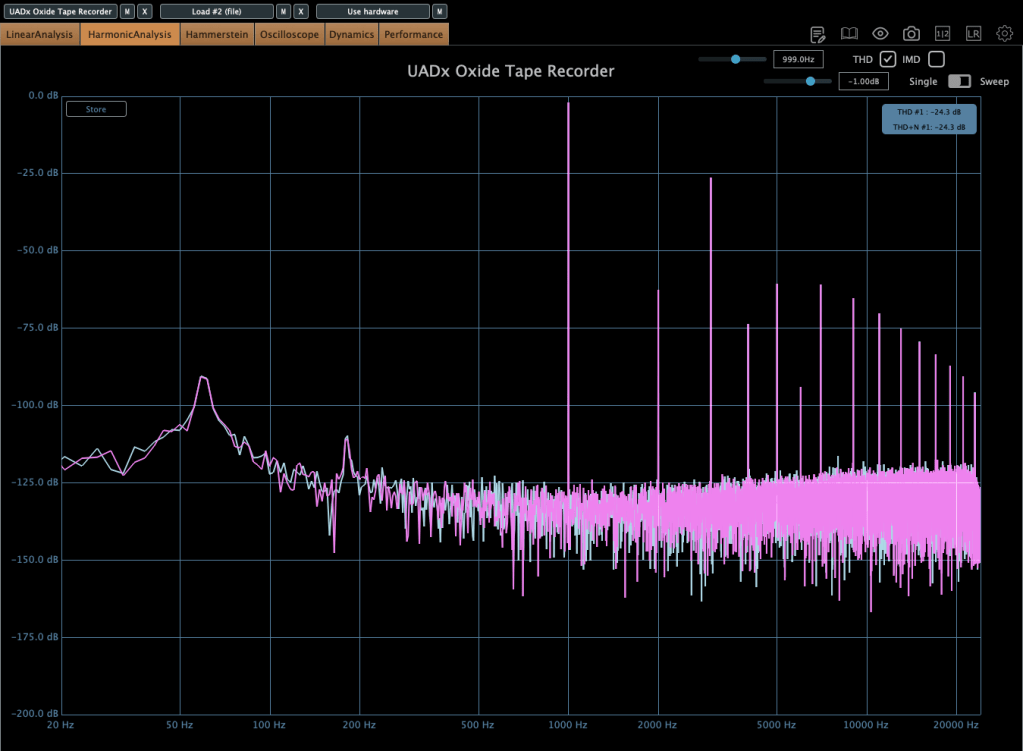
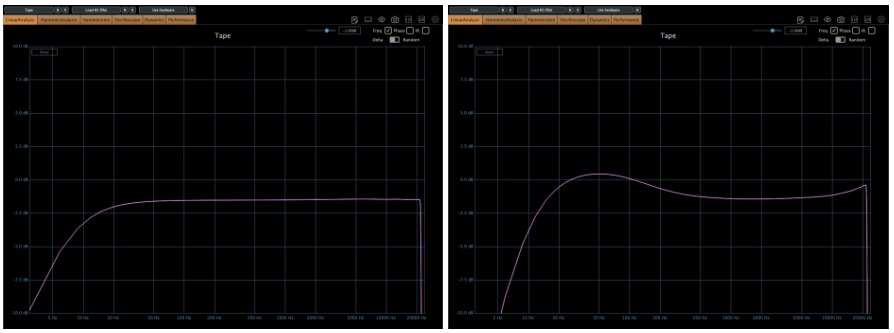
When EQ parameter is on NAB, left side is the frequency response of IPS 15, the other side is IPS 7.5
More gain at IPS 7.5
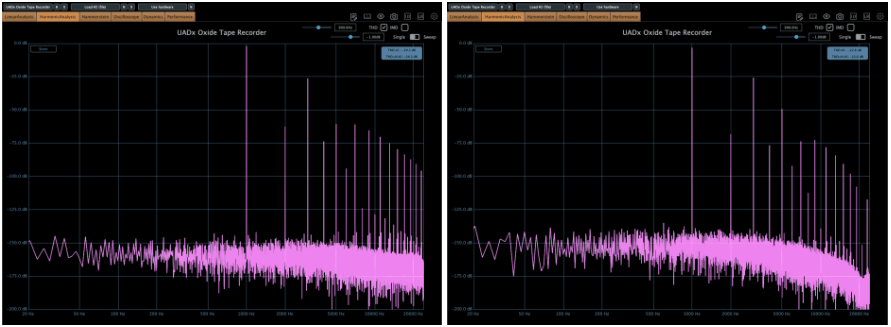
When EQ parameter is on NAB, left side is the harmonic distortion of IPS 15, the other side is IPS 7.5

You can see how IPS affects the frequency response and harmonic distortion.

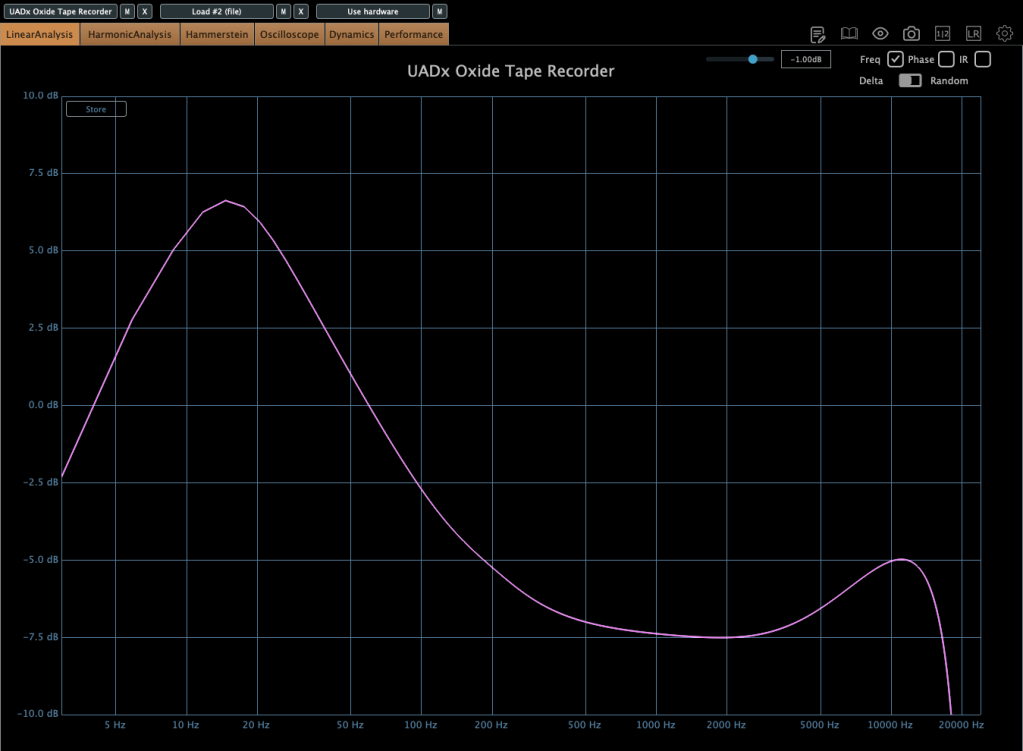
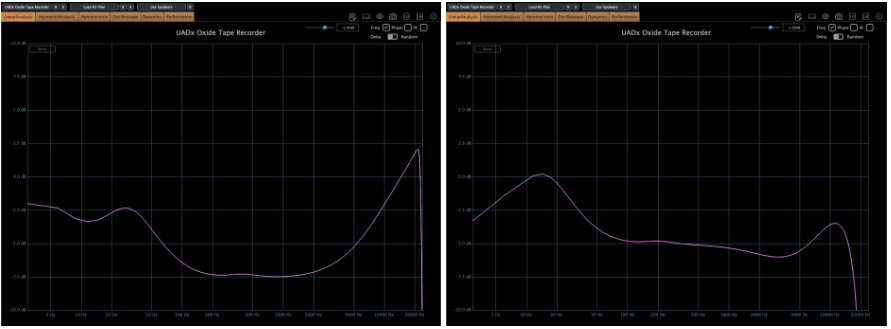
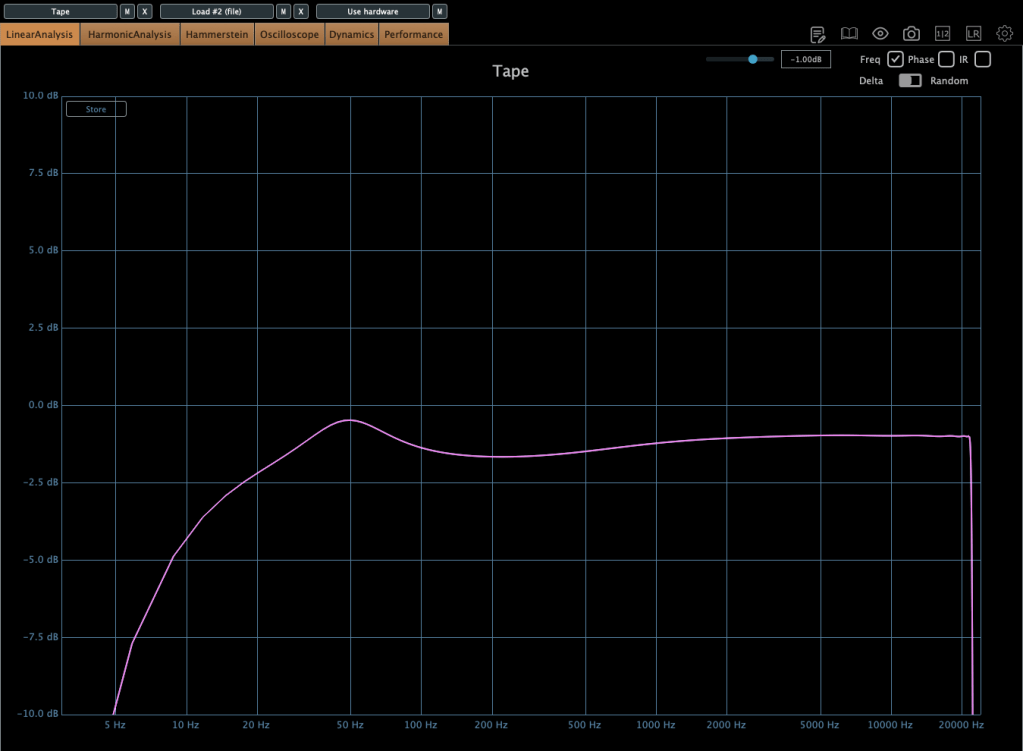
When EQ parameter is on CCIR, left side is the frequency response of IPS 15, the other side is IPS 7.5
If the input gain is too high, compression acts like a soft clipper.

The EQ parameter has two different values: NAB(National Association of Broadcasters) & CCIR(Comité Consultatif International des Radiocommunications, Now ITU-R)

People used to emphasize high frequency by recording process with tape recorder. This is due to high-frequency loss caused by the tape head and the machine. And then, de-emphasize the high frequency when the costumer play the tape.

At those situations, the EQ called NAB & CCIR was used.

NAB was the standard of the electricity with 60Hz alternating current like USA, and CCIR was the standard of 50Hz alternating current like EU(European Union).

The NAB standard sounds smoother and warmer than CCIR, whereas CCIR sounds clearer and sharper than NAB. It means CCIR more emphasize the high frequency field. You can see how the two differ by the upper frequency response graph.

The NR parameter means just “Noise Reduction”. If it turns off, the noise occurs.

That’s all you need to know about the Oxide Tape Recorder plugin. Simple!

Ampex ATR-102 Master Tape

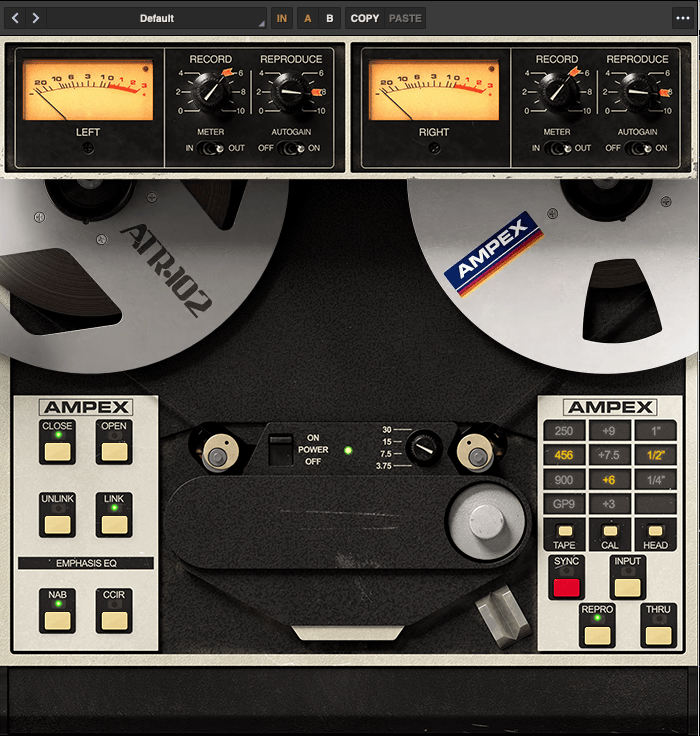
The parameters of the Ampex ATR-102 Master Tape are not as simple as those of the Oxide Tape Recorder. However, if you understand NAB, CCIR, and IPS, it’s easy to use.

Let’s see the parameters.

The record(input) and reproduce(output) knobs are located at the top of the plugin.

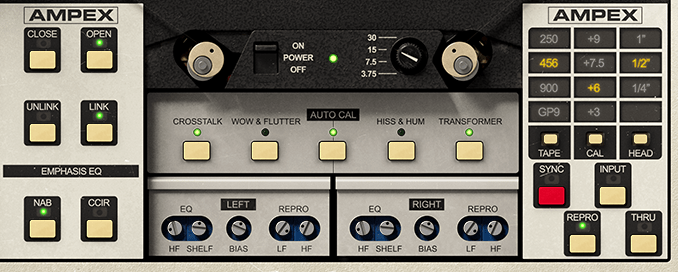
Down side of the plugin, there are buttons that enable detailed adjustments(open and close), and to choose NAB or CCIR.

The right side, you could change type of the tape, calibrate the volume, and choose the tape head width.

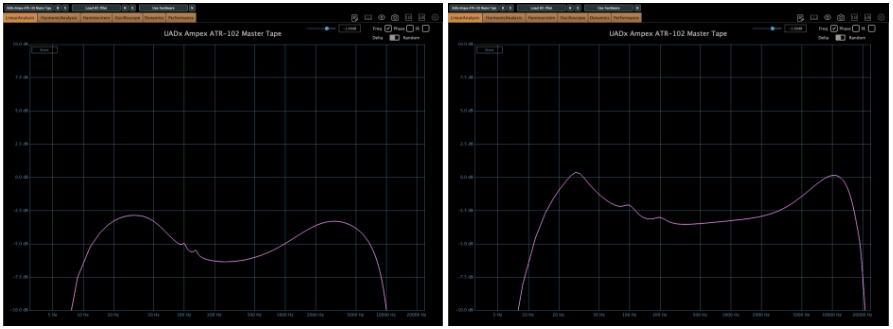
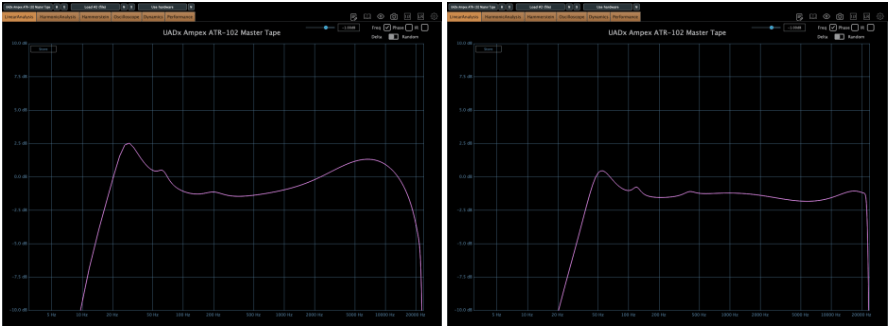
Based on 250 tape and NAB(when you choose IPS 30, couldn’t choice Emphasis EQ),

Left – IPS 3.75, Right – IPS 7.5
Left – IPS 15, Right – IPS 30

there are significant differences in frequency response.

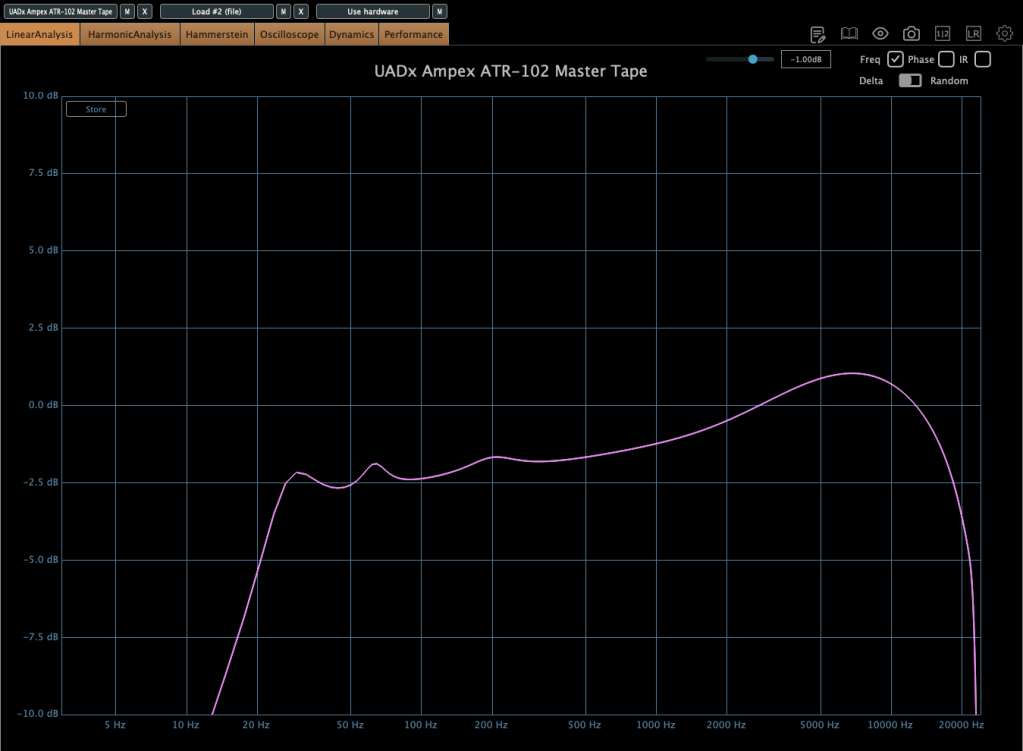
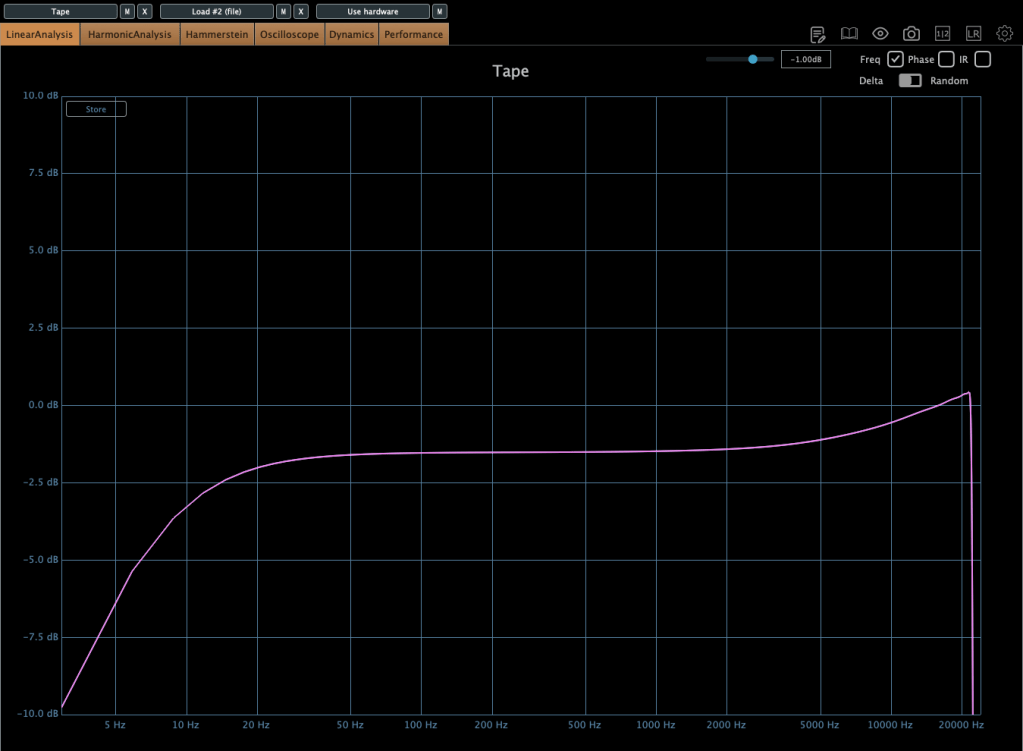
When the tape speed is at IPS 15, this graph shows how the frequency response change by selecting NAB to the other(CCIR).

Input gain and output gain value also make some difference, but it’s not that important..

Compression characteristic is unusual – increase high-volume signals even more – however, it’s not a noticeable difference, so I’ll skip the explanation.

Studer A800 Tape Recorder

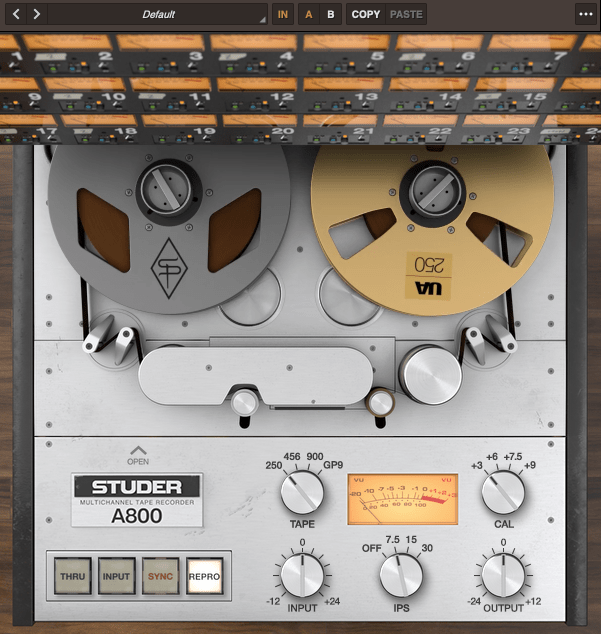
The parameter – tape type, calibration, IPS…

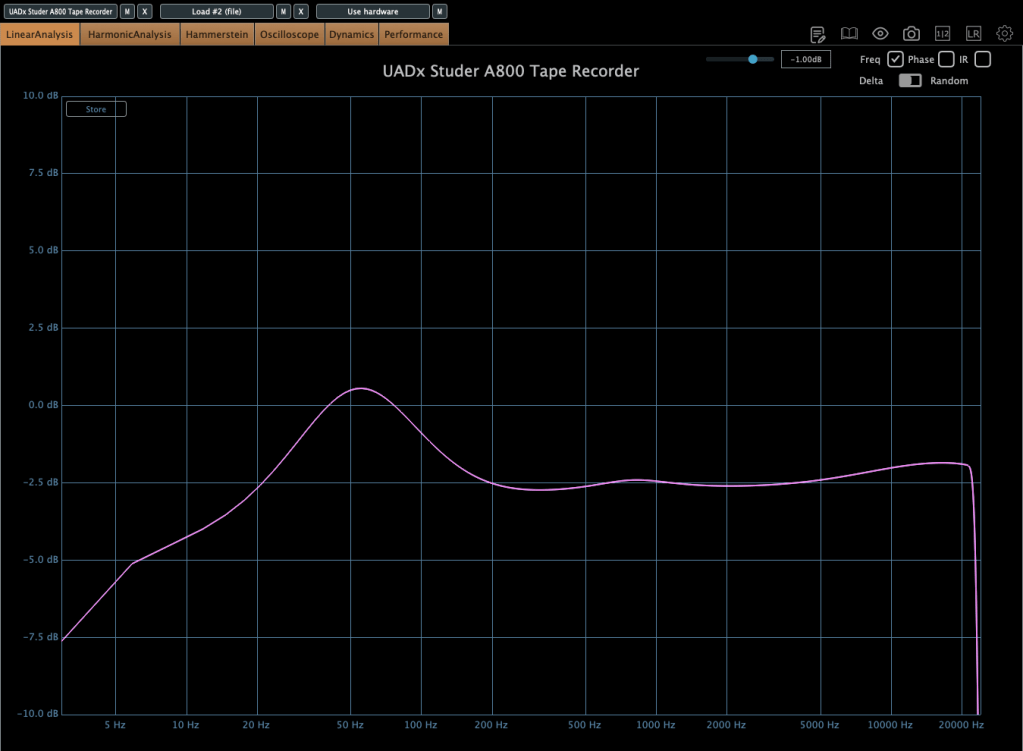
Left – IPS 7.5, Right – IPS 15
IPS 30

now it’s really simple. Isn’t it?

Now, without further ado, you can think of it as a friend that emphasizes the low range, and the frequency response changes like this depending on the IPS!

IK Multimedia

IK Multimedia makes various plugins like virtual instruments, mixing and mastering effects – their tape machine plugins are really great.

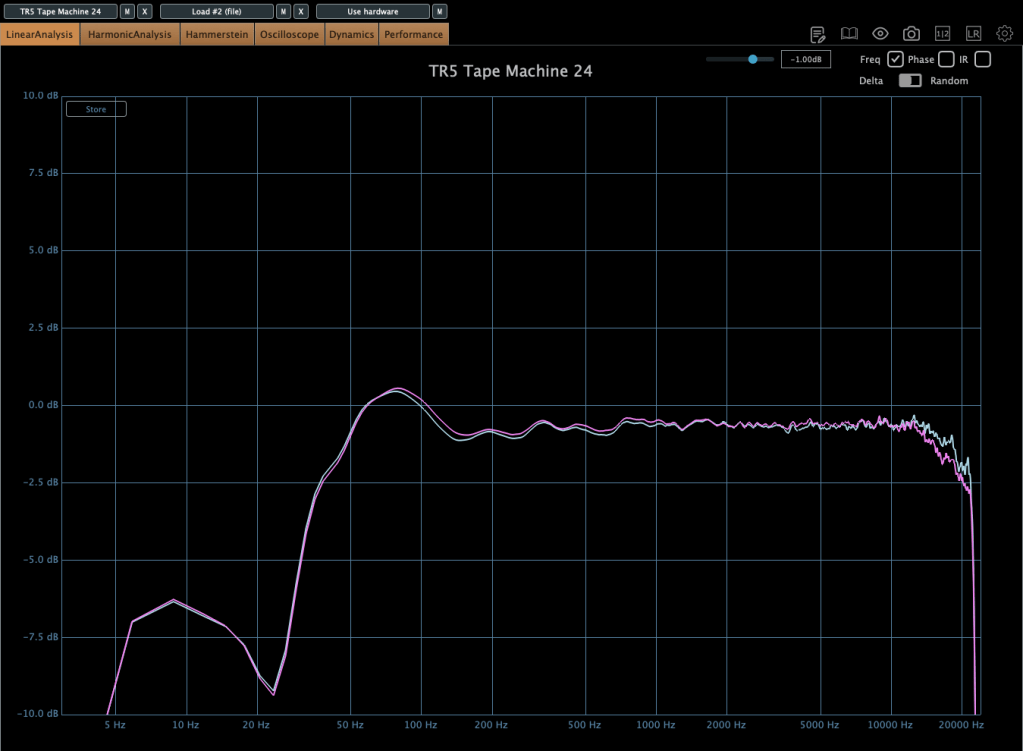
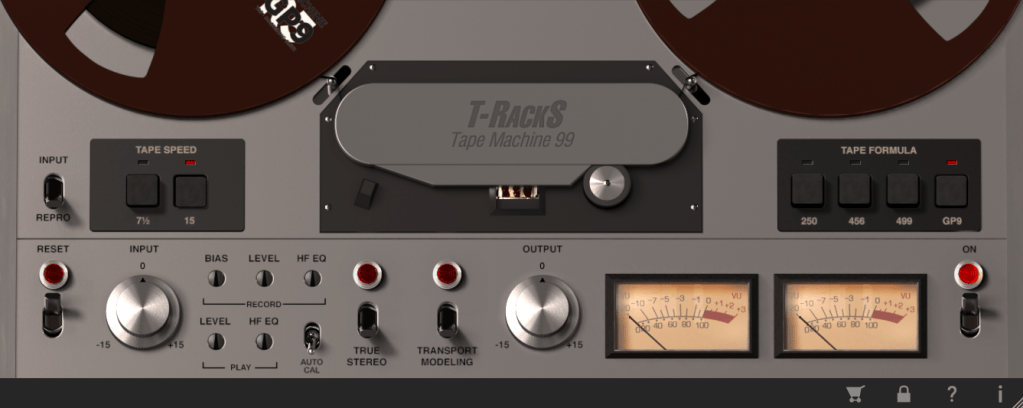
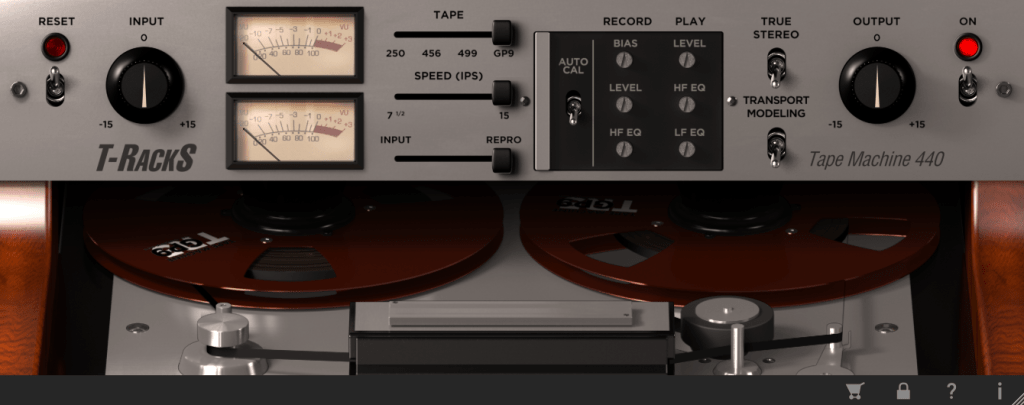
The total bundle sale started on Black Friday, but it’s still on sale. T-racks 5 MAX included in the total bundle includes a total of four tape machine plug-ins: Tape Machine 24, 80, 99, and 440. Let’s look around.

Parameters seems similar.. Tape types, IPS..

IPS 15 in GP9 tape

True stereo parameter makes the difference response between left and right, and transport modeling makes the variation value of the volume by time.

IPS 30 in GP9 tape

The other plugins’ parameters are same as Tape Machine 24 plugin. Just the machines are different, and they make difference in frequency response.

Simple!

Softube Tape

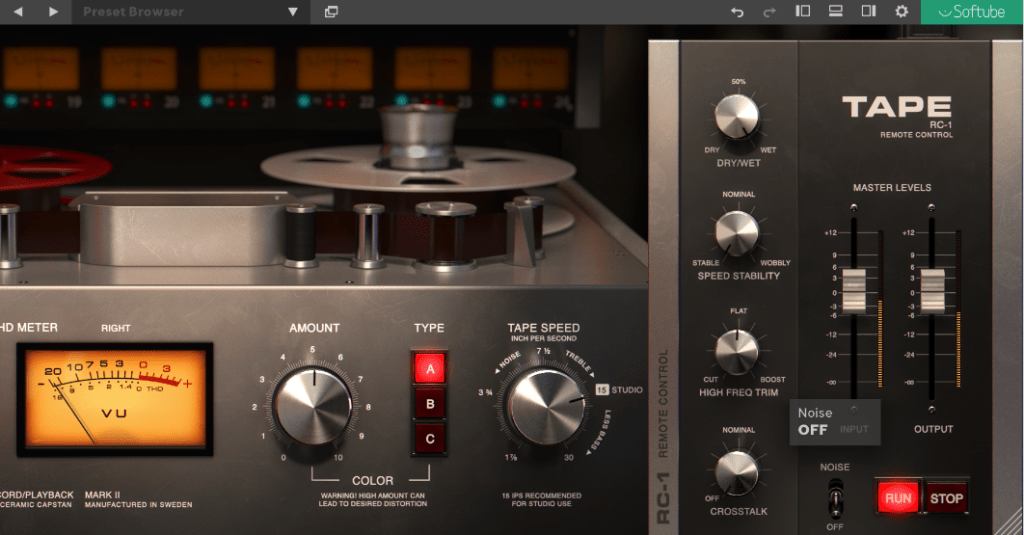
Softube’s Tape plugin is very clean tape machine plugin. The harmonic distortion quantity could changeable by Amount parameter, and tape type could be selected by the Type parameter. (Type A is clean side, B has quit a lot of low frequencies, C has the characteristic between A and B)

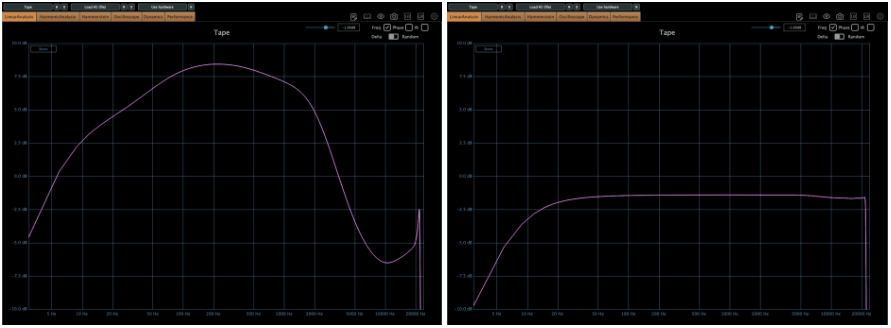
Left – Default type A, Right – Default type B
Default type C

Tape speed could be changed by IPS too.

Type A tape Left – IPS 7/8, Right – IPS 3 3/4
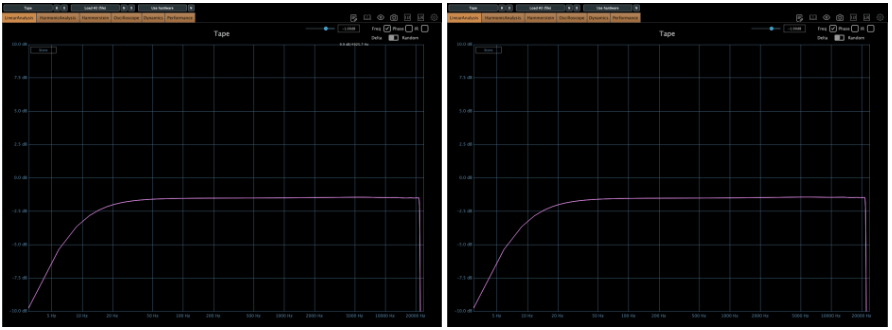
Type A tape Left – IPS 7 1/2, Right – IPS 15
Type A tape IPS 30

Waves also has a famous tape machine plugin called Kramer and J37, but as I was writing this, the patterns became too similar, so I will omit them.

However, there is a parameter called Bias that exists only in Waves.

If you wonder about the bias, please read upper article.

If you look at it so far, you will feel something. IPS, EQ and the tape type are everything about a tape machine.

I think that just remembering this will make it easier to use the tape plugins.

Thanks for reading! See you in the next post.

Brainworx Saturators Overview & Sale (SPL Machine Head, SPL Vitalizer MK2-T, Elysia Karacter)

Hello everyone! I’m Jooyoung Kim, a mixing engineer and music producer.

Recently, Brainworx released a plugin emulation of the SPL Machine Head, a classic saturation device. Since it’s currently on sale, I thought it would be a great opportunity to introduce not only this plugin but also two other renowned Brainworx saturators: SPL Vitalizer MK2-T and Elysia Karacter.

I received an NFR (Not for Resale) copy of this plugin from Plugin Boutique for review. If you purchase through the links in this blog, I receive a small commission, which helps me continue my work. Your support is greatly appreciated!


SPL Machine Head

The SPL Machine Head was originally released in 1997 as a tape machine saturation simulator. Unlike traditional analog tape machines, this hardware version was fully digital, eliminating wow, flutter, and noise while allowing precise control over the saturation process.

Brainworx has faithfully recreated this in plugin form, bringing its unique sonic characteristics to the digital domain.

Controls Overview:

  • The Original version has 4 knobs, while the Ultimate version has 5.
  • Besides Input and Output levels, the main controls include Drive, High Frequency, and Low Frequency.
Left one is original, right one is ultimate

In the default state, it slightly boosts the high frequencies and enhances third-order harmonics.

Left one is original, right one is ultimate

When increasing the Tape Speed, an actual tape machine would typically alter the frequency response by rolling off both low and high frequencies. However, in this plugin, it seems to achieve a similar effect by adjusting volume and high-frequency slope.

Key Takeaways:

  • Functions as an EQ (HF knob boosts/cuts highs, LF knob boosts/cuts lows)
  • Adds third-order harmonics for natural saturation
  • Slight compression effect at higher input levels

Compared to other saturators I’ve used, the effect is subtle and very natural. I find it particularly useful for enhancing high frequencies, similar to the Maag EQ4 or Baxandall EQ.

🔹 On Sale Until April 22 🔹

Plugin Alliance plugins typically see deeper discounts about a year after release, so if you’re not in a rush, you can wait for an even better deal.

🔹 Recommended Master Bus Settings: 🔹

  1. Ultimate mode
  2. Drive at 0.5
  3. High Tape Speed On (30 IPS)

SPL Vitalizer MK2-T

The SPL Vitalizer MK2-T is a tube-based saturator with versatile tone-shaping capabilities.

I once debated whether to buy this hardware unit or another compressor. I went with the compressor, but the Vitalizer remains an incredibly flexible tool.

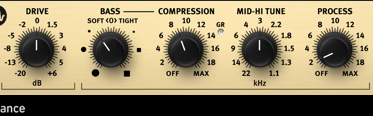
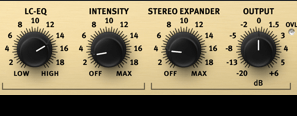
The SPL Vitalizer offers four main processing areas:

  1. Drive
  2. Bass & High-Frequency Control
  3. LC (Inductor-Capacitor) Filter-based High Shelf EQ
  4. Stereo Expander

Control Breakdown:

  • Drive: Determines how much effect is applied, not just input gain.
  • Bass (Soft <0> Tight):
    • Soft: Boosts overall bass
    • Tight: Slightly reduces overall levels while enhancing only the bass region.
  • Compression: Works only on the bass frequencies, with automatic Threshold, Attack, and Release settings. The Compression knob adjusts the ratio.
  • Mid-Hi Tune: A shelving EQ for the mid-to-high range.
  • Process: Controls the overall amount of bass, compression, and mid-high tuning applied.
  • LC-EQ: A high-shelf EQ using LC circuits.
  • Stereo Expander: A stereo enhancement tool.

Initially, the controls may feel unfamiliar, but once you get used to them, you’ll find many creative applications.

This plugin goes on sale frequently, so check out the demo before purchasing!


Elysia Karacter

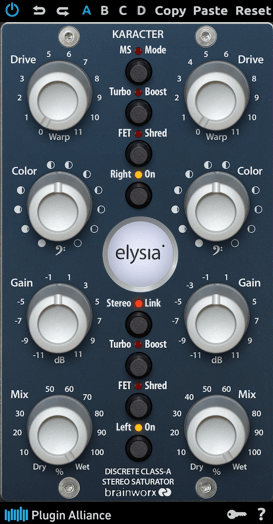
The Elysia Karacter is a highly regarded hardware saturator, now available as a plugin.

It features automatic oversampling:

  • 4x oversampling for sample rates below 50kHz
  • 2x oversampling for sample rates below 100kHz
  • No oversampling for rates 100kHz and above

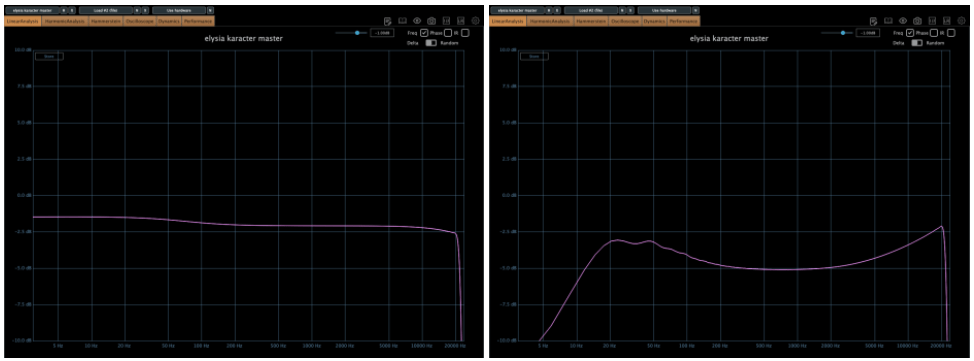
It also includes MS mode, Turbo Boost mode, and FET Shred mode.

On the left, we have the default settings, while the right shows the FET mode, which emulates the classic “Smile EQ” curve.

⚠️ Caution:

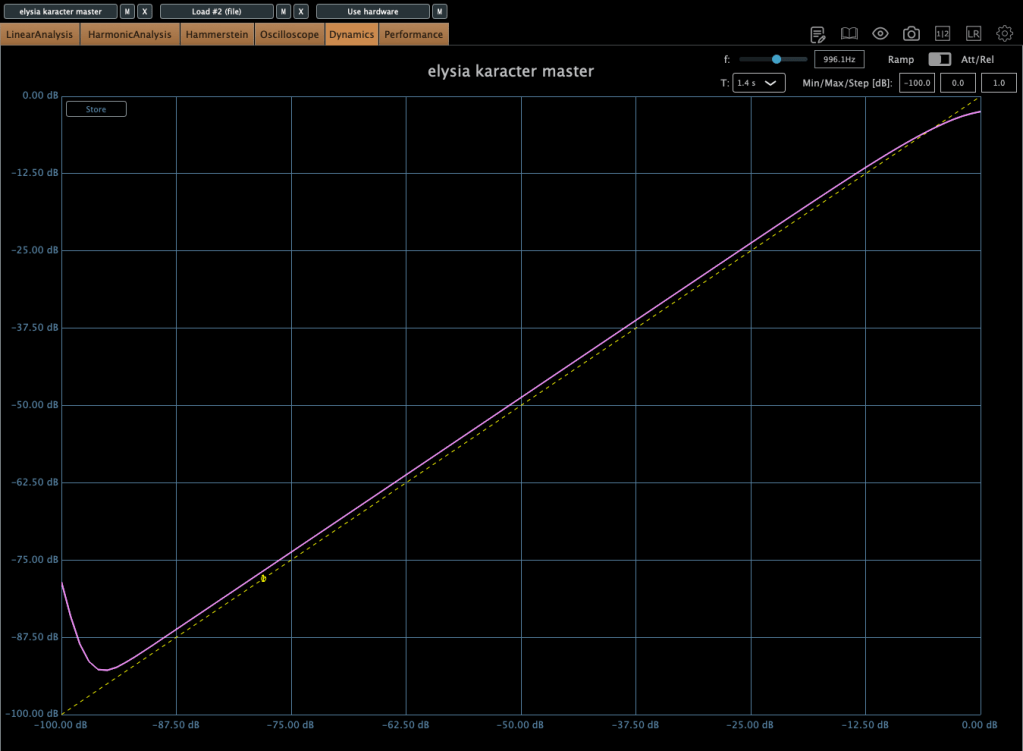
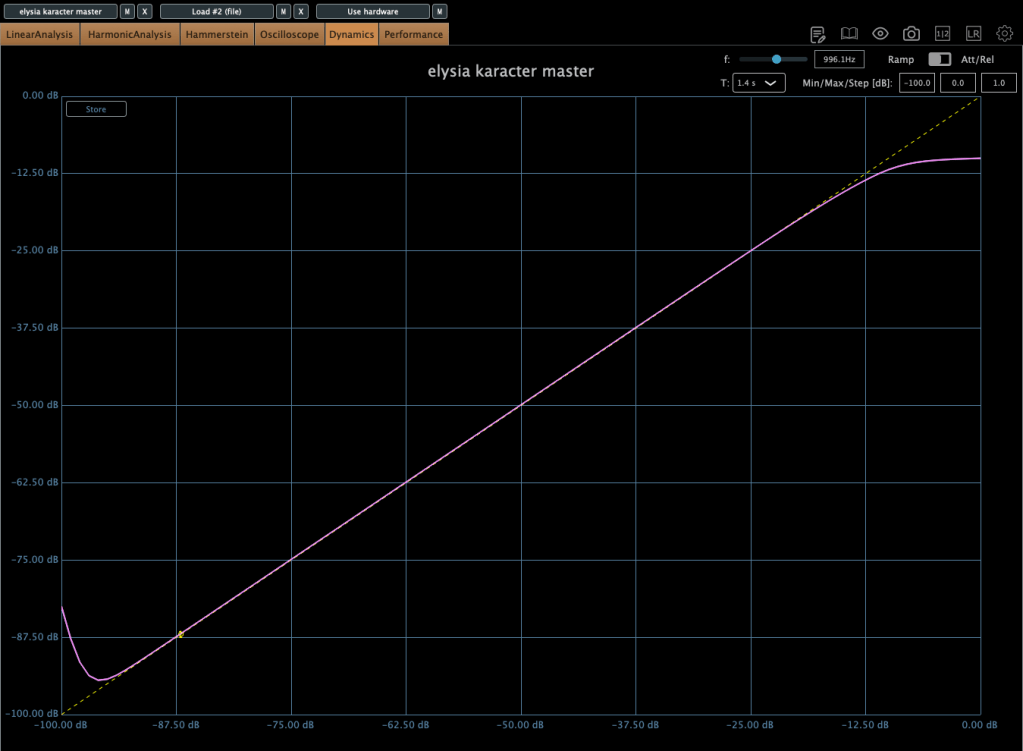
  • If driven too hard, it automatically compresses the signal.
  • This isn’t standard compression but rather an emulation of analog clipping.

Increasing the Drive lowers the compression Threshold, so careful gain staging is crucial.

Color Knob:

  • Turn left: Boosts ultra-low frequencies (5–50Hz)
  • Turn right: Boosts overall low frequencies (below 100Hz)

I love the saturation in FET mode, but due to its aggressive nature, I recommend placing gain plugins before and after it to control input and output levels.

This plugin also goes on sale frequently, so keep an eye out!


Plugin Alliance vs. Plugin Boutique Pricing

Recently, Plugin Alliance started adding a 10% tax at checkout. Because of this, Plugin Boutique often offers a better deal, especially considering their loyalty points and free plugins.


That’s it for today’s review! Hope this helps you decide which saturator fits your needs.

See you in the next post!