A Tip Exporting or Bouncing FLAC and MP3 Files for Mastering (with a Bit of Python Codes)

Hey there! I’m Jooyoung Kim, a mixing engineer and music producer.

Today, I want to talk about something light but super useful: how to properly export audio files after mixing and mastering.

Let’s dive in!


The Basics of Exporting Audio Files

Once mixing and mastering are complete, you typically need to export your tracks in multiple formats—WAV, FLAC, and MP3—to send to clients or distributors.

But here’s the catch: not all DAWs make this process easy. For example:

  • Pro Tools and Logic Pro X don’t have built-in options to export FLAC files.
  • Cubase supports FLAC, but you have to export each format individually, which can be a hassle.

I’ve previously written about audio codecs in my blog series Basics of Mixing.

To recap:

  • WAV: The original, uncompressed file format.
  • FLAC: A lossless compressed format.
  • MP3: A lossy compressed format.

Both FLAC and MP3 use codecs that are freely available for encoding and decoding. So, why not use a simple script to automate the process?


Automating FLAC and MP3 Exports with Python

Here’s a quick and easy way to convert your WAV files to FLAC and MP3 using Python and the ffmpeg-python library.

Step 1: Install ffmpeg-python

First, make sure you have Python installed. Then, open your terminal (Mac) or command prompt (Windows) and run:

pip install ffmpeg-python

This might take a minute or two, but it’s worth it!

Step 2: The Python Code

Here’s a simple script to convert a WAV file to both MP3 and FLAC:

import ffmpeg

# 📂 Input file path
input_path = '/path/to/input.wav'

# 📂 Output file paths
output_mp3 = '/path/to/output.mp3'
output_flac = '/path/to/output.flac'

# ✅ WAV → MP3 (CBR - Constant Bitrate 320kbps; you can change '320k' to '256k' for different bitrates)
ffmpeg.input(input_path).output(output_mp3, audio_bitrate='320k', format='mp3').run()

# ✅ WAV → FLAC (compression_level: 0-8; higher numbers mean higher compression)
ffmpeg.input(input_path).output(output_flac, format='flac', compression_level='8').run()

Step 3: Save and Run the Script

  1. Copy the code above into a text editor.
    • Mac users: Ensure your text editor is set to plain text (not RTF).
  2. Save the file with a .py extension (like convert_audio.py).
  3. Run the script using Python (like python convert_audio.py).

Voilà! You’ll have your FLAC and MP3 files in no time.


How to Find File Paths

  • Mac: Drag and drop your WAV file into the Terminal, and the file path will appear automatically.
  • Windows: Right-click the file, select “Properties,” and copy the file path from there (you may need to adjust the path format slightly, use backslashes \).

Why This Matters
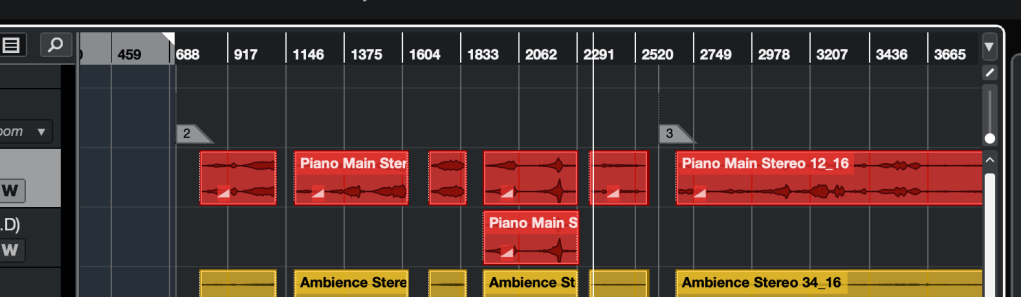
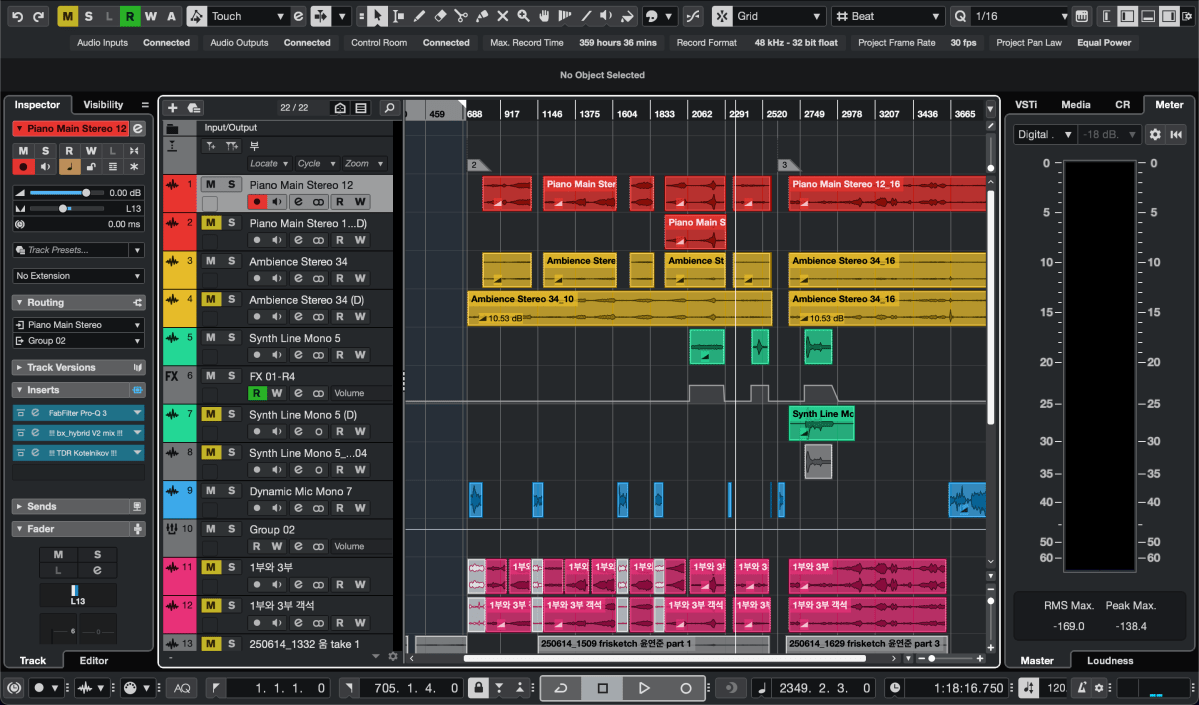
So many bars in this project.. It could be take a day if I export wav, flac and mp3 files by the export function of the DAW

Manually exporting files in different formats can be a time sink, especially for long projects like live recordings over an hour. Using this script, you can:

  • Save hours of repetitive work.
  • Quickly generate high-quality FLAC and MP3 files.

A Few Notes

  • Bit Depth and Sample Rate: For MP3 files, it’s standard to use 44.1kHz and 16-bit WAV files as the source. FLAC can handle higher resolutions (e.g., 48kHz, 24-bit) if needed.
  • Dithering: FFmpeg’s dithering options are basic, so for WAV files with specific bit depth or sample rate conversions (e.g., 48kHz/24-bit to 44.1kHz/16-bit), it’s better to handle those in your DAW for better quality.
  • MP3 Standards: Always use a 44.1kHz, 16-bit WAV file as the source for MP3 conversion to meet industry standards.

Final Thoughts

This is a super basic tip, but I couldn’t find many clear guides on this topic online, so I wanted to share it with you. If you’ve never coded before, this might seem intimidating at first, but trust me—it’s straightforward and will save you tons of time.

Give it a try, and let me know how it goes! Until next time, happy mixing! 🙂
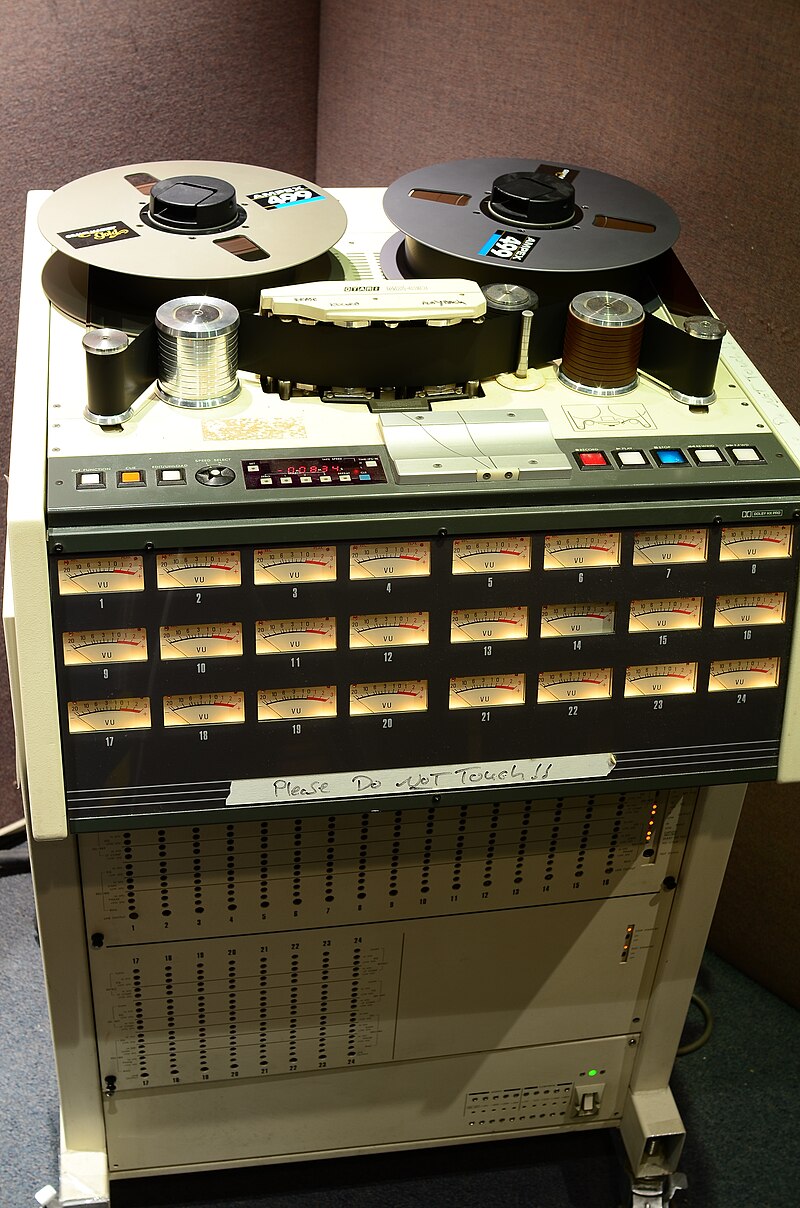
How to Use The Tape Machine Plugins?

Hi! This is Jooyoung Kim, mixing engineer and music producer.

A few days ago, I met my teacher, who taught me guitar and MIDI. We talked about various topics, including tape machine plugins. That conversation inspired me to write a blog post about using tape machine plugins.

If you purchase a plugin through a link in this article, I may receive a small commission.

Let’s dive in!

First, I wrote an article about tape saturation. If you wonder how it works, please read the post above.

UAD (Universal Audio Digital)

Recently, Plugin Boutique was having a bundle sale on tapes.

Among this bundle, I will talk about three: Oxide Tape Recorder, Studer A800 Tape Recorder, and Ampex ATR-102 Master Tape.

Oxide Tape Recorder

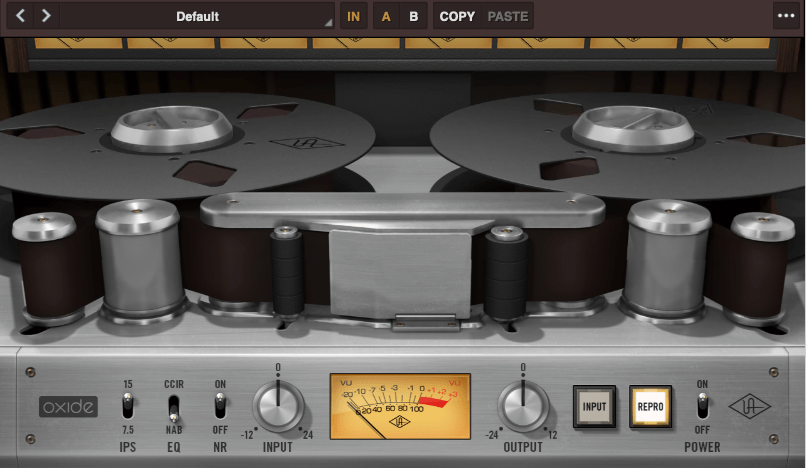
Oxide Tape Recorder is one of the best tape machine plugin made by UAD. The user interface of the Oxide Tape Recorder is simple and intuitive.

IPS means “Inches Per Second”. For example, when IPS is 15, the tape moves 15 inches per one second.

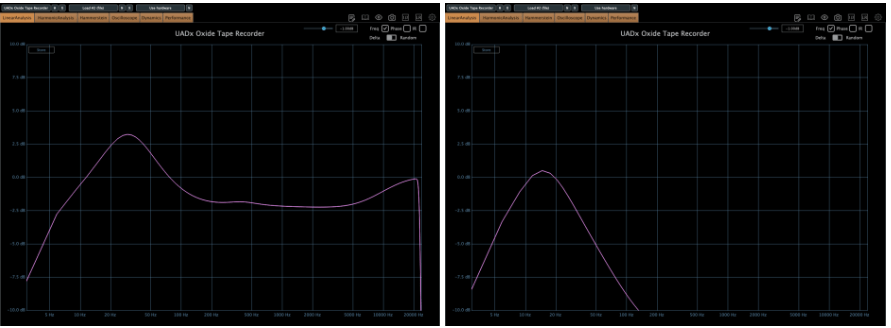
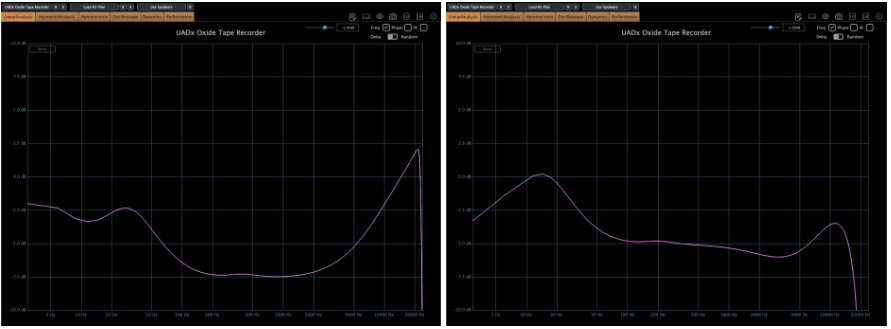
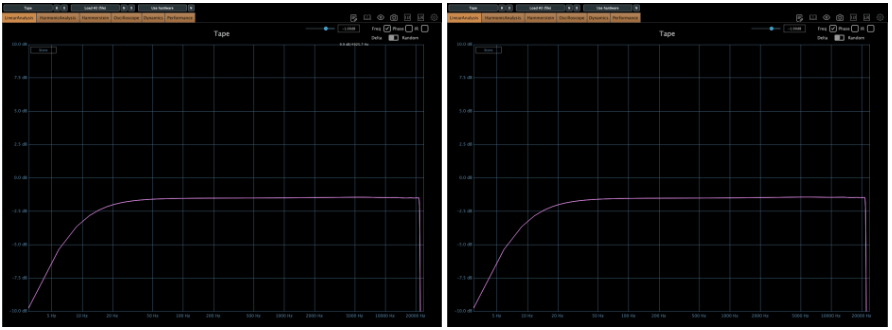
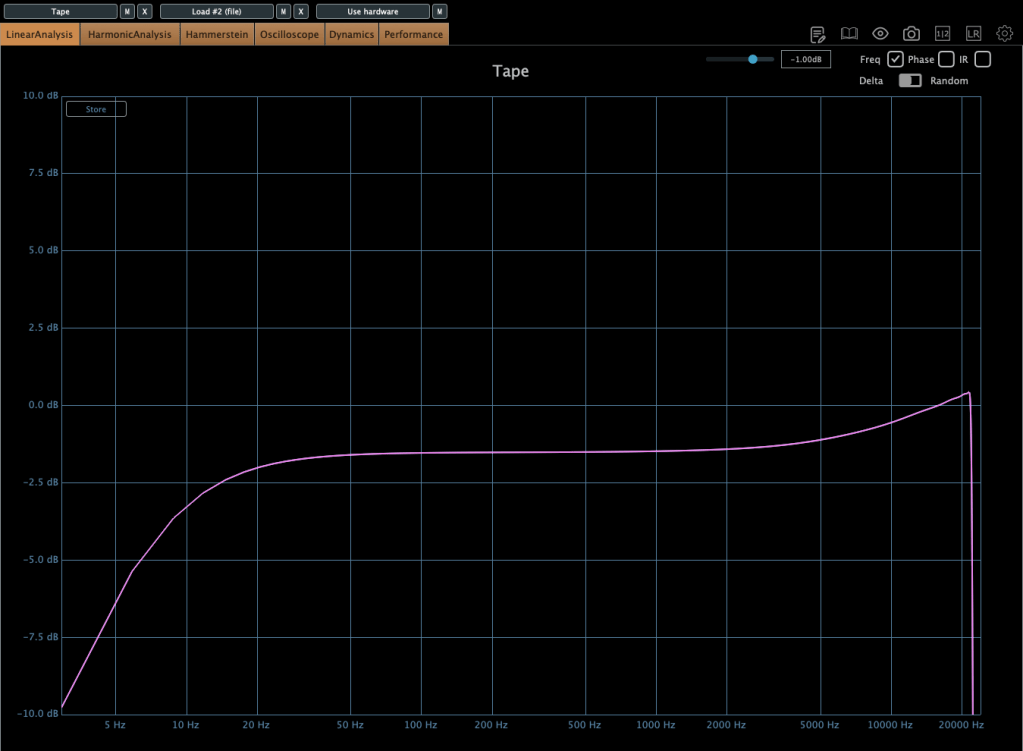
When EQ parameter is on NAB, left side is the frequency response of IPS 15, the other side is IPS 7.5
More gain at IPS 7.5
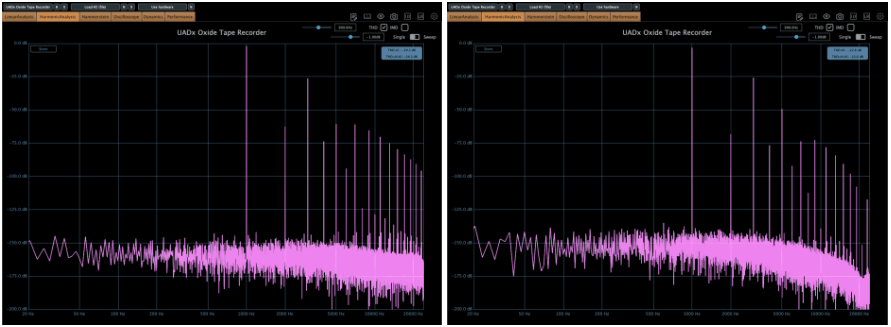
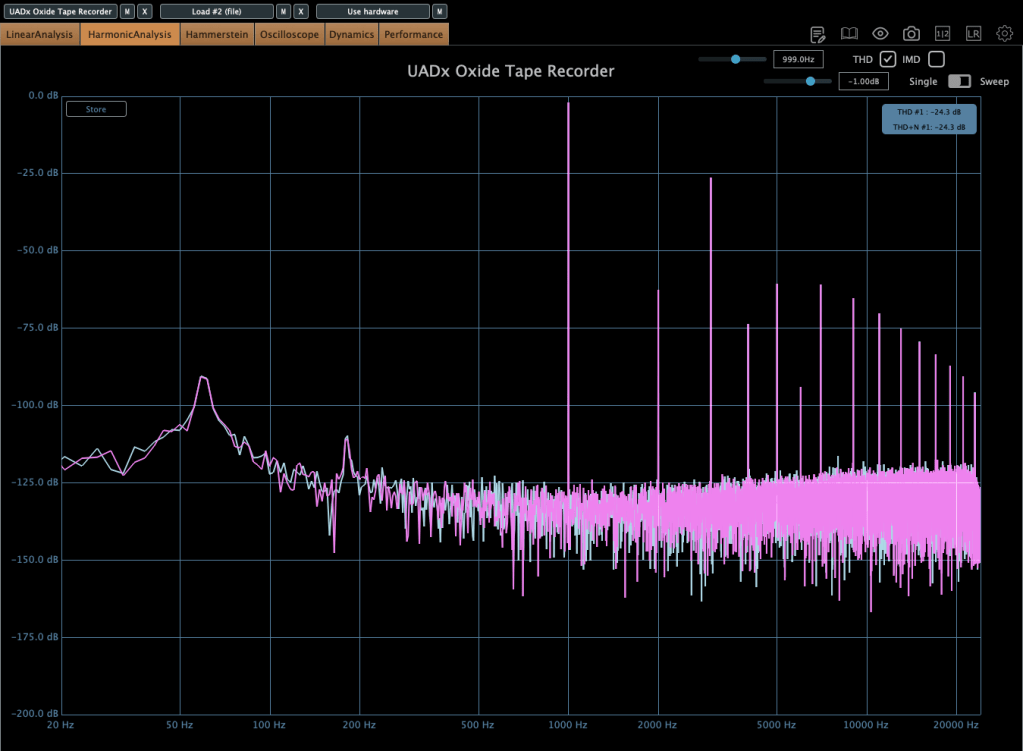
When EQ parameter is on NAB, left side is the harmonic distortion of IPS 15, the other side is IPS 7.5

You can see how IPS affects the frequency response and harmonic distortion.

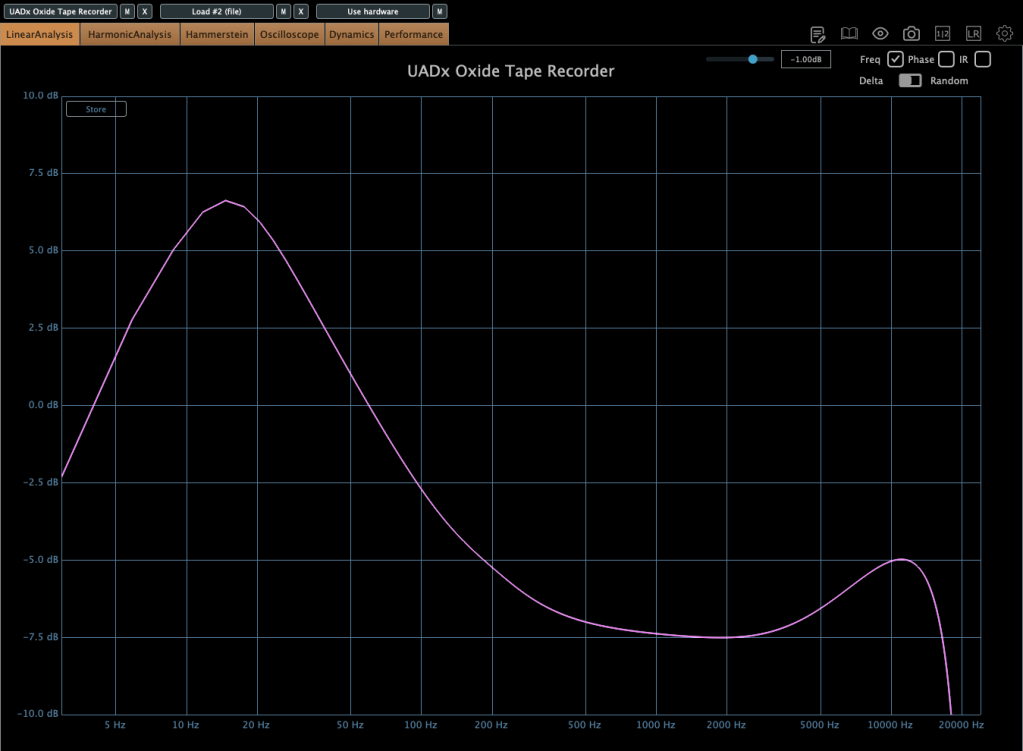
When EQ parameter is on CCIR, left side is the frequency response of IPS 15, the other side is IPS 7.5
If the input gain is too high, compression acts like a soft clipper.

The EQ parameter has two different values: NAB(National Association of Broadcasters) & CCIR(Comité Consultatif International des Radiocommunications, Now ITU-R)

People used to emphasize high frequency by recording process with tape recorder. This is due to high-frequency loss caused by the tape head and the machine. And then, de-emphasize the high frequency when the costumer play the tape.

At those situations, the EQ called NAB & CCIR was used.

NAB was the standard of the electricity with 60Hz alternating current like USA, and CCIR was the standard of 50Hz alternating current like EU(European Union).

The NAB standard sounds smoother and warmer than CCIR, whereas CCIR sounds clearer and sharper than NAB. It means CCIR more emphasize the high frequency field. You can see how the two differ by the upper frequency response graph.

The NR parameter means just “Noise Reduction”. If it turns off, the noise occurs.

That’s all you need to know about the Oxide Tape Recorder plugin. Simple!

Ampex ATR-102 Master Tape

The parameters of the Ampex ATR-102 Master Tape are not as simple as those of the Oxide Tape Recorder. However, if you understand NAB, CCIR, and IPS, it’s easy to use.

Let’s see the parameters.

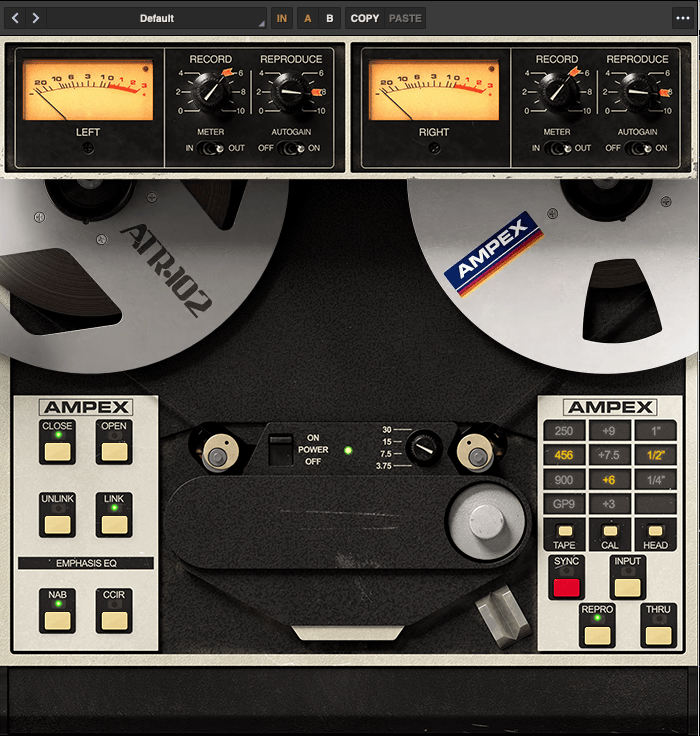
The record(input) and reproduce(output) knobs are located at the top of the plugin.

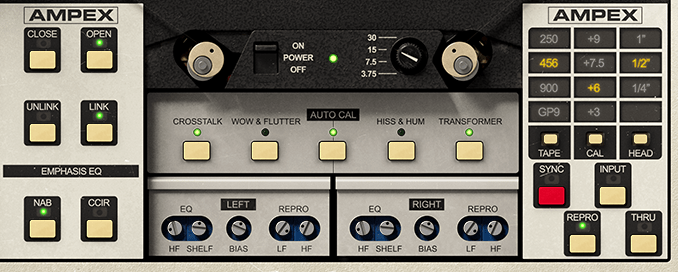
Down side of the plugin, there are buttons that enable detailed adjustments(open and close), and to choose NAB or CCIR.

The right side, you could change type of the tape, calibrate the volume, and choose the tape head width.

Based on 250 tape and NAB(when you choose IPS 30, couldn’t choice Emphasis EQ),

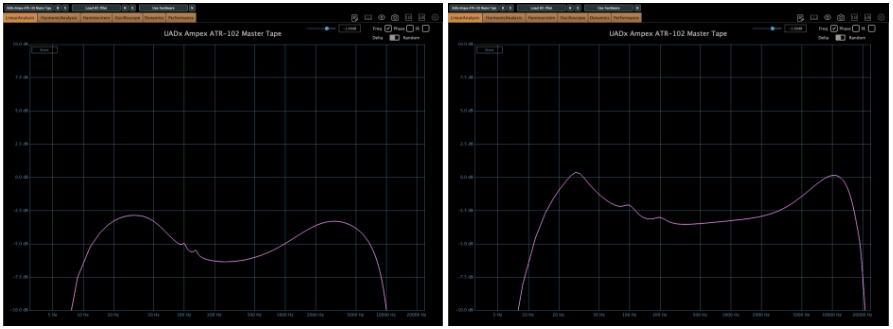
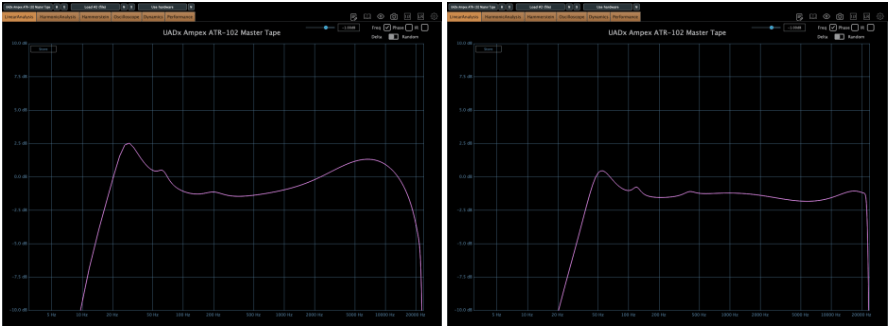
Left – IPS 3.75, Right – IPS 7.5
Left – IPS 15, Right – IPS 30

there are significant differences in frequency response.

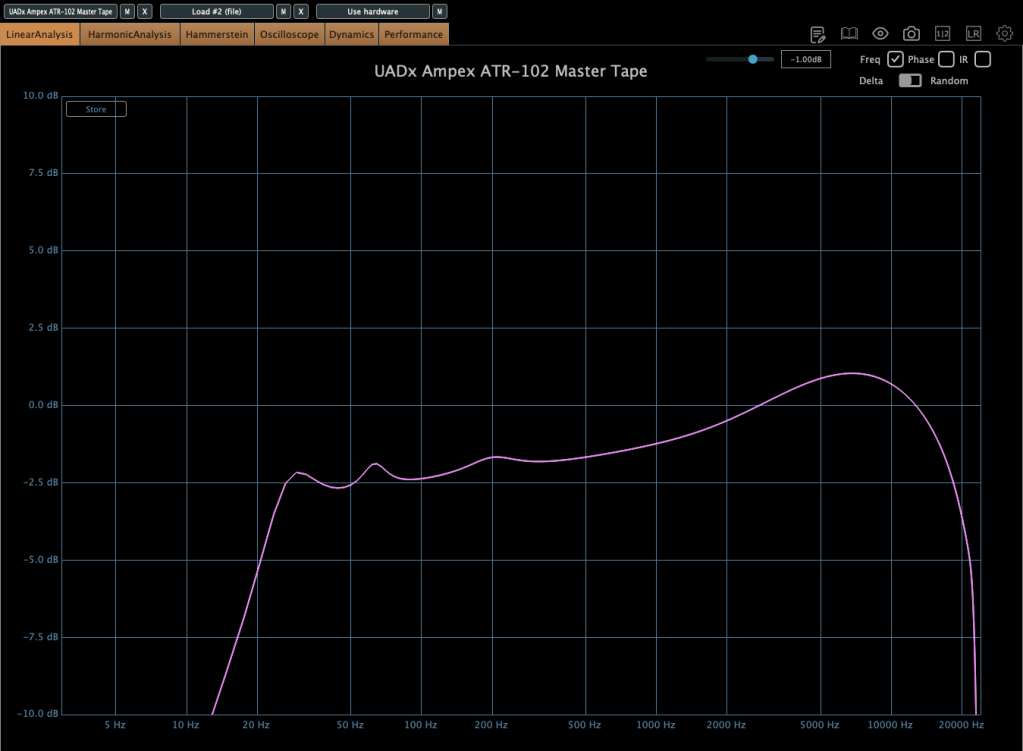
When the tape speed is at IPS 15, this graph shows how the frequency response change by selecting NAB to the other(CCIR).

Input gain and output gain value also make some difference, but it’s not that important..

Compression characteristic is unusual – increase high-volume signals even more – however, it’s not a noticeable difference, so I’ll skip the explanation.

Studer A800 Tape Recorder

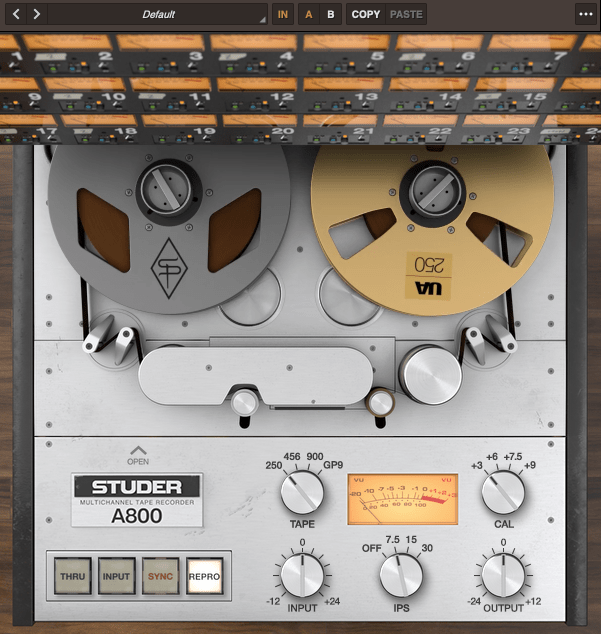
The parameter – tape type, calibration, IPS…

Left – IPS 7.5, Right – IPS 15
IPS 30

now it’s really simple. Isn’t it?

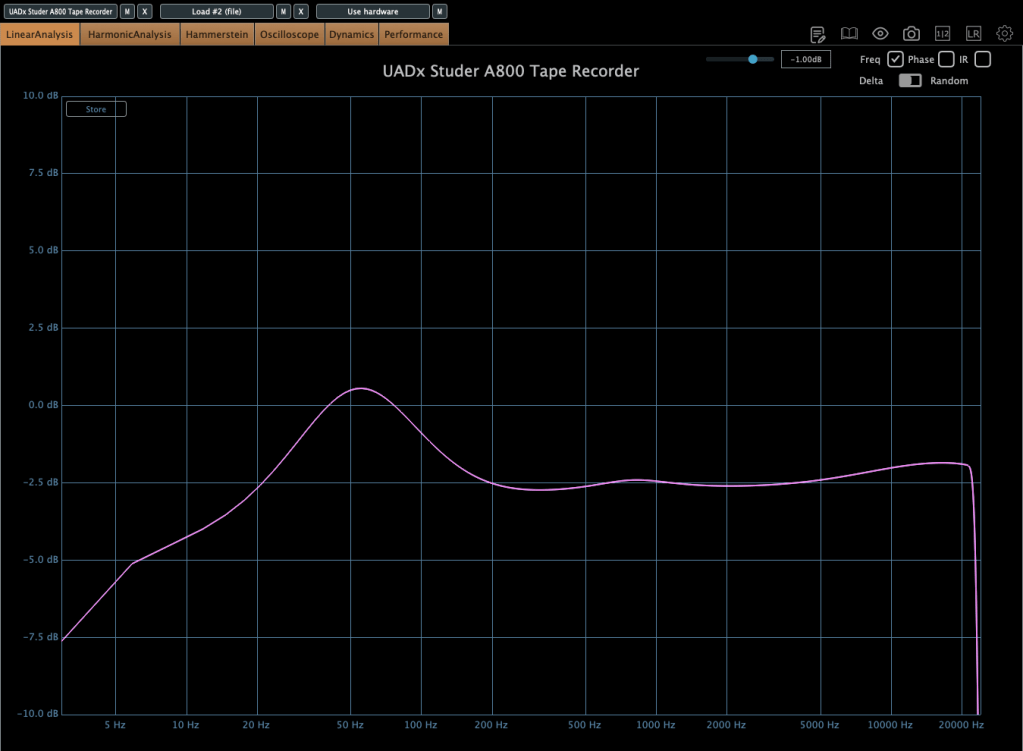
Now, without further ado, you can think of it as a friend that emphasizes the low range, and the frequency response changes like this depending on the IPS!

IK Multimedia

IK Multimedia makes various plugins like virtual instruments, mixing and mastering effects – their tape machine plugins are really great.

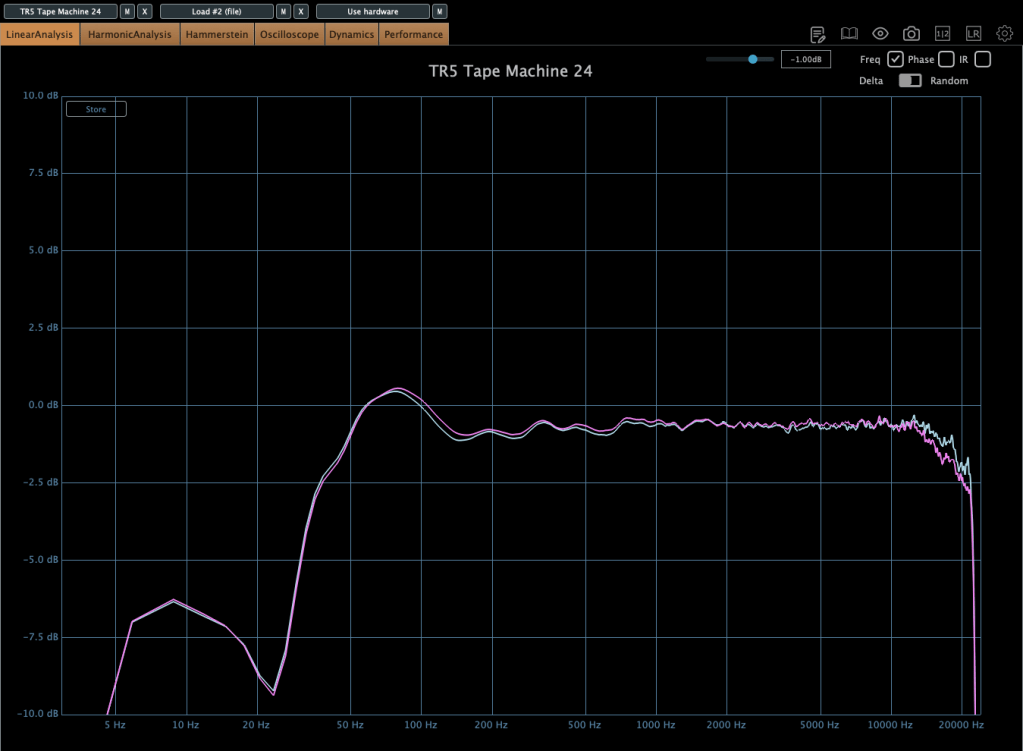
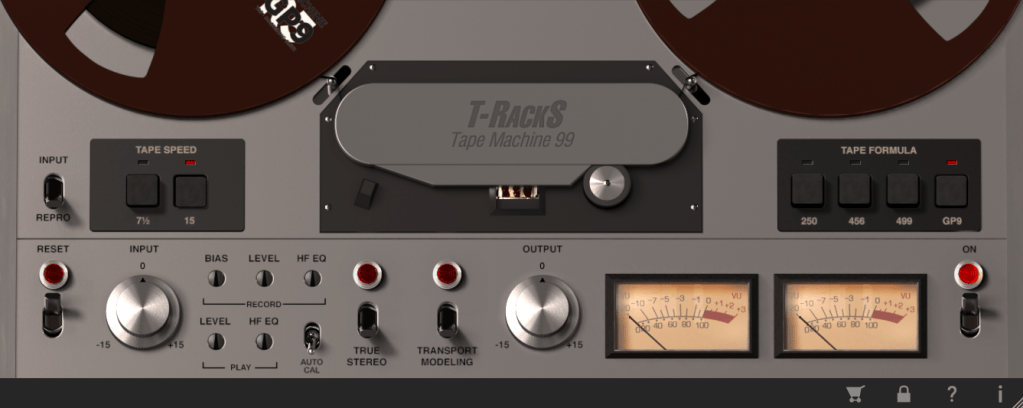
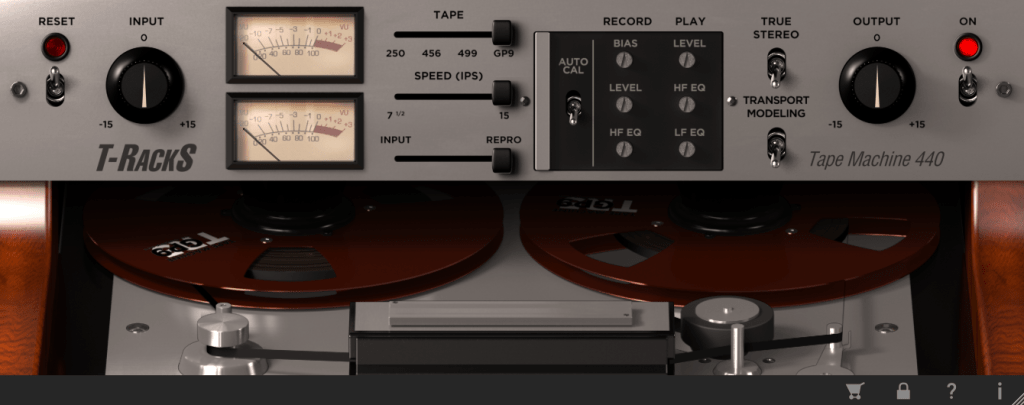
The total bundle sale started on Black Friday, but it’s still on sale. T-racks 5 MAX included in the total bundle includes a total of four tape machine plug-ins: Tape Machine 24, 80, 99, and 440. Let’s look around.

Parameters seems similar.. Tape types, IPS..

IPS 15 in GP9 tape

True stereo parameter makes the difference response between left and right, and transport modeling makes the variation value of the volume by time.

IPS 30 in GP9 tape

The other plugins’ parameters are same as Tape Machine 24 plugin. Just the machines are different, and they make difference in frequency response.

Simple!

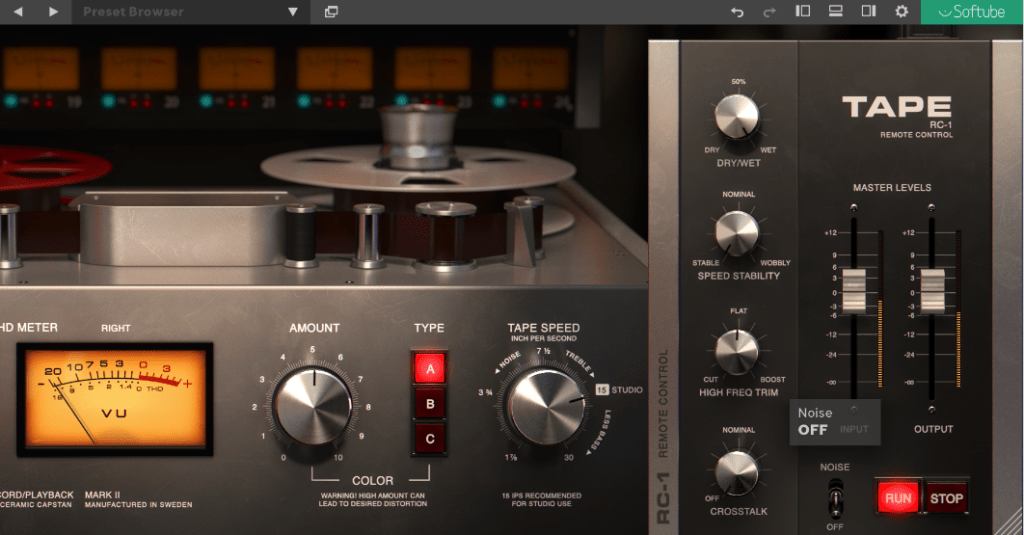
Softube Tape

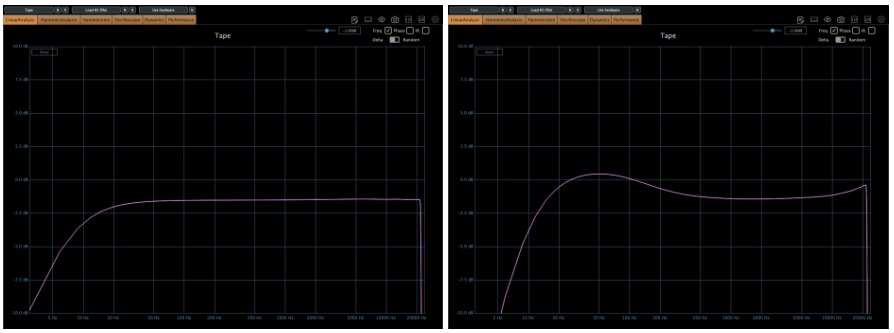
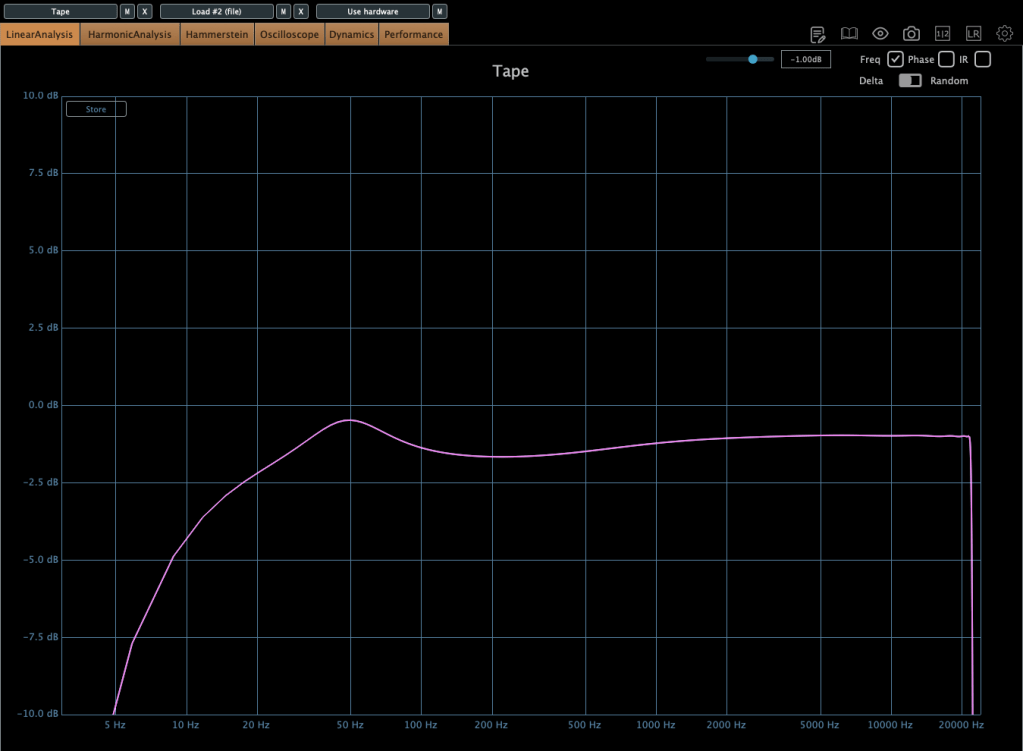
Softube’s Tape plugin is very clean tape machine plugin. The harmonic distortion quantity could changeable by Amount parameter, and tape type could be selected by the Type parameter. (Type A is clean side, B has quit a lot of low frequencies, C has the characteristic between A and B)

Left – Default type A, Right – Default type B
Default type C

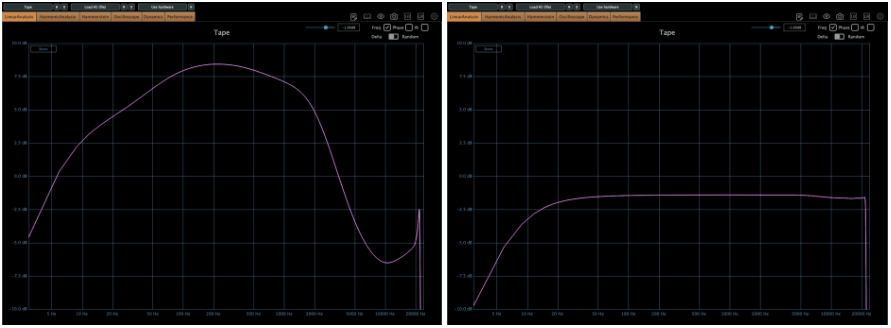
Tape speed could be changed by IPS too.

Type A tape Left – IPS 7/8, Right – IPS 3 3/4
Type A tape Left – IPS 7 1/2, Right – IPS 15
Type A tape IPS 30

Waves also has a famous tape machine plugin called Kramer and J37, but as I was writing this, the patterns became too similar, so I will omit them.

However, there is a parameter called Bias that exists only in Waves.

If you wonder about the bias, please read upper article.

If you look at it so far, you will feel something. IPS, EQ and the tape type are everything about a tape machine.

I think that just remembering this will make it easier to use the tape plugins.

Thanks for reading! See you in the next post.

Types and connections of patchbays, configuration of the system

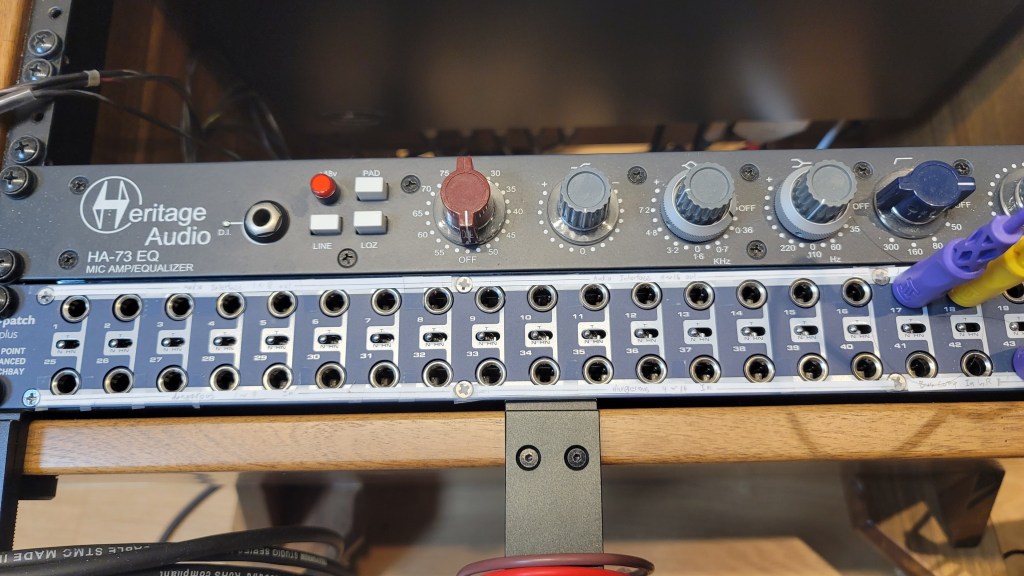
This article was written on July 17, 2023. It is different from my current audio system, but I translated it and wrote it because I thought it would be helpful in planning the patch bay. Good luck!

Hello, I’m Jooyoung Kim, an engineer and music producer.

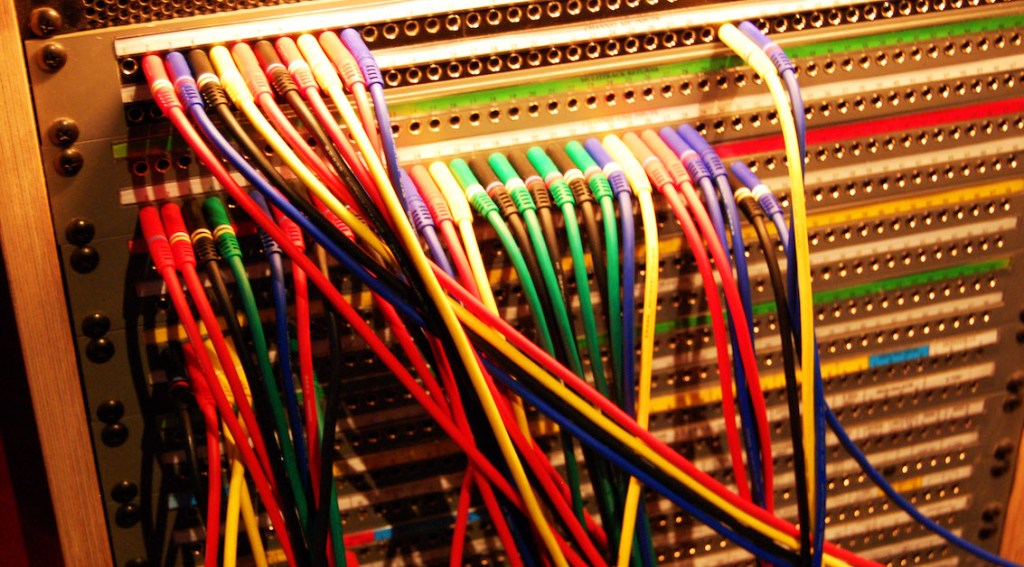
As musicians and engineers accumulate more hardware equipment, they often consider adding a patch bay to their setup. Today, I’d like to discuss patch bays and their usage. Let’s dive in!

Types of Patch Bays

There are various standards for patch bays, primarily categorized based on connector types:

  1. TRS
  2. XLR
  3. Bantam (TT)

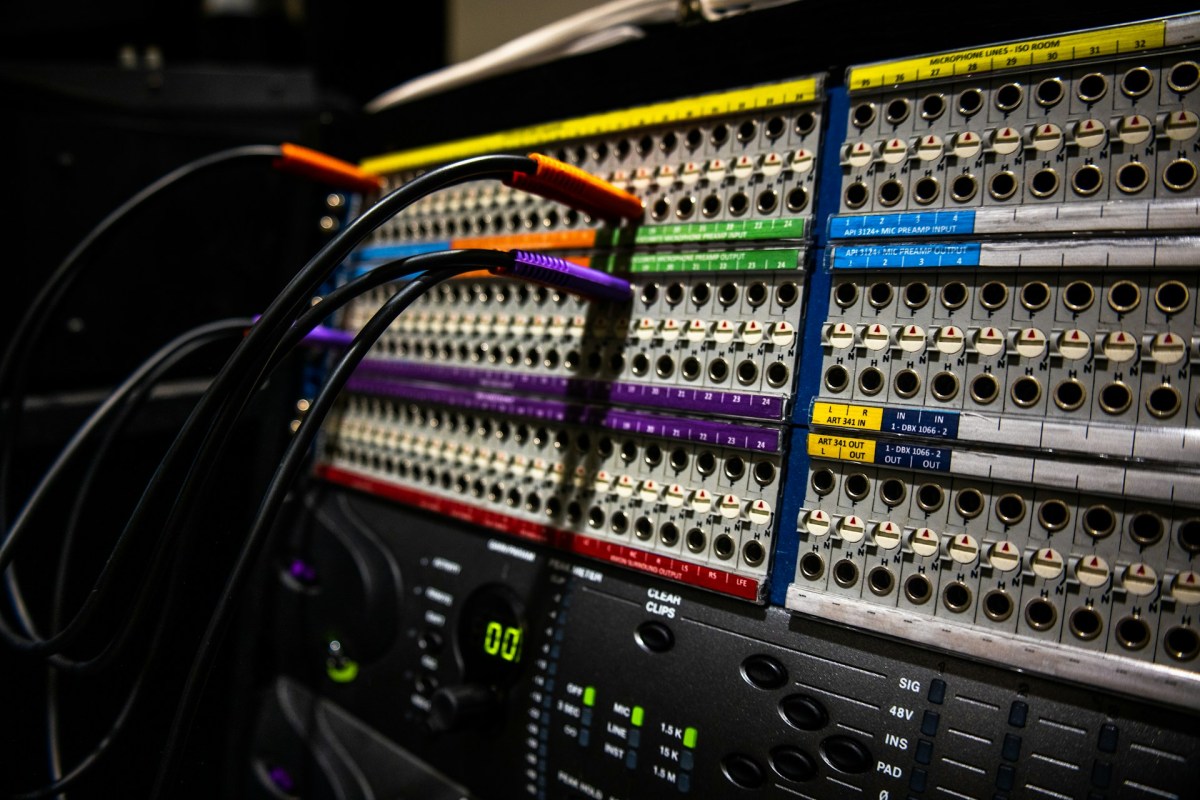
You’re likely familiar with TRS and XLR connectors, but Bantam might be new to you. Due to its smaller size, Bantam connectors are commonly used in 1U patch bays, which can accommodate up to 96 holes.

However, TRS patch bays can have up to 48 holes and XLR patch bays can have up to 16 holes.

TRS and Bantam patch bays are further categorized based on internal connection methods:

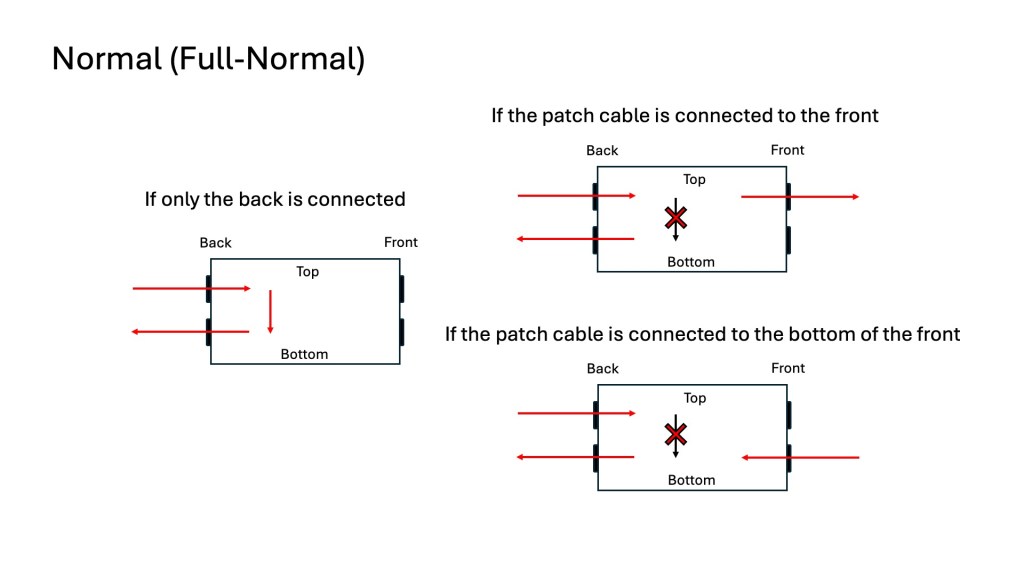
  1. Normal (Full-Normal)
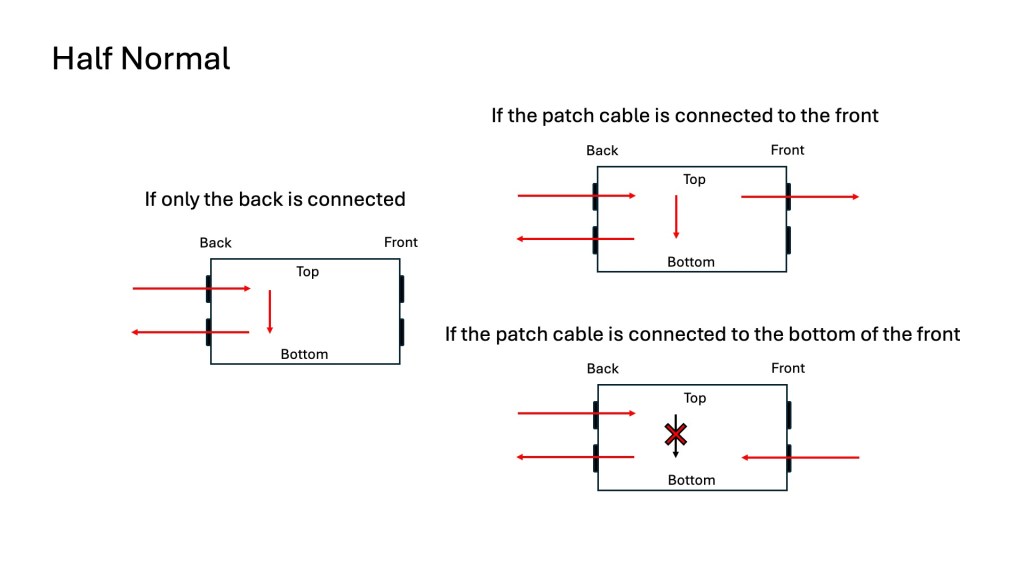
  2. Half-Normal
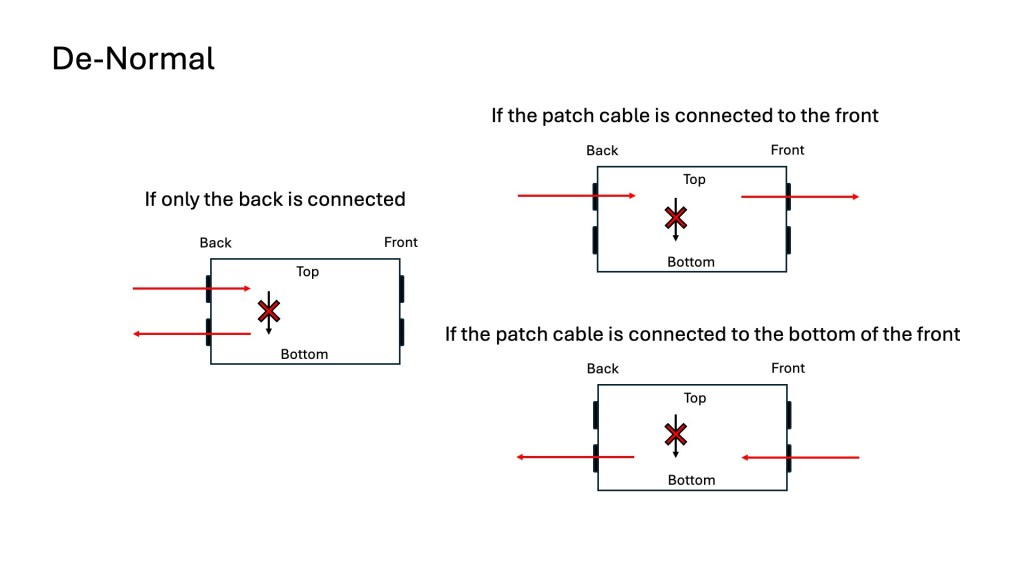
  3. De-Normal (Non-Normal/Thru)

Once you understand these, it becomes straightforward:

Normal (Full-Normal): The rear signal is connected without plugging in a cable at the front. Plugging in a front cable disconnects the rear connection.

Half-Normal: Like Full-Normal, but plugging in a front cable splits the signal for parallel processing.

De-Normal (Non-Normal/Thru): I opted for a patch bay that supports all three modes, even though I primarily use Full-Normal.

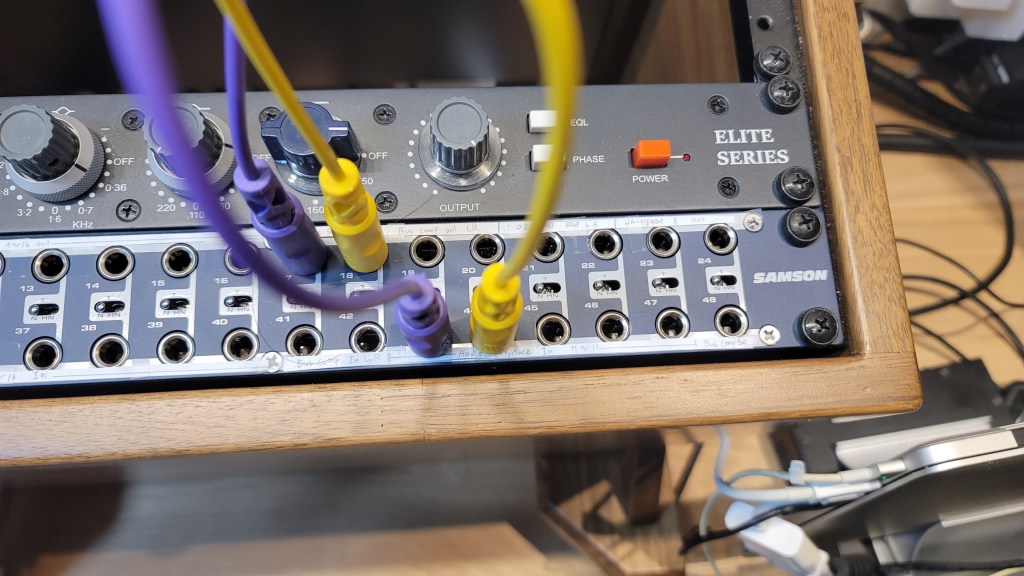
I bought Samson S-Patch: It supports all three modes, but labeling can be tricky due to the narrow spacing.

Configuring Your Patch Bay

Knowing the types of patch bays, the next step is planning your setup. Begin by listing the In/Out of your equipment. Here’s an example with my gear:

EquipmentInOut
Orion Studio Synergy Core12Line Out 16 /
Monitor Out 4
Dangerous 2Bus16Main Out 2 /
Monitor Out 2
Heritage Audio HA73EQ
(Mic Pre)
0 (Mic In not considered)1
OZ design OZ-2200
(Mic Pre)
0 (Mic In not considered)2
Bus CompressorLine In 2 / Side Chain 12

Prioritize your connections:

  • Out on top, In on the bottom for signal flow from top to bottom in Full and Half-Normal patch bays.
  • Begin with the equipment with the most Ins and Outs.

Although there are some limitations, like not fully utilizing some of Antelope’s Ins and the mic preamps’ Line Ins, this setup is efficient without wasting patch bay channels. For mic preamp Line Ins, external cable connections can be made as needed.

And label your patch bay accurately. You can find companies that print labels, but they may charge high shipping fees. Alternatively, you can cut paper strips for labeling.

I purchased an 8-pack TRS patch cable bundle from Hosa, available at an affordable price on Amazon.

With this setup, your patch bay-based system configuration is complete. While my setup focuses on mixing hardware, those using hardware synthesizers can also benefit from a patch bay to enhance their workflow and creativity.

I hope this information is helpful to all music enthusiasts. See you in the next post!