Since I first started diving into audio engineering head-on, I’ve gone through countless books and resources. One of the biggest frustrations I encountered was the lack of educational materials available in Korean. As I continued my studies, I made a promise to myself that I’d one day write a book on mixing.
After finishing the manuscript, I sent it to several publishers, but many found the content to be too complex. While navigating those hurdles, I discovered the POD (Print on Demand) service offered by Kyobo Bookstore in Korea, which allowed me to publish the book online. Although it’s a bit limiting, the book can now be purchased through Kyobo’s website.
I’m deeply grateful to my mentor, Director Yongsoo Choi, and Professor Minho Jang from my university, for reviewing my manuscript. I’m also honored that the renowned engineer, Director Jongpil Koo from Klang Studio, read the book and wrote a recommendation for it. There are so many people to thank for their support and encouragement throughout this process.
To be clear, I’m not claiming to be an expert or someone with an extraordinary career. But I’ve worked hard to organize and share everything I know in the most comprehensive way possible. While the content isn’t exactly easy, I believe it’s worth the effort.
Since this blog is mostly in English, I know most of you won’t be able to read the book. However, if you have any questions about its content, feel free to reach out to me at joe1346@naver.com, and I’ll be happy to respond.
Hello, this is Jooyoung Kim, music producer and audio engineer.
Last time, we explored the history and types of reverb. Today, we’ll dive into the practical ways to use reverb in your mix. Let’s get started!
When you first open a reverb plugin, the numerous settings can be overwhelming. But in reality, you only need to focus on three key parameters:
Pre-Delay
RT60 (Reverb Time)
Type of Reverb
Pre-Delay refers to how much time passes between the original sound and the reverb effect. If the listener is close to the sound source, a larger Pre-Delay feels natural, while a smaller Pre-Delay is ideal if the source is far away.
RT60 measures the time it takes for the sound to decay by 60dB. While the decay time can vary depending on the frequency, you can generally think of it as the time for the reverb to fade out.
Reverb types are crucial because they give your mix different atmospheres depending on the choice. Knowing these basics should be enough to get you started!
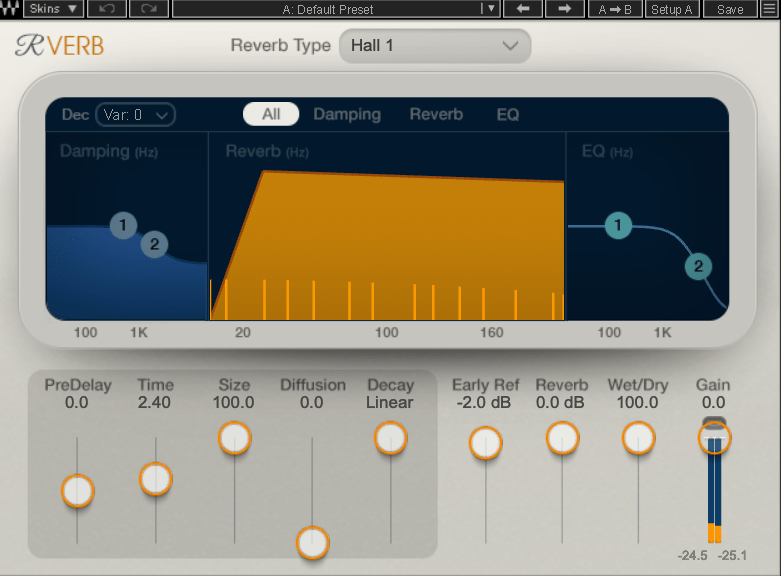
Understanding Reverb Parameters Here’s RVerb, a basic digital reverb plugin from Waves.
Time represents RT60, but what about Size? Size controls the virtual space’s dimensions, affecting the initial reflections and how the reverb tail forms.
Diffusion varies across plugins. It manages whether the reverb tail is formed by the direct sound or by the reflections. Lower values make the tail clearer and less cluttered, while higher values create a fuller sound.
Decay isn’t always present, so we’ll skip that for now. Early Reflections control how strong the initial echoes are. Smaller rooms produce stronger early reflections, while larger rooms have weaker ones. Wall materials can also affect this.
Reverbs like Shimmer add pitch modulation, Plate and Spring reverbs adjust materials, and Chamber reverbs may let you adjust mic and speaker positions.
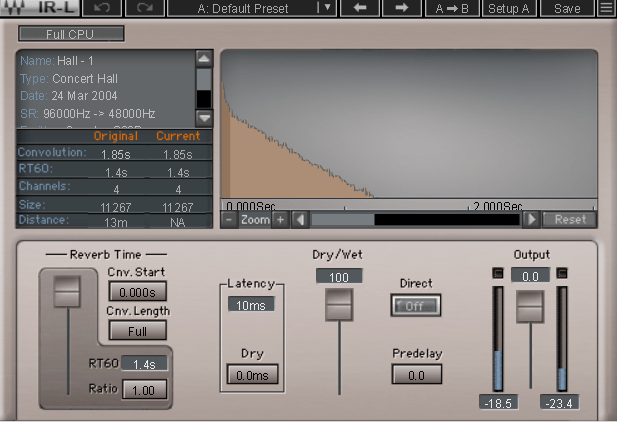
With IR (Impulse Response) reverbs, drastic changes to settings like Pre-Delay can feel unnatural, so if you’re not satisfied with the sound, it’s better to switch to a different reverb entirely.
Reverb EQ
There’s a reason why many reverb plugins include built-in EQs.
When applying reverb, EQ is key. Think of a live concert venue like a club in Hongdae. Outside, you mostly hear bass, while the vocals are hard to make out, right? This is because low frequencies travel further, while high frequencies lose energy faster in the air.
To simulate the natural acoustics of a real venue, especially for orchestral performances, applying EQ to the reverb can help create a more realistic reverb effect. Additionally, reducing some lows and mids from the reverb will help prevent the reverb from muddying up your mix, allowing for a clearer sound.
Reverb Compression & Saturation
What happens when you apply compression to reverb? Compression reduces dynamic range, which gives the illusion of a longer reverb tail, making it feel like the reverb lasts longer.
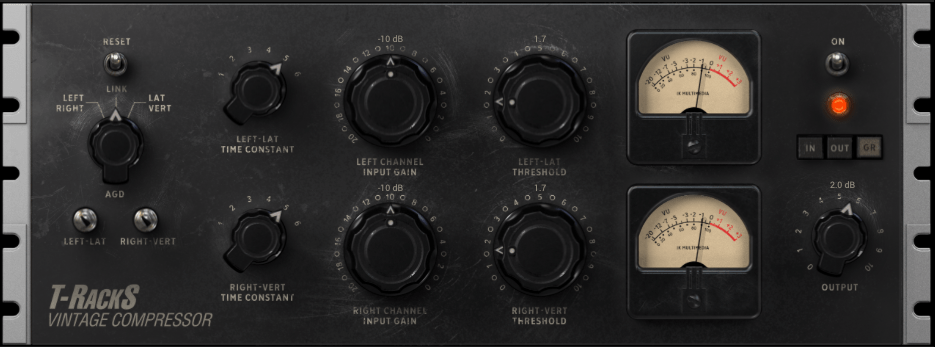
You can also add tonal color through hardware or plugin saturation to alter the feel of the reverb. For example, sidechaining the reverb to a vocal or lead instrument can reduce the reverb when those elements are prominent, and increase it when they are not.
Gated Reverb
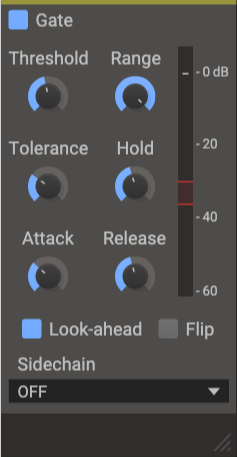
By using a gate, you can tightly control the reverb to match the groove of the track. Using sidechain techniques with gates or envelope followers, you can craft tight, precise reverb effects. This technique works wonders in genres like funk, but it can feel out of place in ballads—so choose carefully!
Various Reverb Uses
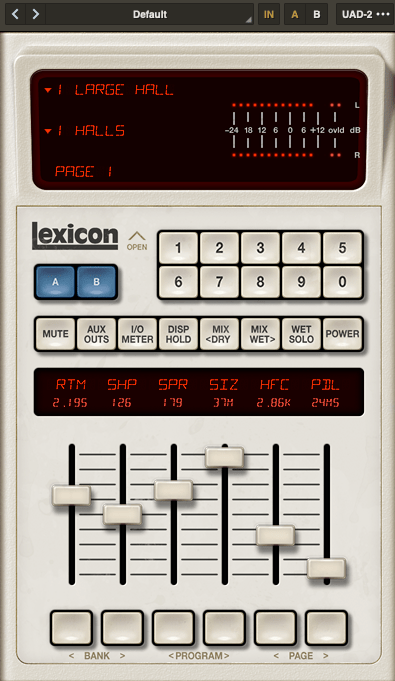
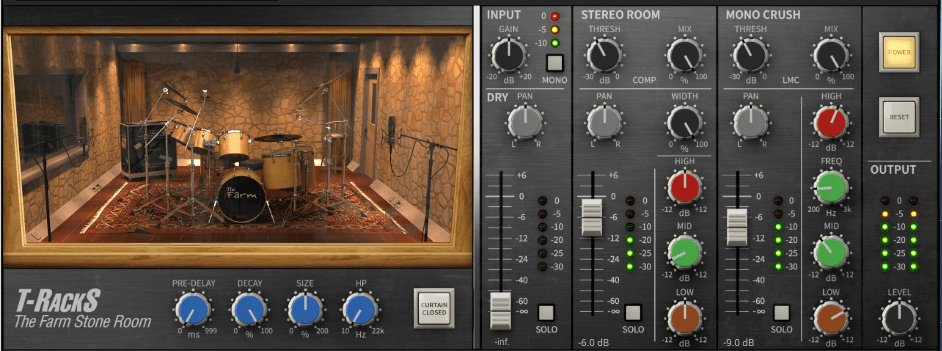
It’s common to use more than one reverb in a mix. For instance, a UAD Precision Reflection Engine can add artificial ambience to dry tracks, while you might apply a Plate Reverb specifically to the snare drum.
For consistency, you might apply a Hall Reverb across all elements in the mix. And don’t forget to adjust your Send Panning for spatial accuracy.
That’s about it for reverb usage! While theory helps, there’s no substitute for hands-on experience. Keep experimenting, and I’m sure you’ll get the hang of it.
(By purchasing through the links in this post, I receive a small commission that helps support the blog. Thanks to everyone who makes a purchase!)
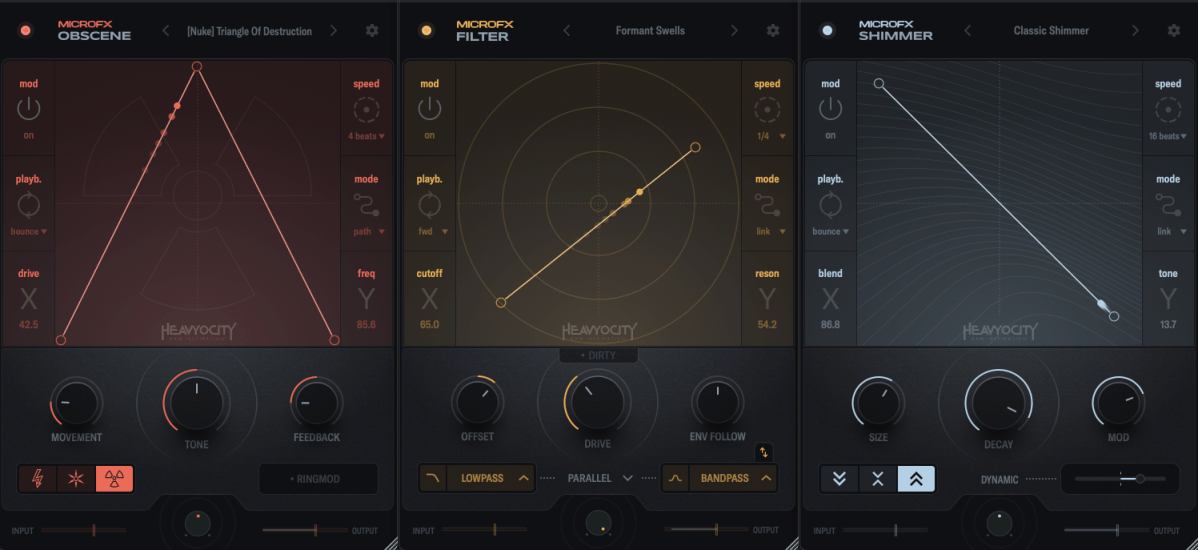
Heavyocity is known for selling virtual instruments and effects plugins, especially well-suited for film and video music production. However, the new MicroFX plugins can be used for a variety of purposes beyond those genres.
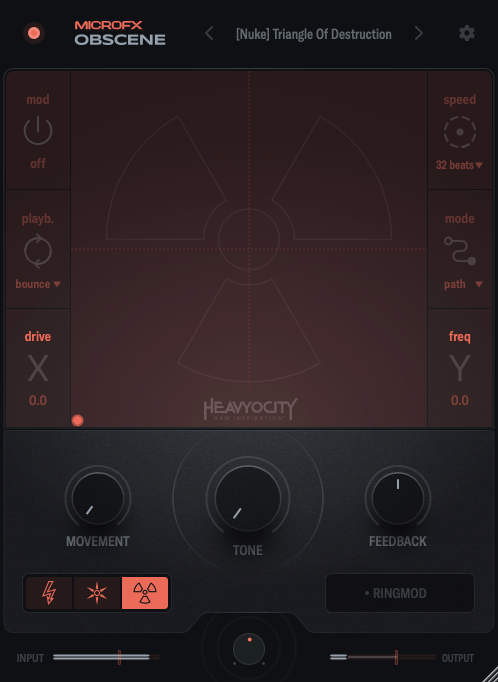
Obscene true to its name, this plugin delivers a powerful, in-your-face distortion effect.
There are three types of distortion to choose from: BLASTER, CRUSHER, and NUKE.
BLASTER offers a guitar pedal-style distortion.
CRUSHER adds bitcrushing to the distortion.
NUKE provides a fuzz-like distortion.
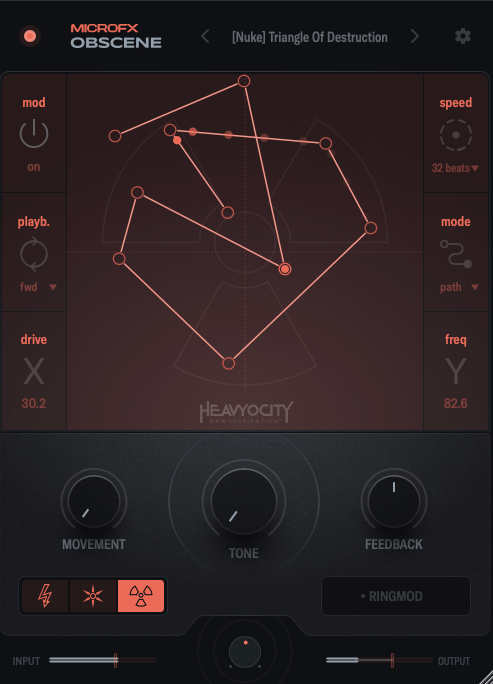
On the graph, the X-axis controls the amount of distortion, while the Y-axis adjusts ring modulation and internal filtering.
You can activate the Mod function, and by double-clicking on the screen, you can place points, which are influenced by the speed settings on the right. You can place up to 15 points.
When you adjust Movement, the frequency response and harmonics change over time. The Tone control acts like a tilt EQ, while Feedback may seem subtle at first but becomes more noticeable as the distortion increases. The large knob at the bottom center is the Mix control.
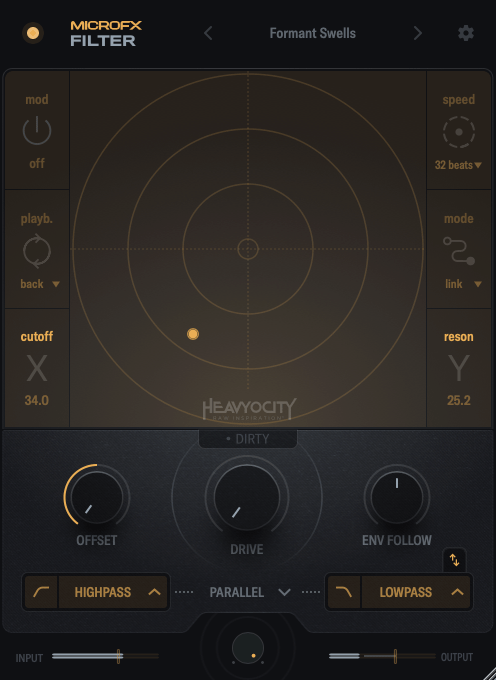
In this case, the X-axis controls the cutoff frequency, and the Y-axis adjusts the resonance.
Through the buttons below the central knob, you can choose which filters to apply to the high and low frequencies.
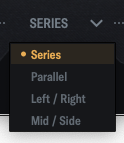
By clicking the center of the interface, you can choose whether to link the filters in series, parallel, LR (left/right), or MS (mid/side) modes.
When you adjust Movement, the frequency response and harmonics change over time. The Tone control acts like a tilt EQ, while Feedback may seem subtle at first but becomes more noticeable as the distortion increases. The large knob at the bottom center is the Mix control.
Shimmer reverb will be covered in more detail in my upcoming blog post on the basics of mixing. It’s a reverb plugin that incorporates pitch modulation, producing a bright, extended effect.
This shimmering, elongated reverb is particularly popular in instrumental and cinematic music, especially on guitars.
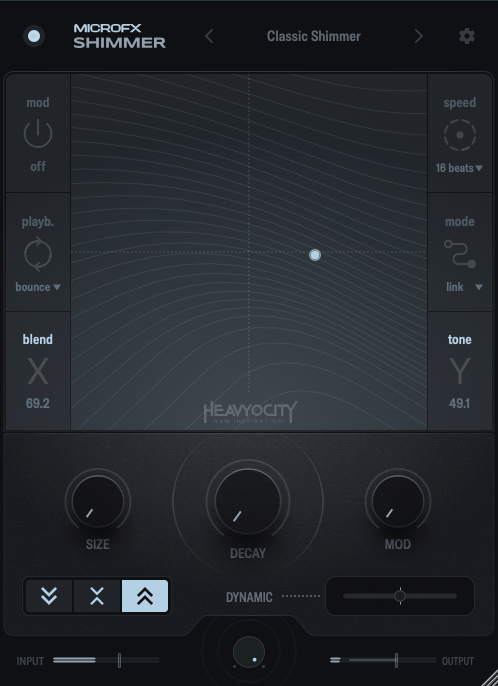
Shimmer captures that classic sound well.
The X-axis controls the blend of the pitch-shifted delay, while the Y-axis adjusts various internal reverb parameters to shape the overall tone.
The buttons on the lower left let you shift the pitch an octave down, an octave up, or both.
The Size, Decay, and Mod knobs function like typical reverb controls, so I won’t explain those further.
Dynamic is a fader that adjusts the internal dynamics. Pulling it to the left applies an expander to the reverb’s input and output, while pushing it to the right activates a ducking compressor.
Summary
All three plugins are well-crafted and highly useful for sound design. If you’re interested, I recommend checking them out!
These plugins are priced at $42.9 each, or $108.9 for the bundle. Additionally, if you purchase from Plugin Boutique this month, you’ll receive either the Pyros distortion plugin or Bloom Vocal Aether Lite for free.
(If you purchase through the links above and below, I receive a small commission, which helps support the blog. Thank you! ^^)
As I mentioned in my previous post, these plugins are not resource-heavy on your computer. They’re affordable, high-quality, and come with a clean, intuitive UI, making them a solid option if you’re considering basic third-party plugins.
Lifeline Expanse is also being reviewed with NFR (Not for Resale) codes provided by Plugin Boutique.
Let’s dive into Lifeline Expanse!
Lifeline Expanse includes five modules: Format, Dirt, Reamp, Width, and Space.
The Lo and Hi options in Expanse are simple cut-off filters, so I’ll skip explaining them.
The waveform on the left shows a de-esser-like effect where high frequencies are attenuated based on the incoming signal, while the shield in the middle acts as a limiter.
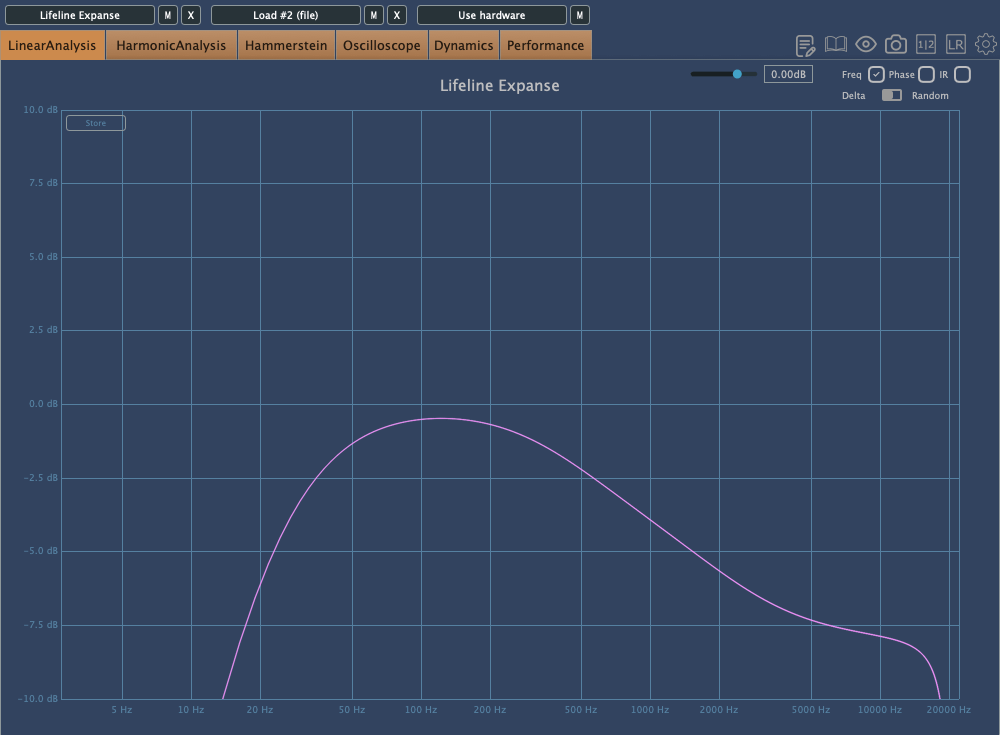
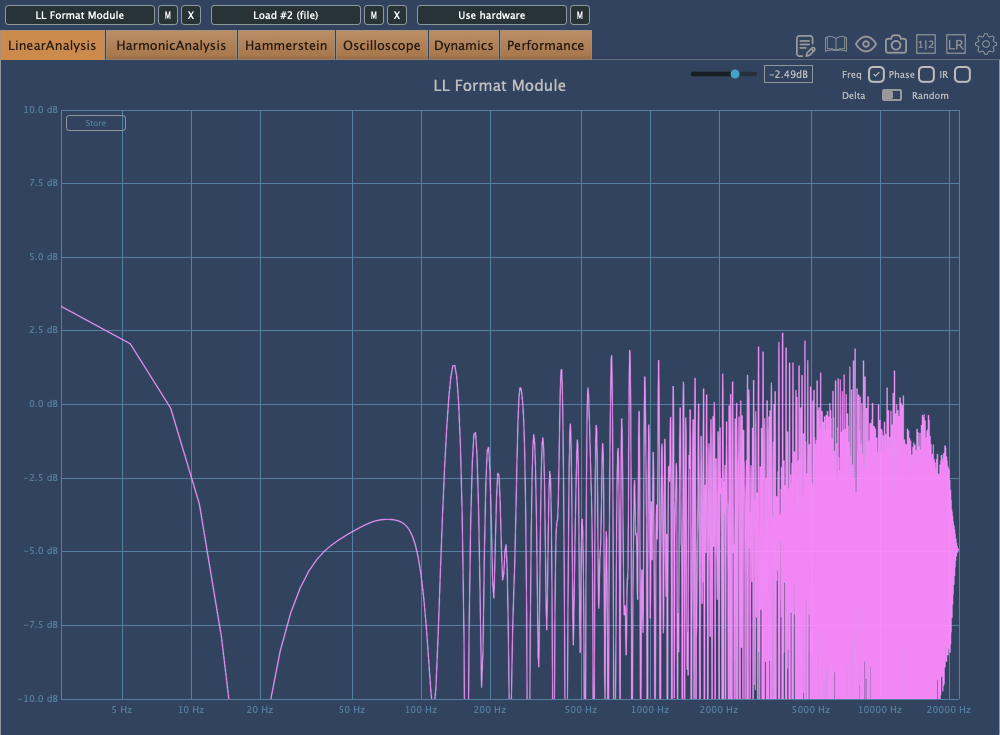
Unlike Console, Expanse doesn’t add various types of saturation, but even with the filter range maxed out, it still introduces tonal changes. Now, let’s take a closer look at the individual modules.
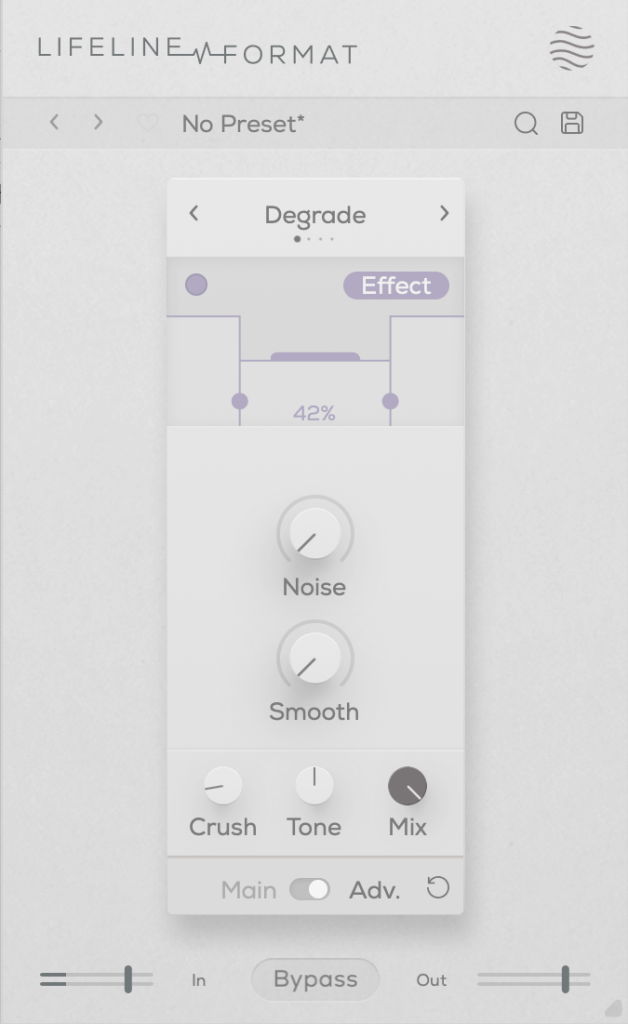
This plugin adds a characteristic digital distortion to your source.
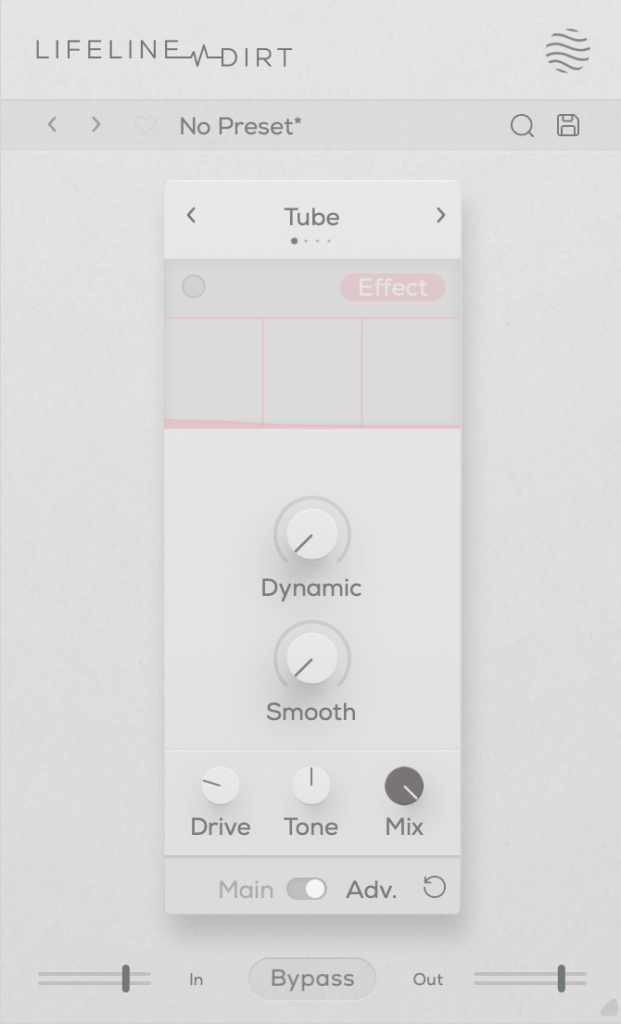
In the Advanced window, you can split the frequency range into three bands, adjust their volume, and even add noise. The Smooth option can make the changes less harsh.
Other key controls include Crush, which adds the distortion, and Tone, a tilt EQ centered around 650Hz.
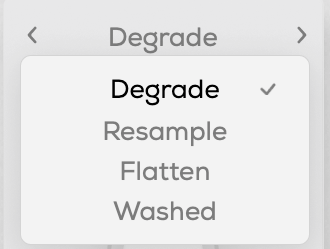
There are four modes:
Degrade: Reduces the bit depth of the incoming audio, creating digital distortion.
Resample: Lowers the sample rate of the audio, adding digital artifacts.
Washed: Simulates the sound of a degraded, low-quality MP3, creating an underwater-like effect.
Flatten: Combines gating and bitcrushing, reducing the resolution of the audio.
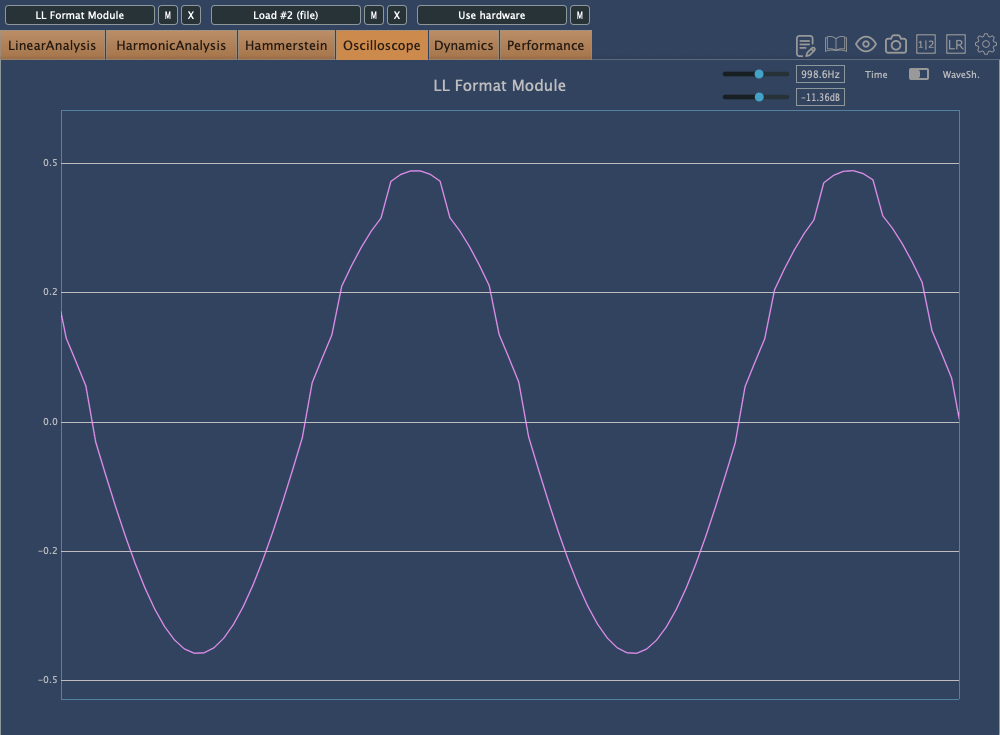
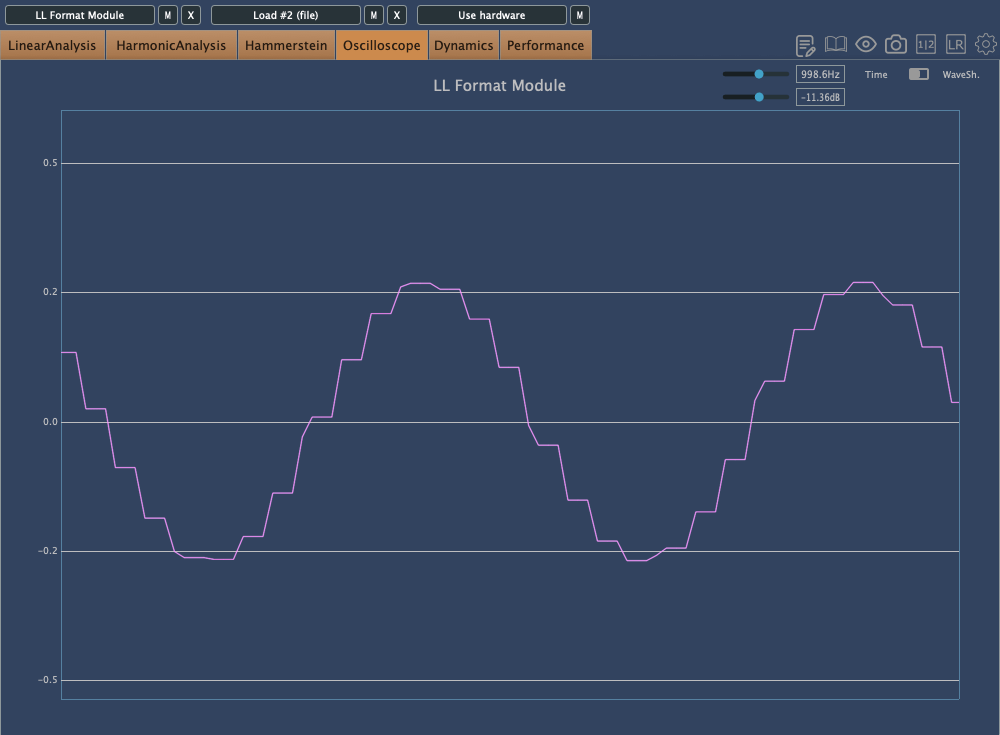
Let’s take a closer look.
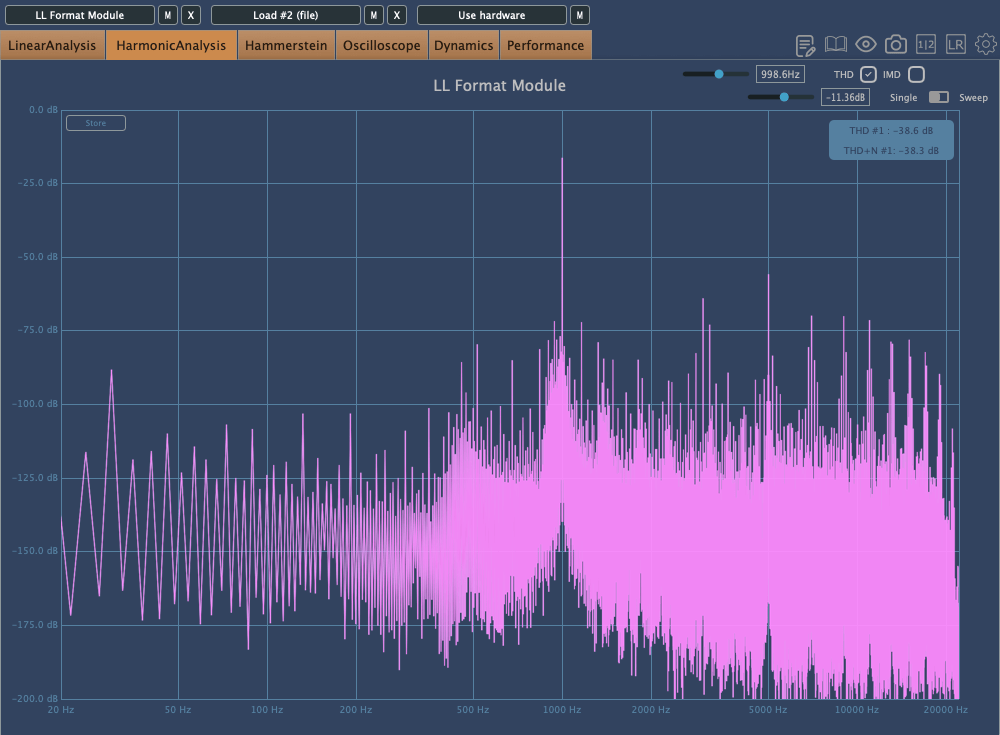
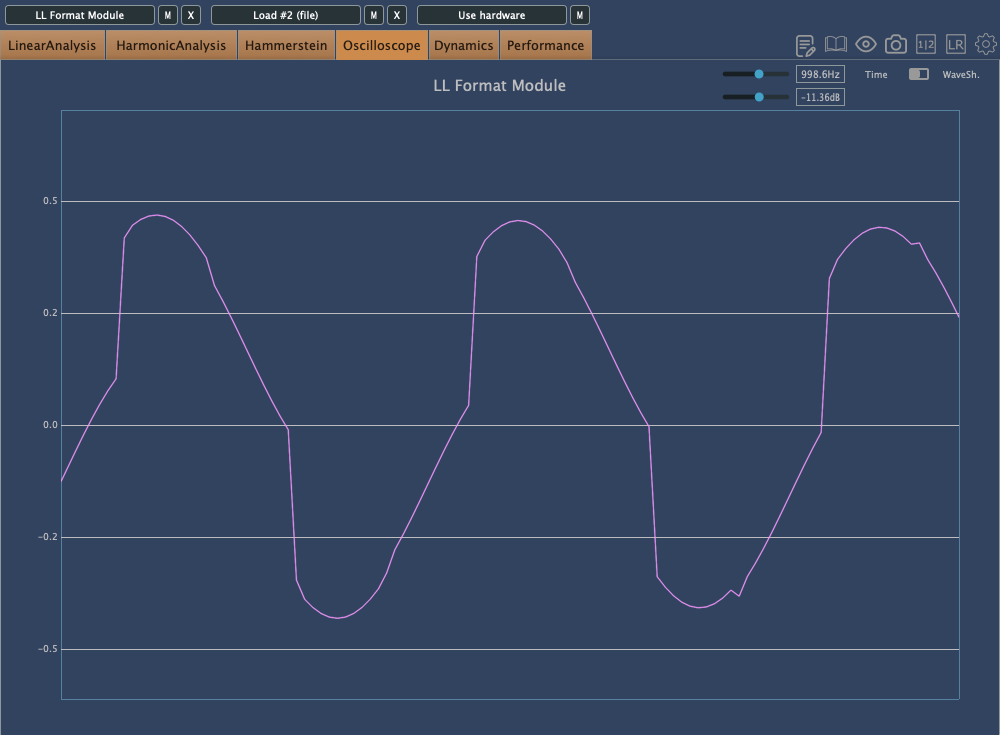
This is Degrade mode, where reducing the bit depth makes the waveform appear choppy in the oscilloscope.
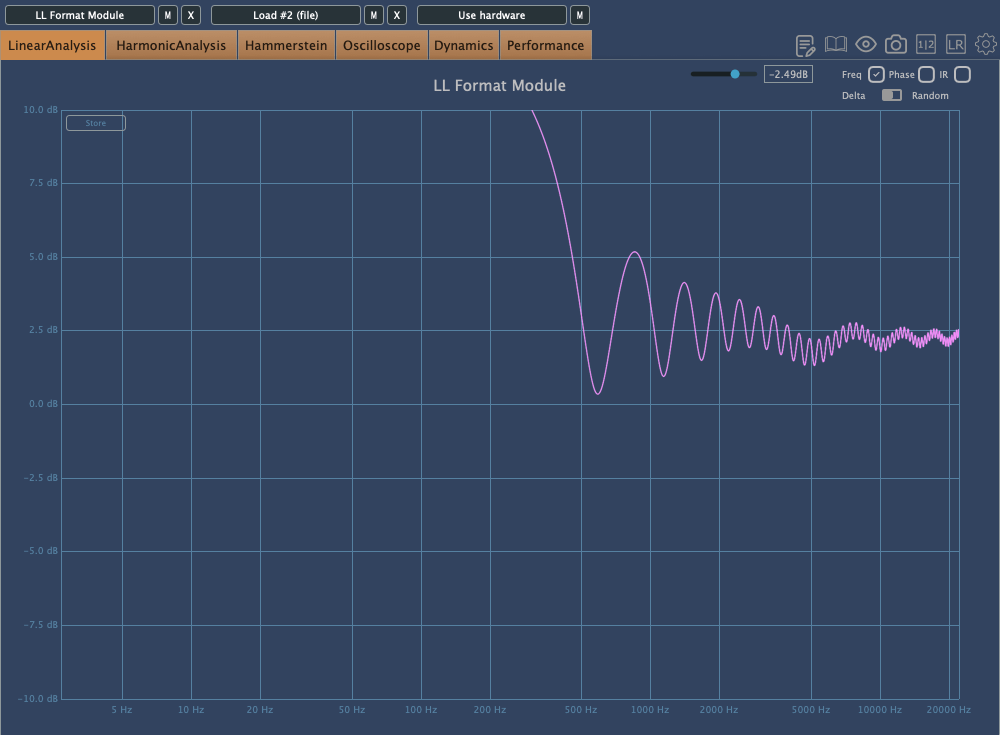
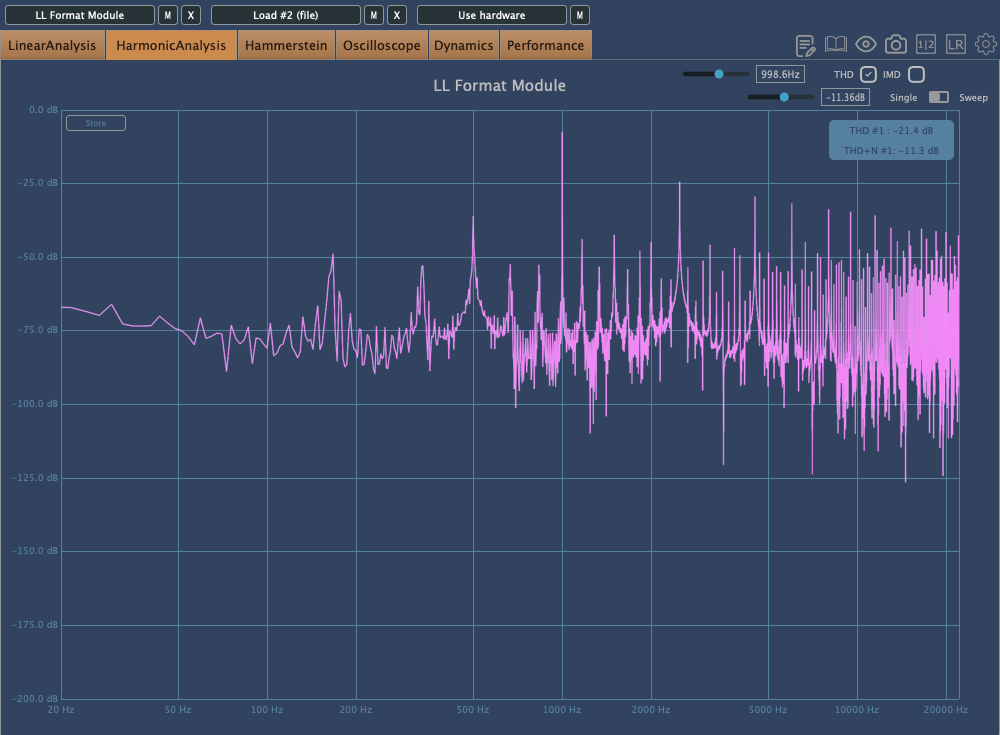
In Resample, harmonics reflect back at the Nyquist frequency, and those oscillations can be seen on the scope. It’s constantly in motion due to added frequencies.
Washed mode just smears everything.
Flatten shows harmonic reflections, indicating a resampling effect, combined with reduced bit depth, resulting in multiple distortions.
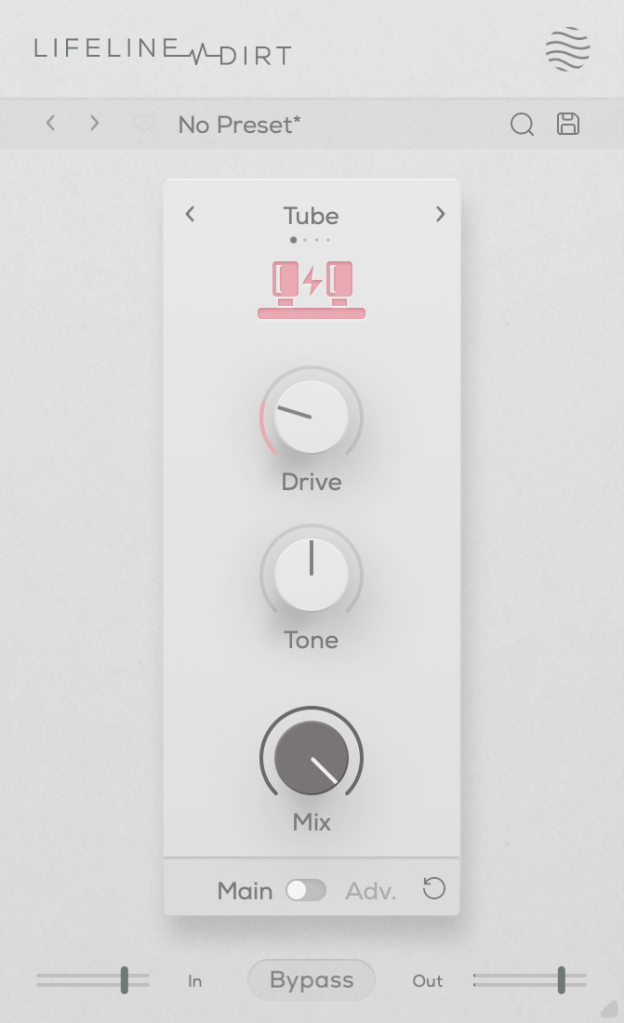
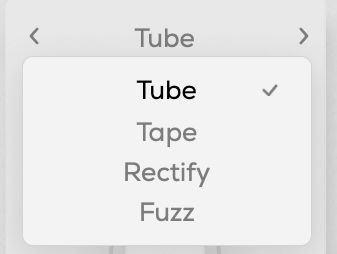
You can choose from four types: Tube, Tape, Rectify, and Fuzz. The controls are the same as in Format, so I won’t repeat the explanation.
All four modes emphasize low and mid frequencies while cutting highs. As the name “Dirt” suggests, pushing the Drive knob can make it act almost like a compressor or limiter at higher levels.
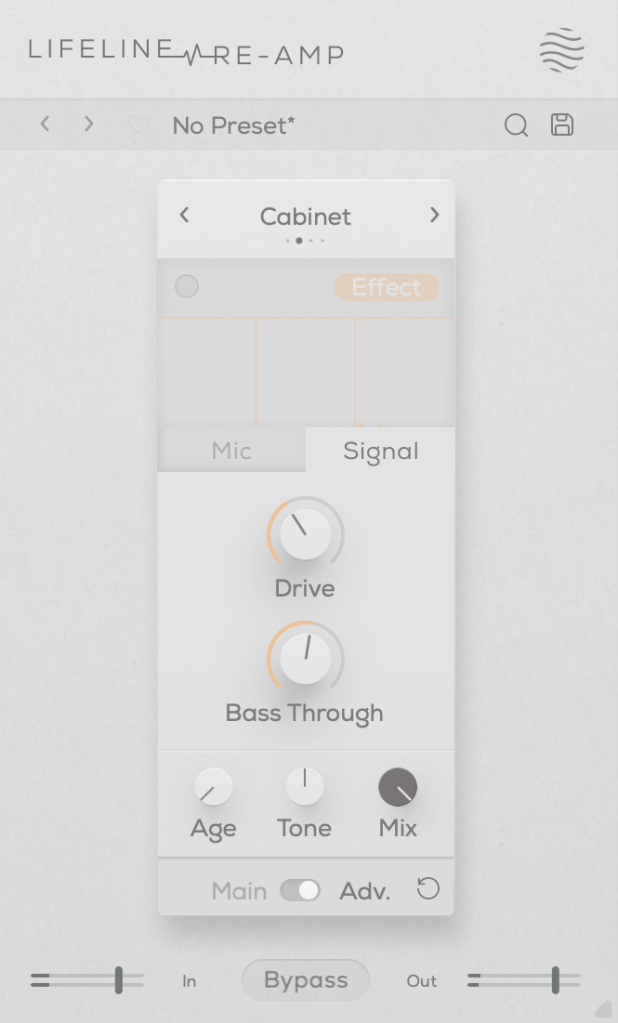
As the name suggests, Re-Amp is designed to simulate re-amping.
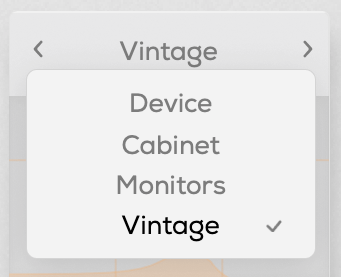
You can re-amp through small electronics, guitar cabinets, monitor speakers, or cassette recorders, with two speaker options in each category to choose from.
True to the re-amping concept, it allows you to adjust the distance of room and close microphones, and blend their sounds together.
Increasing the Age value causes the highs and lows to gradually roll off, eventually introducing wow and flutter effects.
The Drive knob adds harmonic distortion, while Bass Through prevents distortion from affecting the selected low-frequency range.
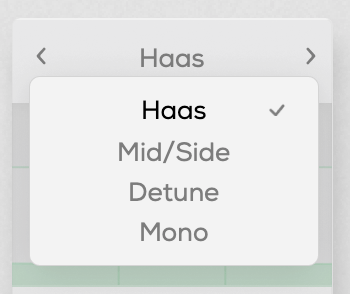
You can select from Haas, Mid/Side, Detune, and Mono modes.
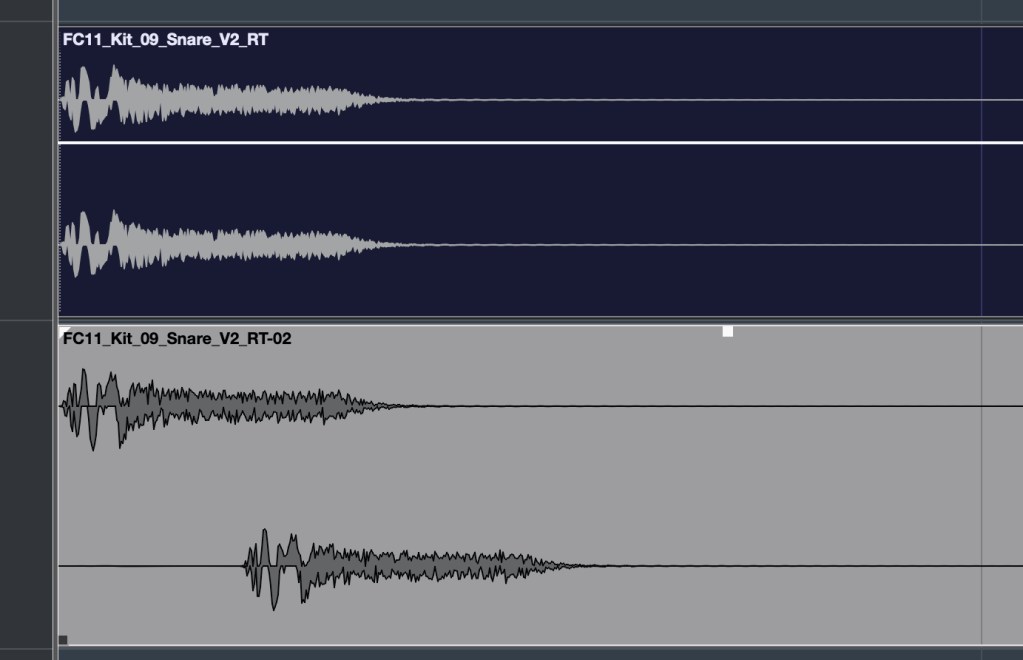
The Haas effect, as shown in the image, uses time delays to create a stereo image. Mid/Side enhances the side channels, Detune creates a wider image through pitch modulation, and Mono narrows the stereo field, gradually converting the sound into mono.
The Stereo knob enhances these effects, and Bass Mono ensures that frequencies below a set threshold are converted to mono.
I’ll skip further explanation, as the rest of the parameters are the same as in Format.
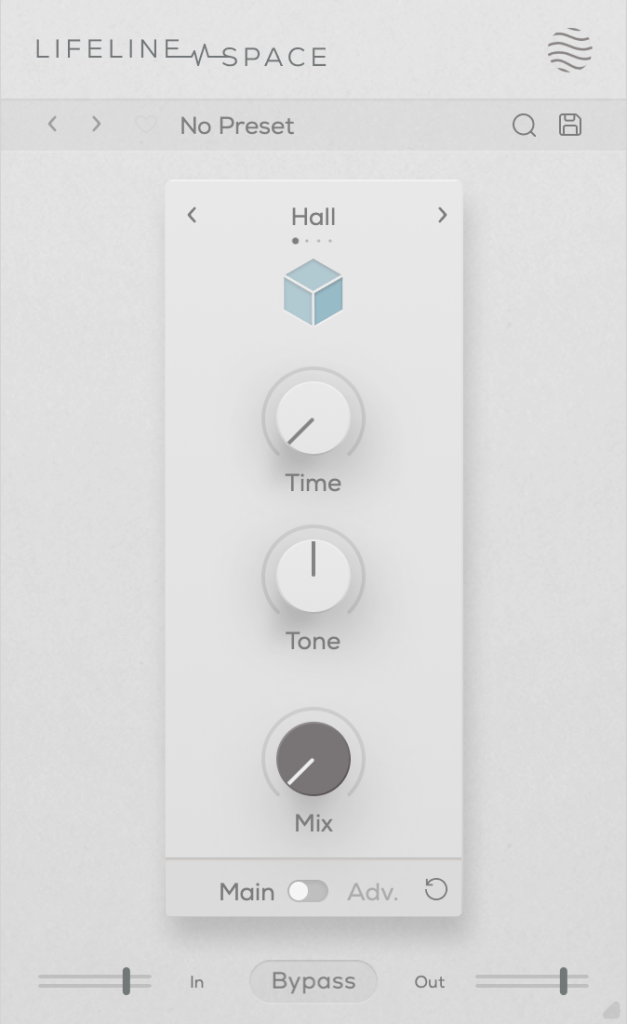
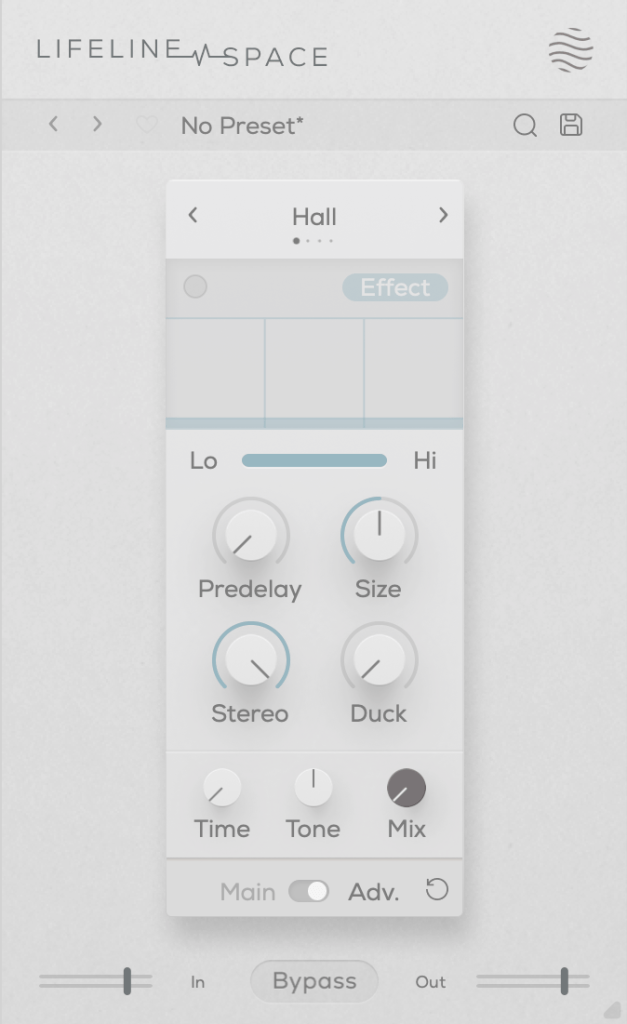
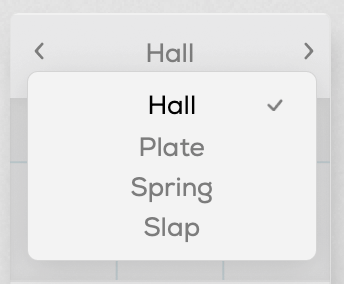
You can choose from Hall, Plate, Spring, and Slap reverb types, all offering solid digital reverb sounds.
Slap, in particular, has a delay with a significant amount of feedback, making it quite versatile.
A unique parameter here is Duck, which reduces the reverb based on the incoming input signal. Other parameters are typical for reverb plugins.
Each of these modules is priced at just $11, making them very affordable. Plus, if you purchase any plugin from Plugin Boutique, you’ll receive either the Pyros distortion plugin or the Bloom Vocal Aether Lite plugin for free.
Thanks for reading, and see you in the next post! 🙂









 Jooyoung's Music Blog