DIY Audio Project #1 | Tube Saturator with Baxandall EQ (Part 3): Design and Order PCB Circuit

Hello, I’m Jooyoung Kim — an audio engineer and music producer.

Lately, I’ve been so tied up with outside commitments that I feel like I’ve neglected my own music projects. After visiting the exhibition by artists Chungha Ester Lim and Inguen Nam last time, I found myself reflecting quite a bit. Today, I went back again to see the works and reset my mindset.

I’m juggling a lot of different things, so time is always tight—but even if I have to carve it out little by little, I need to make it happen. The same goes for this blog.

Anyway, today’s post continues from the previous one and focuses on the PCB fabrication process.
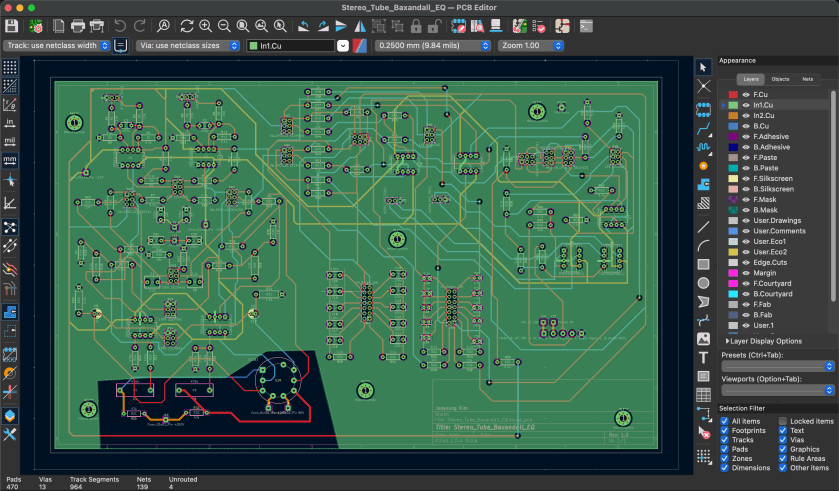
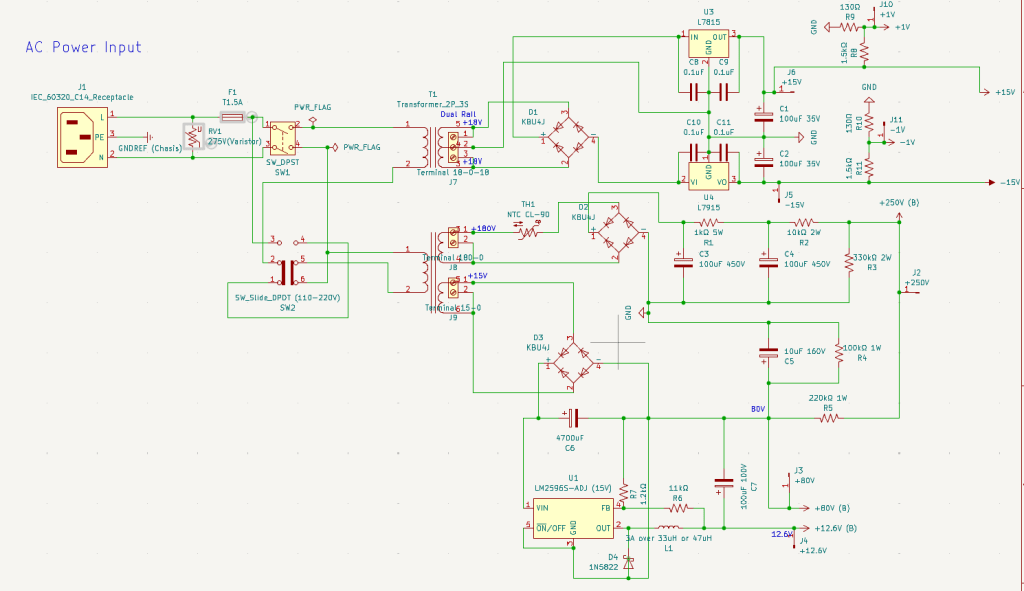
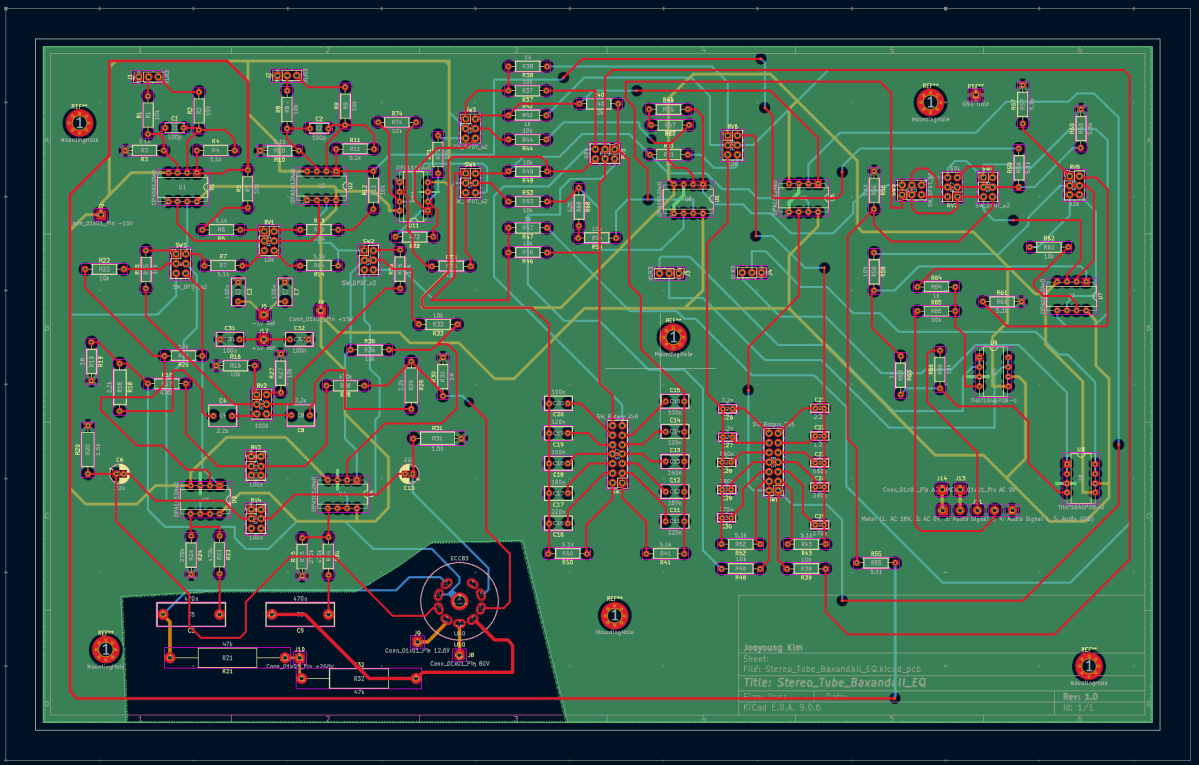
Once the schematic design is complete, the next step is translating it into a PCB layout. At its most basic, a PCB consists of two layers: the first layer carries the signal traces, and the second layer serves as ground. However, in audio equipment with a high component count, two layers may not be sufficient. In my case, I had to distribute multiple DC voltage rails throughout the circuit, and several chips had many pins that required careful routing. As a result, I designed the main board as a four-layer PCB, while the power supply board remained a two-layer design.
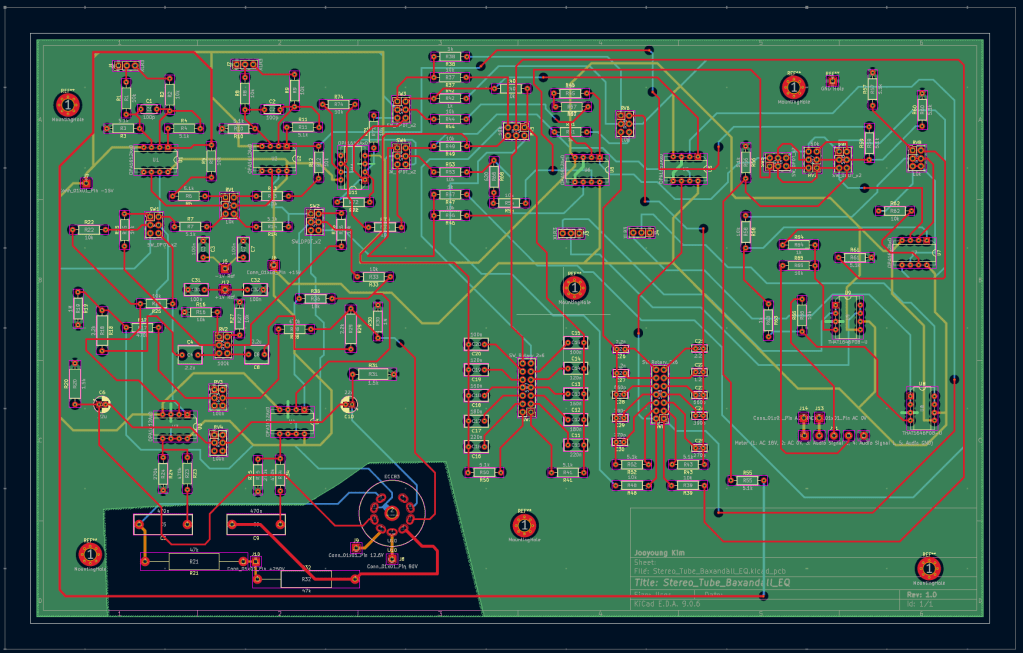
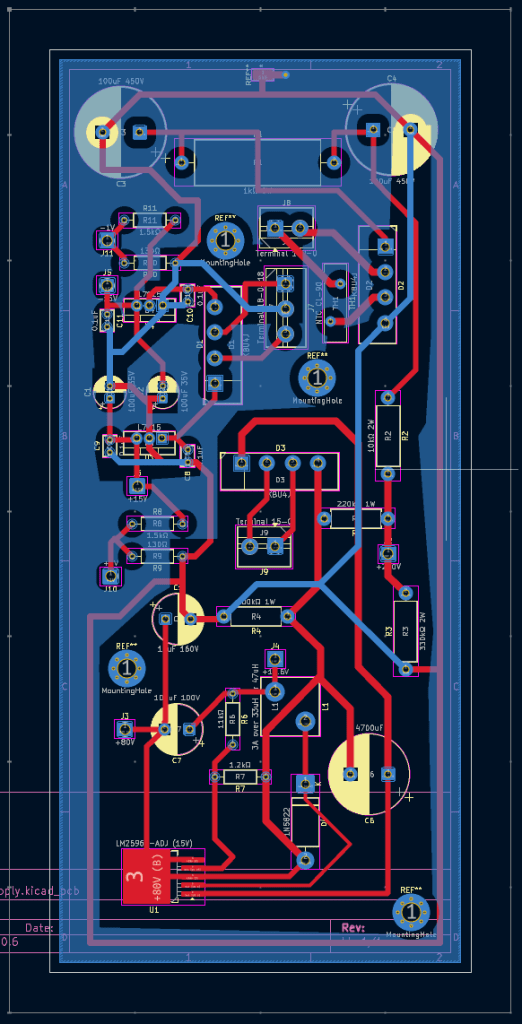
The issue—if I didn’t mention this in the previous post—is that even if everything looks perfect in the schematic, it doesn’t automatically translate cleanly onto the PCB.
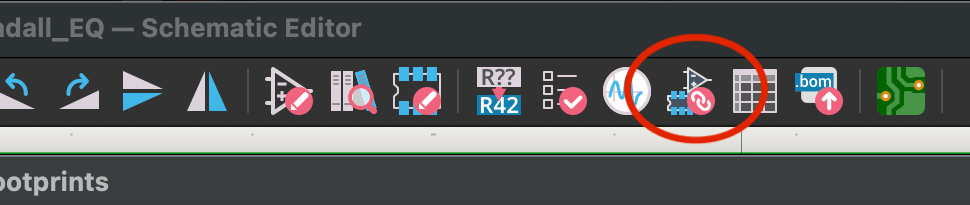
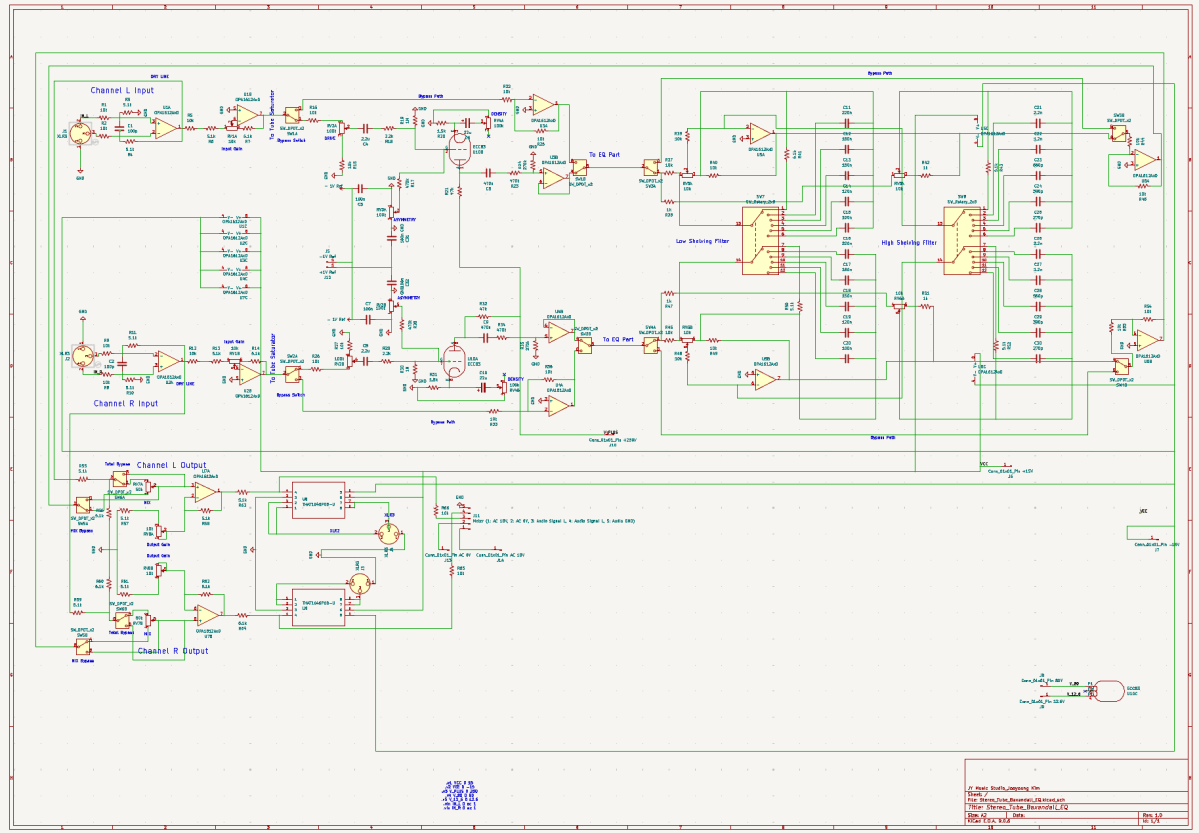
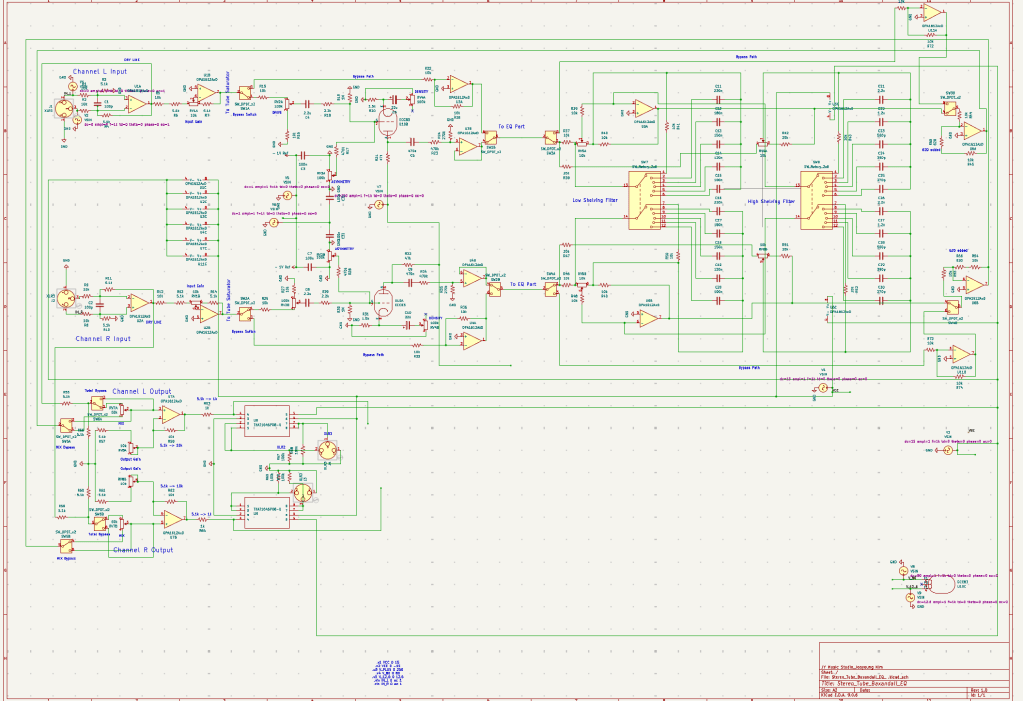
If you look at the top-right area of the schematic, you’ll see link indicators for the op-amps and IC chips. Clicking one of those opens a window where you have to manually assign the correct physical package for each component. This is called a footprint.
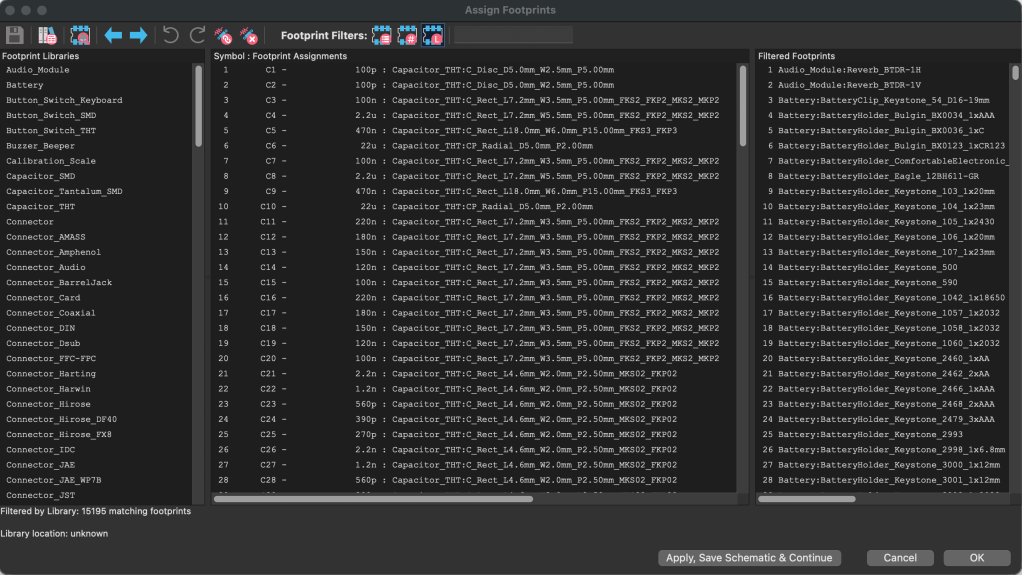
To assign the correct footprint, you need to carefully cross-check each part against its datasheet and match the exact specifications. Honestly, that process nearly drove me crazy. After soldering everything together, I discovered about three problematic spots. I managed to fix them with some creative rework, but since I also had to revise the EQ bypass section anyway, I ended up redesigning the PCB and placing a new order. The thought of desoldering everything and starting over again is… thrilling, to say the least.
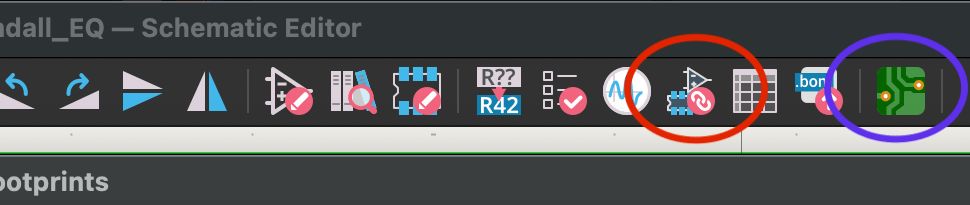
And even after that, you’re still not done. Once everything is set up, clicking the PCB editor icon opens the layout window.

From there, you import all the assigned footprints. When they first load, they appear scattered randomly across the board.
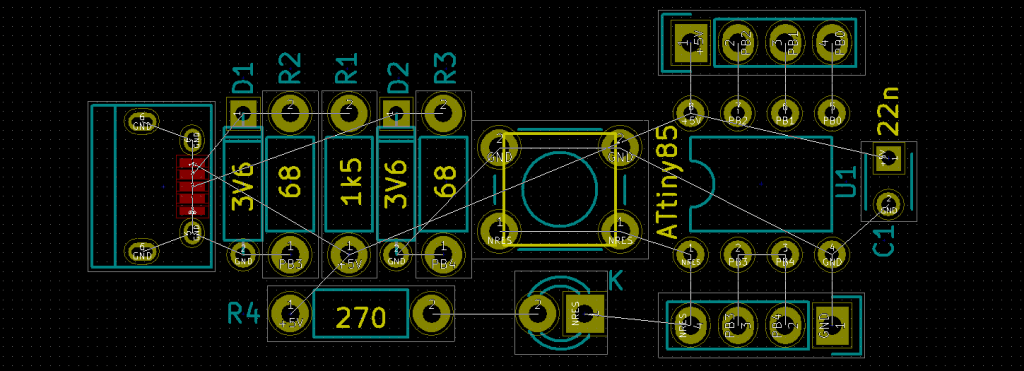
I had around 150 components on the main board alone, so seeing them all clumped together at once was a bit overwhelming.

From that point on, it’s a lot of manual routing. For the ground plane, there’s no need to manually connect traces—filling the ground layer with copper automatically connects everything. For the power supply board, however, I kept it to two layers to reduce costs, so I cleared certain copper areas and routed the power traces manually. In the main board, I also removed copper around the high-voltage tube section to help minimize potential noise issues.

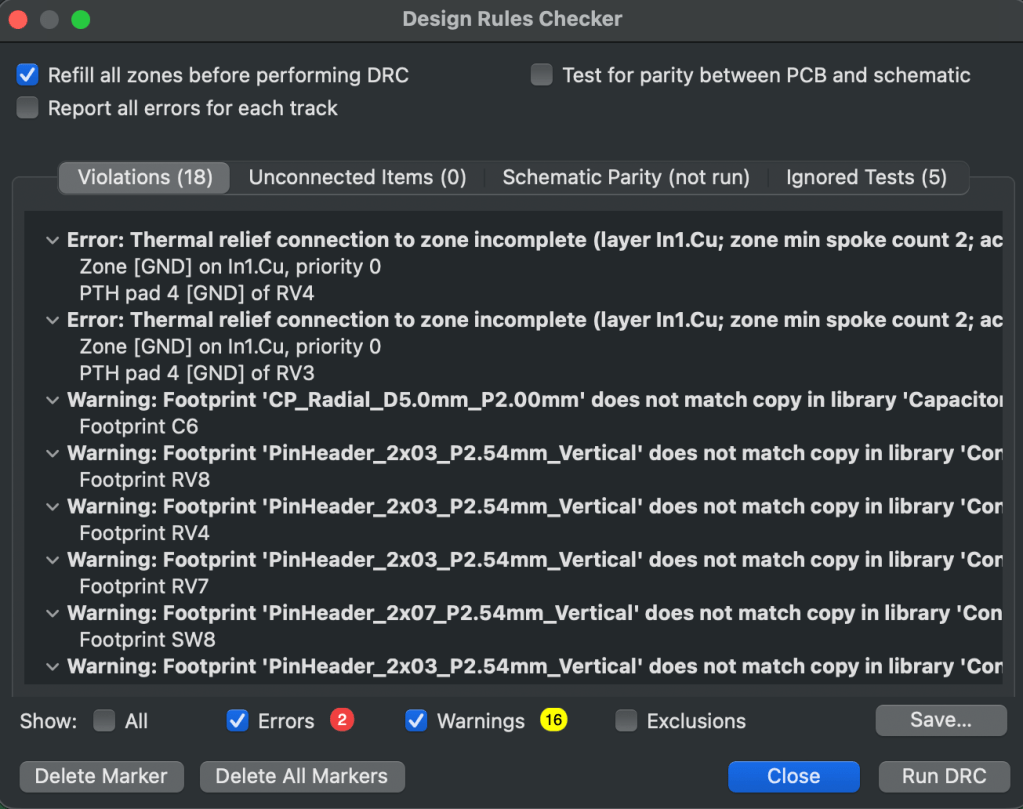
Once the layout is complete, you run a final design rule check. You’ll see a list of errors and warnings. If certain warnings are triggered by intentional design decisions, you can ignore them—but everything else should be reviewed carefully. In my case, I found a few unconnected traces that I had missed.
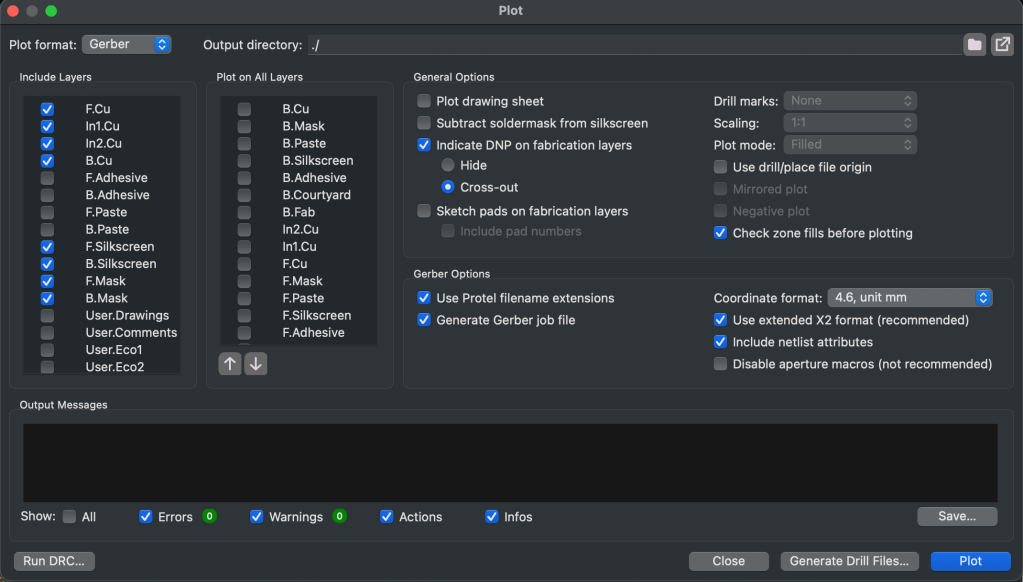
After that, you define the board outline using the Edge.Cuts layer. Then you go to File → Plot, select all the required layers, and generate the fabrication files. Since the plotted files don’t include drill data, you also need to export a separate drill file.

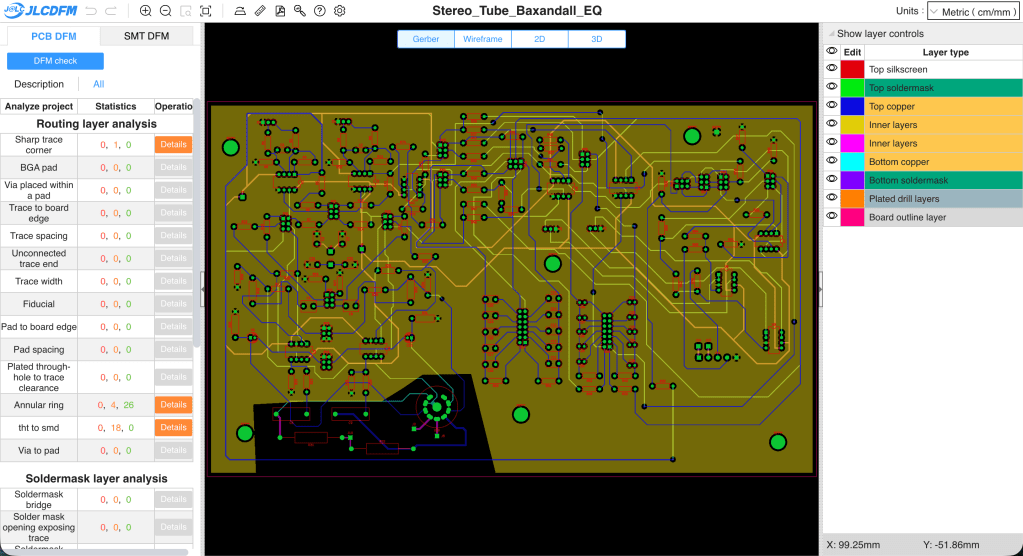
I ordered my PCBs from JLCPCB. After compressing all the generated files into a single ZIP archive and uploading it, you can preview the board before placing the order. There’s also a DFM (Design for Manufacturability) check that identifies potential production issues or design mistakes. It seems the manufacturer performs an additional review after you place the order as well.
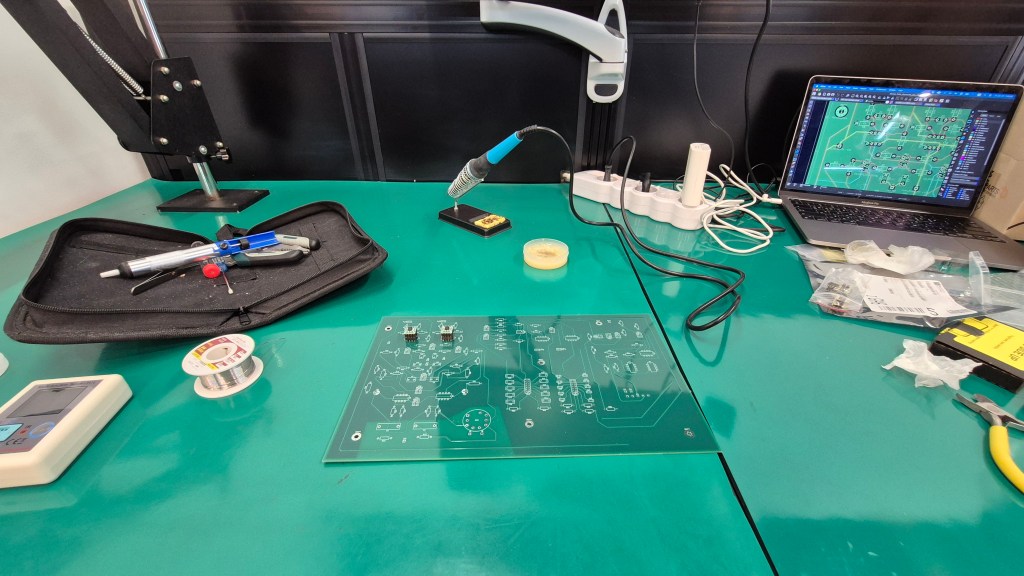
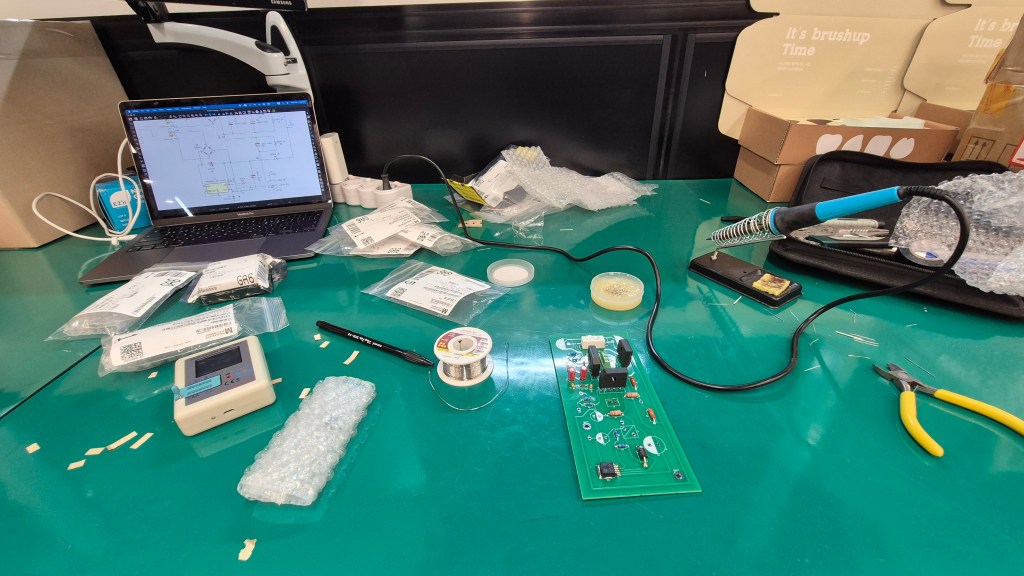
Once the boards arrive, all that’s left is soldering. For distributing multiple voltage rails, I had a custom toroidal transformer made. Since the design includes vacuum tubes, higher voltages are required—far beyond what a simple adapter can provide. Toroidal transformers also tend to be more resistant to ground-related noise.

In the next post, I’ll talk about the case fabrication and the final assembly process. I’ve already sent out the enclosure drawings, and since the PCB has been revised, the final installment may take a bit longer to publish. In the meantime, I’ll think about what topic to cover next.

See you in the next post!
DIY Audio Project #1 | Tube Saturator with Baxandall EQ (Part 2): Simulation

Hello, this is Jooyoung Kim — an audio engineer and music producer.

I ended up taking on way more classes than I expected this semester…
and honestly, just preparing for them is killing me. Haha. Every day feels like it disappears while I’m organizing lecture materials… 😢

And somehow, it’s already been almost two weeks…!

Today, following up on my previous post, I’d like to talk about running simulations.

Alright—let’s get started!


To run simulations in KiCad, you need a library file for each component.

The file extension is .lib.
As an example, here’s roughly what the library file looks like for a potentiometer (variable resistor) I created:

* Logarithmic Potentiometer Subcircuit (A-type taper)
.SUBCKT DUAL_POT_10K_LOG 1 2 3 4 5 6 SET=0.5 VALUE=10k
* Unit A (Log curve: 10% resistance at 50% rotation)
Ra1 1 2 {VALUE*(1-pow(10, -SET))+0.001}
Ra2 2 3 {VALUE*pow(10, -SET)+0.001}
* Unit B
Rb1 4 5 {VALUE*(1-pow(10, -SET))+0.001}
Rb2 5 6 {VALUE*pow(10, -SET)+0.001}
.ENDS

For components that are already built into KiCad, these libraries are applied automatically.

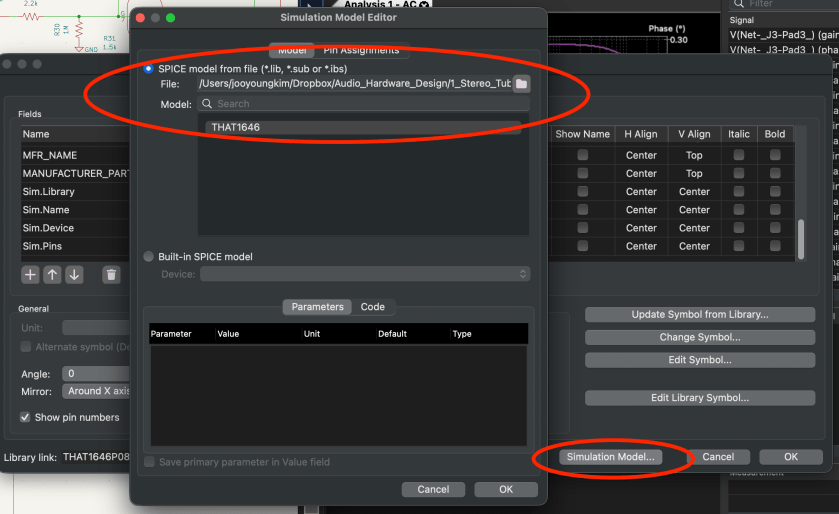
But for components that aren’t, you have to double-click the part, go to the component properties, click Simulation Model, and manually add everything… one by one.

Yeah… that part alone ate up a lot of time. 😅

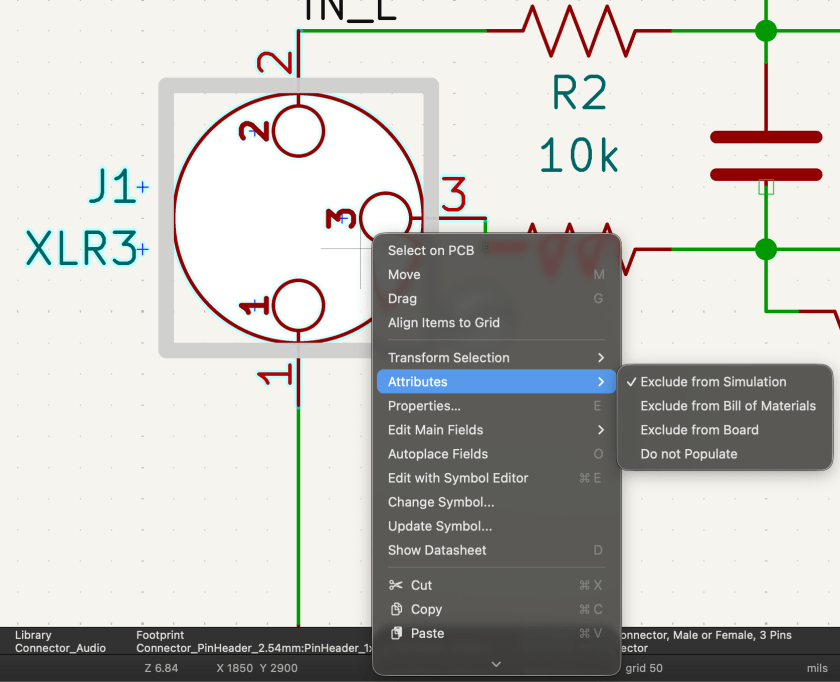
For the audio output stage, you can simply exclude the XLR jack from the simulation. If you connect it to ground through a large resistor, you can still simulate the audio signal at the output.

Simulation isn’t exactly… simple.

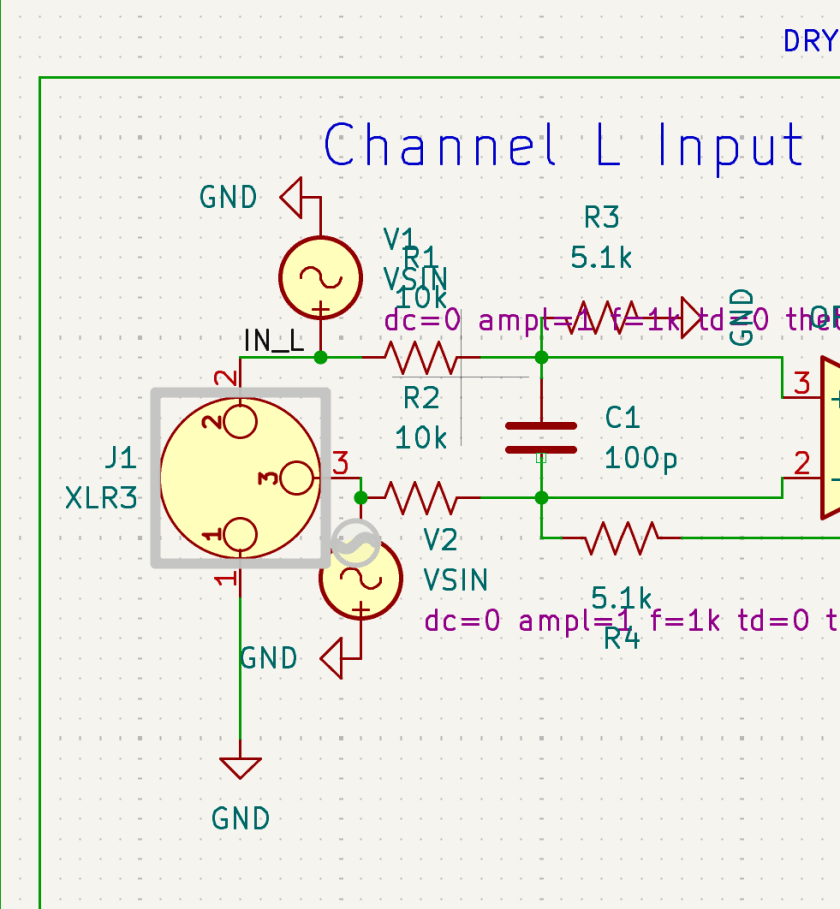
You need to supply DC where DC is required, and AC where AC is required. When checking frequency response and phase response, you’ll need to apply an AC sine signal to both the hot and cold sides.

What’s especially annoying is that every single pin must be connected. If even one pin is left floating, KiCad will keep throwing errors.

Personally, once the circuit is mostly finalized, I find it easier to copy it into a separate file and run simulations there.

Yes, you can exclude individual components from simulation, but…
if there’s an oscillator in the schematic, things get messy again when moving on to PCB layout. 😓

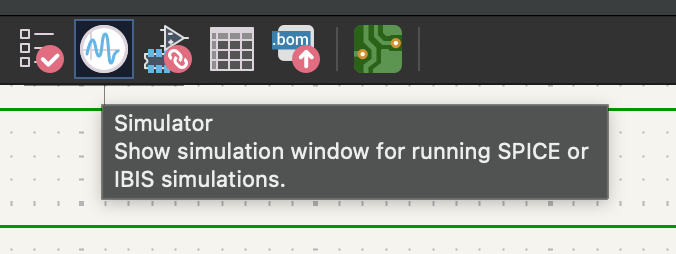
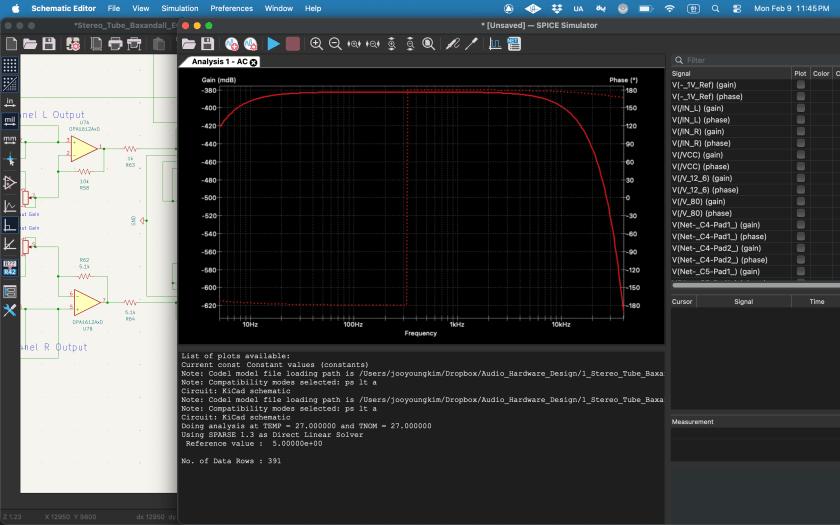
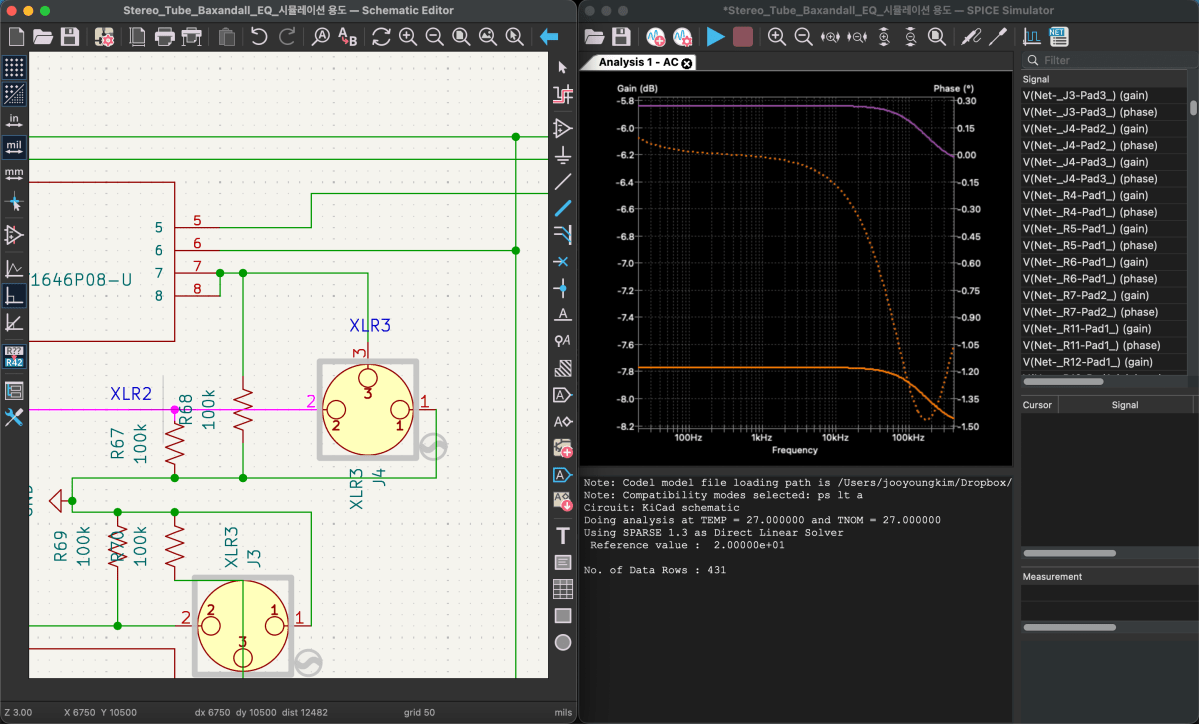
Anyway—once all the libraries are properly set up, you can click the oscillator-looking icon in the top-right corner. That will bring up the simulation window.

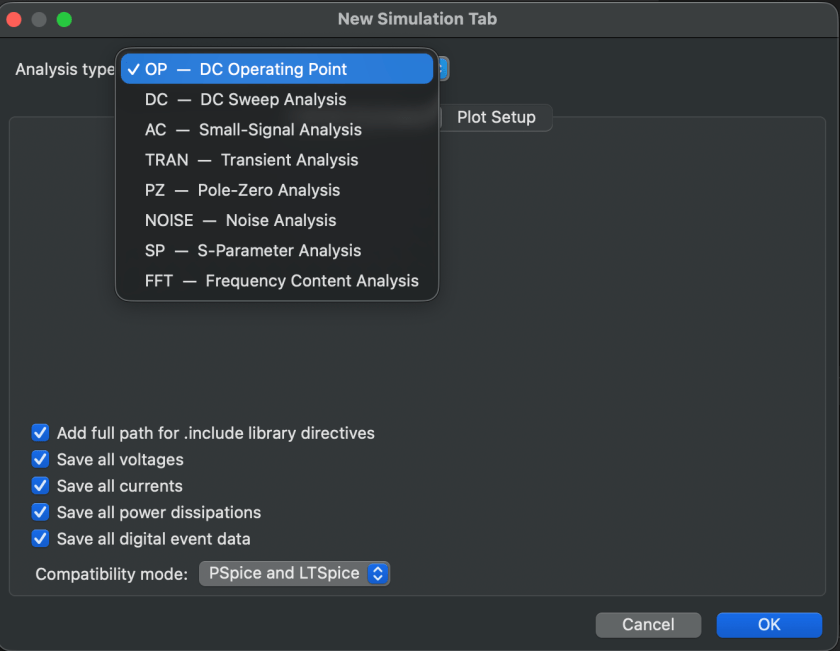
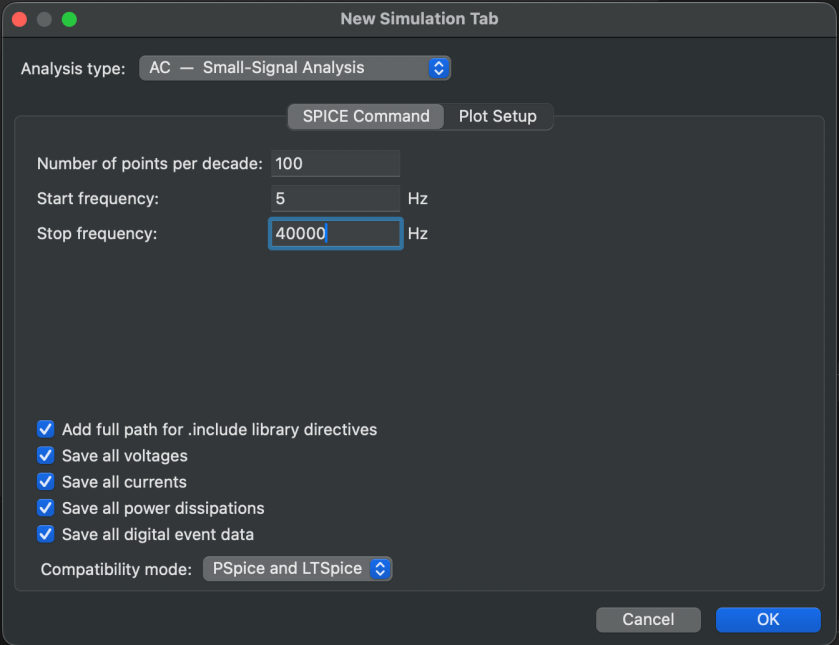
If you click the play button in the top-left, a settings window appears where you choose what and how you want to analyze.

Since we’ve attached an AC 1 V source to observe frequency and phase response,
we’ll select AC analysis. With just these settings, you can already see the response clearly.

Now, if playback actually works, it feels amazing. But realistically… it probably won’t work on the first try. (It definitely didn’t for me.) If it doesn’t run, something is disconnected, or a library is wrong—and you’re in for a lot of fixing.

One important thing: if you’ve broken out pins separately for XLRs or DC/AC wiring, you must make sure they’re excluded from the simulation.

You can do this by right-clicking, then selecting Attribute → Exclude from Simulation. The same Attribute settings can also exclude things from board or component configurations.

Simulation is critically important—and you shouldn’t only check the final stage. Especially for processors with multiple stages, you need to verify that the signal behaves correctly at each step.

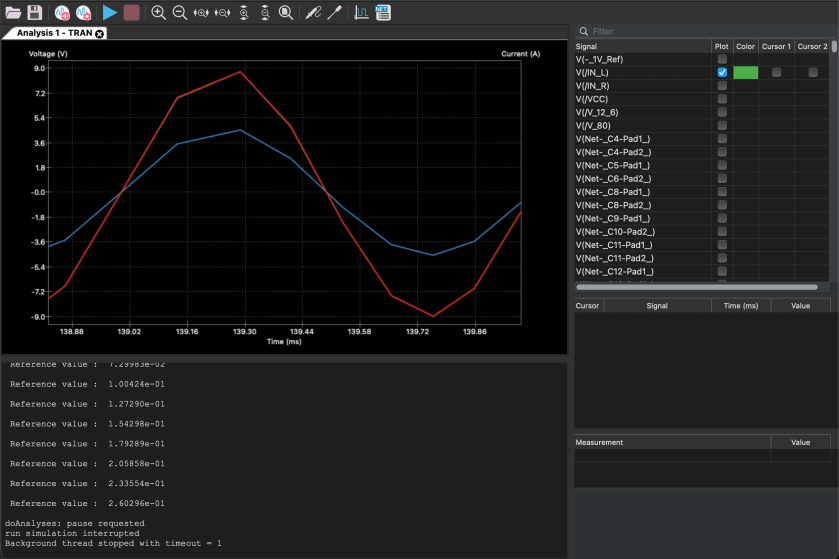
If impedance isn’t handled properly, the signal simply won’t flow the way you expect—and that will happen. Also, if you want to view signals in an oscillator-style analyzer, you’ll need to switch from AC analysis to Transient analysis.

This is also a convenient place to check for phase inversion.

And if you see signals that don’t line up properly here… welcome to modification hell. 😄 While running simulations to write this blog post… I literally just realized a major mistake.

I already ordered the PCB and finished soldering everything… so yeah, I’m screwed. Haha.

Resistor values are easy enough to change, but everything else was fine—until I noticed that bypassing the EQ flips the phase… and I only realized this now. 😭😭

The final THAT chip is a 16-pin device, but I used an 8-pin footprint and bought an adapter socket. Unfortunately, I placed two of them way too close together, so I’ll probably have to desolder and reposition them.

Including the power section, there must be around 180 components total… I’ll likely have to order a separate Ver.2 PCB later and migrate everything over. 😢

Anyway—this is exactly why simulation matters.

One more important thing: in simulations, op-amps are assumed to be ideal. Because of that, in Transient analysis, you won’t see distortion even at maximum dB levels. You need to keep this limitation in mind when interpreting results.

After all that, it’s time to move on to PCB design.

Apparently, this is often called “art” or “artwork.”

And honestly… there’s no grind quite like this kind of grind. If I include PCB layout as well, this post will get way too long, so I’ll wrap things up here for today.

See you again in the next post! 😊
DIY Audio Project #1 | Tube Saturator with Baxandall EQ (Part 1): Concept and Implementation in Digital

Hi! This is Jooyoung Kim, a mixing engineer and music producer. In the previous post, ‘Wrapping Up 2025‘, I mentioned that I was developing circuits for my personal audio hardware.

Now that the circuit design and simulation are finished and the components and PCBs have been ordered, I am writing this post to record the process—including the failures and successes along the way. To be honest, since the build isn’t finished yet, I can’t guarantee it will be a 100% success.

However, I thought it would be a great opportunity to share what is actually needed for the design process, starting from scratch. I want to explain things in a way that anyone, even those with zero prior knowledge, can easily follow along.

Let’s start!


Concepts

I really love the analog “tube” sounds. However, I don’t have any stereo tube saturator hardware. Also, I don’t have an EQ that can be used for mastering either.

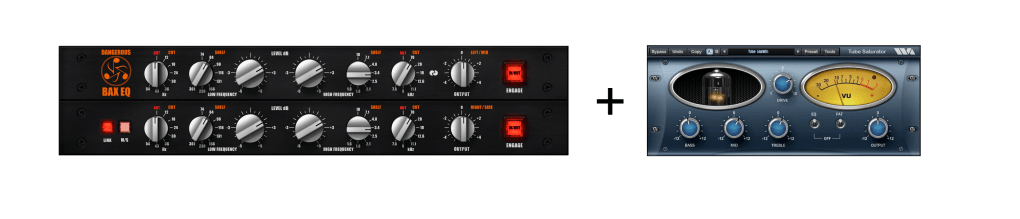
Therefore, I decided to make a stereo tube saturator with Baxandall EQ!

I used KiCad for this project. I highly recommend it because it allows you to seamlessly transition from circuit design to simulation, and finally to PCB layout. But that also means… once you’re done with the circuit, you still have two massive tasks waiting for you (hahaha…). I honestly had no idea what I was getting into until I finished the initial design!


Tube Parts

I already have two tubes (JJ Electronics’ ECC83) that were replaced from my Stam Audio SA-2A, so I wanted to use them for this project. Since I intend to use this gear in the mastering process, I decided to use just a single tube to drive the gain after the input stage.

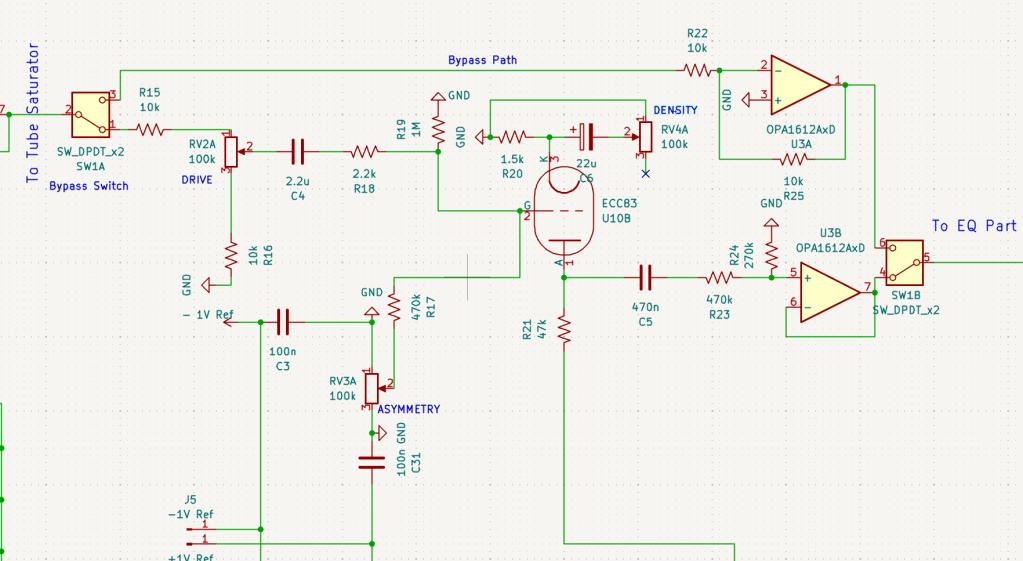
I also designed the tube stage with adjustable ‘ASYMMETRY’ and ‘DENSITY’ parameters.

ASYMMETRY (Bias Adjustment) parameter controls the grid bias (+/-1V spans in my circuit)) of the vacuum tube. By shifting the bias point, it allows the waveform to clip asymmetrically, which generates even-order harmonics.

DENSITY (Saturation & Body) parameter adjusts the amount of feedback at the cathode stage. By controlling the effectiveness of the bypass capacitor, it pushes the tube to hit its saturation point harder or softer.

To develop this parts, I utilized Gemini (the free version) and referenced the manual of the Wave Arts Tube Saturator Vintage plugin for inspiration. Even though I majored in physics, it’s a field of pure science focused on fundamental principles, so I didn’t really cover practical applications like circuit design. As I mentioned, I actually had very little in-depth knowledge of electronic circuits starting out. But those tools were a huge help! Seriously, use AI tools—they can bridge the gap!


Baxandall EQ Parts

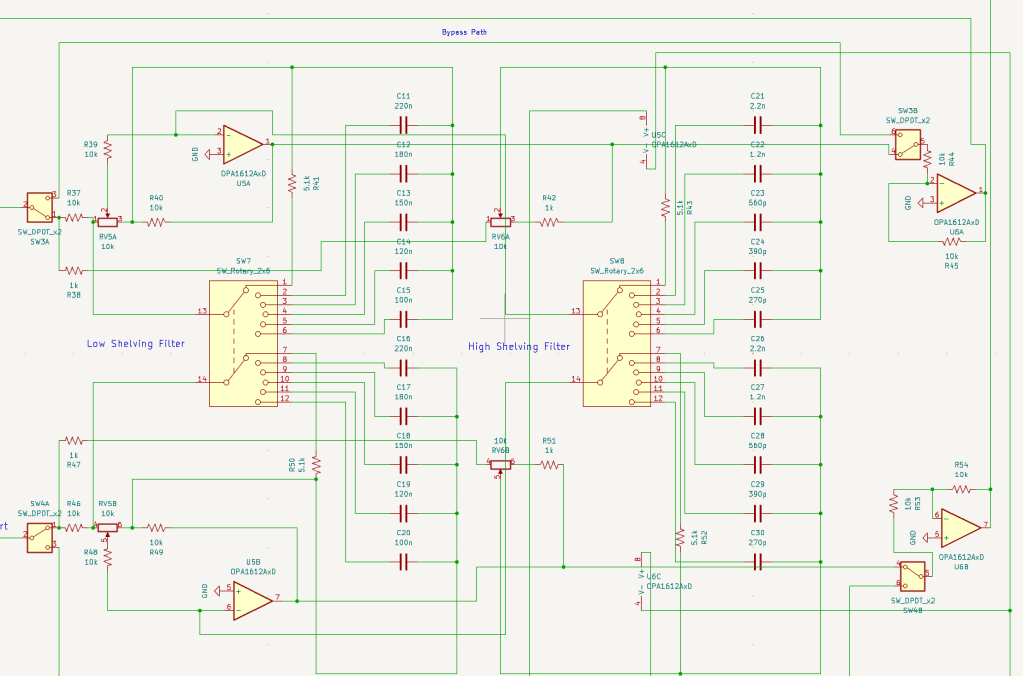
The EQ design is straightforward, consisting of two sections: Low and High. While the gain is continuously adjustable, I made the frequency switchable using rotary switches, allowing for precise and repeatable settings.

Baxandall EQ circuits are quite simple and well-documented, so you can easily find various schematics online to use as a reference.


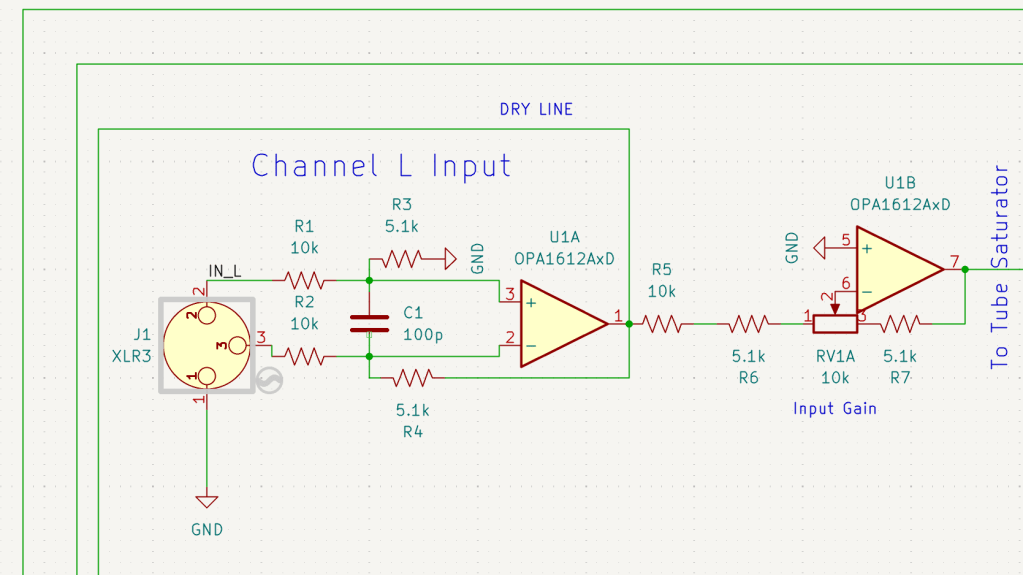
Input & Output Parts

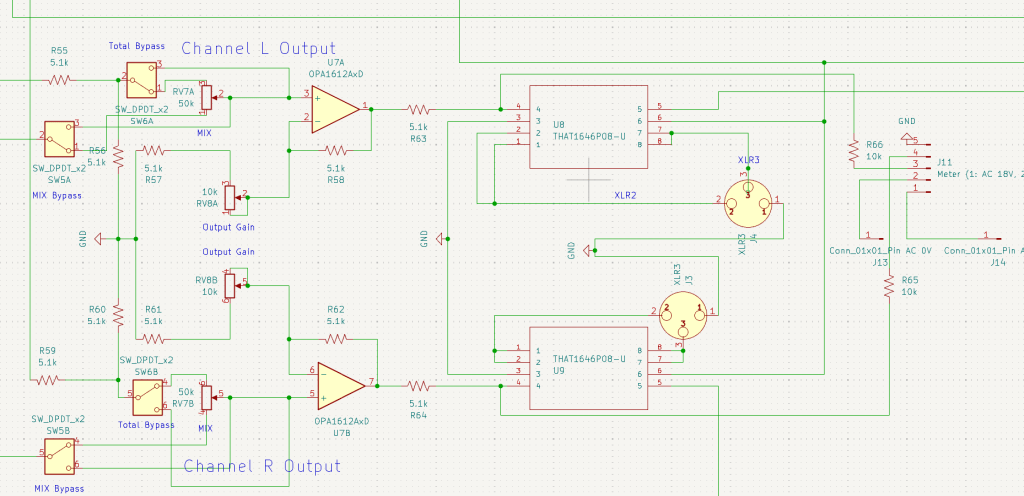
The input stage was simple enough, but the output stage was a total ambush. I wanted to include a Mix knob, a Mix Bypass switch, a Total Bypass switch, and an Output Gain knob. Trying to integrate all these features into the signal path turned into a bit of a mess!

After completing the overall design, I realized a crucial detail: every single stage had to be in the same phase! If the phases didn’t match, the Mix knob would be useless. So, I had to go back and triple-check the phase of every section after all the work was seemingly ‘done.’ I’ll talk more about this in my next post about the simulation process.


Power Parts

To ensure this hardware works in various environments, I included an adjustable voltage switch(220V-110V) in the power circuit. Since the design requires multiple voltage rails—250V, ±15V, +80V, +12.6V, and ±1V—I had to use a complex, custom-spec toroidal transformer. Managing all these different power requirements in one unit was quite a challenge!

Heat dissipation was a major concern for this build. I basically tortured Gemini with endless questions, forcing it to crunch the numbers until I was sure every component could handle the thermal load.

I’d like to dive deeper into the phase issues and buffers that need to be considered in the simulation, but it would make this post way too long. So, I’ll cover those in the next one.

See you then!

Korg Filter Ark Plugin Intro Sale (Until Jan 29)

Hello! This is Jooyoung Kim, an audio mixing engineer and music producer.

Recently, I found a very interesting filter effect plugin called the Filter Ark, made by Korg. Therefore, I requested an NFR (Not for Resale) code from Plugin Boutique for this review.

It was a really fancy and neat plugin. I think it is great to introduce this to music producers, electronic music makers, and electric guitar players.

If you purchase the plugin through the link included in this post, I’ll receive a small commission that helps support my work.

Ok.. Let’s start!


It’s quite difficult to download and register the product. You need to download the KORG Software Pass first, and then register the code you have.

After registering, you can download your plugin. They don’t use iLok, the common passkey used by many plugin companies. Therefore, you should not delete the KORG Software Pass program.


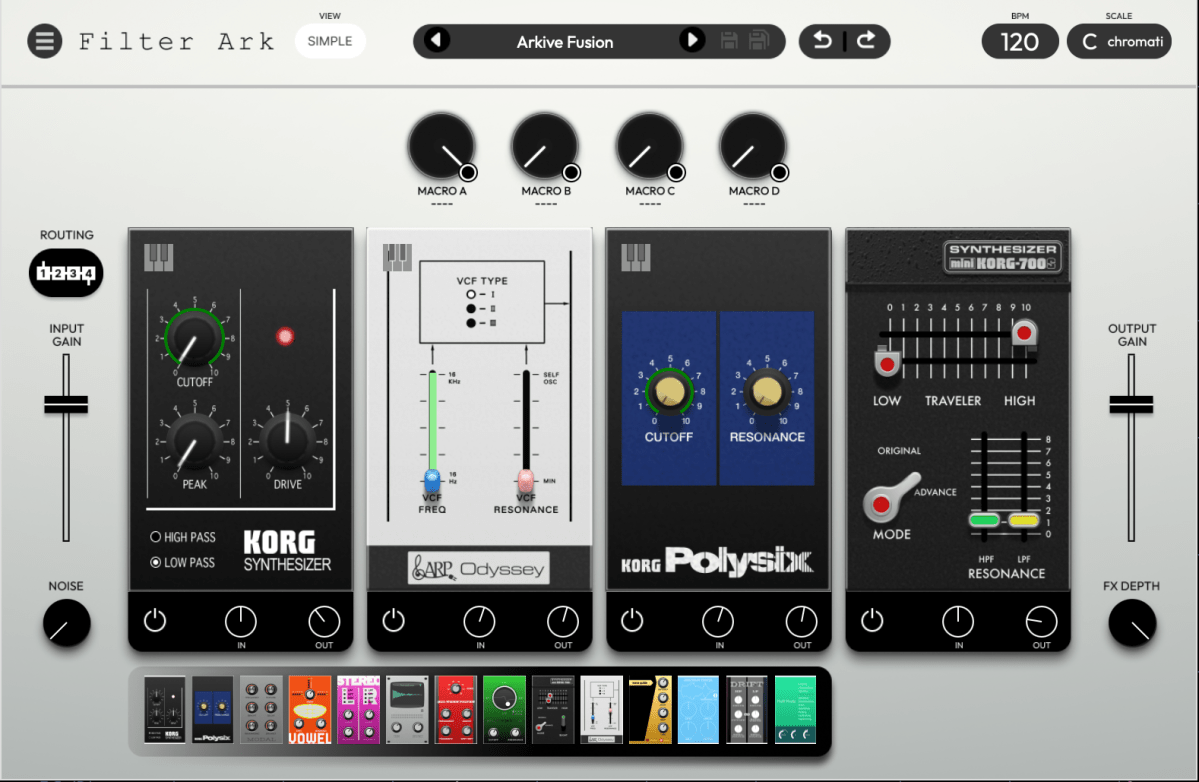
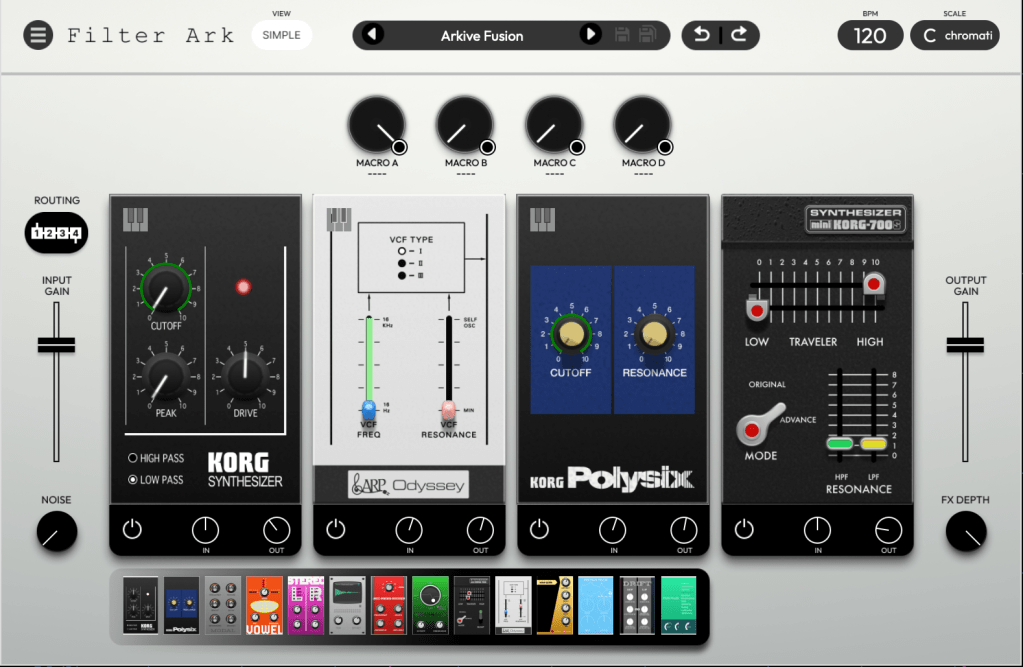
Looking over the plugin, you can see its clean, modern design. There are several modules at the bottom of the interface that resemble guitar pedals. Interestingly, these are all different types of filters!

Simple descriptions of these pedals are shown in the table below.

Filter NameCategoryKey Characteristics
MS-20Legendary AnalogRecreates the iconic 12dB/oct filter with distinctive distortion and powerful resonance.
PolysixLegendary AnalogA warm and smooth 24dB/oct Low Pass Filter known for its musicality.
miniKORG 700SLegendary AnalogFeatures the unique “Traveler” sliders (HPF/LPF) for thick, vowel-like textures.
ARP OdysseyLegendary AnalogIncludes all three revisions (Rev 1/2/3) with sharp, aggressive resonance characteristics.
ModalModern / PhysicalA physical modeling resonator that simulates the vibration of strings or metal plates.
VowelModern / FormantA formant filter that morphs between three vowels to create human-like vocal sounds.
Wave GuideModern / PhysicalBased on volca drum algorithms, ideal for creating metallic tubes or string-like plucks.
Spectrum TracerModern / ExperimentalCaptures frequency characteristics from audio files and applies them to the input signal.
MorphingModern / VariableAllows seamless morphing between Low Pass, Band Pass, High Pass, and Band Reject modes.
StereoUtility / StereoIndependent filter settings for Left and Right channels to create wide stereo imaging.
DriftUtility / StereoFeatures dual LPF/HPF with a ‘Delta’ parameter to add organic, drifting movement.
IR (Impulse Response)Modern / ConvolutionLoads IR files to simulate realistic spaces, speaker cabinets, or Lo-Fi equipment.
All PassModern / PhaseShifts the phase of the signal to create Phaser-like notches and unique tonal shifts.
Multi ModeVersatile / UtilityA flexible filter capable of everything from precise EQ-ing to aggressive sound shaping.

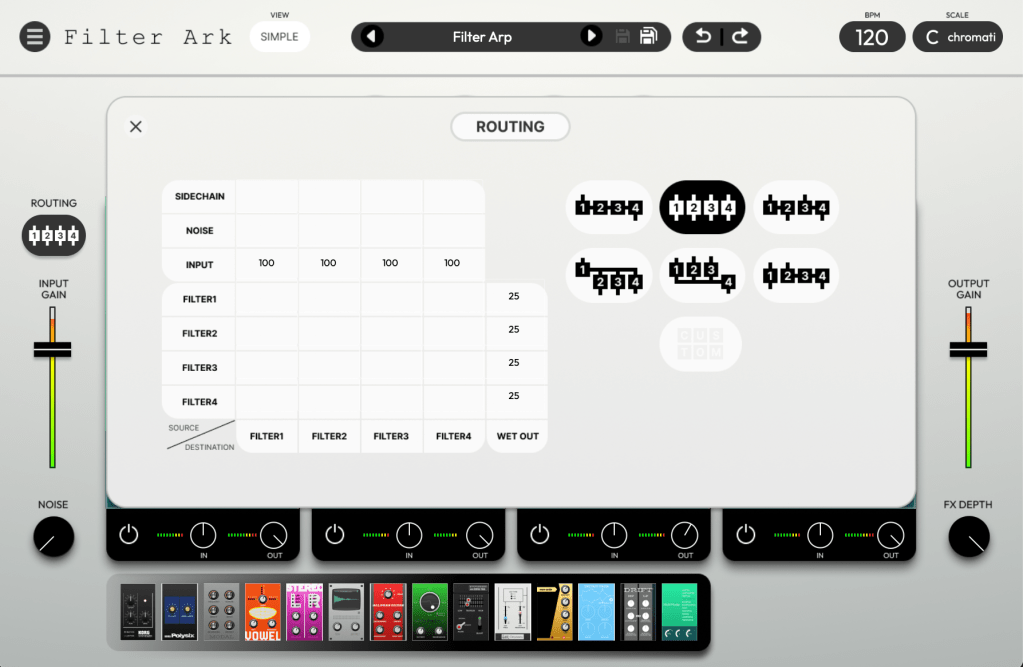
Four slots are available, and their routing can be adjusted.

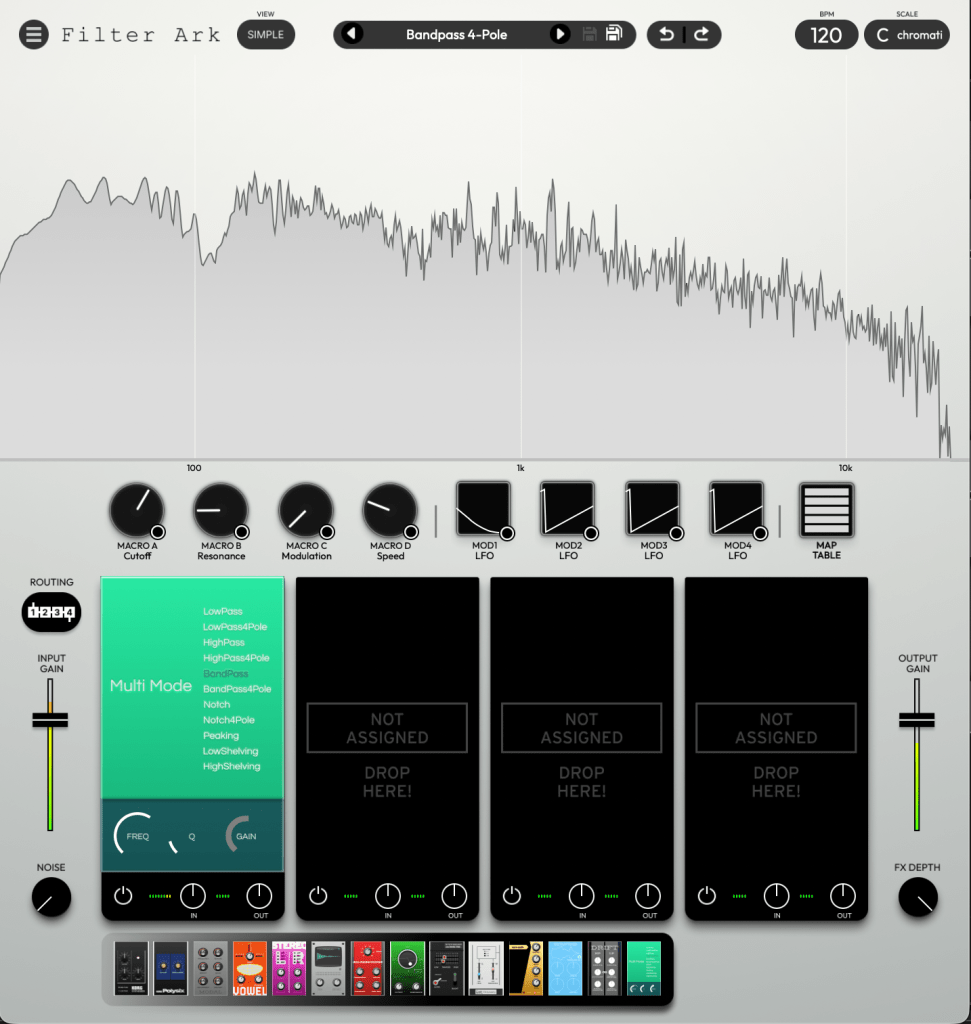
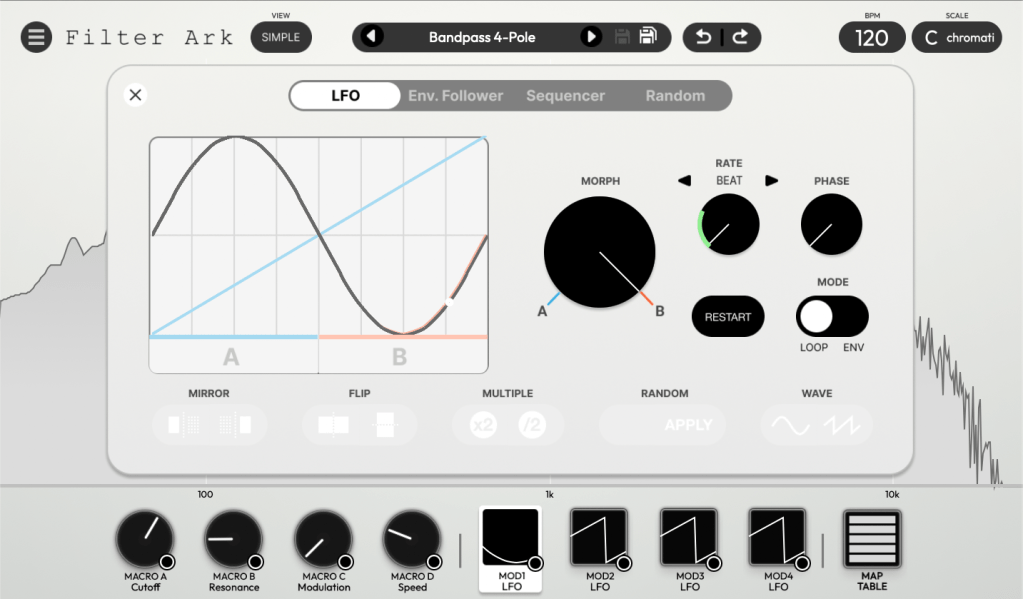
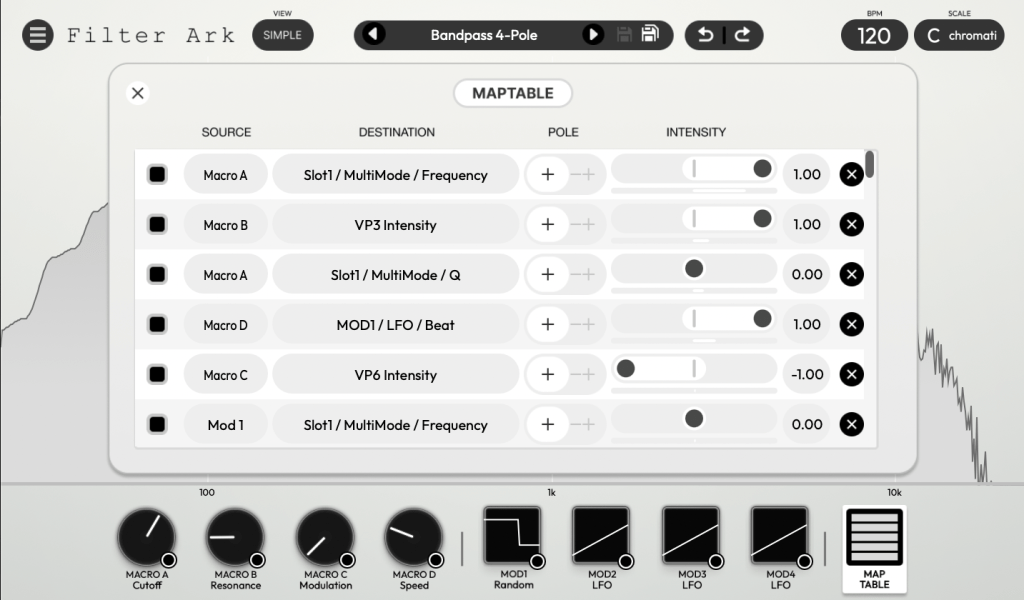
Clicking the VIEW (SIMPLE) button displays the frequency response graph. This interface allows you to intuitively adjust macro controls and modulation assignments.

These functions help composers shape their sounds with greater precision and nuance. Modern composers often utilize multiple filters to create dynamic movement in their music. From this perspective, the wide array of filters and features in Filter Ark streamlines the sound design process, saving composers the time and effort typically required to craft complex textures.

It is hard to analyze all the filters, but you can listen to the sounds via the link above.

At just $53.9 (tax included), it’s quite affordable. I highly recommend this plugin to composers and music producers who work with heavy synthesizers or complex sound design.

That’s all for today! See you in the next post.